How to Change the Sort Order of Your iPad & iPhone Contacts
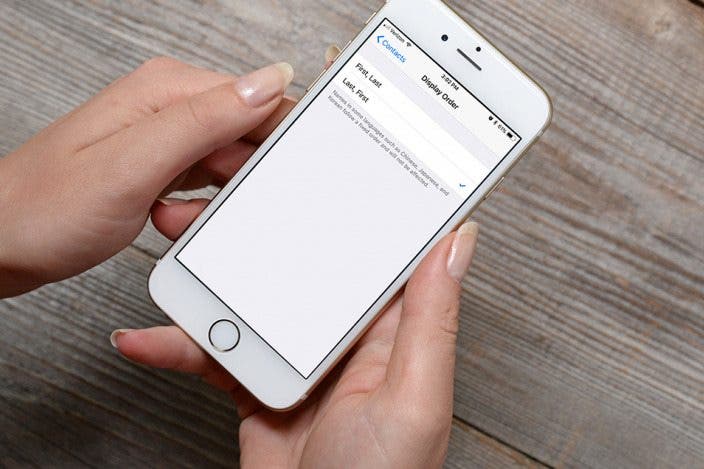
You can organize your iPad and iPhone contacts in first name/last name order, or go with last name/first name.

Jim Karpen has been writing about technology since 1994 and brings decades of experience with Apple products, along with a Ph.D. in literature and writing.
Learn More Jim Karpen has been writing about technology since 1994 and brings decades of experience with Apple products, along with a Ph.D. in literature and writing.
Learn More
The Contacts app sorts your contacts into last name, first name order, and displays contacts in first name, last name order. To organize your iPhone or iPad contacts differently, reverse these settings.
Related: How to Create Contact Groups on iPhone for Sending Group Emails & Messages
We've already shown you how to sync iPhone Contacts to your Mac, and how to share contact information via text message. For more great iPhone tutorials, check out our free Tip of the Day. Now, let's go over how to change the alphabetical sort order of your iPhone Contacts and contact cards.
How to Change the Sort Order of Your Contact Names
- Open the Settings app.
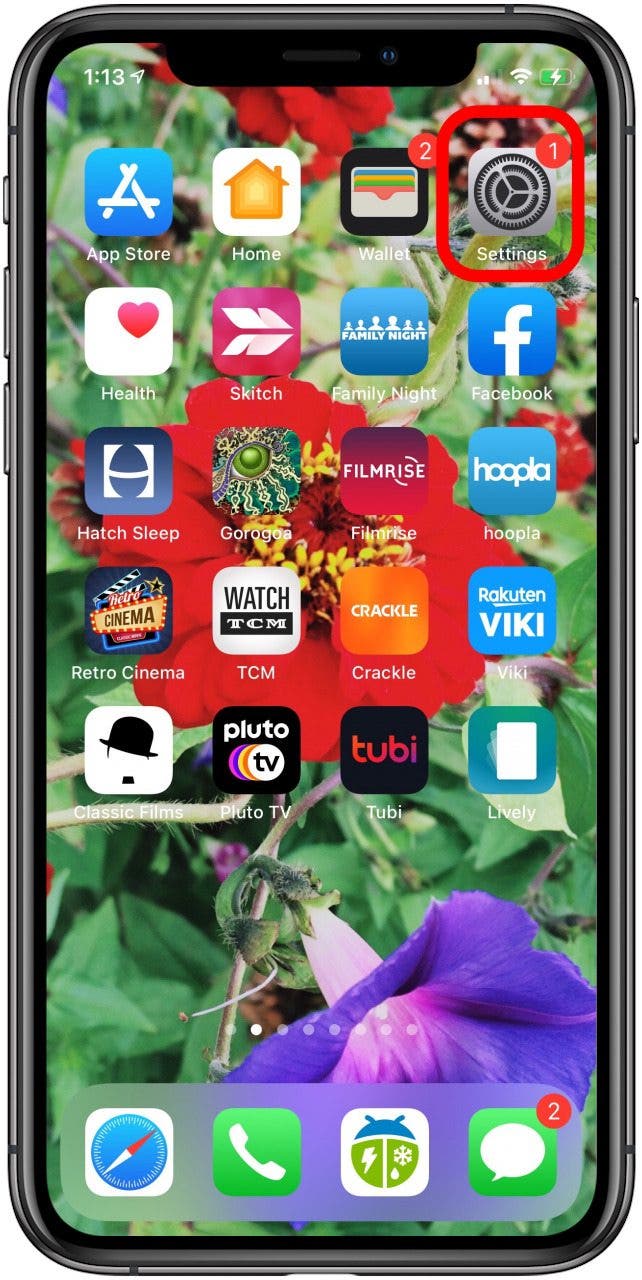
- Tap Contacts.
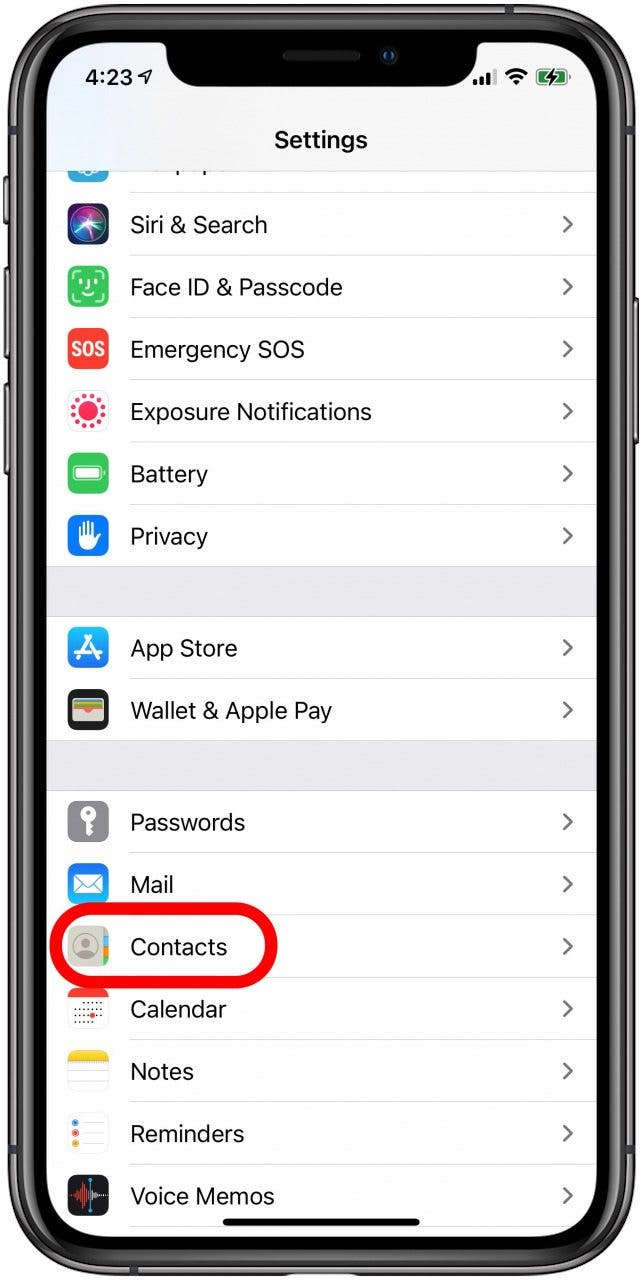
- Tap Sort Order.
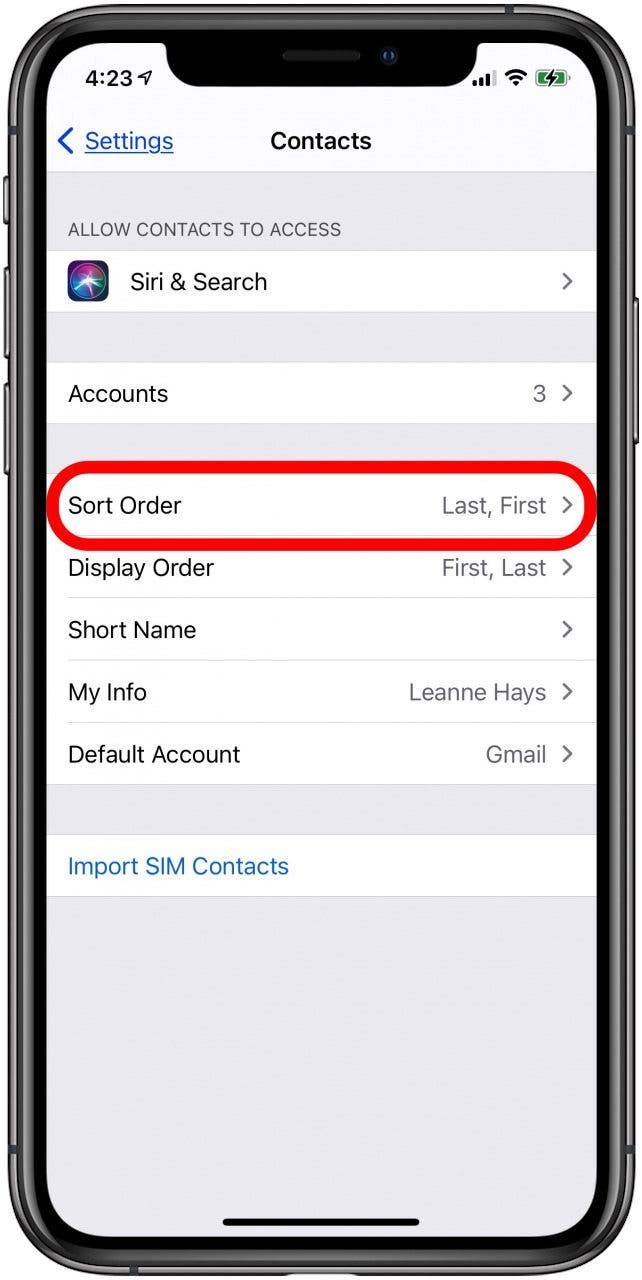
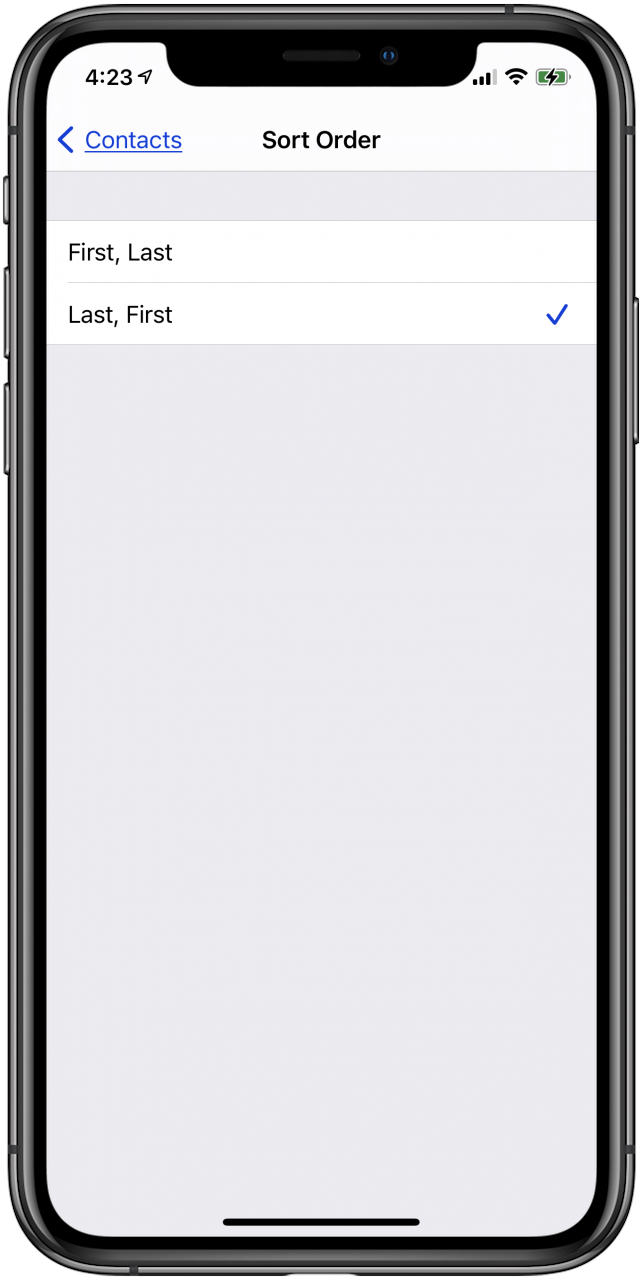
- The default option is Last, First. To change the order, tap First, Last.
- Tap Display Order to change how contact names are written on contact cards.
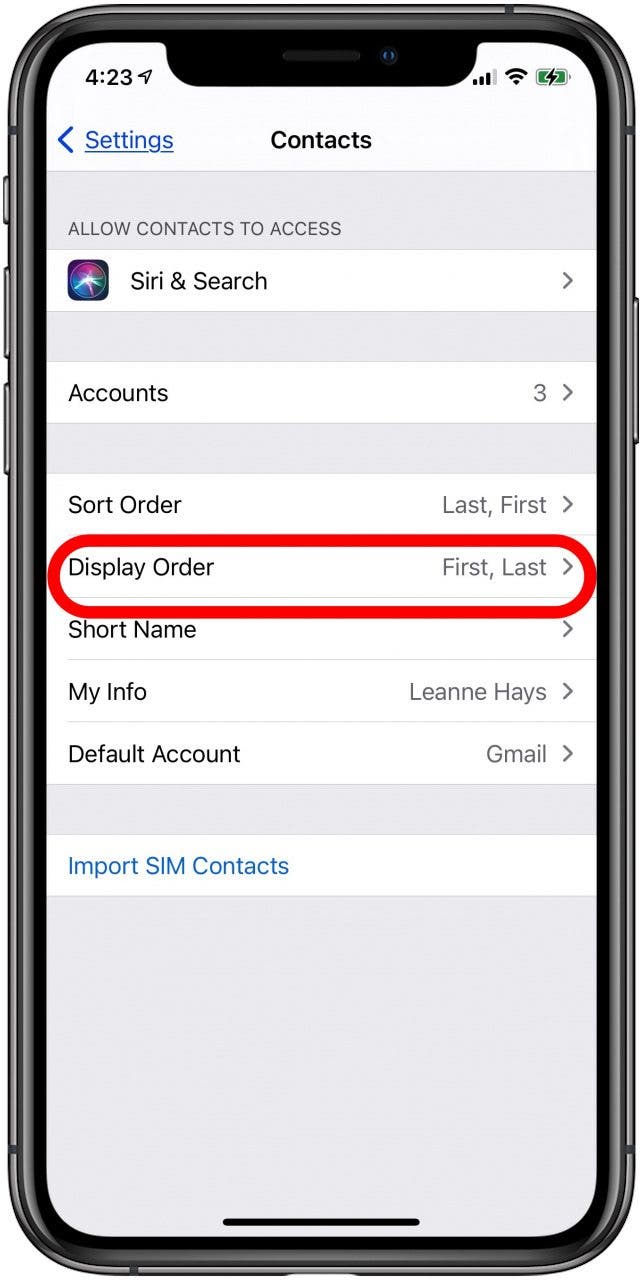
- Tap Last, First to display each person's contact card in last name/first name order.
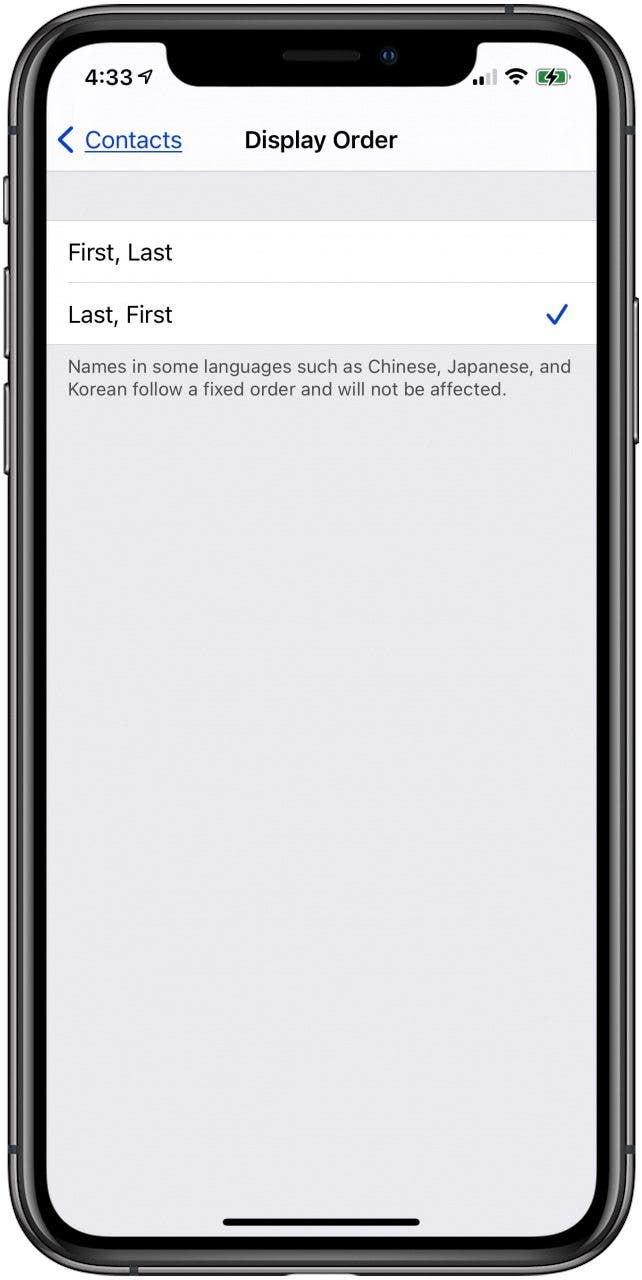
Note that since Chinese, Japanese, and Korean names have a fixed order, the order of those names won't change.

Every day, we send useful tips with screenshots and step-by-step instructions to over 600,000 subscribers for free. You'll be surprised what your Apple devices can really do.


 Ashleigh Page
 Rhett Intriago
 Amy Spitzfaden Both
 Leanne Hays
 Rachel Needell
 Olena Kagui

 Cullen Thomas