How To Tell Siri to Set an Alarm on Weekdays Only

Jim Karpen has been writing about technology since 1994 and brings decades of experience with Apple products, along with a Ph.D. in literature and writing.
Learn More Jim Karpen has been writing about technology since 1994 and brings decades of experience with Apple products, along with a Ph.D. in literature and writing.
Learn More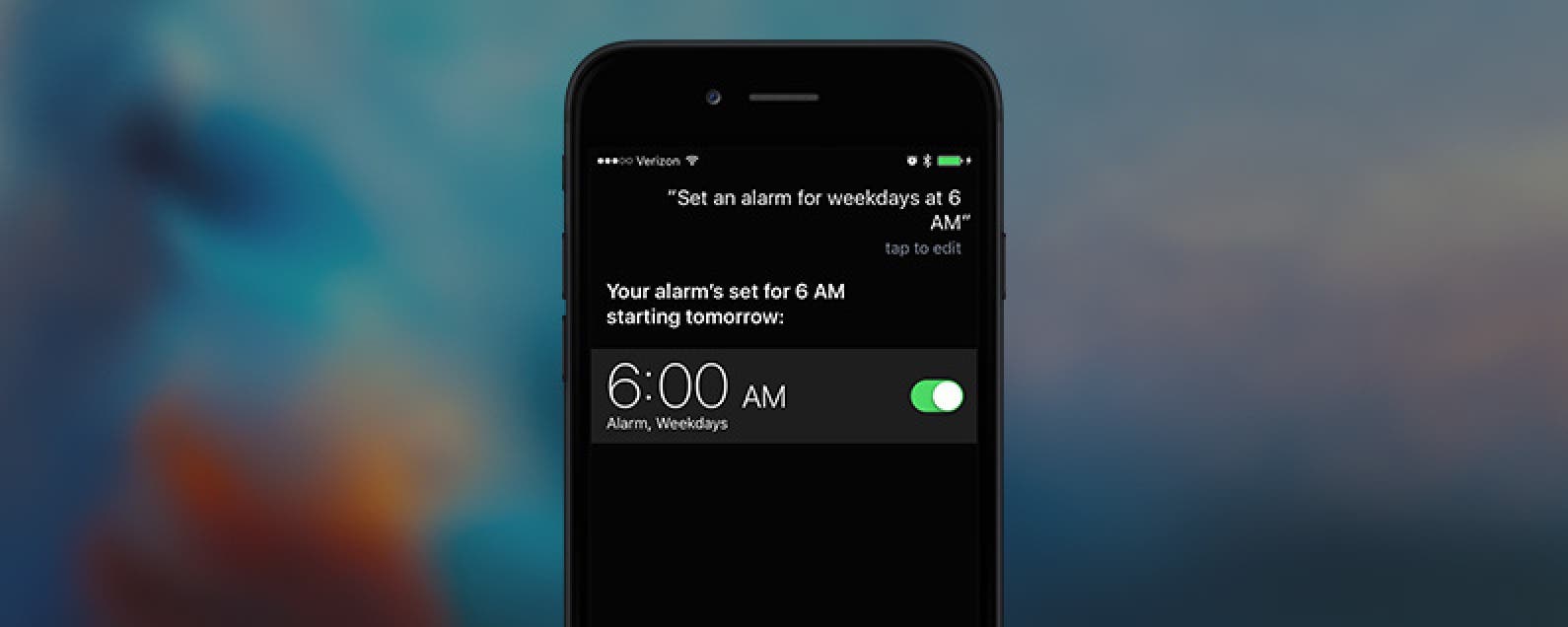
You likely find it convenient to use Siri to set an alarm just by saying, "Set an alarm for tomorrow morning at 6 am." However, you can also instruct Siri to set an alarm for more than a single day, including setting the alarm for every day or for weekdays only, which is significantly faster than checking every day individually when manually setting an alarm in the clock app.
Related: The Best of Siri: 12 Things You Didn’t Know You Could Do
To set an alarm for every day:
-
Activate Siri by holding the Home button; if you have a phone with Hey Siri enabled, you can activate Siri that way as well.
-
Say, "Set an alarm for every day at 6 a.m." Siri will respond, "OK, I set an alarm for 6 a.m. starting tomorrow."
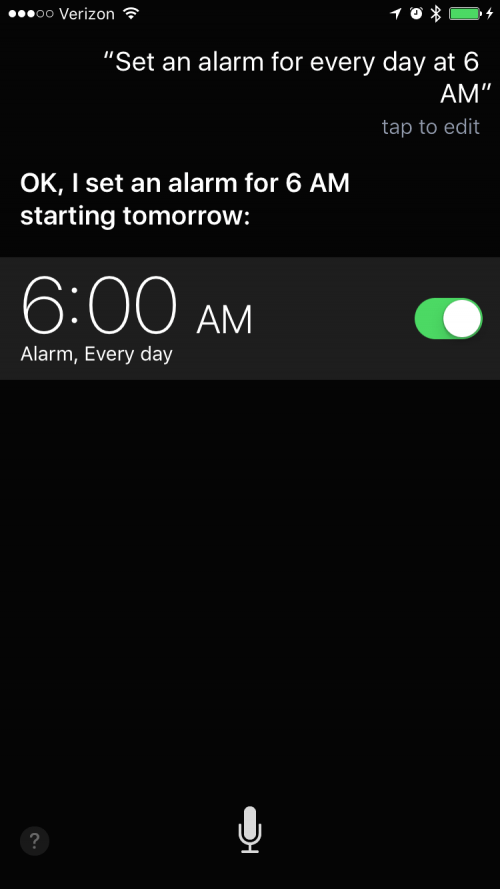
To set an alarm for weekdays only:
-
Activate Siri by holding the Home button; if you have a phone with Hey Siri enabled, you can activate Siri that way as well.
-
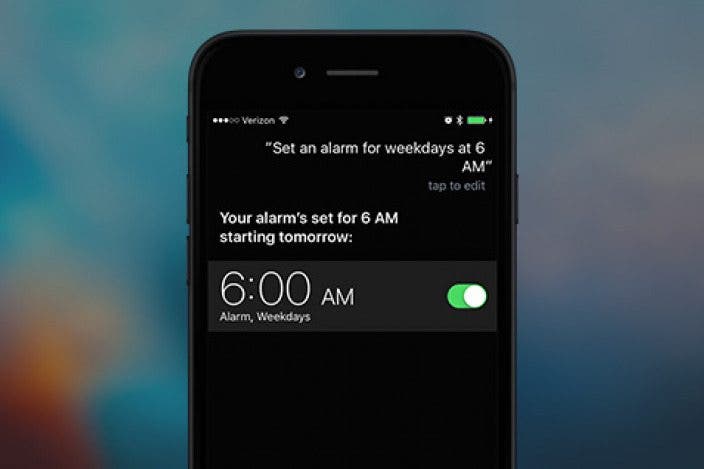
Say, "Set an alarm for weekdays at 6 a.m." Siri will respond, "Your alarm's set for 6 a.m. starting Monday." It might also say "starting Tomorrow," if tomorrow is a weekday.
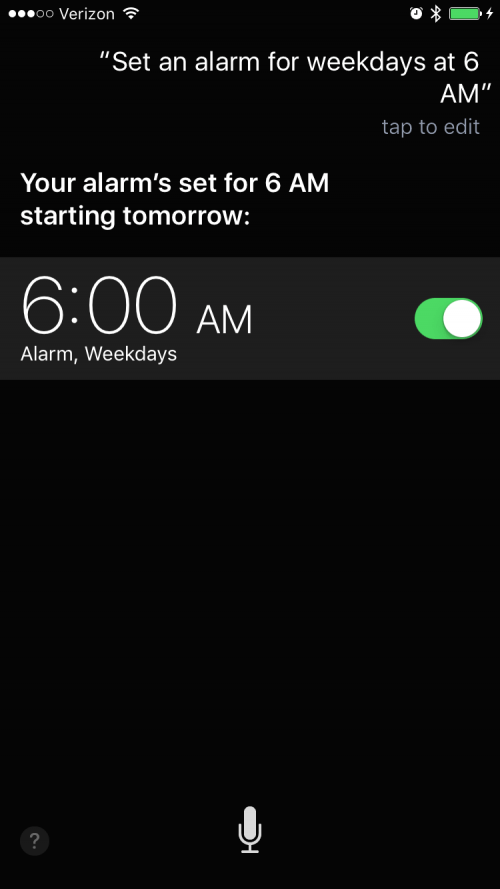 To see your alarms, open the Clock app and tap Alarms at the bottom of the screen.

Every day, we send useful tips with screenshots and step-by-step instructions to over 600,000 subscribers for free. You'll be surprised what your Apple devices can really do.

 Rachel Needell
 Amy Spitzfaden Both
 Cullen Thomas
 Rhett Intriago



 Olena Kagui