How to Forget a Wi-Fi Network on Mac
Remove saved Wi-Fi networks from your Mac to stop auto-connecting to the wrong network.

As an online tech educator, Jivan is passionate about making complex topics approachable through clear, engaging instruction, with a focus on practical skills and emerging AI education.
Learn More As an online tech educator, Jivan is passionate about making complex topics approachable through clear, engaging instruction, with a focus on practical skills and emerging AI education.
Learn MoreYour Mac does a lot behind the scenes. One cool feature is keeping track of all the Wi-Fi networks you connect to, remembering the passwords, and automatically re-connecting the next time you're in range. Most of the time, this is great. But there may be an occasion when it’s not. Maybe there are multiple networks in range, and your Mac is connecting to the wrong one. We'll cover how to remove a Wi-Fi network from your Mac, as well as how to keep a saved network but stop your computer from automatically connecting.
Related: How to Sync Messages from iPhone to Mac
How to Forget Wi-Fi Network on Mac
If your Mac keeps connecting to a Wi-Fi network and you don’t want it to, you can either remove the saved network or stop your computer from auto-connecting to the specific Wi-Fi network. Just keep in mind that if you remove a saved network, you will need to re-enter the password if you ever want to log back in. For more handy Mac tips, consider signing up for our free Tip of the Day Newsletter. Now, here's how to forget a network on your Mac and disable auto-connect for networks you don't often need but want to save:
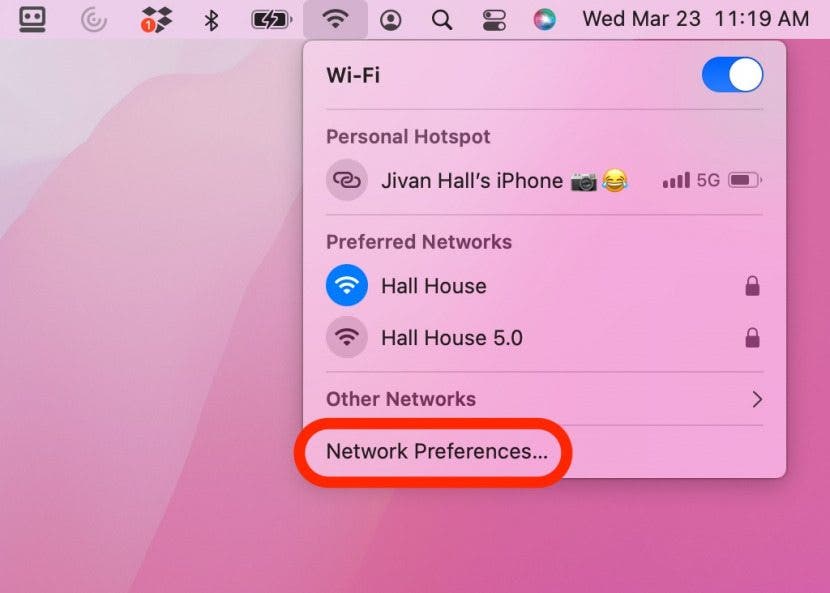
- Click the Wi-Fi icon in the top-right corner.

- Select Network Preferences.
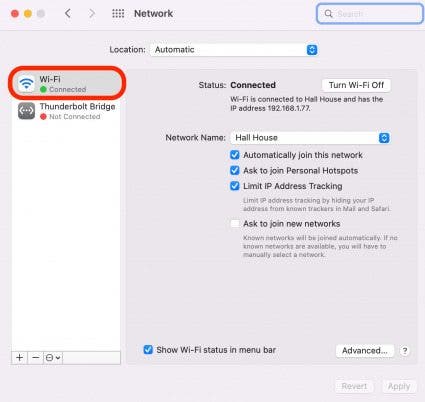
- Click Wi-Fi in the left panel.
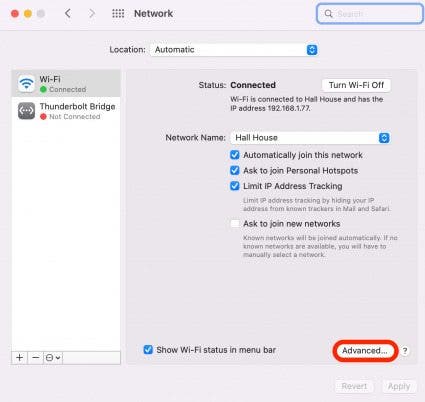
- Click Advanced.
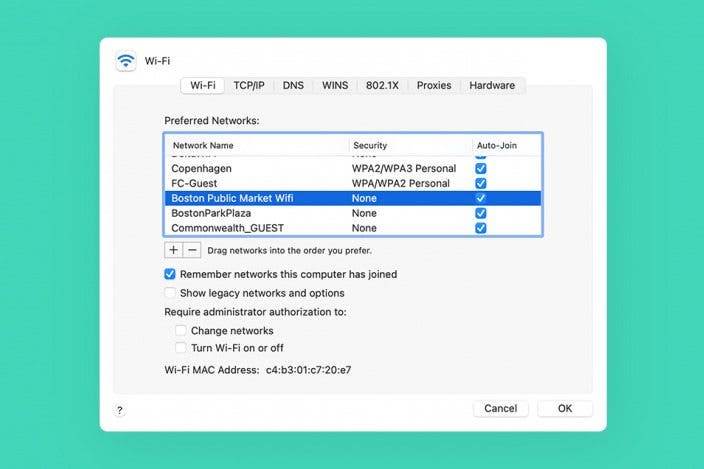
- You will see a list of all the networks you have connected to in the past.

- Scroll through the list and click a network you want to forget.
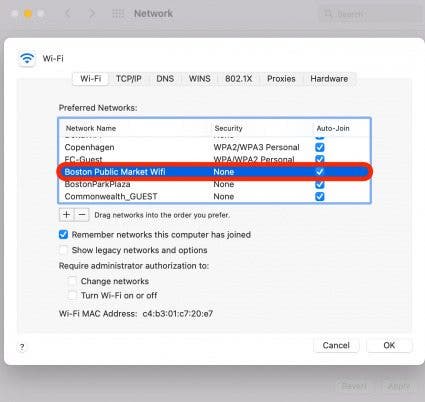
- If you no longer need this Wi-Fi network, click the minus button to remove it from your Mac.

- If you want to keep the network on your list, but just disable the auto-connect feature, click to uncheck the Auto-Join box.
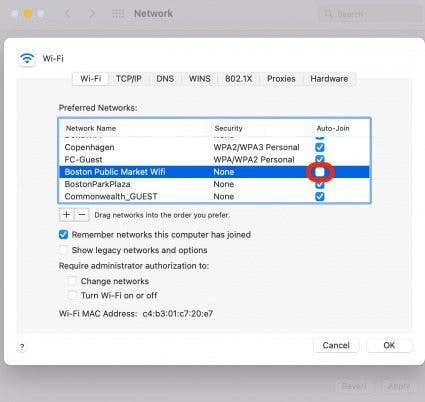
- To delete multiple networks at the same time, click on one, then hold down the Shift key and click another network to highlight a block. Now click the minus button to delete all selected networks.
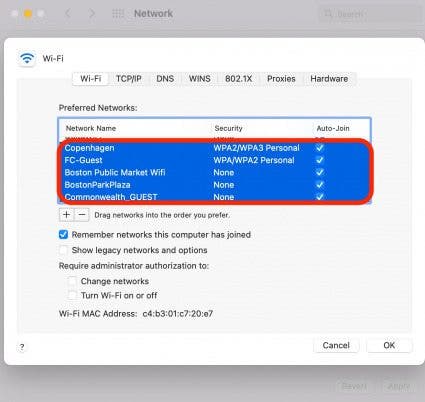
That's all there is to it! As a final tip, your Mac prioritizes which network to connect to first based on the order of your Wi-Fi log. Click and drag the networks up or down to change the order. If multiple networks are in range, your Mac will try the one at the top first.

Jivan Hall
Based in sunny San Diego, California, Jivan spends as much time as possible outdoors, with his two young sons, playing sports, chasing waves, and continuing the never-ending quest for the perfect fish taco.

 Leanne Hays
 Rhett Intriago
 Olena Kagui
 Rachel Needell

 Cullen Thomas
 Ashleigh Page

 Donna Schill