How to Find Passwords on Your iPhone

Erin has years of experience in writing, editing, research, and coaching, bringing strong communication expertise and a passion for Apple technology to iPhone Life.
Learn More Erin has years of experience in writing, editing, research, and coaching, bringing strong communication expertise and a passion for Apple technology to iPhone Life.
Learn MoreWhat to Know
- The iPhone Passwords app is Apple's native password manager that remembers all your passwords for you.
- To find your passwords, simply open the Passwords app and select All to view your passwords.
- You can also use Siri to quickly access all your passwords or even find a specific password.
These days we have so many logins to different apps and websites that it’s impossible to keep track of them all. Thanks to the Passwords app, you can view saved passwords on your iPhone instead of having to remember them. The Passwords app securely stores your login information for you and allows you to access the passwords from your other devices. We’ll show you two different methods to access your iPhone's password manager so you can always find your login credentials when you need them.
What is Passwords on Your iPhone?
The Apple Passwords app saves your app and Safari passwords securely and can be used across devices. This makes logins easy for you, as the iPhone password manager retrieves and autofills them whenever they’re needed. For even greater convenience, the Passwords app syncs login info between all your devices, so you don’t have to update passwords manually on your other Apple gadgets. iCloud is the key to all of this, so make sure you know what to do if you forgot your iCloud password.
How to Find Saved Passwords on iPhone
So where are passwords stored on the iPhone? If you prefer to look up your passwords manually, the iPhone password manager allows you to look them up in the Passwords app. For more great security-related tips and tricks, be sure to check out our free Tip of the Day newsletter! Now, here's how to see saved passwords on your iPhone:
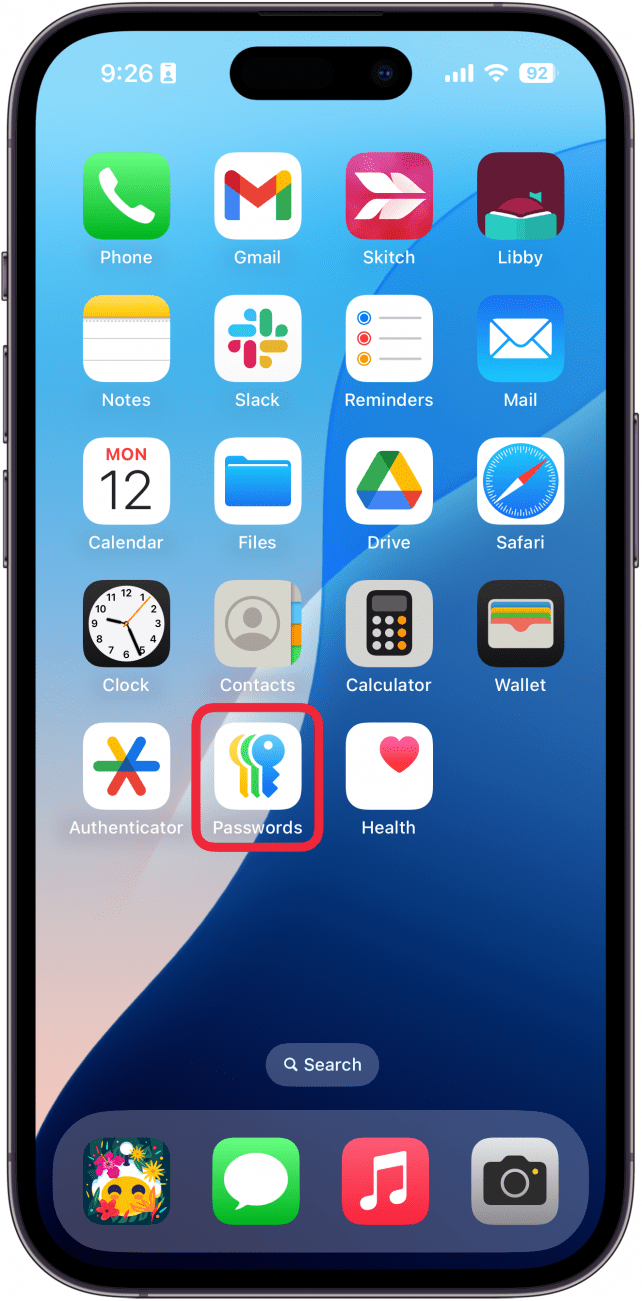
- Open the Passwords app.
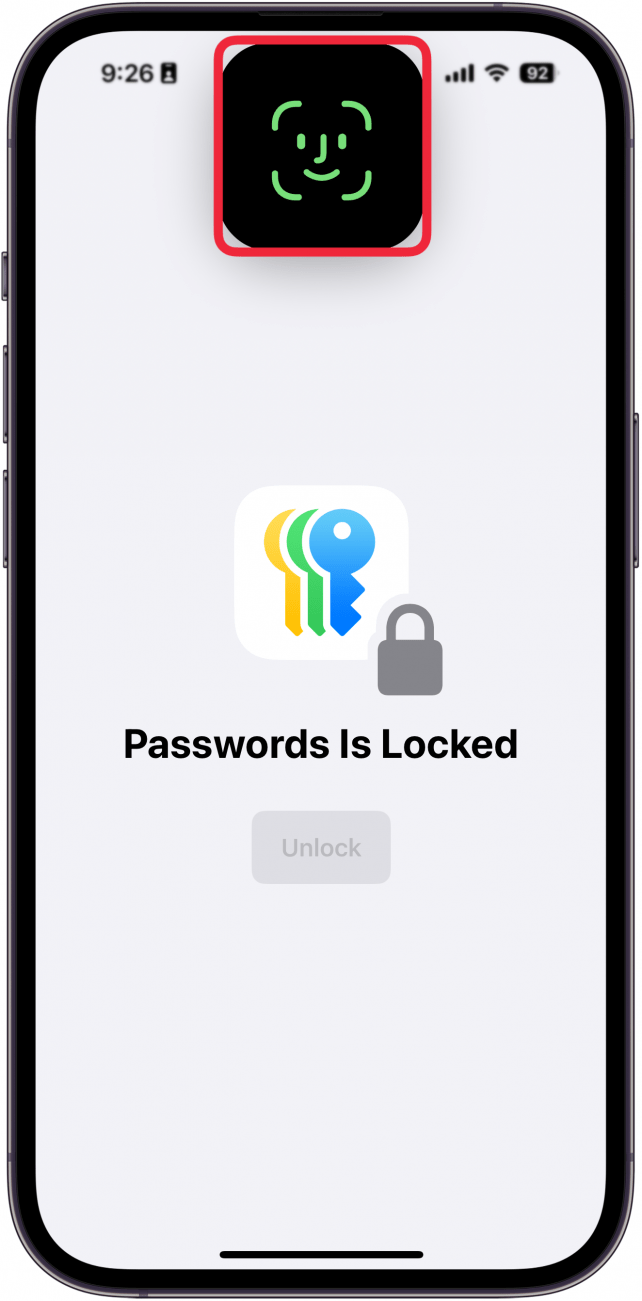
- Use Face ID when prompted.
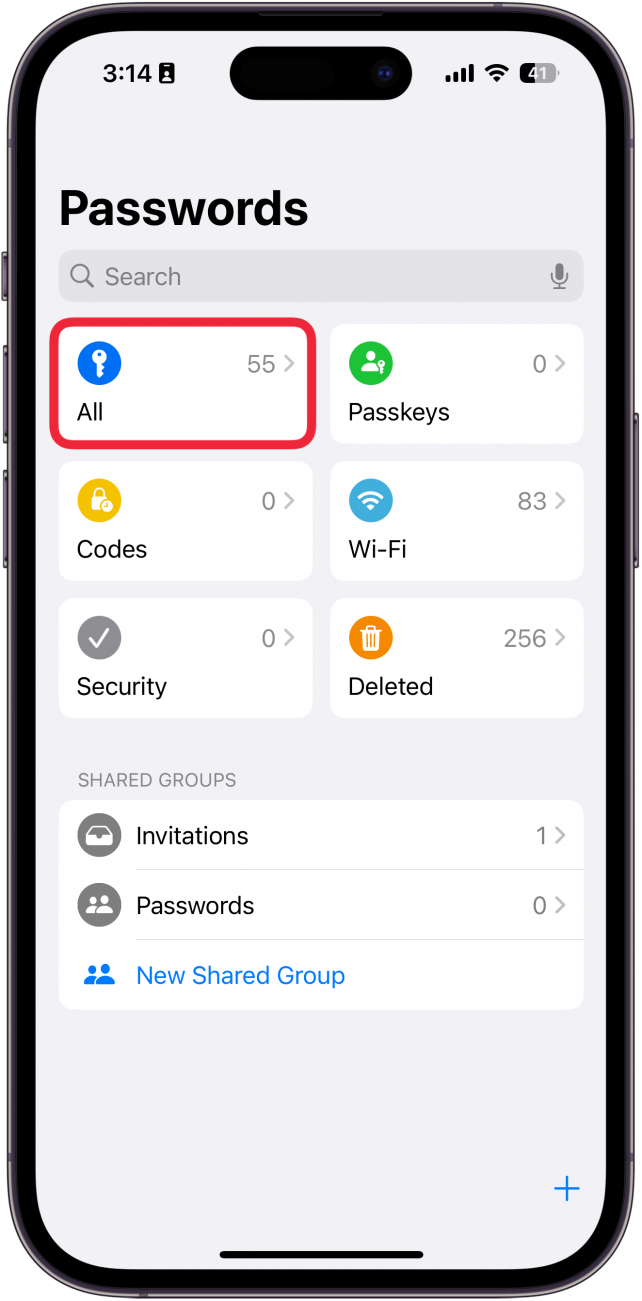
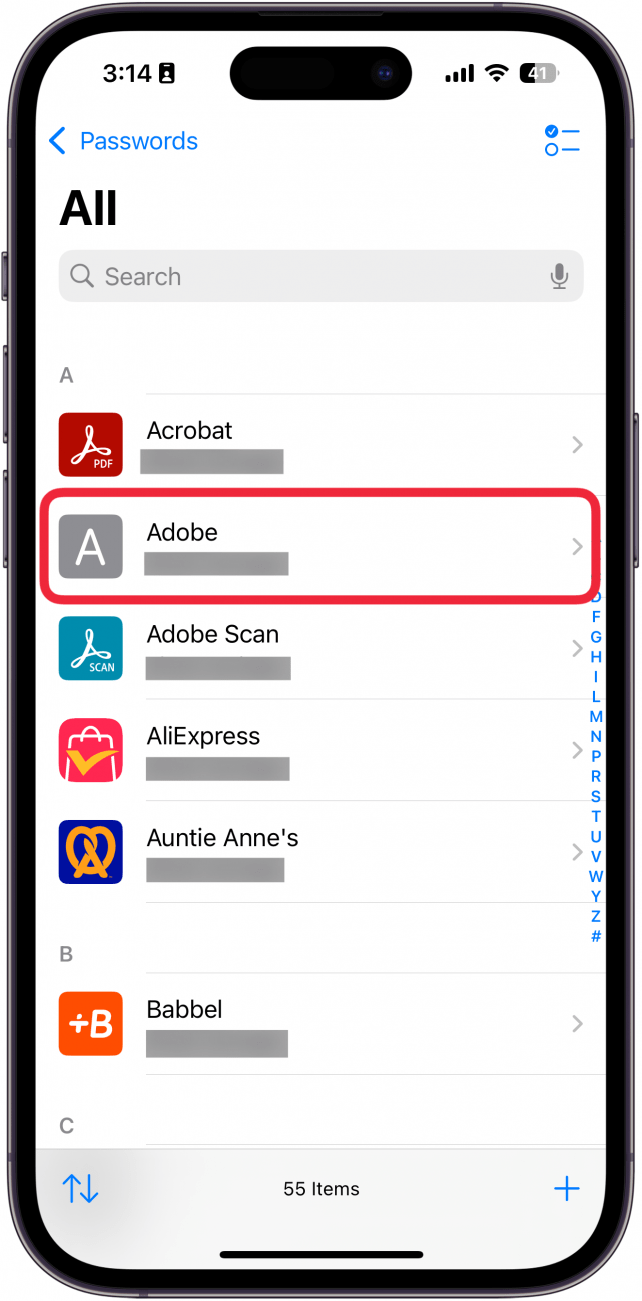
- Tap All.
- To see a password, select the appropriate website or app.
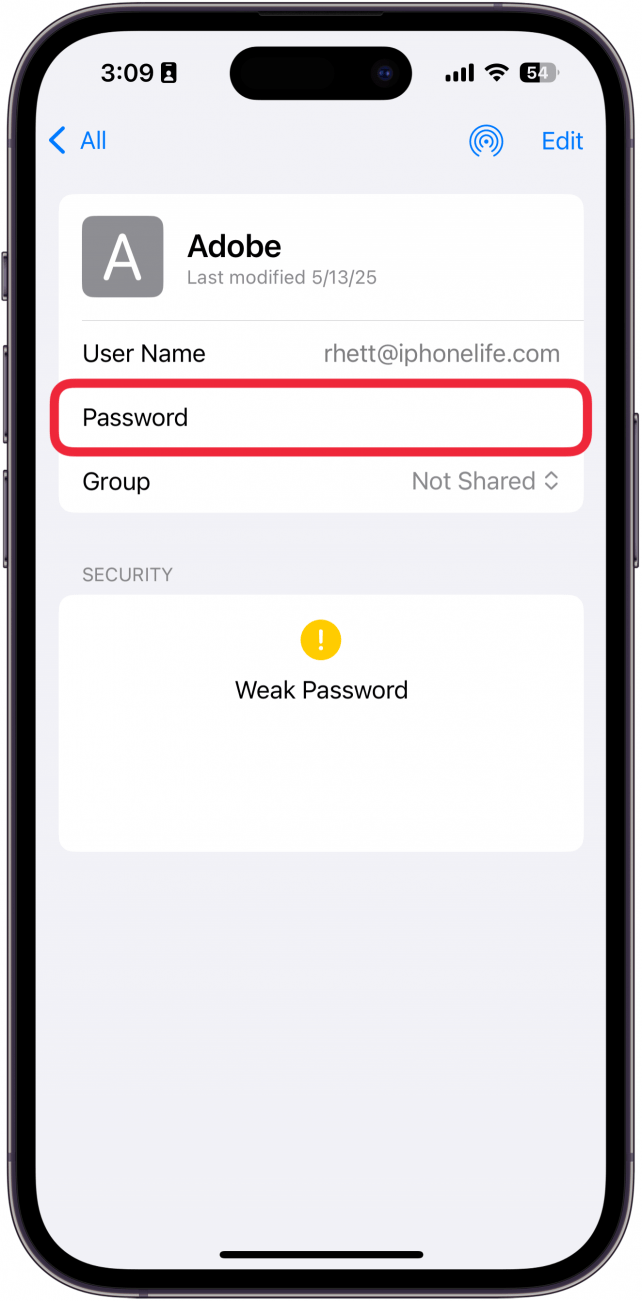
- Tap the Password field to reveal the password.
That's how to view saved passwords on iPhone. You can also use Siri to quickly look up passwords.
How to Find Saved Passwords on Your iPhone Using Siri
You can use Siri to help you see saved passwords on your iphone, or to find one specific password.
- If you do not have Hey Siri set up, you can activate Siri with a long press of the side button or Home button.
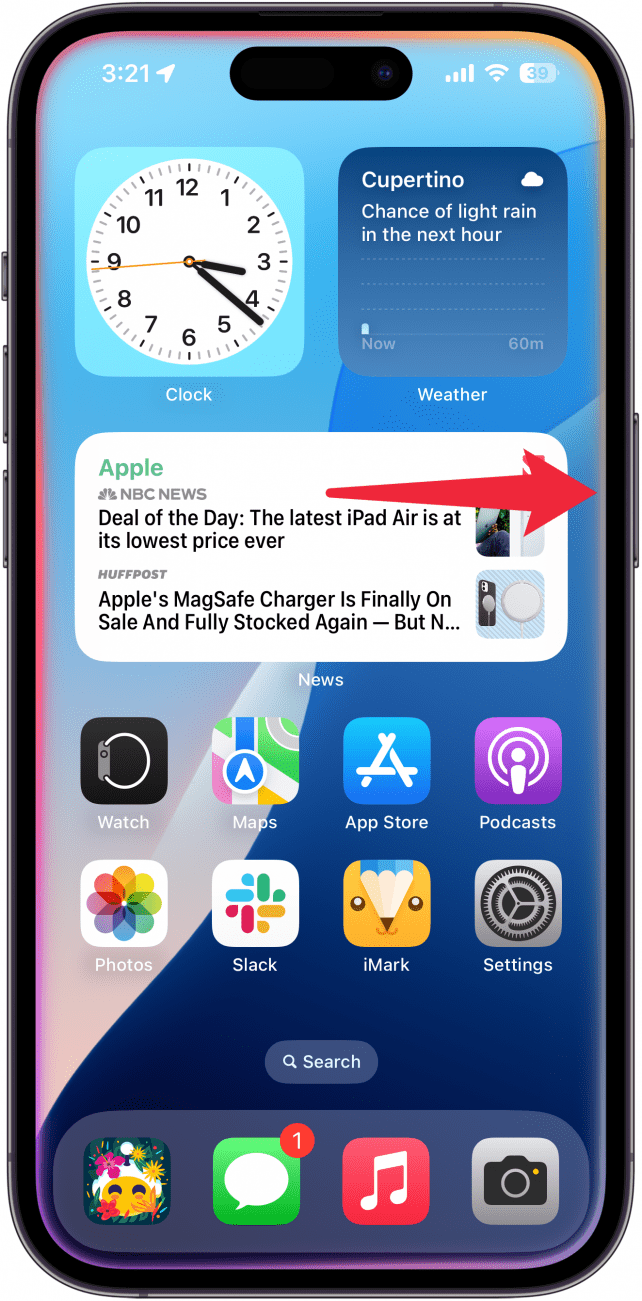
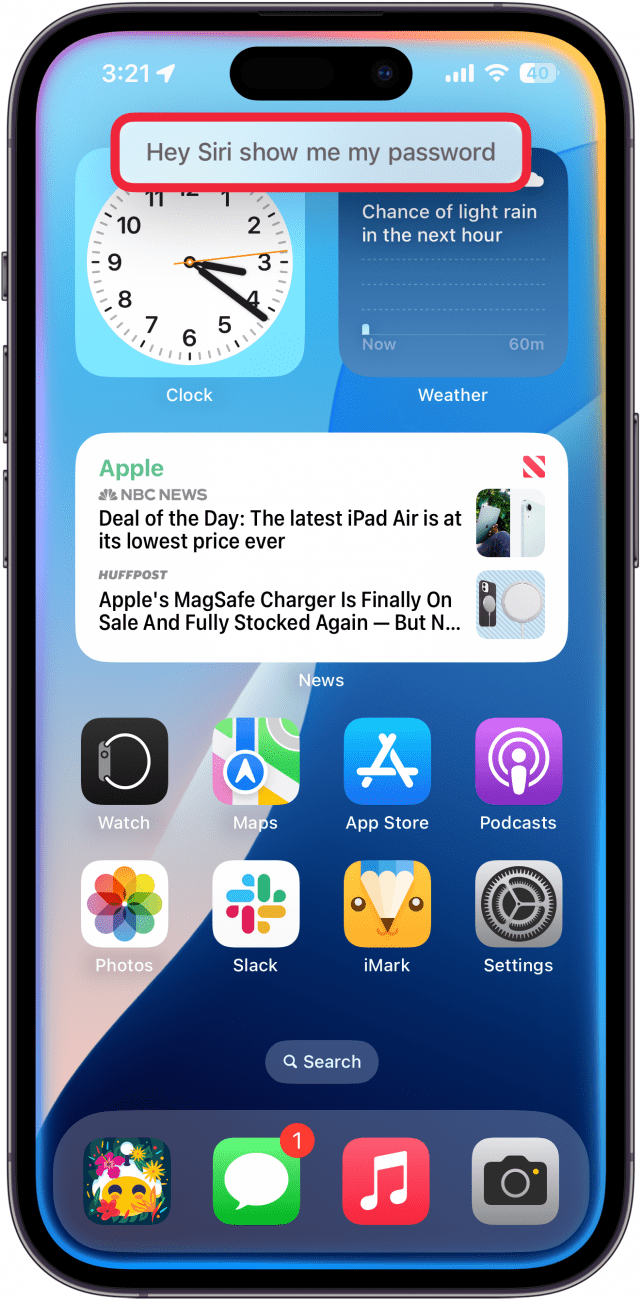
- If you have Siri set up to listen for Hey Siri you can simply say, “Hey Siri, show my passwords," to see a whole list.
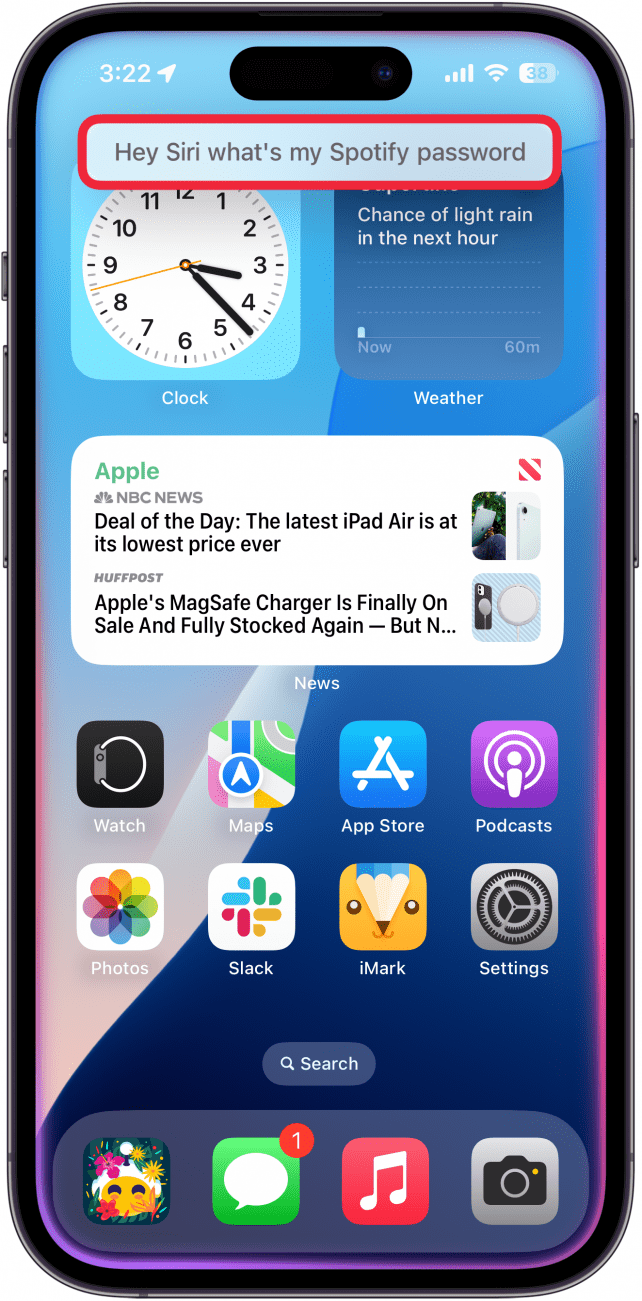
- Siri can also show you the password for a specific app or website. Simply wake up Siri and then say something like “what's my Spotify password?”
The Passwords app makes it easy for users to save and AutoFill their login information on approved devices. It keeps your passwords updated across your iPhone, iPad or Mac computer and eliminates the need for manual password entries. Using this convenient system ensures a seamless experience across all your Apple devices. Next, find out how to use your iPhone's Password app.
FAQ
- How do you type to Siri? If you have an Apple Intelligence-enabled device, you can double-tap the bottom of the screen for Siri. This will pull up a keyboard, allowing you type to Siri.
- How to switch back to Hey Siri? In iOS 17, Apple added the ability to summon Siri by simply saying, "Siri," instead of "Hey Siri." However, if you like saying, "Hey Siri," you can revert to the original voice command. Find out how to set up Hey Siri after iOS 17.
- Can you clear your Siri search history? Yes. If you ever want to reset your history with Siri, find out how to clear Siri history.

Erin MacPherson
Erin is a Web Editor for iPhone Life and has been a writer, editor, and researcher for many years. She has a degree in communication with an emphasis on psychology and communication, and has spent many of her professional years as a coach in various business and specialty fields. Erin officially joined the ranks of iPhone and Apple users everywhere around nine years ago, and has since enjoyed the unique and customized feel of Apple technology and its many gadgets. When she’s not working, Erin and her son enjoy outdoor adventures, camping, and spending time with their eclectic collection of pets.
Related Articles

WWDC 2023 Recap: Apple Vision Pro Headset, 15-Inch MacBook Air & iOS 17
 Susan Misuraca
 Rhett Intriago
 Rachel Needell
 Amy Spitzfaden Both
 Olena Kagui
 Apple Spring Buyer’s Guide 2023, Yellow iPhone 14 & Apps for Learning Guitar

 Ashleigh Page

How to Check Your iPhone Battery Level on Your Apple Watch
 Leanne Hays