How to Use Siri to Turn Down Loud Background Sounds on Your Apple TV

Jim Karpen has been writing about technology since 1994 and brings decades of experience with Apple products, along with a Ph.D. in literature and writing.
Learn More Jim Karpen has been writing about technology since 1994 and brings decades of experience with Apple products, along with a Ph.D. in literature and writing.
Learn More
You can use Siri to control Apple TV settings on your 4th generation Apple TV, and this is especially useful if you want to reduce a movie's background sounds. This feature of Apple TV not only makes the dialog more audible, but also reduces the chances that you'll disturb your neighbors.
You can enable the feature by going to Settings > Audio and Video and turning on Reduce Loud Sounds.
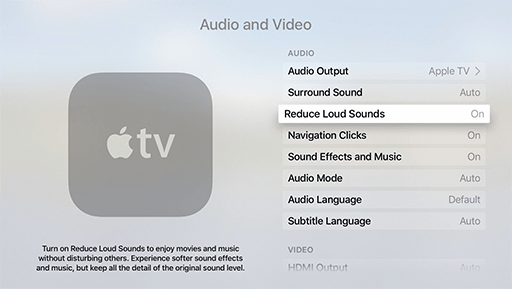
According to Apple's onscreen information: "Turn on Reduce Loud Sounds to enjoy movies and music without disturbing others. Experience softer sound effects and music, but keep all the detail of the original sound level."
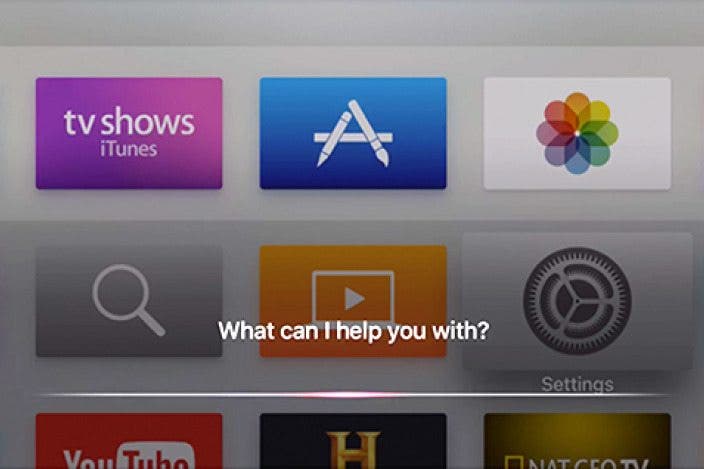
However, if you're in the midst of watching a movie with lots of explosions and other cacophony, you hardly want to stop the action while you navigate to Settings. Instead, you can hold down the microphone on the Apple TV Siri Remote and say to Siri, "Reduce loud sounds." And it's done.
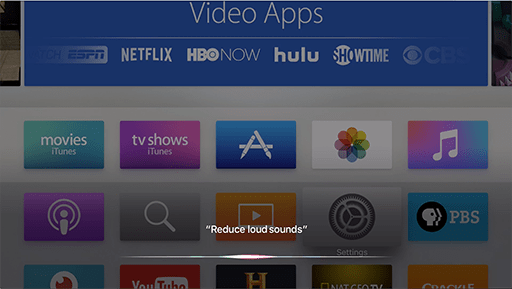
In my experience, Siri doesn't give any sort of confirmation that the setting has been changed, but if you check the Settings, you'll see it has been.
If you want to return to normal listening mode, simply say to Siri, "Turn off reduce loud sounds."
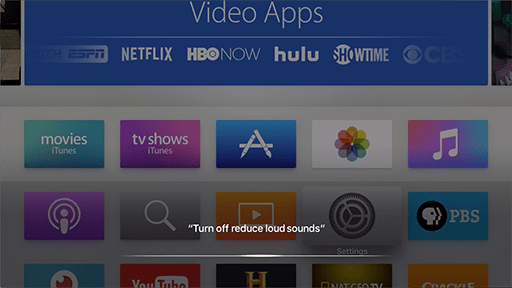
This feature is primarily useful if you're using your TV's speakers. If you're using an external sound system, you may want leave this feature off in order to get the best quality.

Every day, we send useful tips with screenshots and step-by-step instructions to over 600,000 subscribers for free. You'll be surprised what your Apple devices can really do.

 Rhett Intriago
 Olena Kagui

 Leanne Hays
 Rachel Needell
 Amy Spitzfaden Both