How to Add Another Face ID to Your iPhone

Leanne puts her love of troubleshooting and repair to use managing our Ask an Expert Facebook group and has authored hundreds of how-to, Apple news, and gear review articles.
Learn More Leanne puts her love of troubleshooting and repair to use managing our Ask an Expert Facebook group and has authored hundreds of how-to, Apple news, and gear review articles.
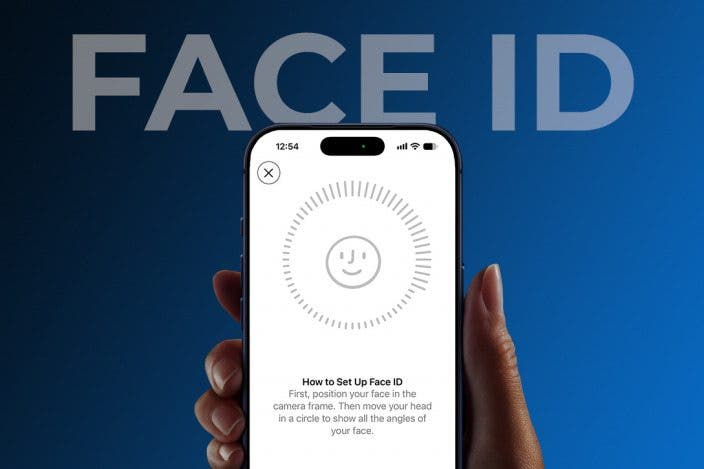
Learn MoreFace ID has been the default for Apple's smartphone security since its debut. However, if you'd like to share your iPhone with a partner, friend, or child, unlocking might be a little difficult. Luckily, just like Touch ID allows you to save multiple fingers, there is a way to allow another face to unlock your iPhone. We'll show you how to add another Face ID.
Why You'll Love This Tip
- Learn how to add another Face ID to your iPhone to allow other family members or friends to unlock your device in case of emergency.
- If someone is sharing an iPhone, they need to know how to add a second Face ID to the iPhone, so both users can use it.
How to Add a Second Face ID to Your iPhone
System Requirements
This tip was performed on an iPhone 17 running iOS 27 beta, which will be shipped universally in September 2026. Find out how to update to the latest version of iOS.
- Open the Settings app, and select Face ID & Passcode. You will be prompted to enter your passcode to continue.
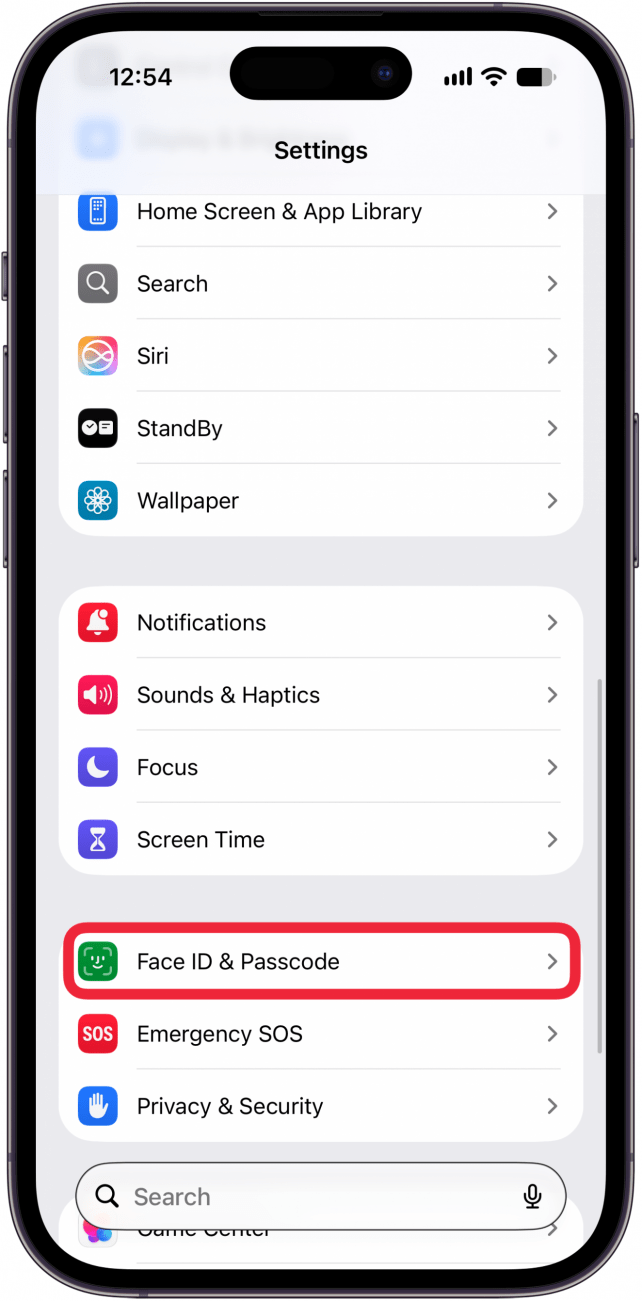
- Tap Set Up an Alternate Appearance.

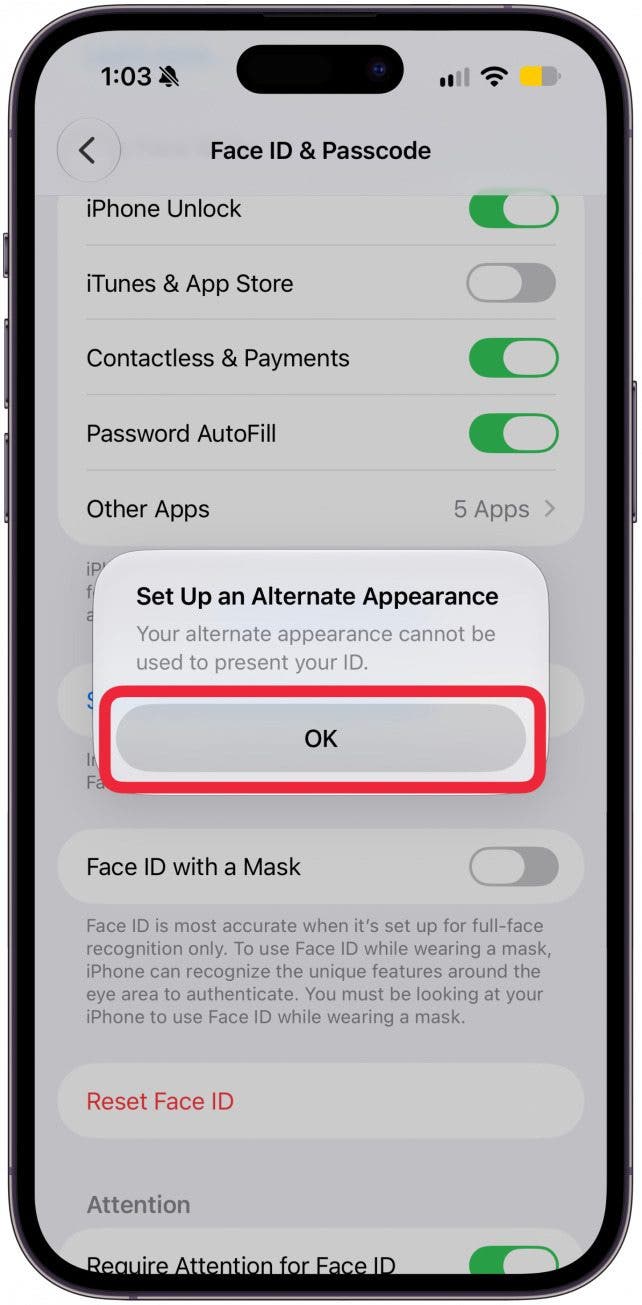
- You may get a notification that you won't be able to use your alternate appearance to present ID. This is to prevent another person who may have access to your phone from trying to use your ID. Tap OK. If you don't see this notification, just skip to step 4.
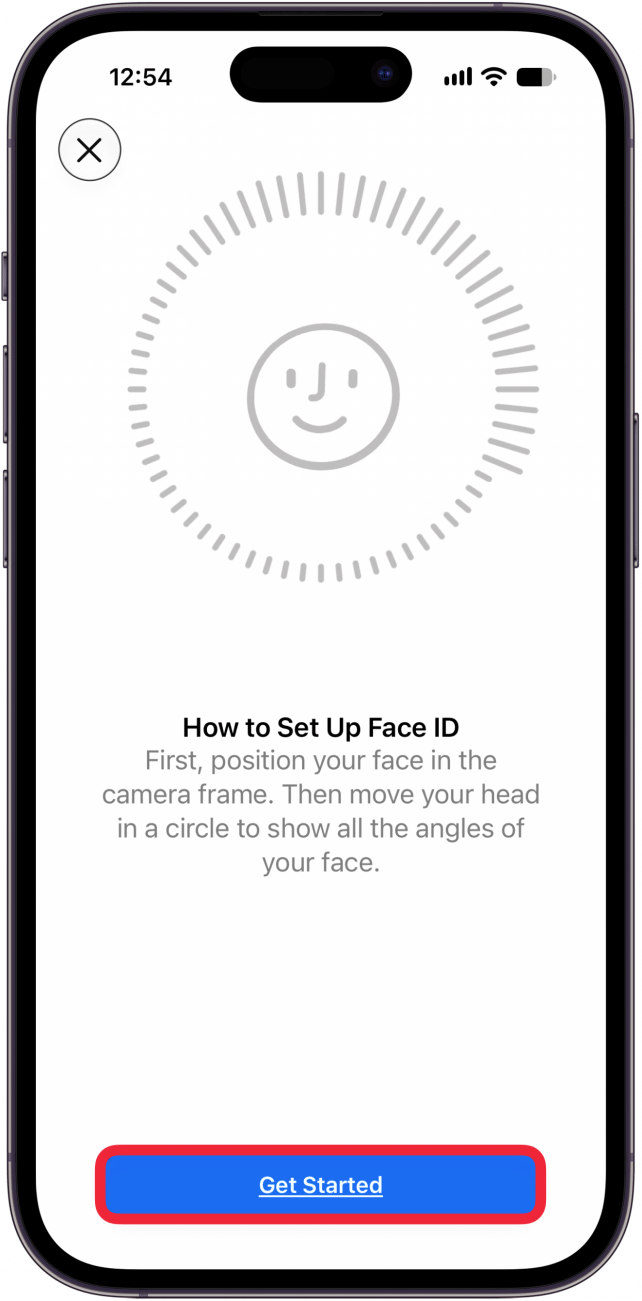
- Tap Get Started and follow the on-screen prompt to add a second face to Face ID.
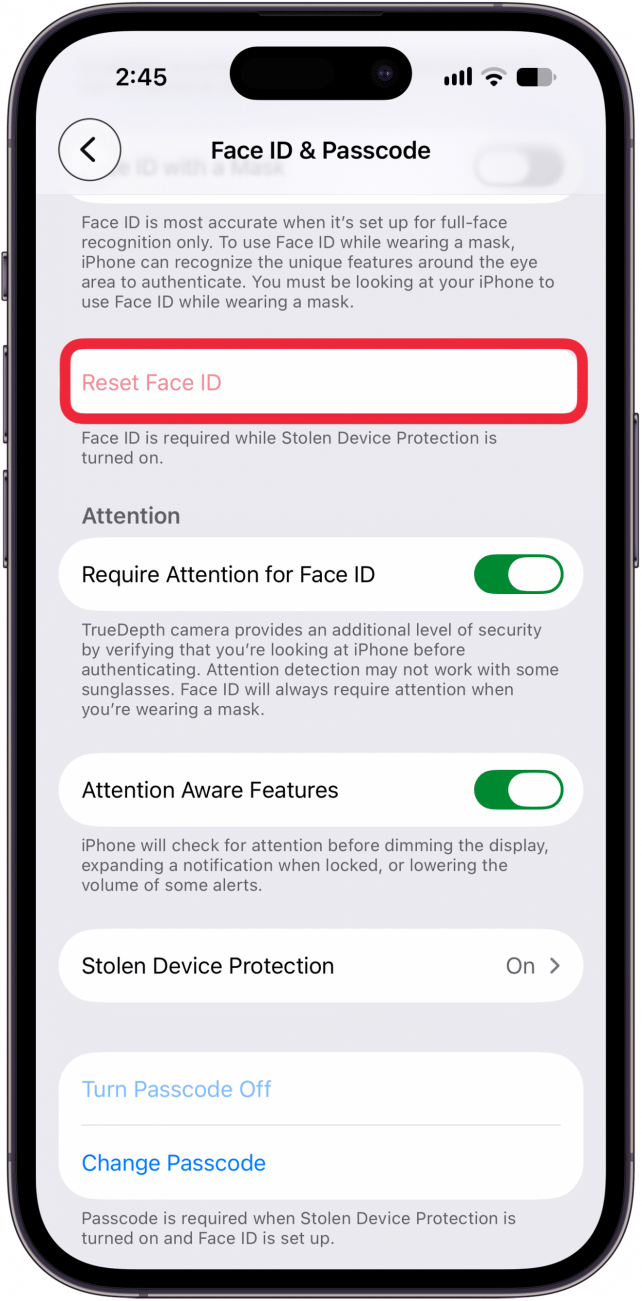
- If you don't see the Set Up an Alternate Appearance button, you may already have an alternate appearance saved. The only way to remove an alternate appearance and add a new one is to tap Reset Face ID. When resetting Face ID, you will need to set up your own face again before adding another Face ID.
That's how to add another Face ID to your iPhone. Once you have set up an Alternate Appearance for Face ID, the second person should have no problem using Face ID to unlock your device. This can be incredibly useful in the event of an emergency in which you are unable to unlock your phone yourself. Be aware that if you have locked any apps with Face ID, any other faces that you have saved to your alternate appearances will also be able to unlock them. Alternate faces will also be able to make purchases with Face ID.
More On: iPhone Security

Every day, we send useful tips with screenshots and step-by-step instructions to over 600,000 subscribers for free. You'll be surprised what your Apple devices can really do.

Leanne Hays
Leanne Hays has more than sixteen years of experience writing for online publications. As a SEO Specialist and Feature Writer for iPhone Life, she has authored hundreds of how-to, Apple news, and gear review articles, as well as a comprehensive Photos App guide. Leanne holds degrees in education and science and loves troubleshooting and repair. This combination makes her a perfect fit as manager of our Ask an Expert service, which helps iPhone Life Insiders with Apple hardware and software issues.
In off-work hours, Leanne is a mother of two, homesteader, audiobook fanatic, musician, and learning enthusiast.

 Rhett Intriago
 Olena Kagui

 Rachel Needell
 Amy Spitzfaden Both