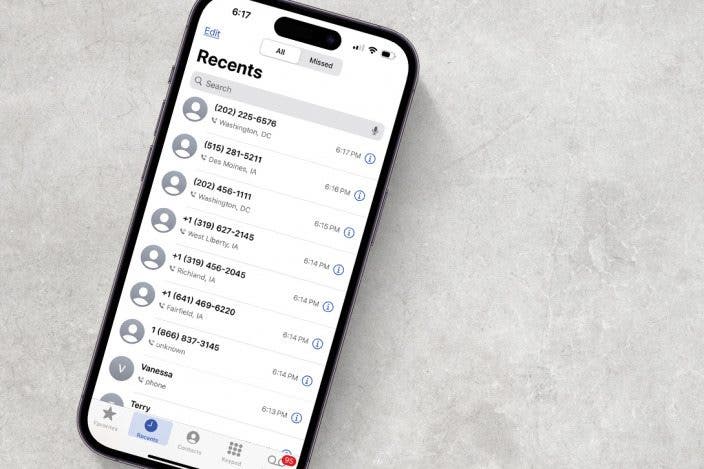
How to Check the Call History on Your iPhone & iPad

Leanne puts her love of troubleshooting and repair to use managing our Ask an Expert Facebook group and has authored hundreds of how-to, Apple news, and gear review articles.
Learn More Leanne puts her love of troubleshooting and repair to use managing our Ask an Expert Facebook group and has authored hundreds of how-to, Apple news, and gear review articles.
Learn MoreWant to know where to see your whole call iPhone call log, even old calls, on your iPhone? Here's how to check call history on your iPhone in a few easy steps.
Why You'll Love This Tip
- Search calls in your iPhone call history to see who you called, and when.
- Search your iPhone call log by date, name, or number! Find recent calls, old calls, and all the calls in between.
How to Find & Search Call History on Your iPhone
System Requirements
The steps below were checked on an iPhone 16 running iOS 18.5. Learn how to upgrade to the latest OS.
How can I see my full call history on my iPhone? It's quick and easy to find and search the call log on your iPhone, both outgoing and incoming. You can view the old call history on your iPhone, your recent calls, and any calls in between. You can also search by contact name and phone number; here's how.
- Open the Phone app on your iPhone.
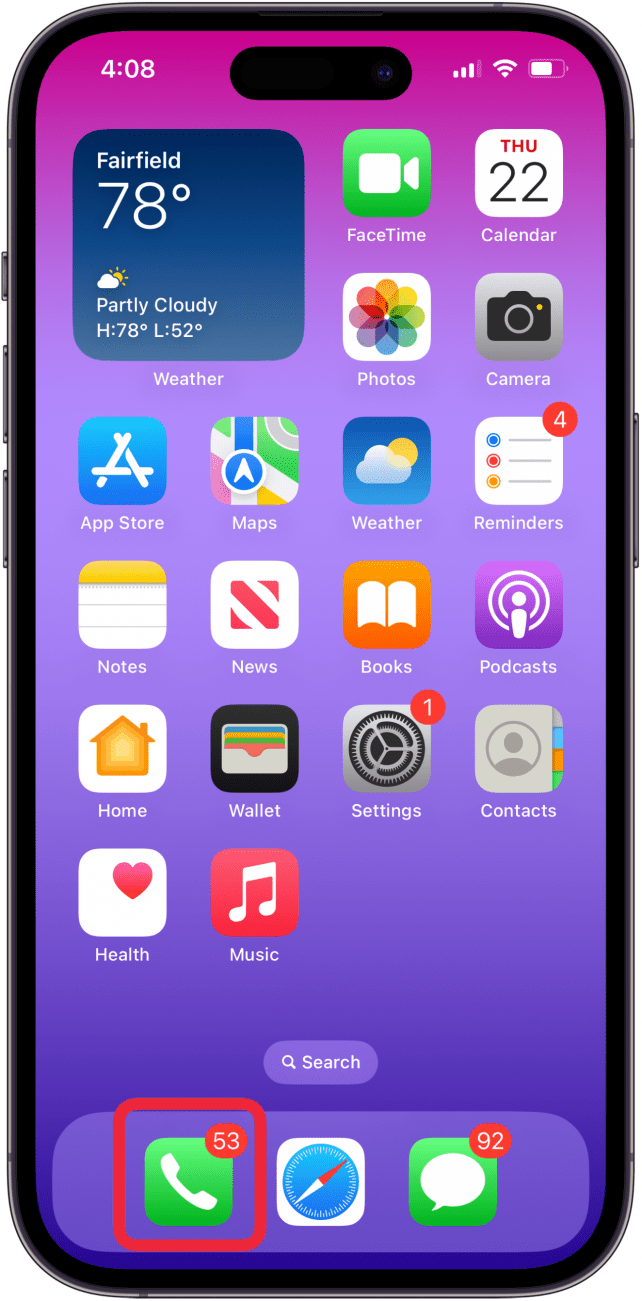
- Tap the Recents tab at the bottom of the page.

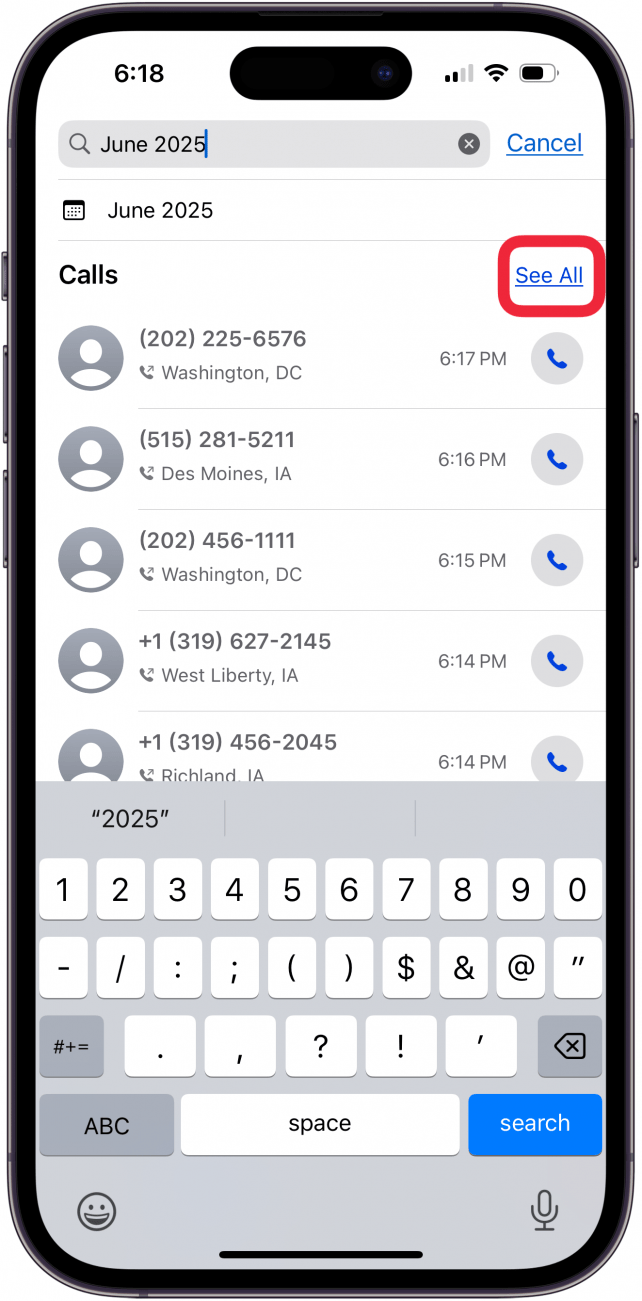
- Tap the Search field at the top of the screen, then enter your search term. In this case, I'm searching by date.

- You can check your call history on iPhone by phone number or location.
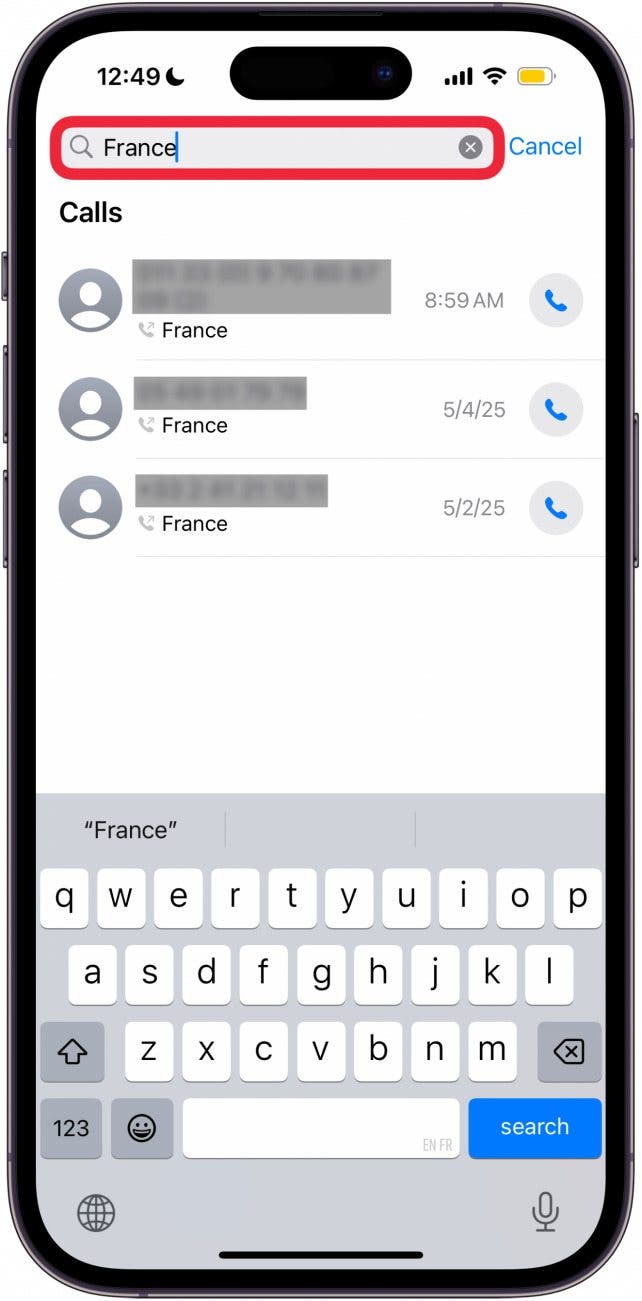
- Or, view call history on your iPhone by contact name, or even communication platform name, like Zoom, below.

- Tap See All to see your entire iPhone call history, including your old call history.
Now you know how to find the iPhone call history and how to see call history on iPhone, including recent calls, and old ones. Be sure to check out our free Tip of the Day for more great Phone app tutorials!
More On: Searching Calls & Messages
Top image credit: Chingraph / Shutterstock.com

Every day, we send useful tips with screenshots and step-by-step instructions to over 600,000 subscribers for free. You'll be surprised what your Apple devices can really do.

Leanne Hays
Leanne Hays has more than sixteen years of experience writing for online publications. As a SEO Specialist and Feature Writer for iPhone Life, she has authored hundreds of how-to, Apple news, and gear review articles, as well as a comprehensive Photos App guide. Leanne holds degrees in education and science and loves troubleshooting and repair. This combination makes her a perfect fit as manager of our Ask an Expert service, which helps iPhone Life Insiders with Apple hardware and software issues.
In off-work hours, Leanne is a mother of two, homesteader, audiobook fanatic, musician, and learning enthusiast.

 Rachel Needell


 Olena Kagui
 Susan Misuraca
 Rhett Intriago





 Cullen Thomas