How to Turn Off Location on Photos on iPhone & iPad

Cullen has over a decade’s experience as a tech educator teaching subjects ranging from camera hardware to game design and specializes in Apple privacy and security.
Learn More Cullen has over a decade’s experience as a tech educator teaching subjects ranging from camera hardware to game design and specializes in Apple privacy and security.
Learn MoreEvery time you take a photo on your iPhone, it's geotagged with the location where you took it. This information is stored in the photo's metadata and can be viewed by people you share the photo with. If the geotag is incorrect or you don't want your photos to have location data, you can edit or delete the location. Read on to find out how to remove location from photos.
Why You'll Love This Tip
- Protect your privacy by deleting photo geotags so your metadata won't reveal more than you want it to.
- Fix photo locations that your iPhone got wrong.
How to Turn Off Photo Location on iPhone
System Requirements
This tip was performed on an iPhone 15 Pro running iOS 26.2. Find out how to update to the latest version of iOS.
It can be handy and fun to see your photos laid out on a map, but did you know that if you share that photo, the recipient can look up the exact location of your photo? If you don't want your photo tied to a location or tagged incorrectly in a strange location, you can fix an incorrect tag or delete it completely! For more great photo-editing tutorials, check out our free Tip of the Day newsletter. Now, here's how to edit or turn off location on photos on iPhone:
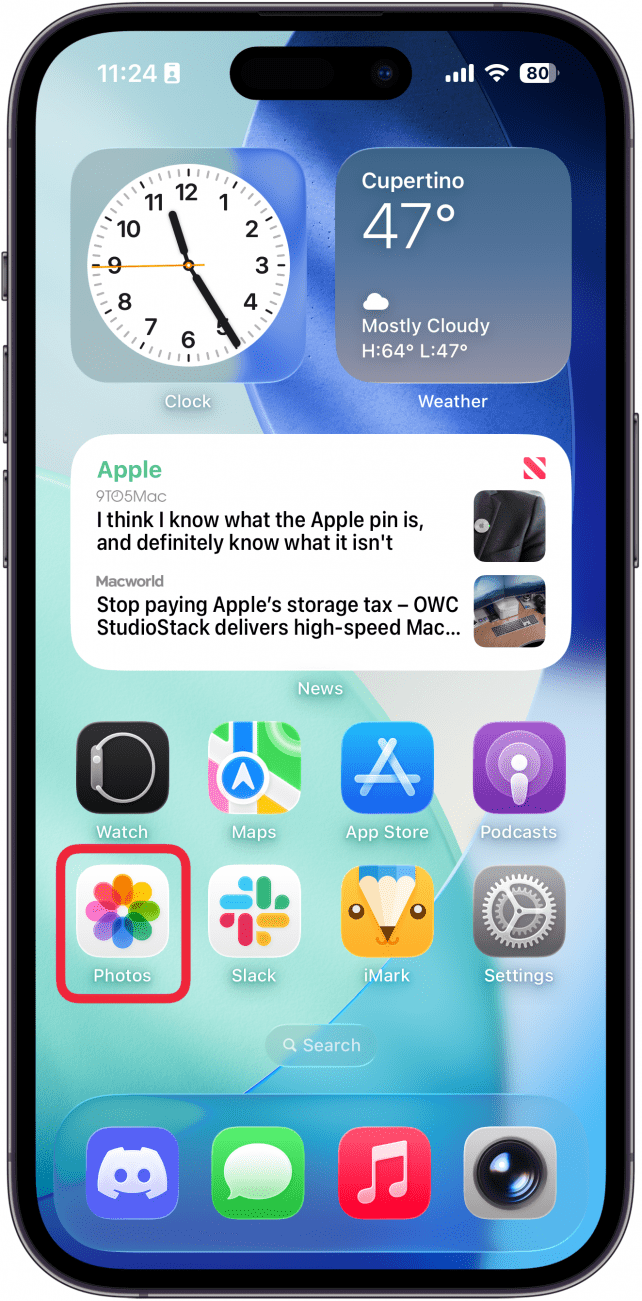
- Open the Photos app.
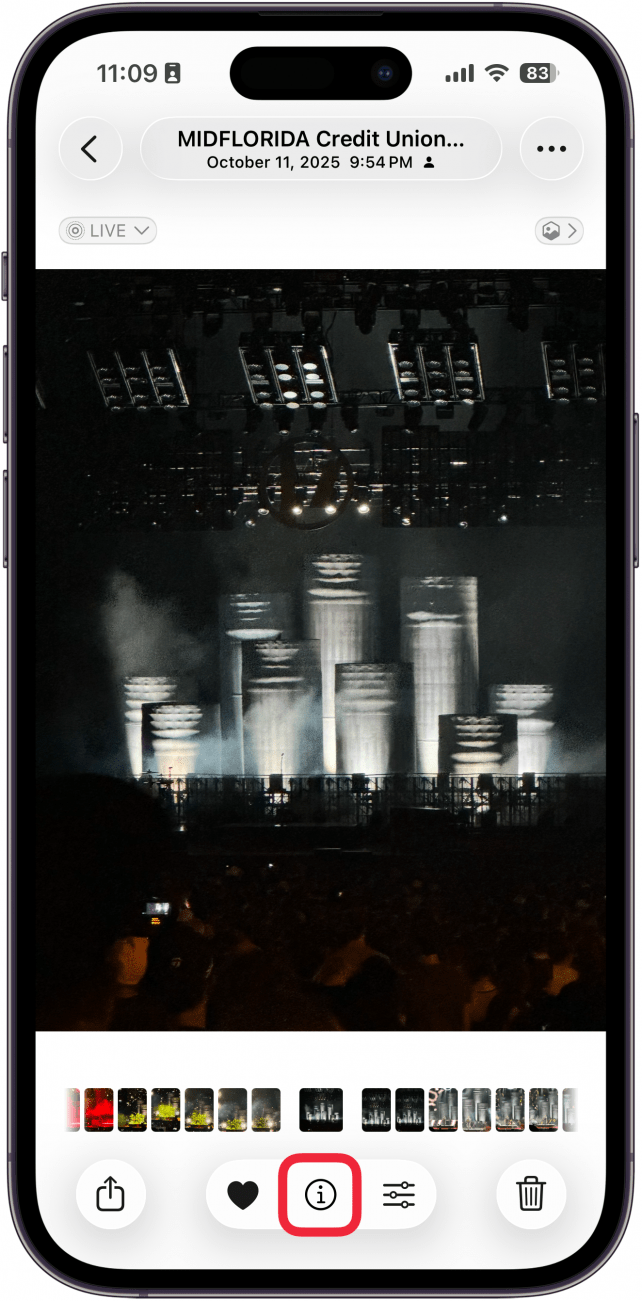
- Open the photo you want to edit, then tap the info icon.
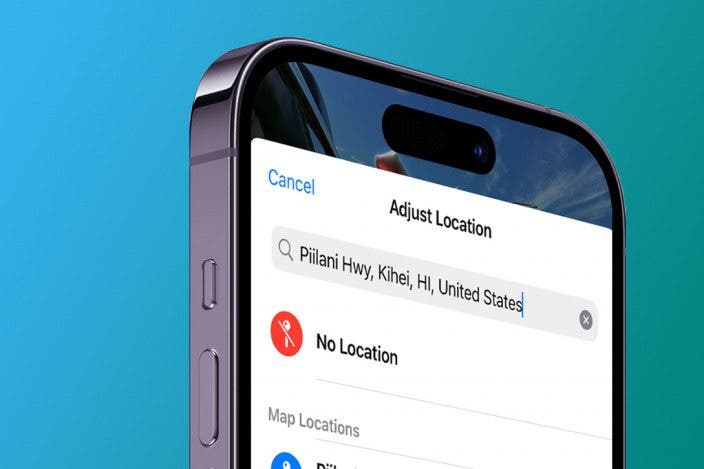
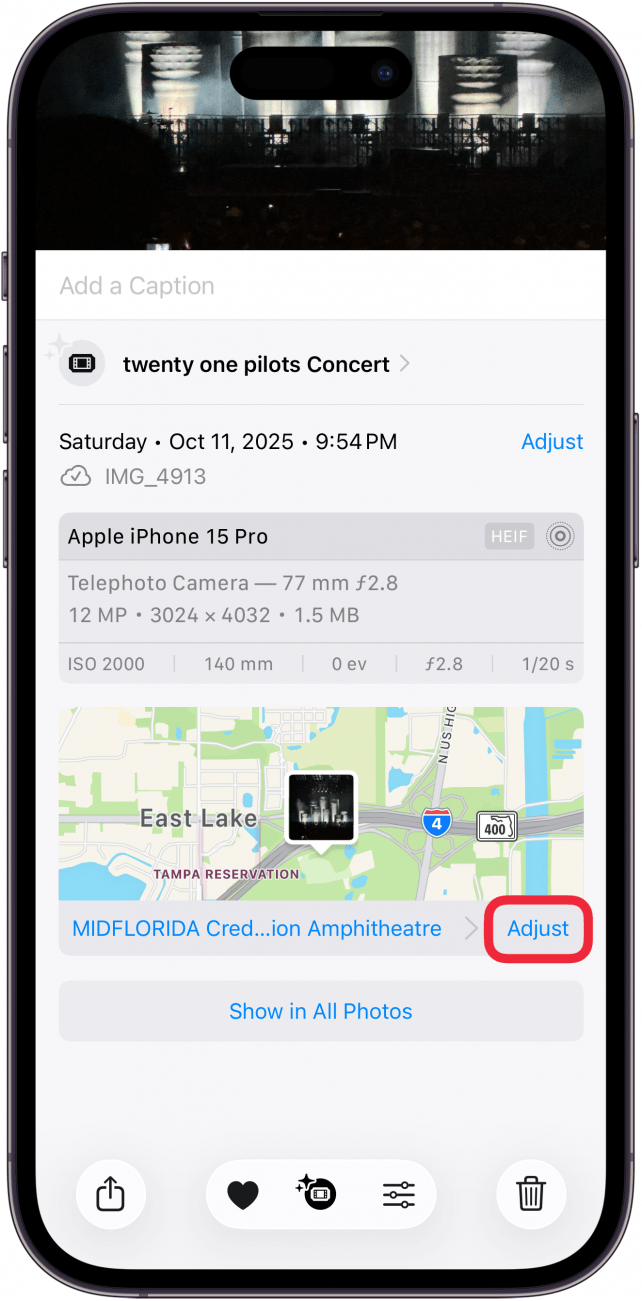
- Tap Adjust under the map.
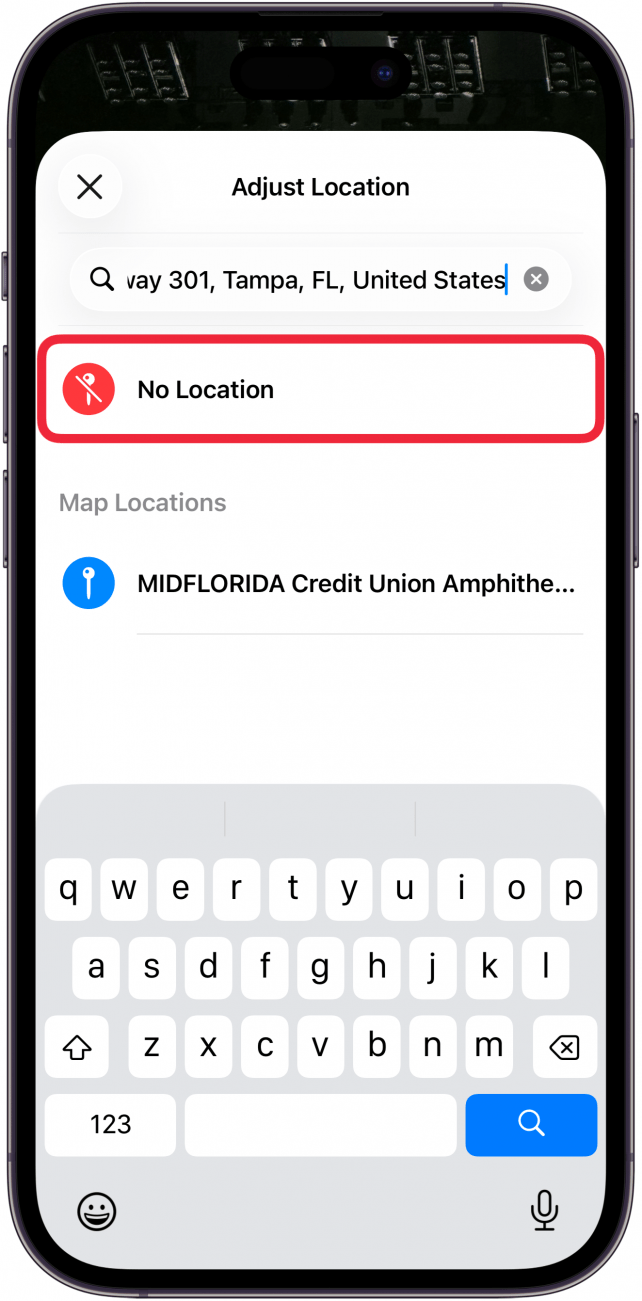
- Enter the correct address in the search field, tap an option from Map Locations to select, or tap No Location to delete the geotag.
Now you know how to edit or remove the location from a photo on iPhone. As long as you didn't delete the geotag or had your Location Services turned off for your Camera app, the steps above will also show you how to find out where an iPhone photo was taken—but keep in mind that your phone can make mistakes, which is why it's important to know how to edit the EXIF (Exchangeable Image File Format) data.
Now you know how to edit or remove iPad and iPhone photo locations, aka their geotags. If you don't want your location tied to your photos, you can follow the steps above to protect your privacy. If you want to turn off locations for photos entirely, you can follow the steps in this article to turn off location services specifically for the Camera app.
More On: Location Services

Every day, we send useful tips with screenshots and step-by-step instructions to over 600,000 subscribers for free. You'll be surprised what your Apple devices can really do.

Cullen Thomas
Cullen Thomas is a senior instructor at iPhone Life. For ten years as faculty at Maharishi University, Cullen taught subjects ranging from camera and audio hardware to game design. Cullen applies a passion for gadgetry to answer questions about iPhones, iPads, Macs, and Apple cloud services; to teach live classes; and to specialize in the privacy and security aspects of the Apple ecosystem. Cullen has dual degrees in Media & Communications and Literature, and a Masters degree from the David Lynch Graduate School of Cinematic Arts.
Offline, Cullen designs videogames with Thought Spike Games, writes fiction, and studies new nerdery.
Mastodon: @CullenWritesTech@infosec.exchange
Email: cullen@iphonelife.com

 Rhett Intriago
 Amy Spitzfaden Both
 Olena Kagui
 Rachel Needell

 Leanne Hays