How to Update Saved Credit Cards on iPhone & iPad
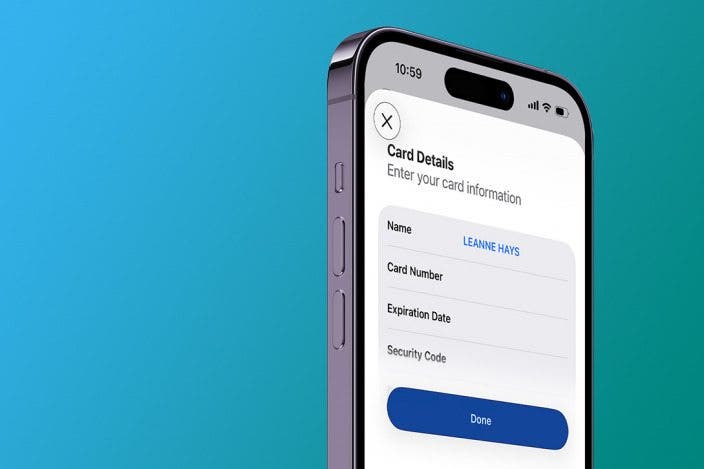

You can save credit card information using AutoFill on your iPhone, then make online purchases using the saved information without having to dig your card out of your wallet. Here's how to edit and change saved cards, and delete your AutoFill credit card on iPhone.
Why You'll Love This Tip
- AutoFill automatically fills out credit card information for you in Safari.
- You can update your AutoFill information in Safari's settings.
- AutoFill allows you to add, delete, or simply edit credit cards.
How to Change AutoFill on Your iPhone & iPad (for Safari)
System Requirements
This tip was tested on an iPhone 17 Pro running iOS 26.4. Learn how to update to the latest operating system.
We've already gone over how to enable iCloud Keychain on your iPhone. If you have iCloud set up and iCloud Keychain enabled, iCloud securely stores AutoFill information across all your devices. Now, let's go over how to update credit cards on iPhone:
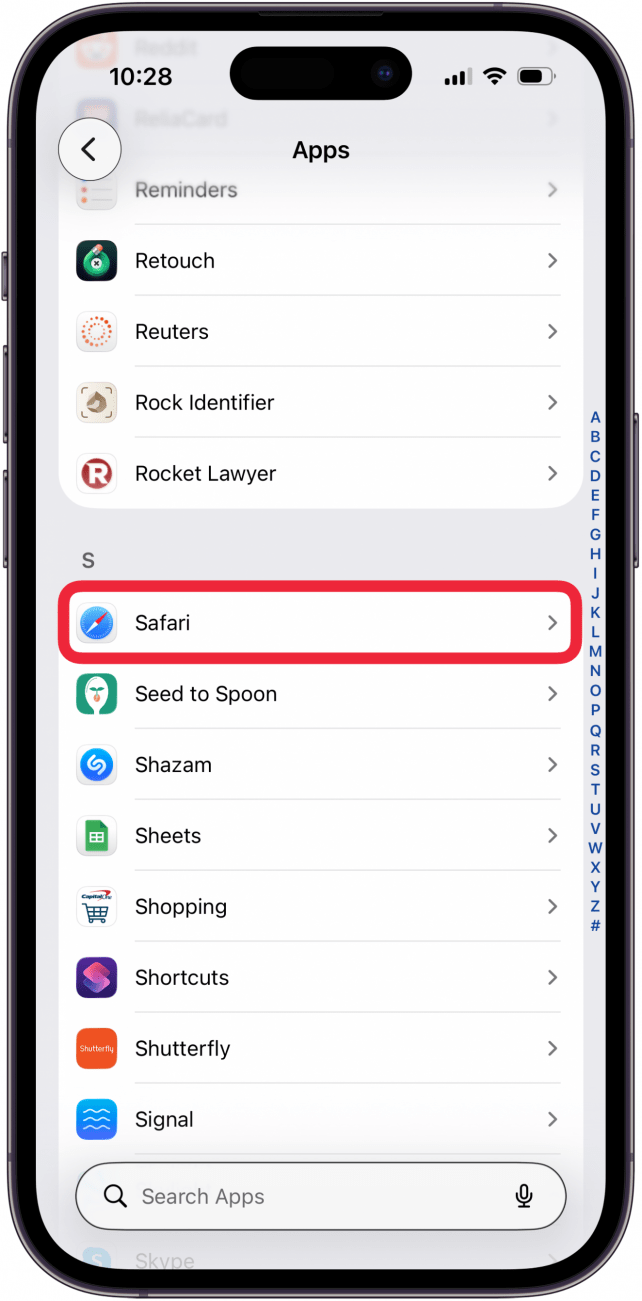
- Open the Settings app, and tap Apps at the bottom.
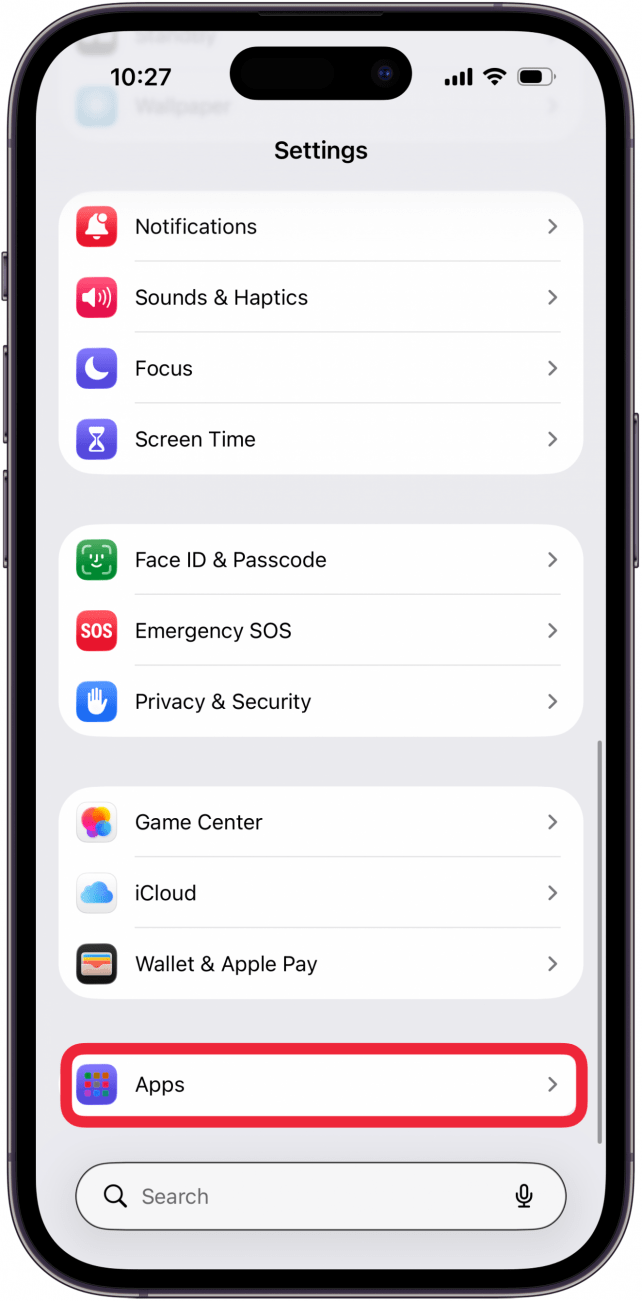
- Find Safari in the app list, or use the search bar.
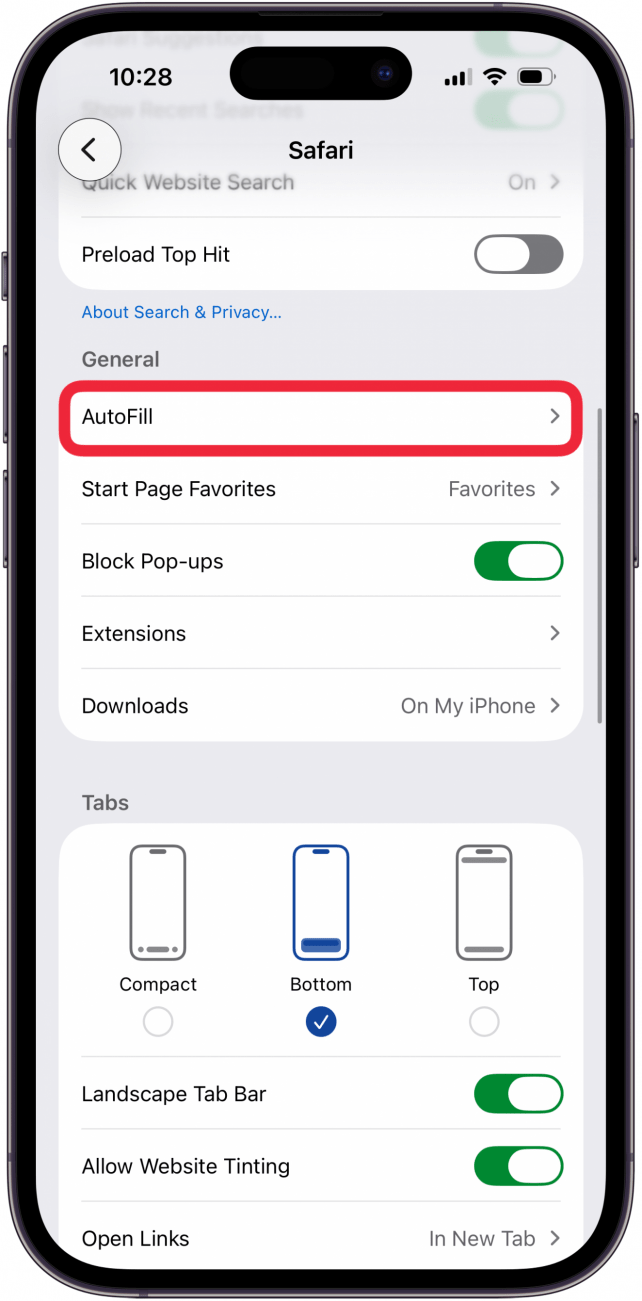
- Tap AutoFill.
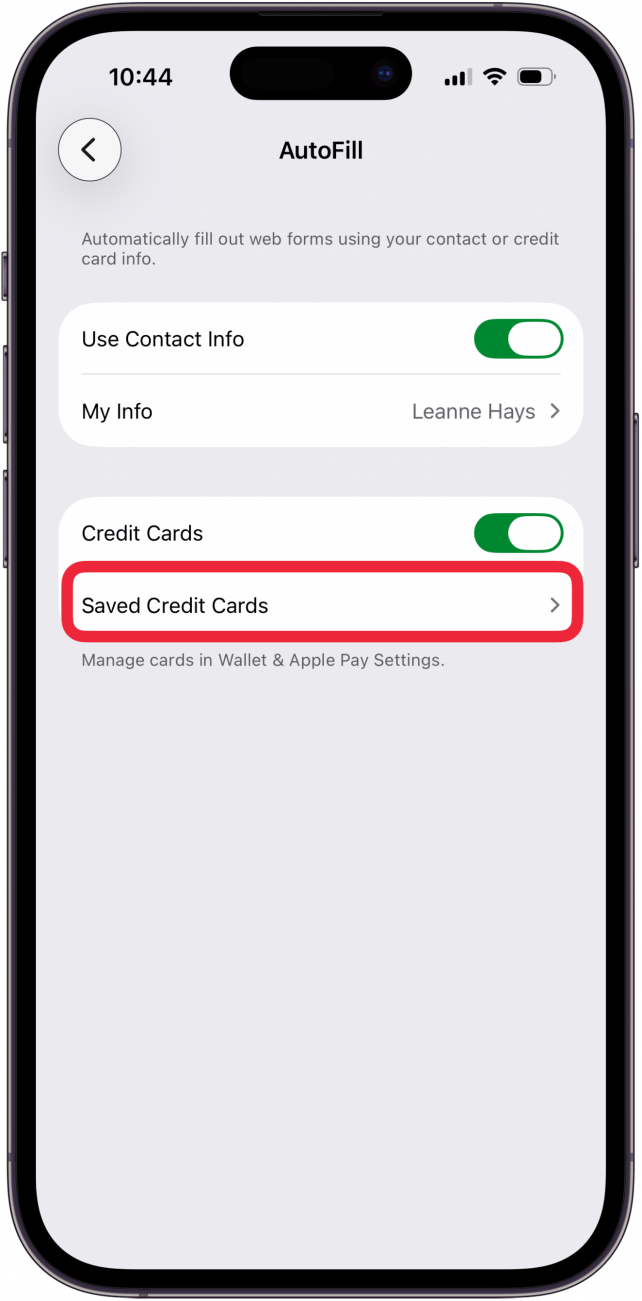
- Tap Saved Credit Cards. You may need to enter your passcode or use Face or Touch ID to verify your identity.
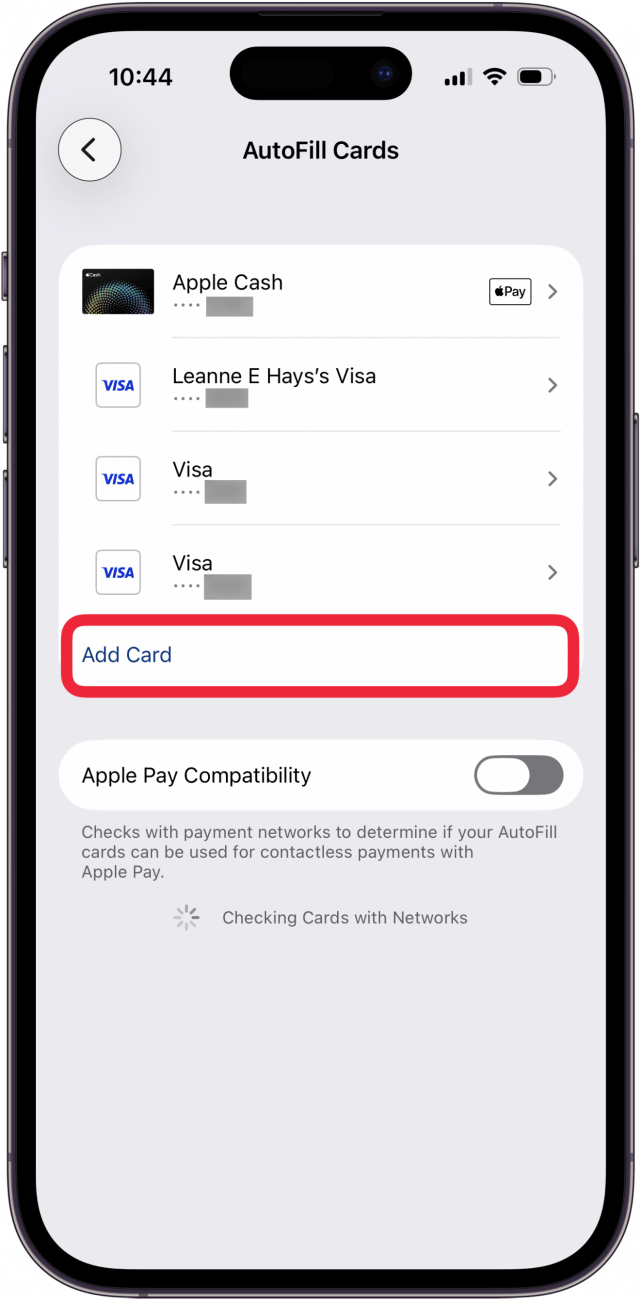
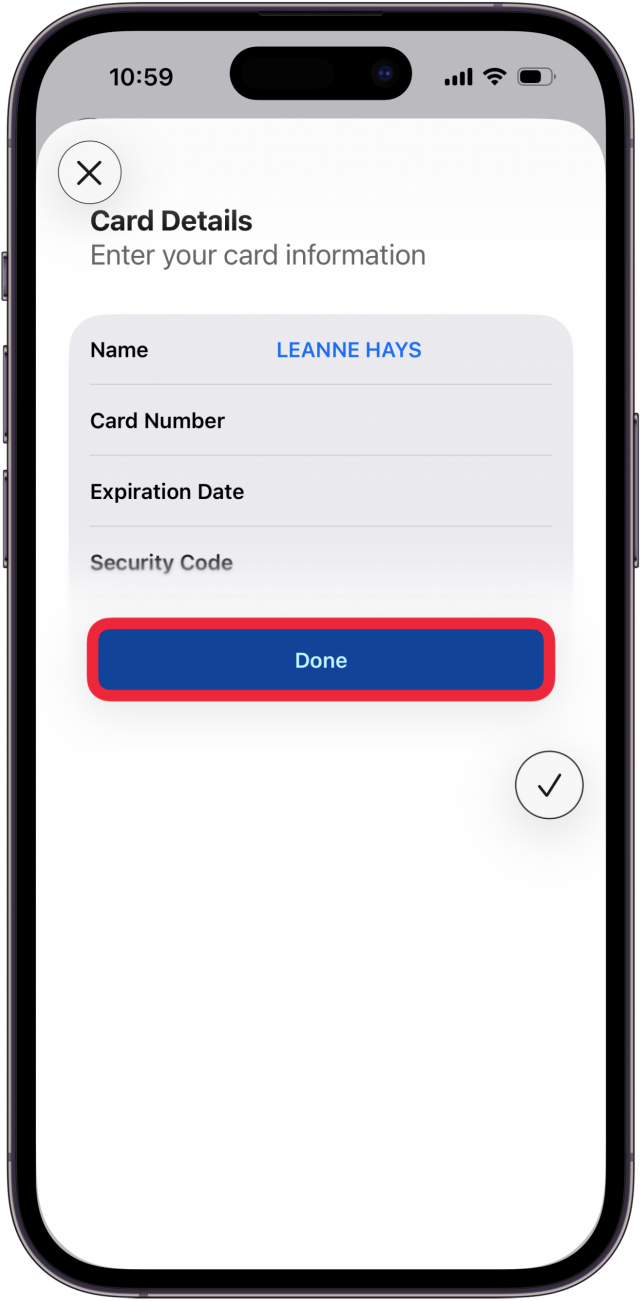
- If you want to add a new card to AutoFill, tap Add Card.
- Scan the card, or tap Enter Card Details Manually.

- When finished, tap Done to add the credit card to your iPhone's AutoFill.
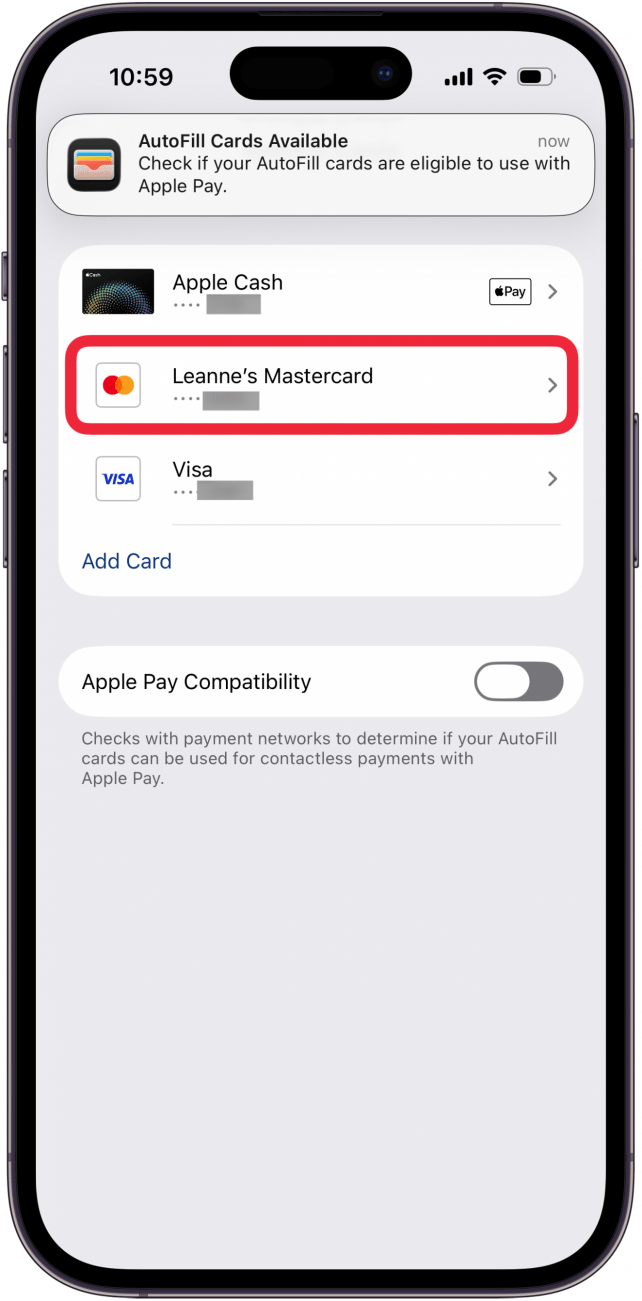
- To edit saved credit cards on an iPhone or iPad, tap the name of the card.
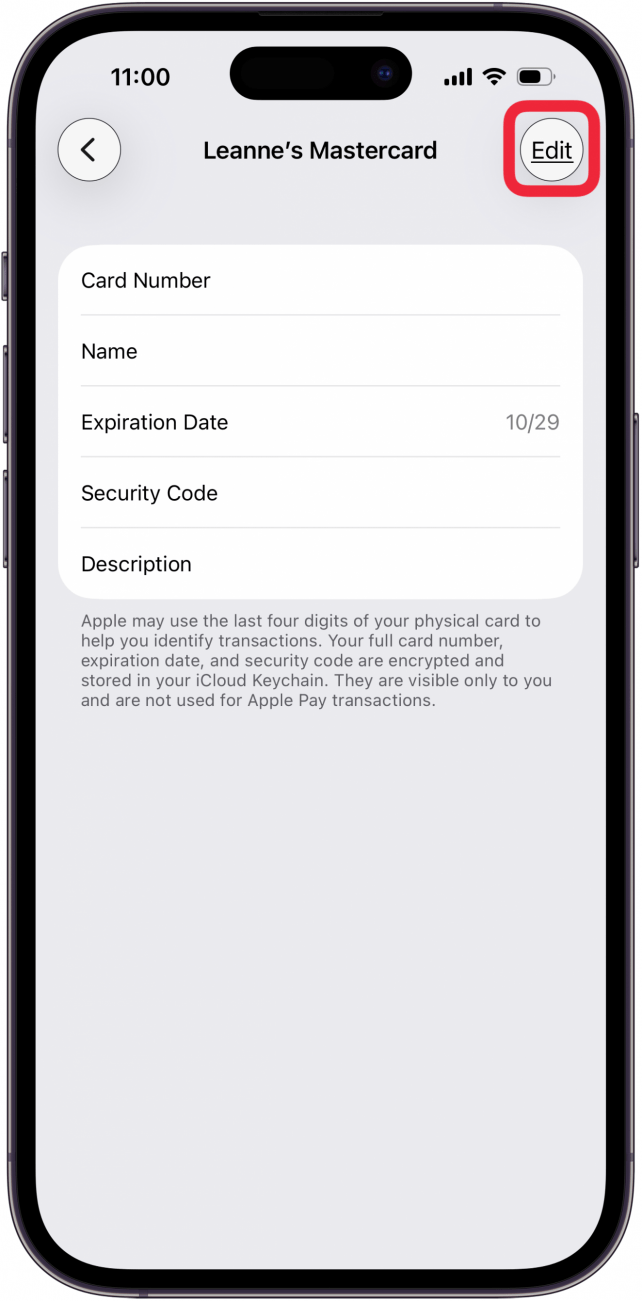
- Tap Edit, then update card details on iPhone or iPad, and tap Done.
- Or, tap Remove From AutoFill.
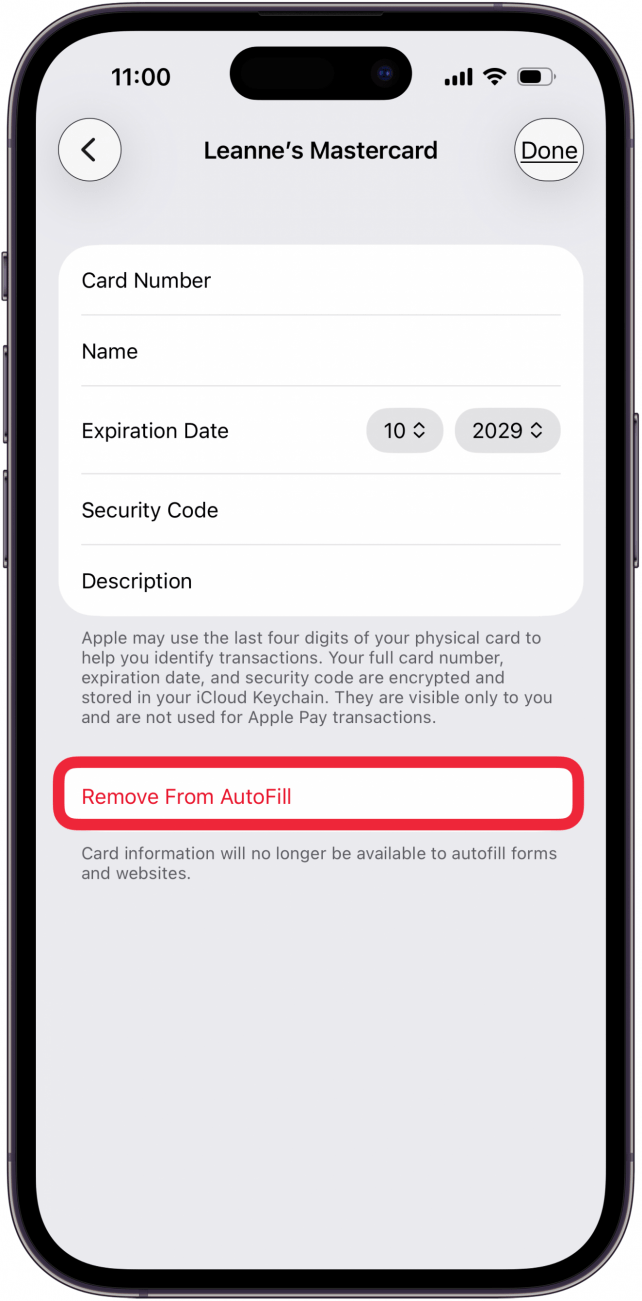
- Tap Remove to remove the card from saved cards on your iPhone or iPad.

Now, you know how to update AutoFill credit card info on an iPhone or iPad, edit saved cards on an iPhone or iPad, and delete cards from Safari AutoFill that you no longer need. Next, find out if you can share purchases without sharing payment methods through Family Sharing.
That's how to add and update saved credit cards on iPhone. For more great tutorials about Apple Wallet and AutoFill on iPhone and iPad, check out our free Tip of the Day!

Every day, we send useful tips with screenshots and step-by-step instructions to over 600,000 subscribers for free. You'll be surprised what your Apple devices can really do.

Leanne Hays
Leanne Hays has over a dozen years of experience writing for online publications. As a Feature Writer for iPhone Life, she has authored hundreds of how-to, Apple news, and gear review articles, as well as a comprehensive Photos App guide. Leanne holds degrees in education and science and loves troubleshooting and repair. This combination makes her a perfect fit as manager of our Ask an Expert service, which helps iPhone Life Insiders with Apple hardware and software issues.
In off-work hours, Leanne is a mother of two, homesteader, audiobook fanatic, musician, and learning enthusiast.
Related Articles
How to Temporarily Use an Old Passcode on iPhone If You Forgot Your New One
 Rachel Needell
 Rhett Intriago
 Amy Spitzfaden Both


Quick Launch a Selfie with a Shortcut You Didn't Know Exists


 Olena Kagui
Everything Apple Announced at Its iPhone 15 'Wonderlust' Event
 Ashleigh Page
 Leanne Hays