How to Spot a Phishing Email on iPhone

A lifelong tech enthusiast, with experiences ranging from jailbreaking his iPhone to building his own gaming PC, Rhett specializes in maintaining privacy in a digital world and iPhone security.
Learn More A lifelong tech enthusiast, with experiences ranging from jailbreaking his iPhone to building his own gaming PC, Rhett specializes in maintaining privacy in a digital world and iPhone security.
Learn MoreEverybody gets phishing emails. But sometimes it’s not always easy to determine if an email is from a legitimate email address or if it’s a scam. In this tip, we’ll show you how to verify email addresses on iPhone and easily spot scam emails.
Why You’ll Love This Tip
- Check if an email is from a legitimate email address or a scam in the Mail app.
- Avoid falling for deceptive phishing scam emails.
How to Recognize Phishing Emails in the Mail App
System Requirements
This tip was performed on an iPhone 15 Pro running iOS 27. Find out how to update to the latest version of iOS.
A phishing email is an email that appears to come from a legitimate source and prompts you to open a link or call a phone number. If you open that link or call that number, you'll be directed to a scammer who will pretend to be a person of authority and try to convince you to hand over confidential information, like banking details.
At this point, scam emails are just a fact of life. Most of the time, phishing scams are sent straight to your spam or junk folder. However, every now and then, one or two will slip through the cracks and show up in your inbox. For more tips like this, be sure to sign up for our free Tip of the Day newsletter. Signing up for the Tip of the Day also signs you up for our free Security Friday newsletter where we cover the latest news in digital privacy and security and offer tips to stay safe online.
Now, if you have a suspicion about an email you received, here’s how to recognize phishing emails in the Mail app:
- This is a pretty official looking invoice. Start by tapping the address bar.
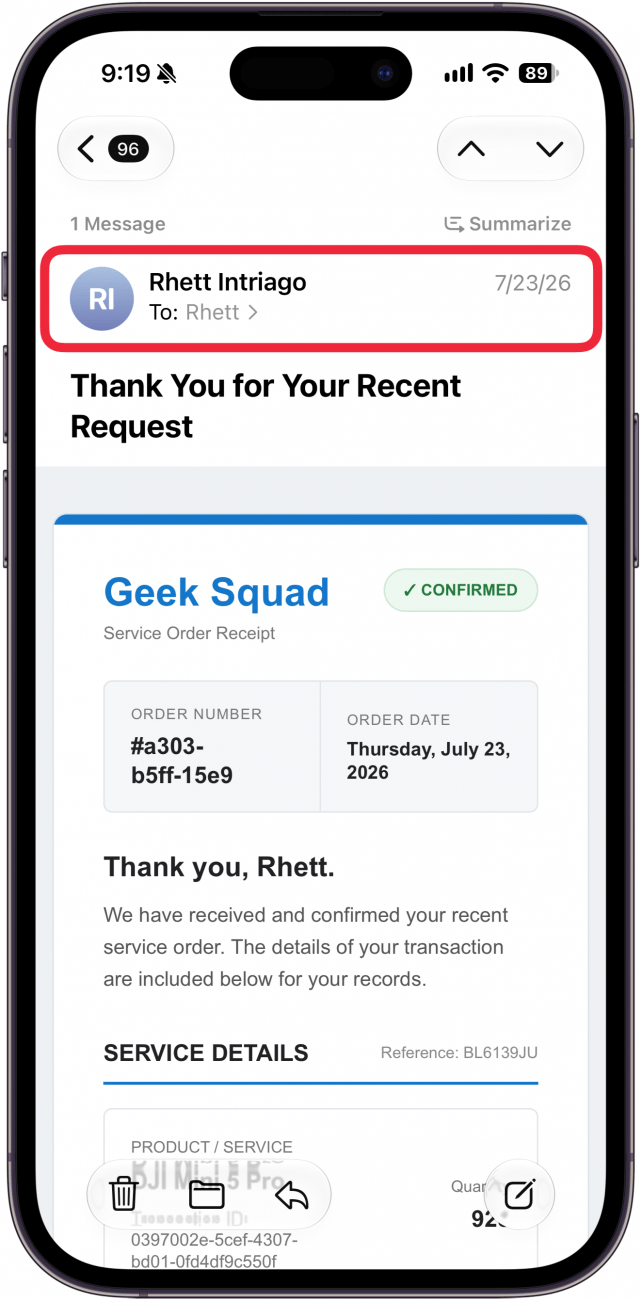
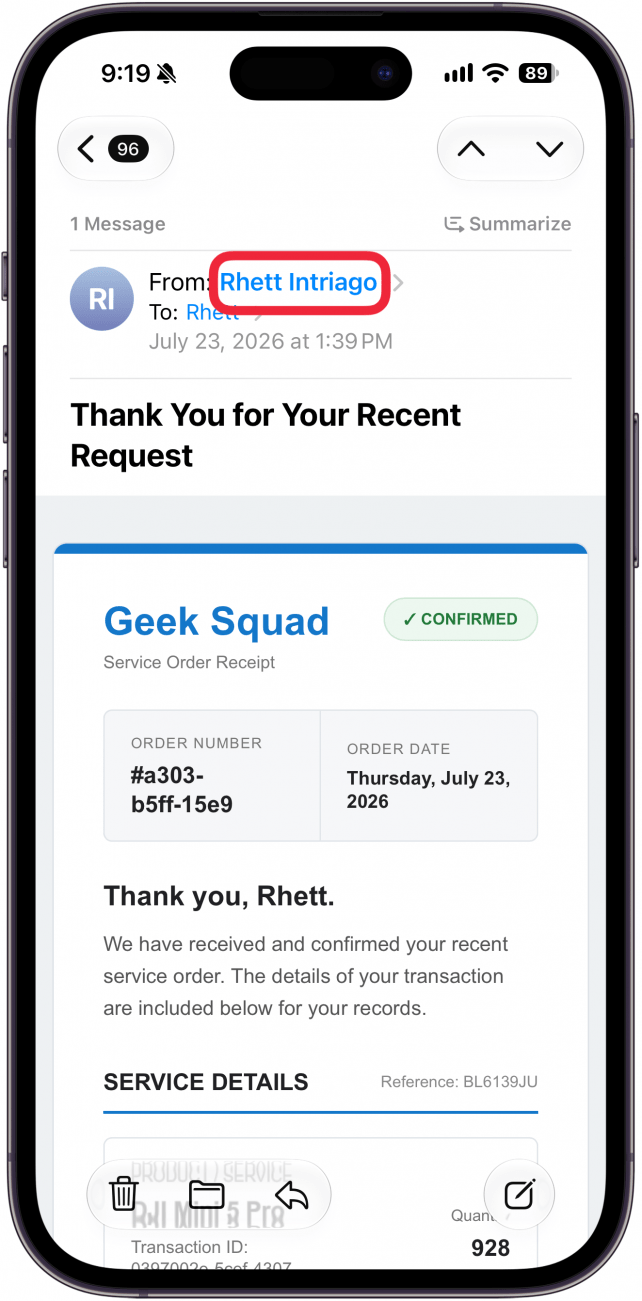
- Tap the name in the From: field. Sometimes, when I receive these types of emails, the scammer will use my own name. It may also appear to be from a familiar business or person or, sometimes, something totally random.
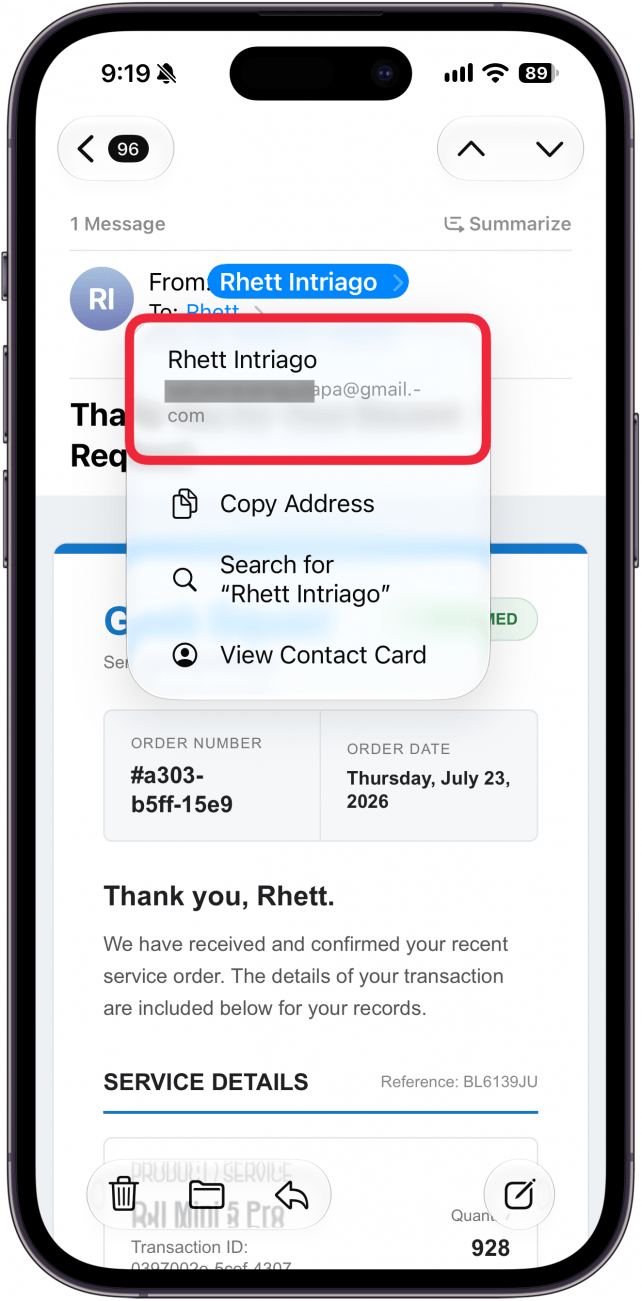
- A new menu will open showing you the email address this message came from (if you are using an earlier version of iOS, you may see a contact card instead). In this case, the email is from a Gmail address. The content of the email was from Best Buy’s Geek Squad, so if this was a legitimate email, it should have come from an @bestbuy.com email address. Therefore, this is a scam email. Even if the email address looks legit at first glance, look carefully to see if there is a typo (e.g. @bestby.com) or a strange top-level domain (@bestbuy.io).
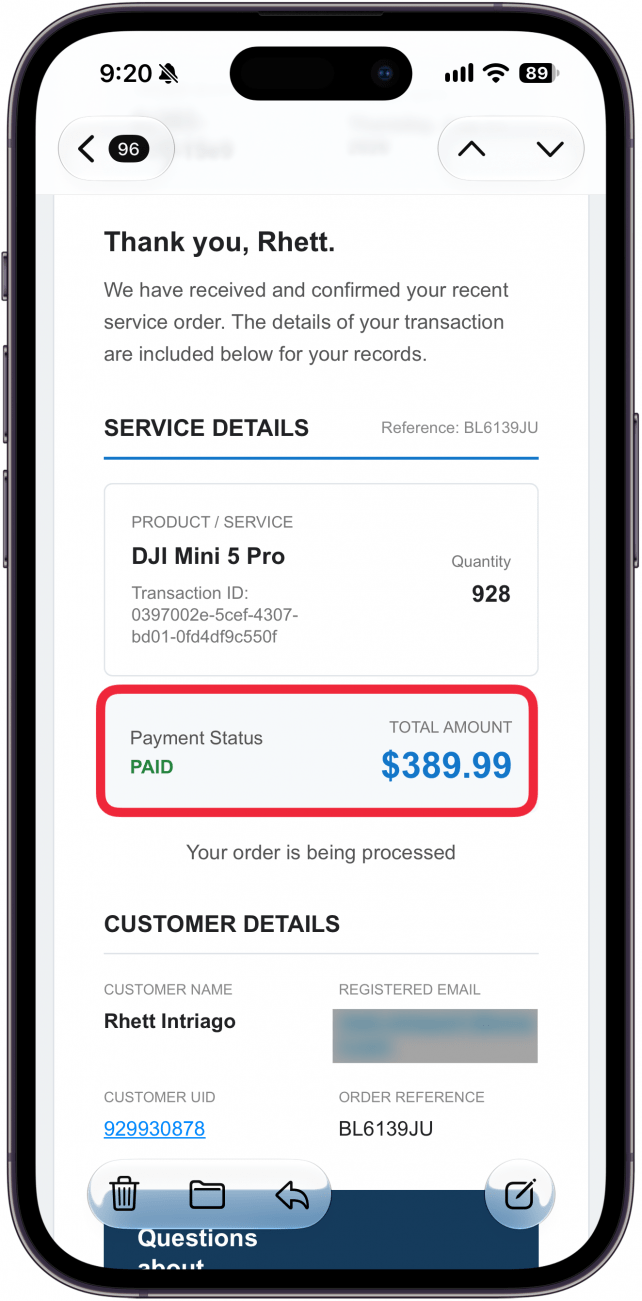
- The email is claiming I purchased a product from Geek Squad and the amount owed is $389.99. This is an alarming amount of money meant to make you panic and call the number indicated in the email right away. If you are in doubt as to whether the email is legitimate, don't call the number in the email or respond directly to the email. Go to the business's website instead, and find out how to contact customer service directly. Do NOT click any links in the email. Open a web browser and type in the address for the business's website.
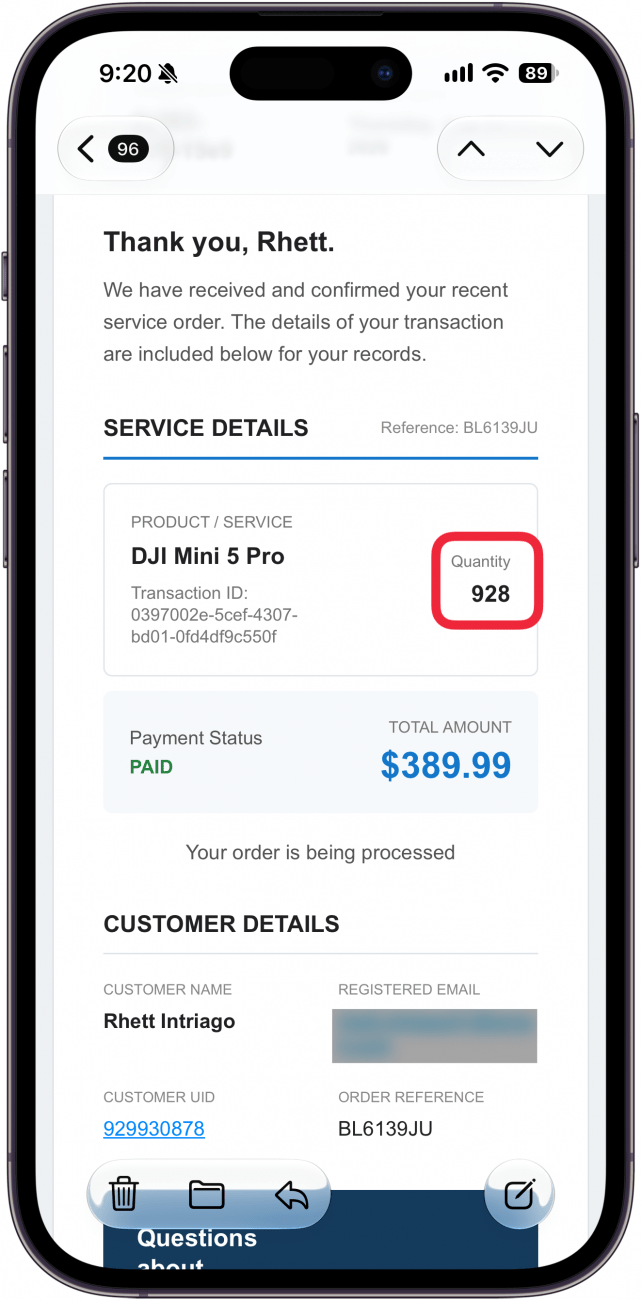
- However, a dead giveaway for this particular email is that the quantity listed is 928. I'm no math expert but unless the product I bought costs 42 cents each, $389.99 seems like an abnormally low cost for almost one thousand products.
- Another telltale sign is that in the body of the email, “Geek Squad” provides a phone number for you to call if you need assistance. You can search the web for the number given to see if it traces back to a legitimate source if you're ever in doubt.
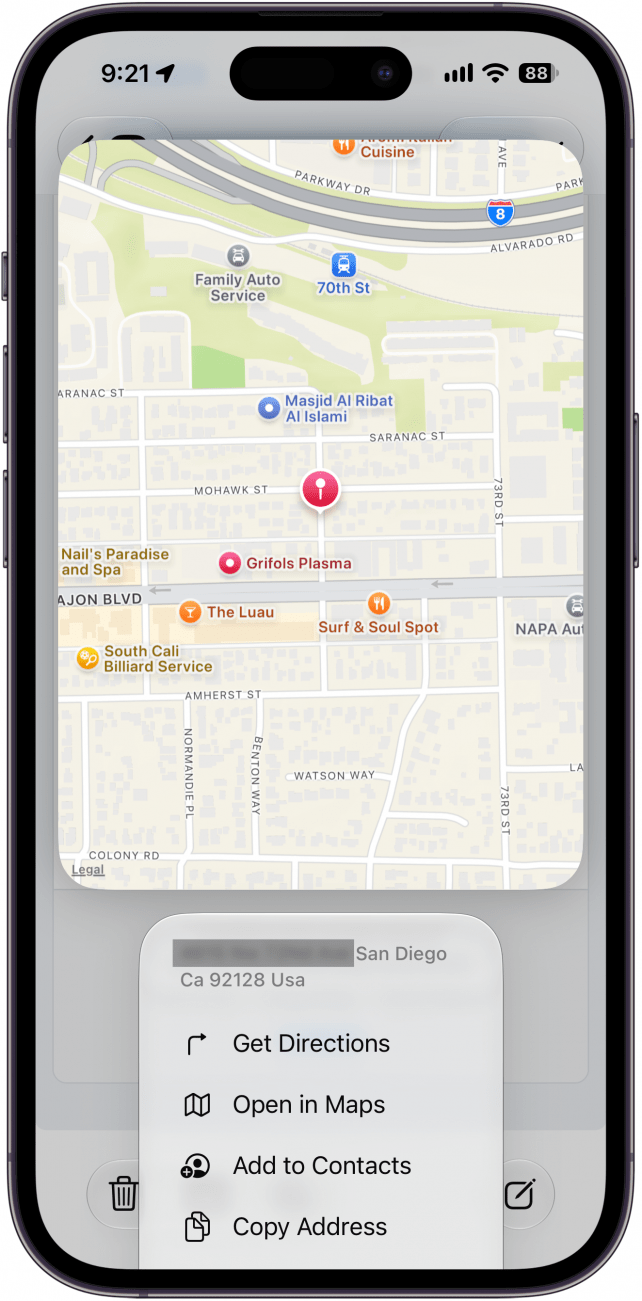
- If a physical address is provided at the bottom of the email, you can also check that.
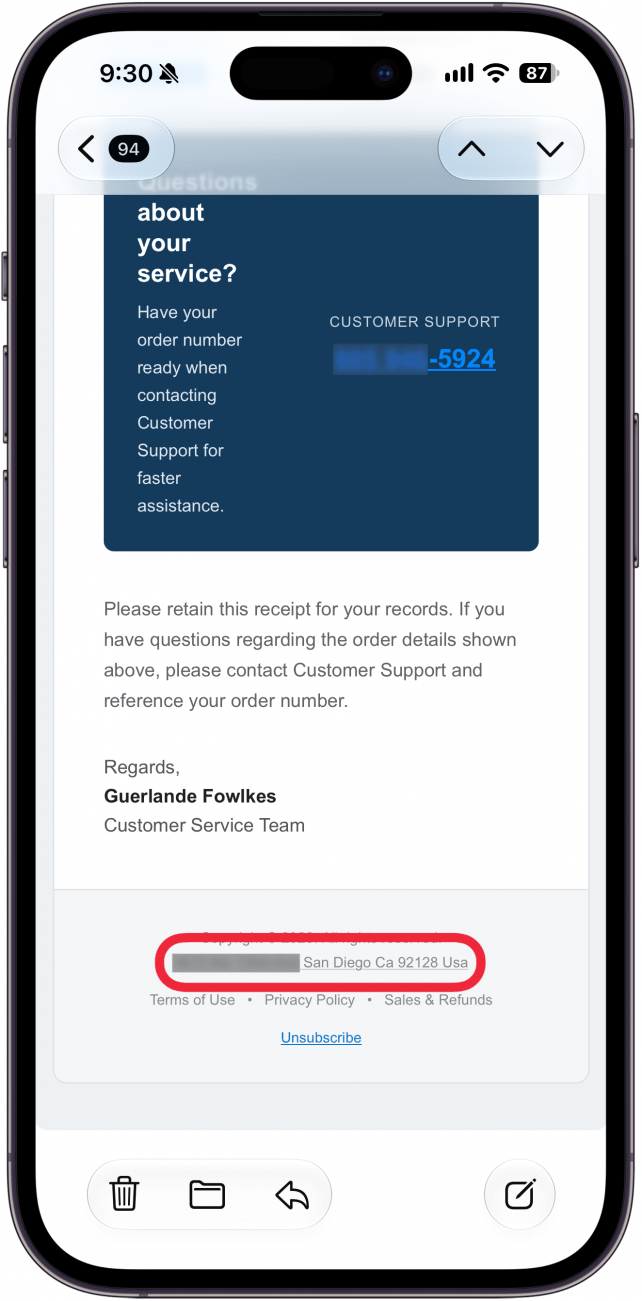
- I long pressed on the address and an Apple Maps window popped out. This looks like a random street in California, not a Best Buy store or even a corporate headquarters.
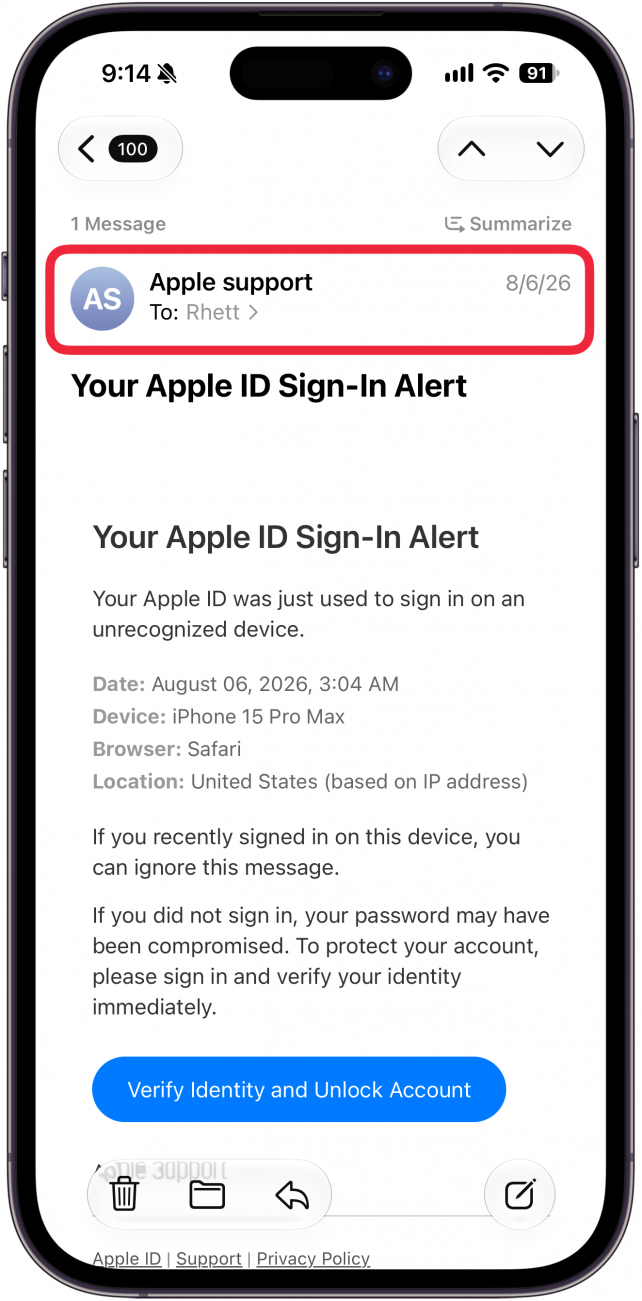
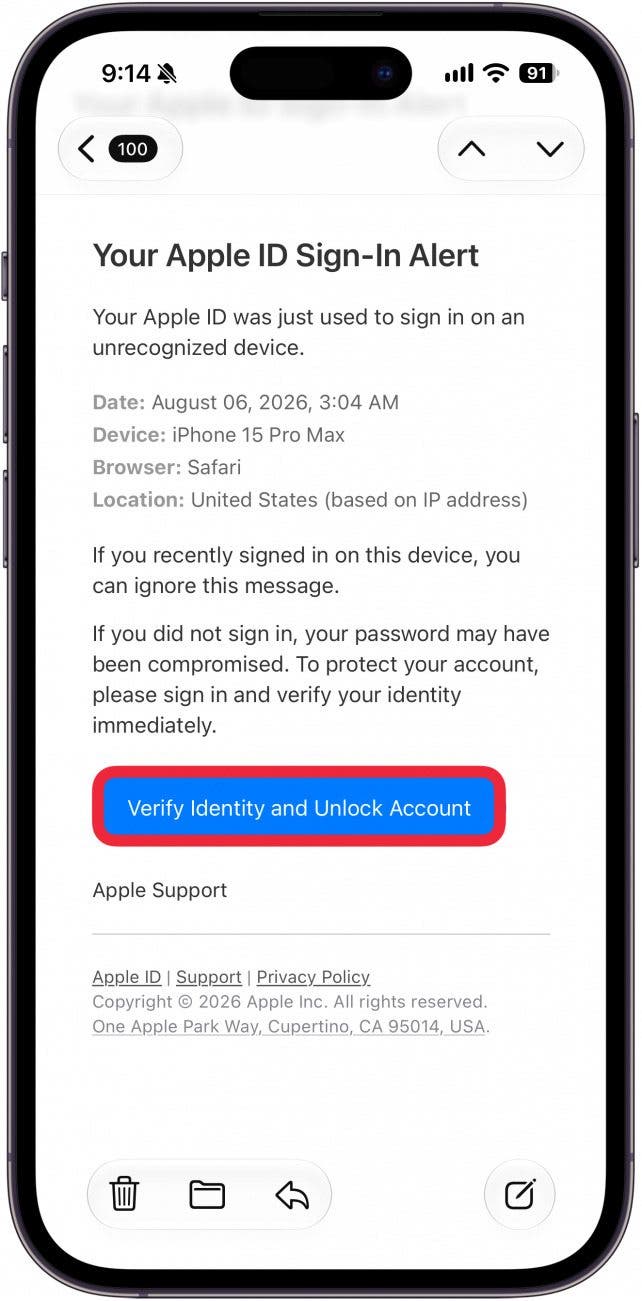
- Let's take a look at another type of email. This one is an Apple ID sign in alert. I don't own an iPhone 15 Pro Max and I don't recall signing into my account on August 6th. Additionally, the email is from "Apple support." This looks concerning at first glance. I'm going to tap the address bar just like we did in step 1.
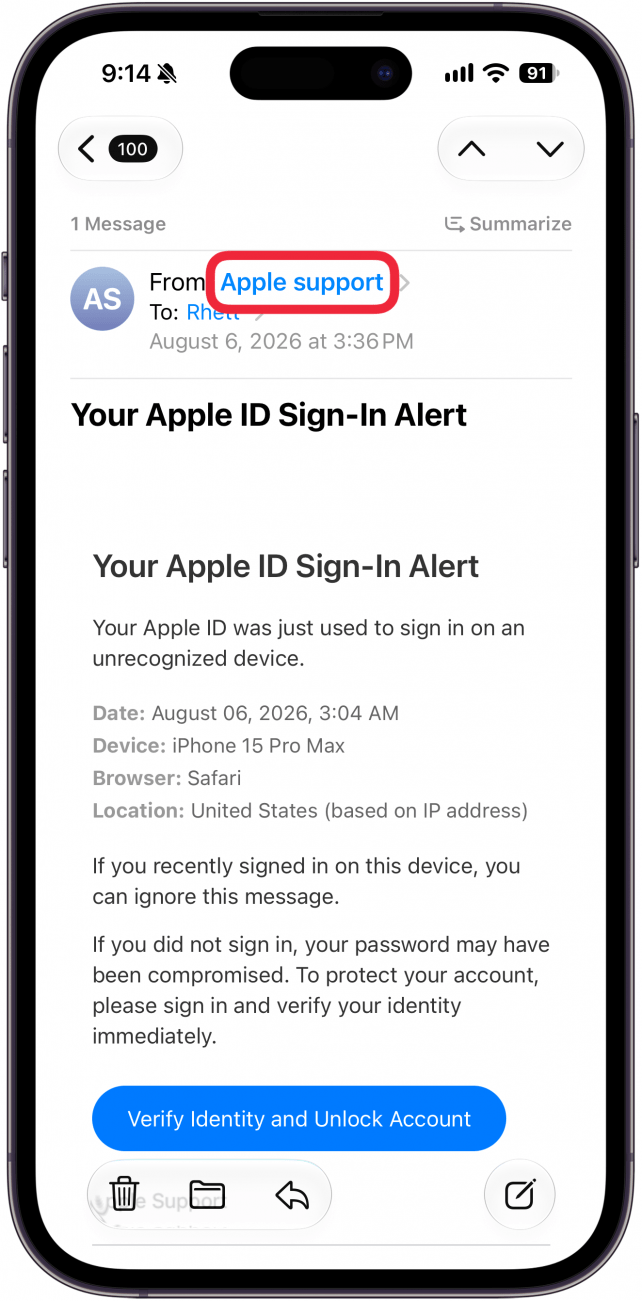
- Tap the name "Apple Support" in the From: field.
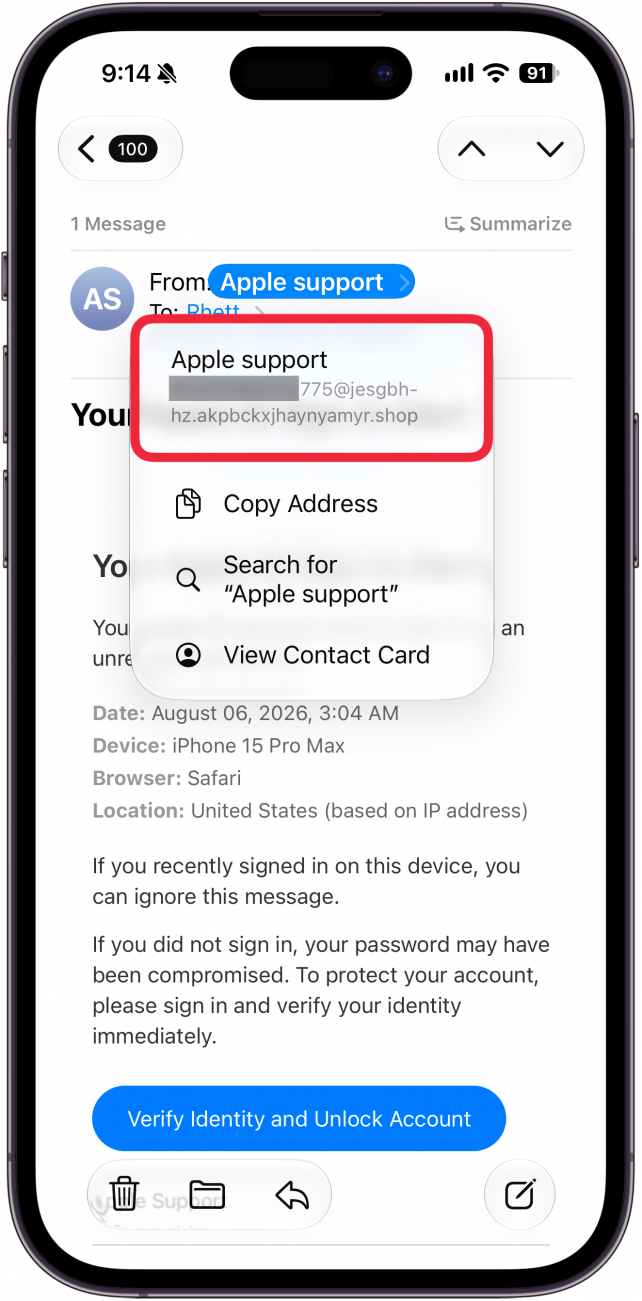
- Look at that crazy email address. Sign-in alerts from Apple originate from an @email.apple.com address.
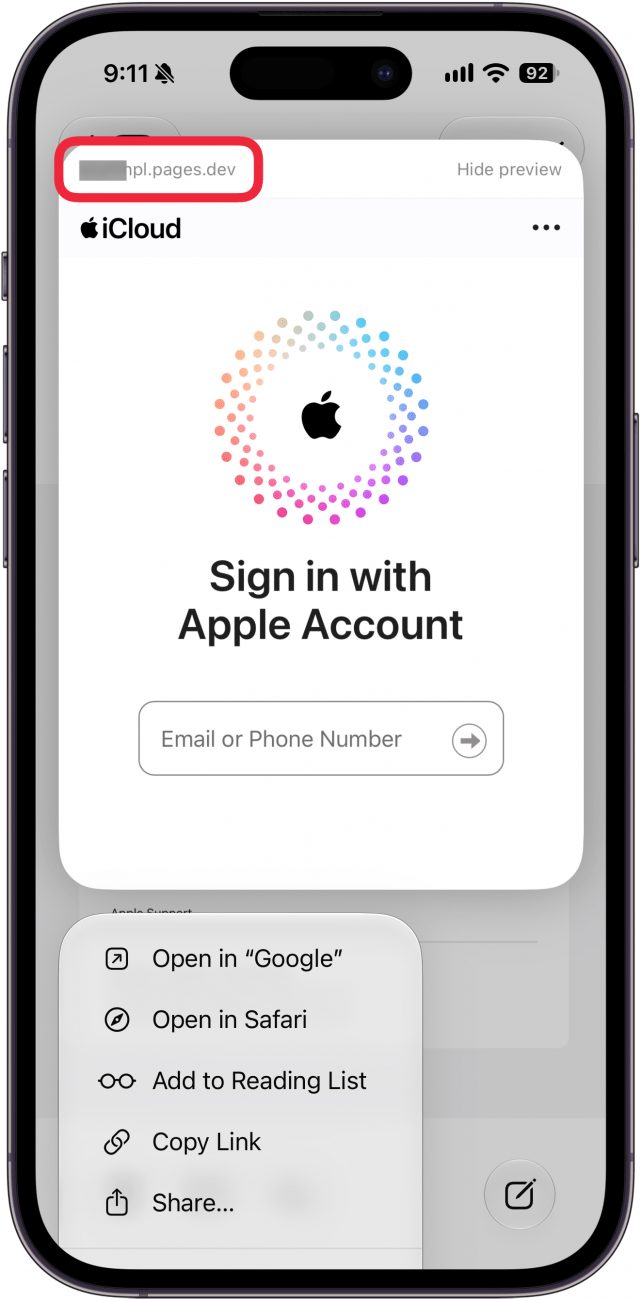
- Generally, I would not recommend tapping any links in this email. For demonstrative purposes, I'm going to long-press this link to show you what happens.
- The link leads to what looks like an official Apple Account sign-in page. Except the URL is a .pages.dev domain. This is not Apple.com or iCloud.com.
Now you know a few different ways to tell if an email is a scam. Next, find out how to manage sharing and access on your iPhone.
More On: iPhone Security
Top image credit: VRVIRUS / Shutterstock.com

Every day, we send useful tips with screenshots and step-by-step instructions to over 600,000 subscribers for free. You'll be surprised what your Apple devices can really do.

Rhett Intriago
Rhett Intriago is a Feature Writer at iPhone Life, offering his expertise in all things iPhone, Apple Watch, and AirPods. He enjoys writing on topics related to maintaining privacy in a digital world, as well as iPhone security. He’s been a tech enthusiast all his life, with experiences ranging from jailbreaking his iPhone to building his own gaming PC.
Despite his disdain for the beach, Rhett is based in Florida. In his free time, he enjoys playing the latest games, spoiling his cats, or discovering new places with his wife, Kyla.
 Rachel Needell
 Rhett Intriago
 Leanne Hays
 Olena Kagui

 David Averbach
 Susan Misuraca