How to Add iPhone Dictionaries to Spotlight Search

In the last 10 years, Olena has been published in dozens of publications internationally and written hundreds of how-to articles and complex guides about Apple products, software, and apps.
Learn More In the last 10 years, Olena has been published in dozens of publications internationally and written hundreds of how-to articles and complex guides about Apple products, software, and apps.
Learn MoreYour iPhone has access to over 70 language dictionaries already built-in and you can use any of these languages in Spotlight search. We’ll teach you how to easily enable these dictionaries so that you can use other languages when searching on your iPhone.
Why You’ll Love This Tip
- Find text in images and messages in other languages by activating more dictionaries in your Spotlight Search.
- Discover how to ‘Control/Command-F on your iPhone in multiple languages without third-party apps.
How to Add iPhone Dictionaries to Spotlight Search
System Requirements
This tip was performed on an iPhone 17 Pro Max running iOS 26.3. Find out how to update to the latest version of iOS.
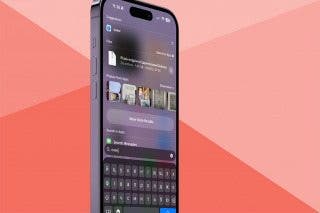
When you search on an iPhone using Spotlight Search, you can find apps, files, photos, text messages, and so much more. Adding dictionaries allows you to conduct searches in other languages to find content that you wouldn’t be able to search for in English or using the Latin alphabet. Don't forget to check out our free Tip of the Day for more great tricks and tutorials. Here’s how to add a dictionary:
- Open Settings.
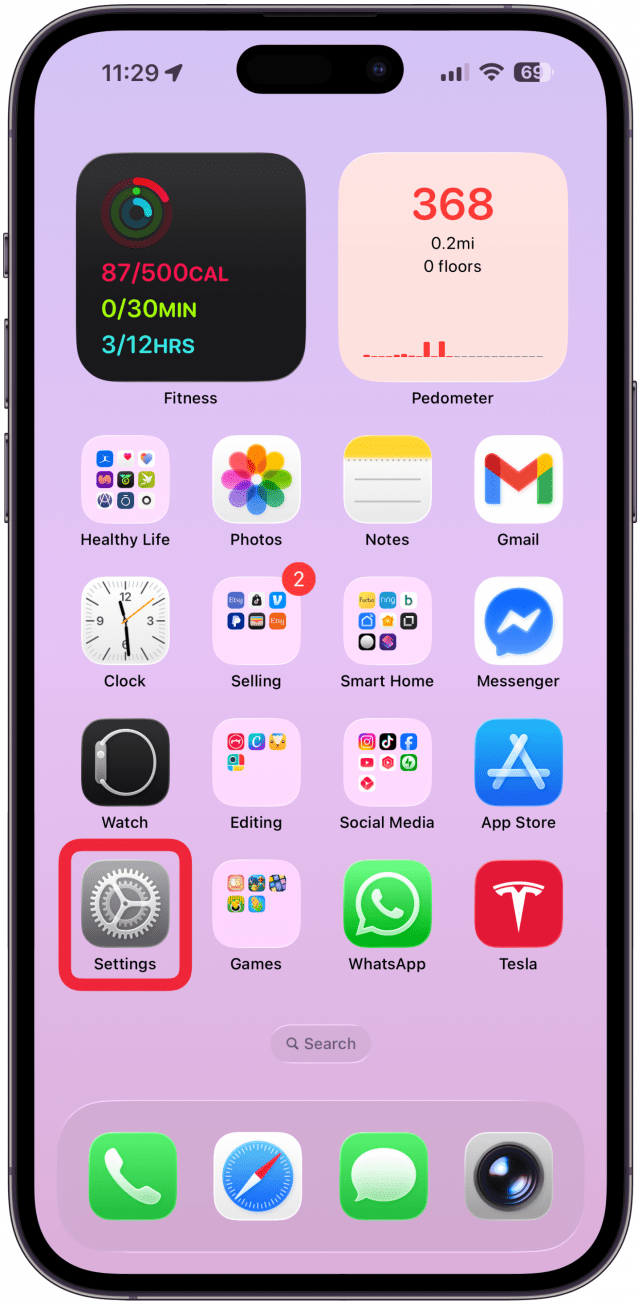
- Tap General.
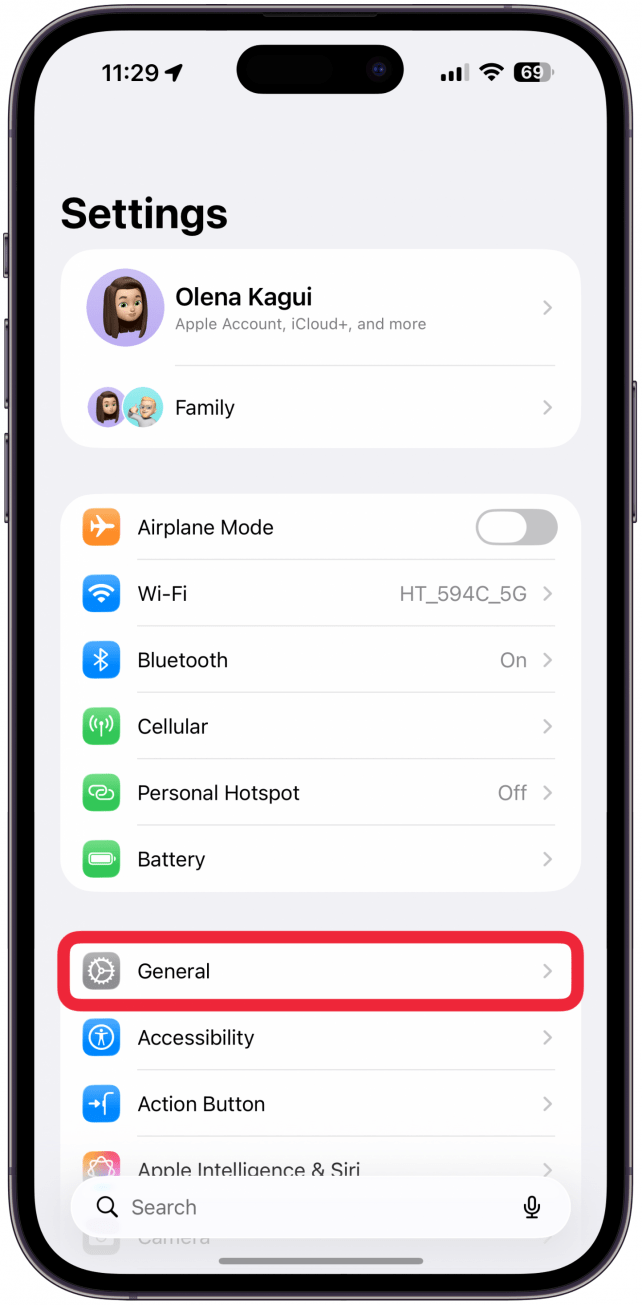
- Select Dictionary.
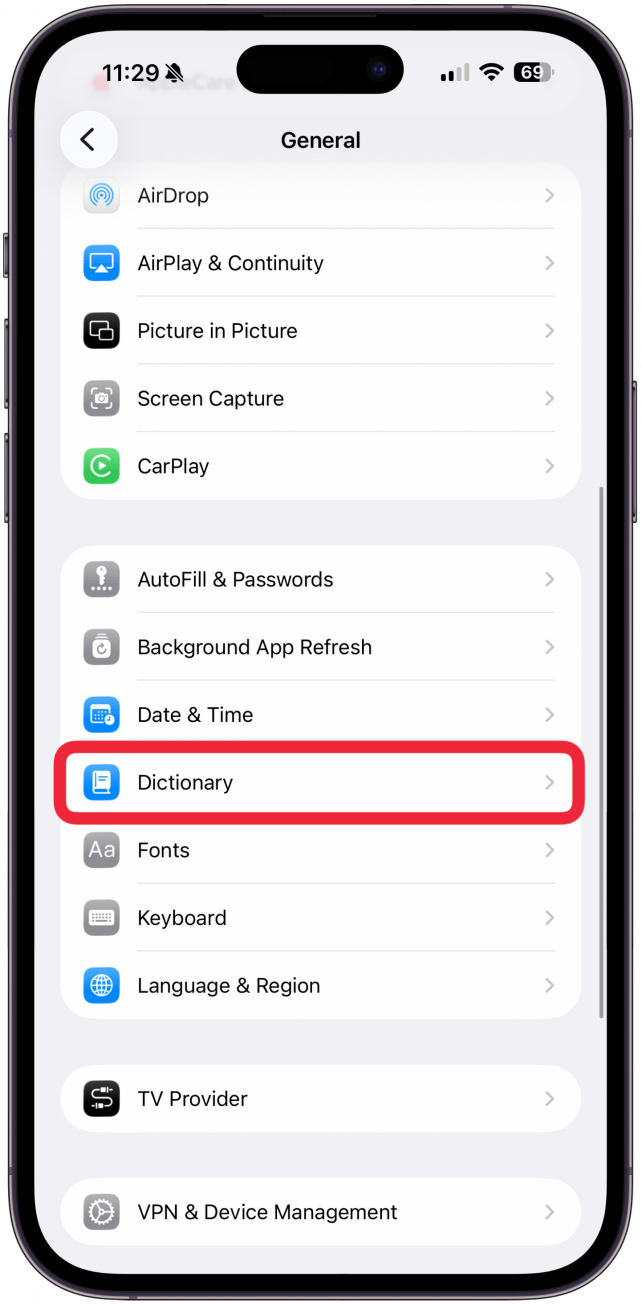
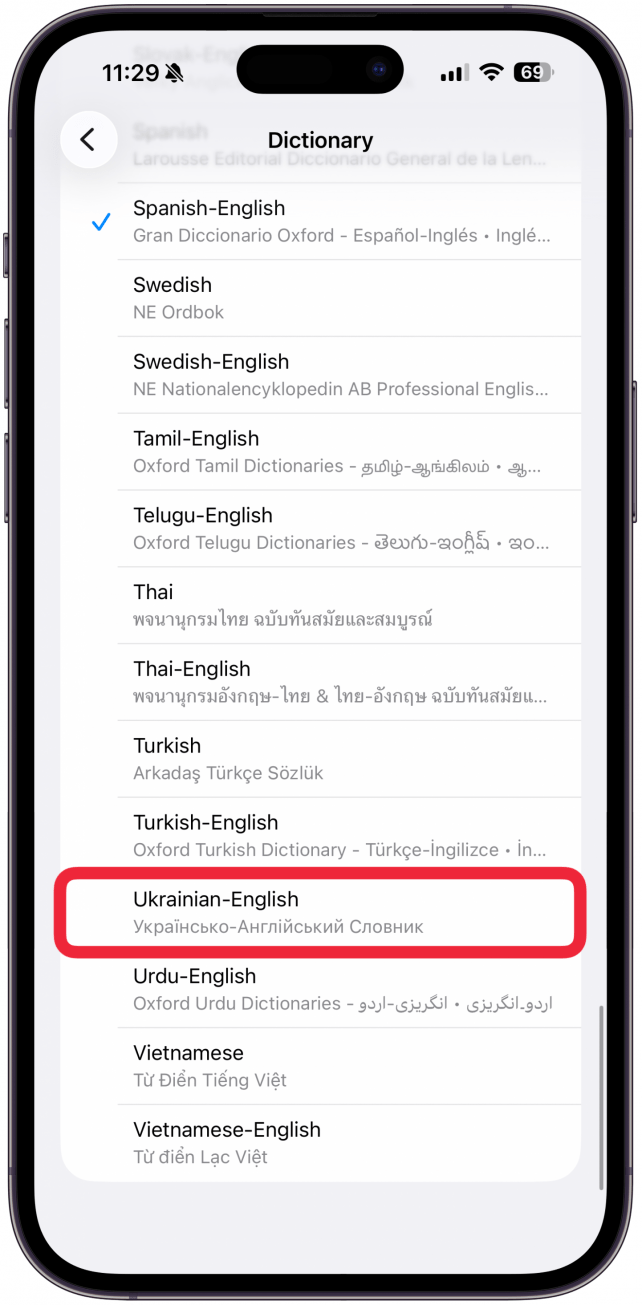
- Tap on the language you wish to download and wait until you see a checkmark left of the language name.
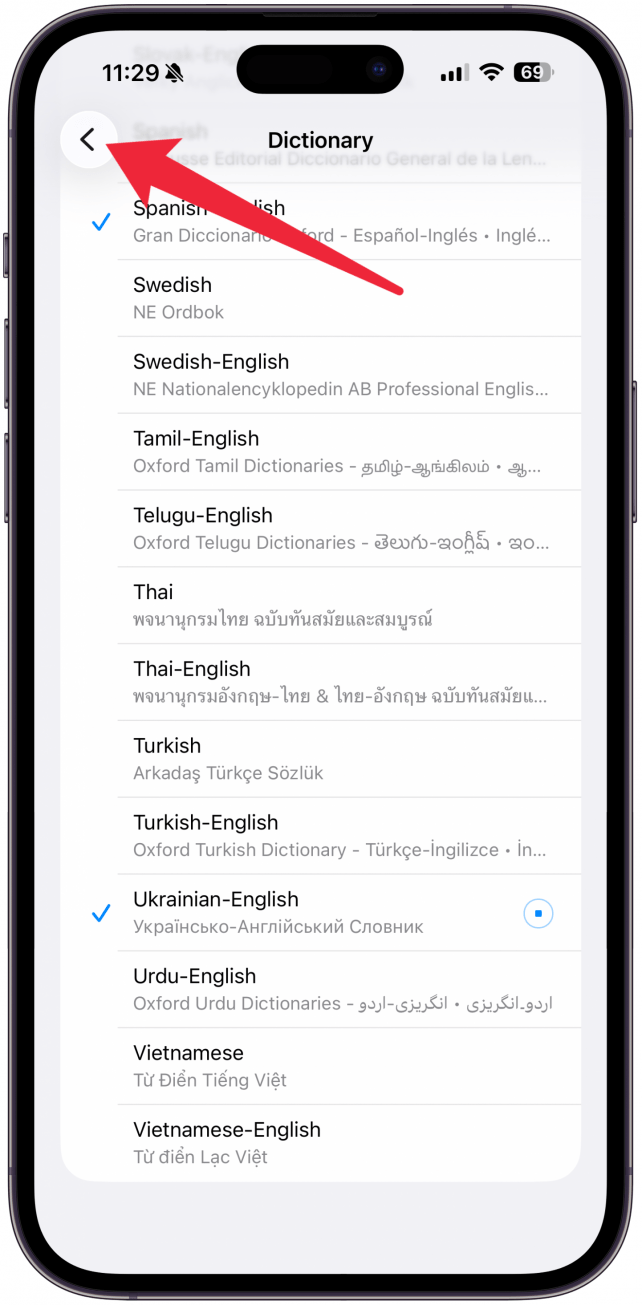
- Go back to General.
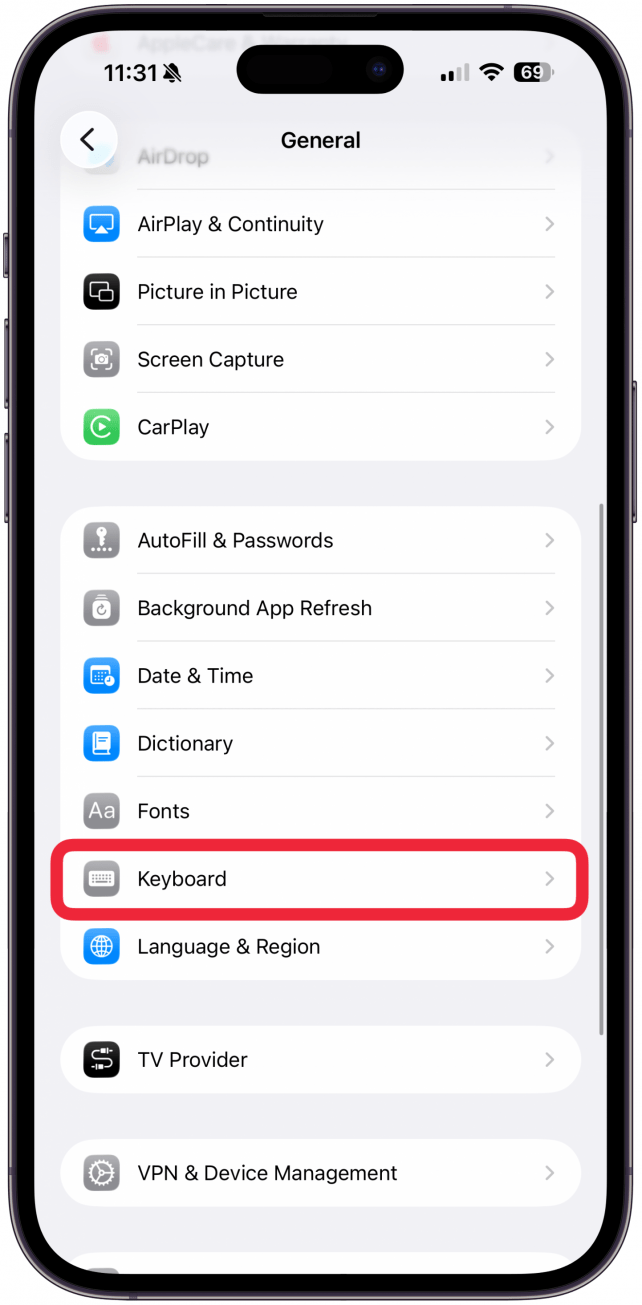
- Select Keyboard.
- Tap Keyboards at the very top.
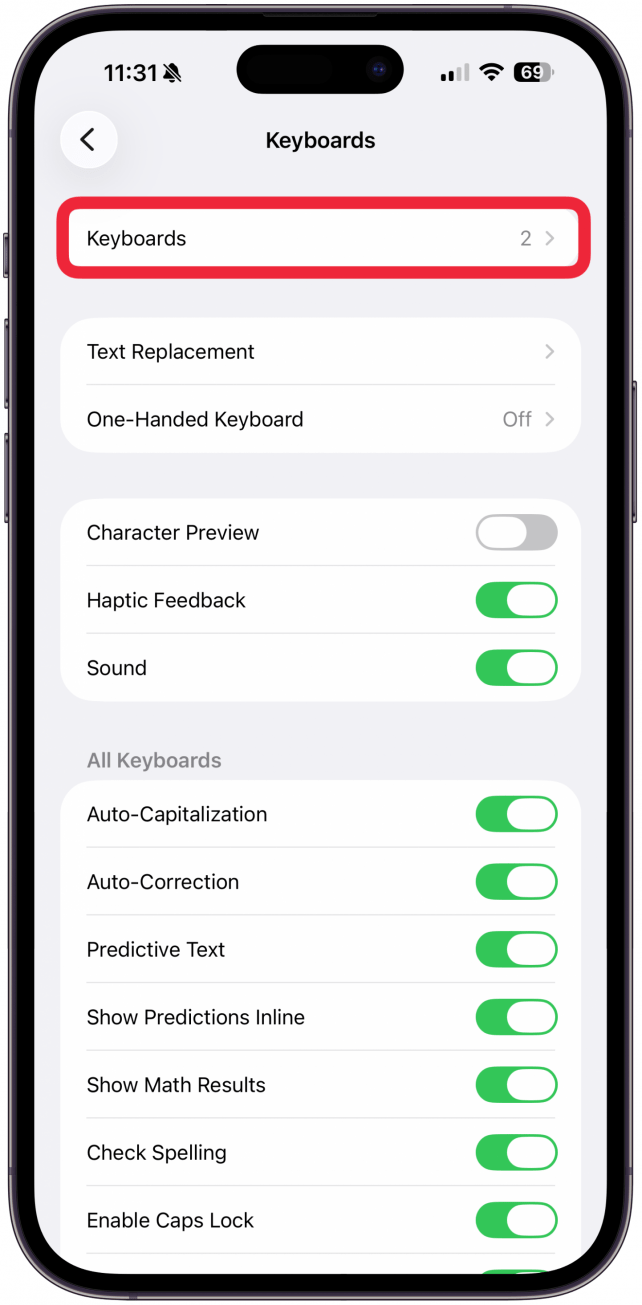
- Tap Add New Keyboard.
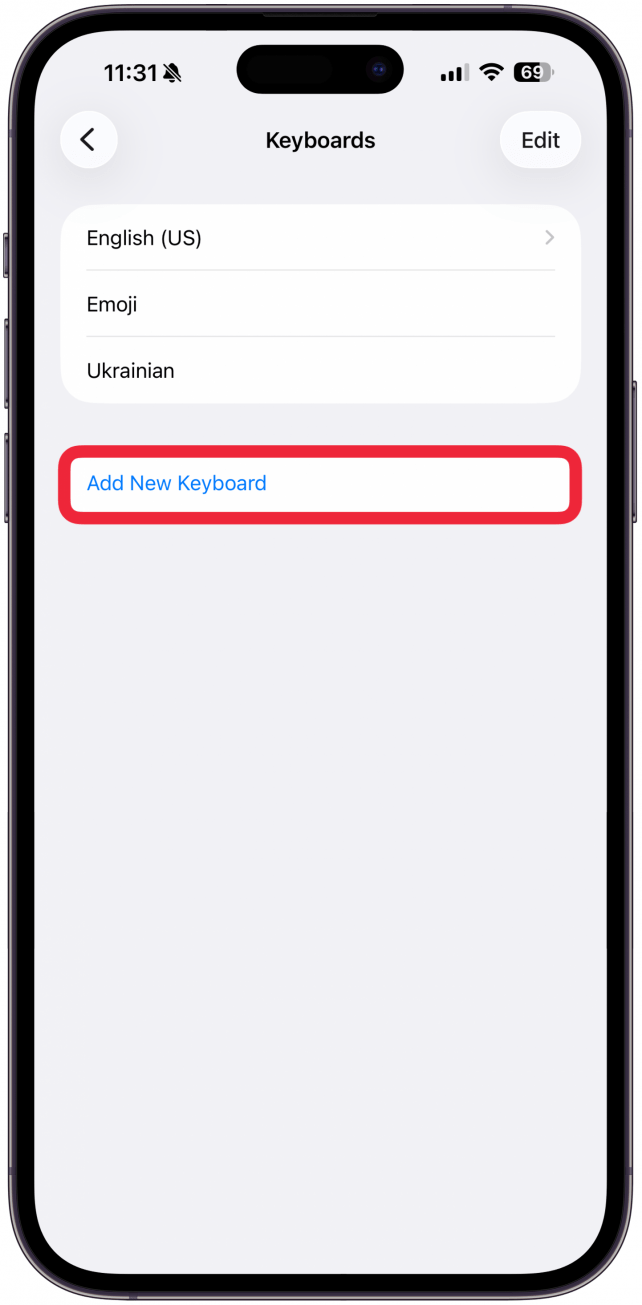
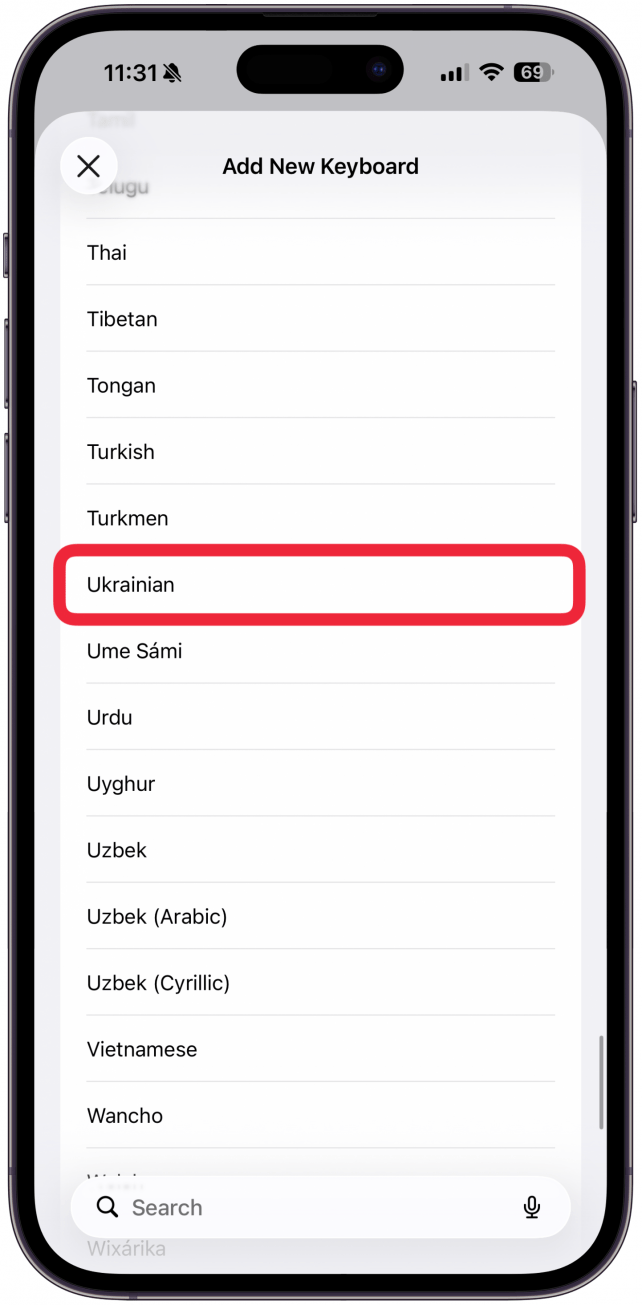
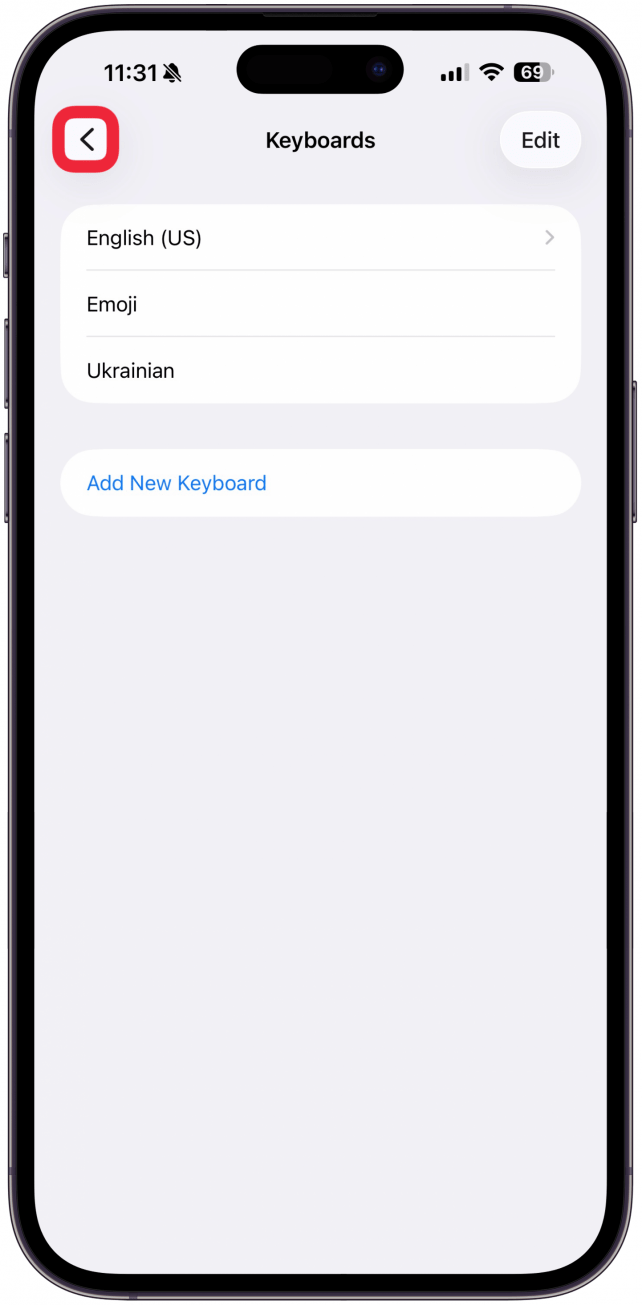
- Select the keyboard that matches the language you downloaded in step 4.
- Leave the Settings app and swipe down from the top of your screen to open Spotlight Search. If you see the Control Center instead, try swiping from the middle of the screen, starting about an inch below your front camera.
- Tap on the globe icon in the very bottom left corner.
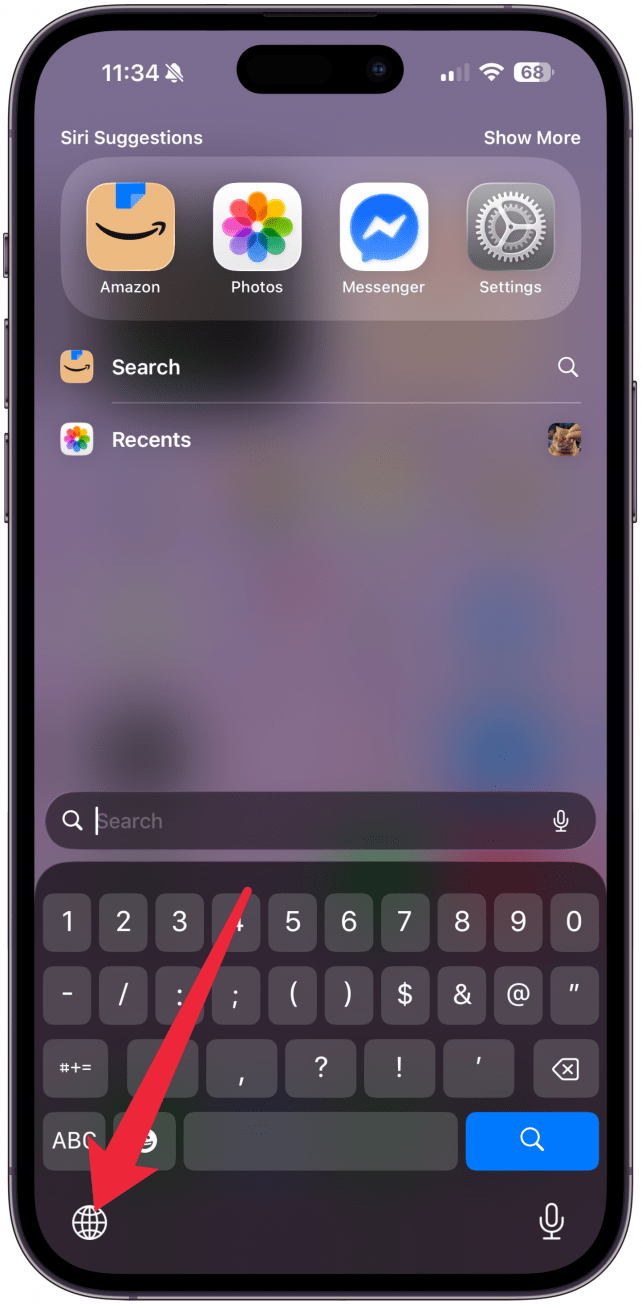
- You’ll see your new language keyboard show up.
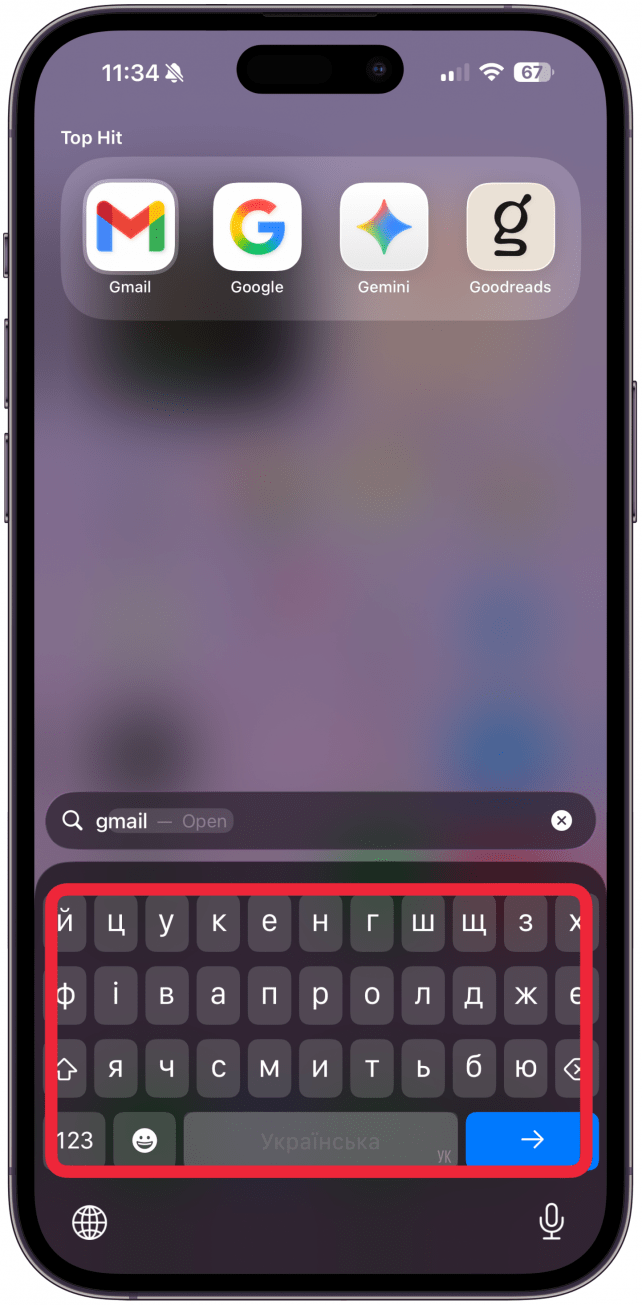
- Search as you normally would in that language.
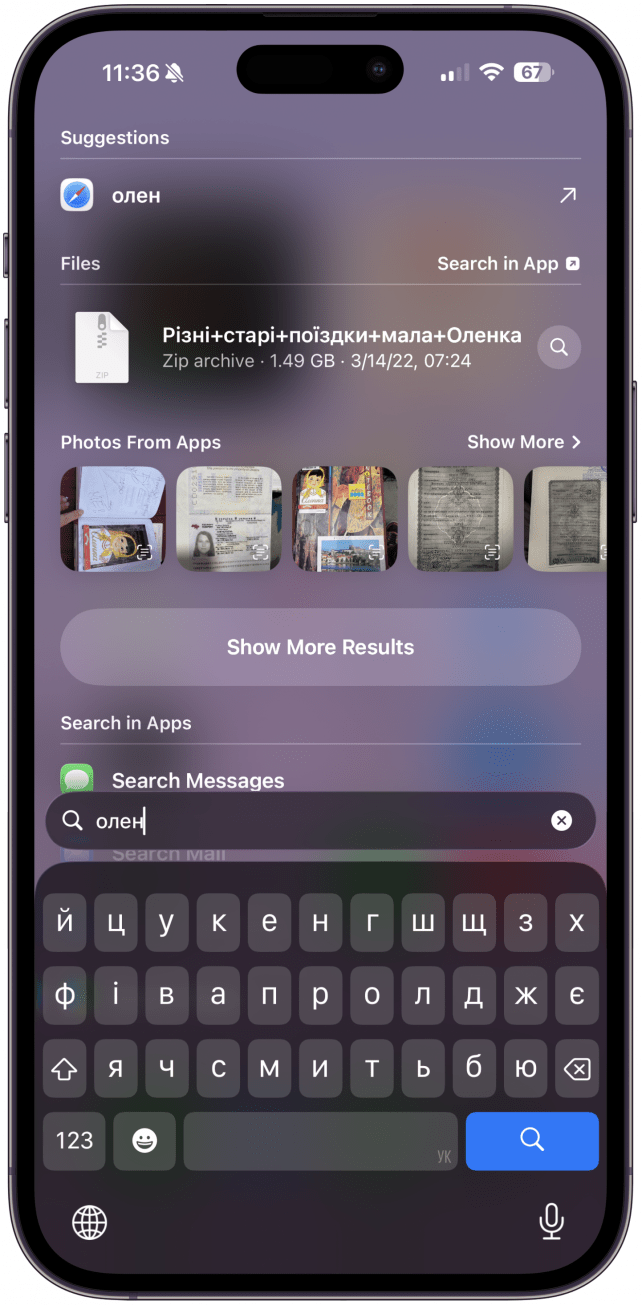
Now you know how to use other languages in Spotlight Search and do a quick dictionary change to search in a different alphabet. Next, learn how to change the primary language on your iPhone.
More On: Languages

Every day, we send useful tips with screenshots and step-by-step instructions to over 600,000 subscribers for free. You'll be surprised what your Apple devices can really do.

Olena Kagui
Olena Kagui is a Feature Writer at iPhone Life. In the last 10 years, she has been published in dozens of publications internationally and won an excellence award. Since joining iPhone Life in 2020, she has written how-to articles as well as complex guides about Apple products, software, and apps. Olena grew up using Macs and exploring all the latest tech. Her Maui home is the epitome of an Apple ecosystem, full of compatible smart gear to boot. Olena’s favorite device is the Apple Watch Ultra because it can survive all her adventures and travels, and even her furbabies.
 Olena Kagui
 Rhett Intriago

 Leanne Hays
 Rachel Needell