How to Change Mail Swipe Options in Settings on iPhone

Jim Karpen has been writing about technology since 1994 and brings decades of experience with Apple products, along with a Ph.D. in literature and writing.
Learn More Jim Karpen has been writing about technology since 1994 and brings decades of experience with Apple products, along with a Ph.D. in literature and writing.
Learn More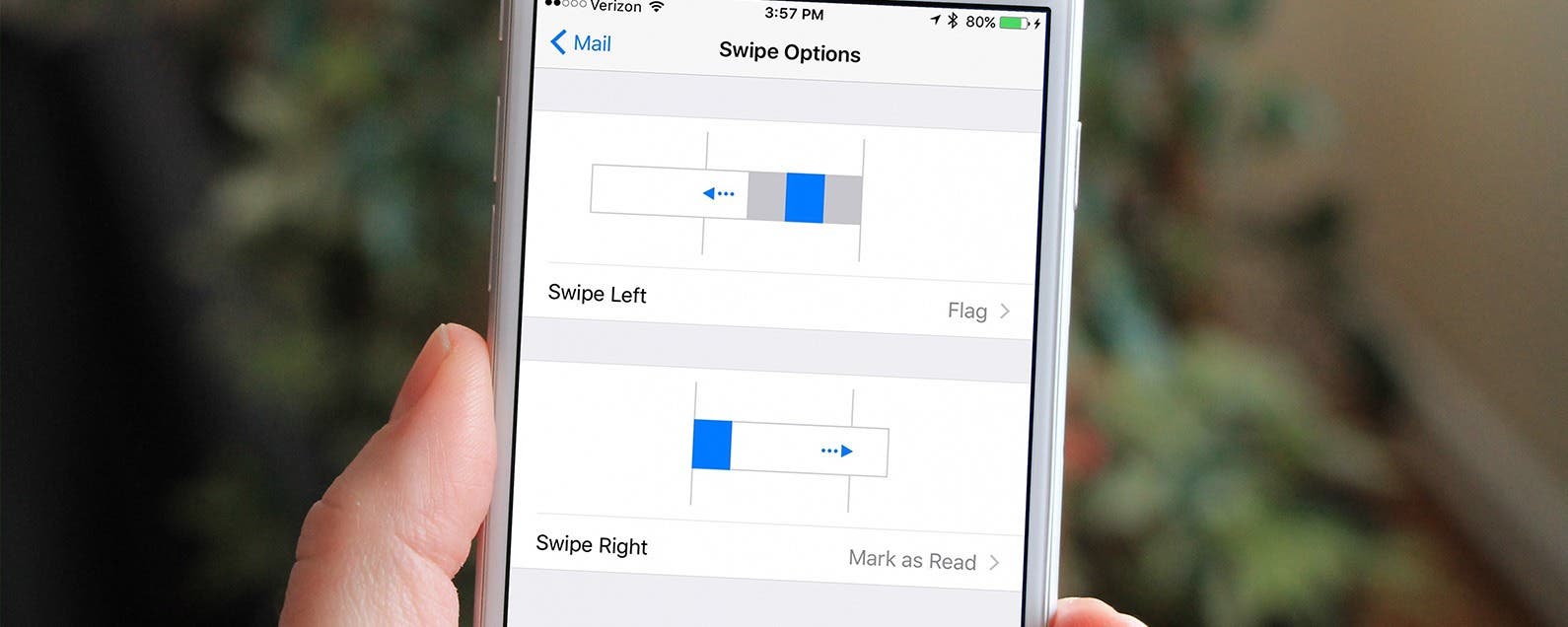
Since the release of iOS 8 a few years back, the Mail app on iPhone has swipe options. This means that when you’re viewing an inbox, you can swipe an email left or right to select options such as mark read/unread, delete, flag, or archive an email. Plus, tapping the More option gives you access to all the other email actions. However, you can choose to customize these gestures, though the options are somewhat limited. And you can even turn them off, if you so choose. Here’s how to change mail swipe options in Settings on iPhone.
Related: Top 10 Productivity Tips and Tricks for iPhone 7
How to Change Mail Swipe Options in Settings on iPhone
- Open the Settings app.
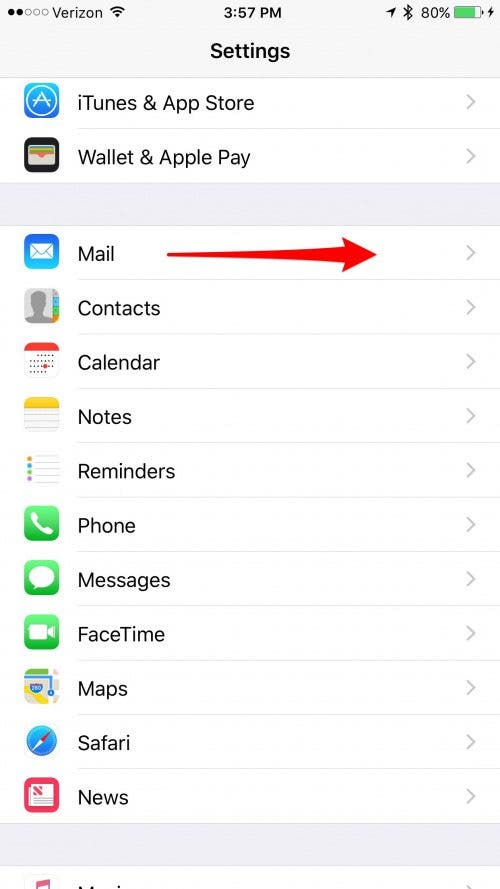
- Tap Mail.
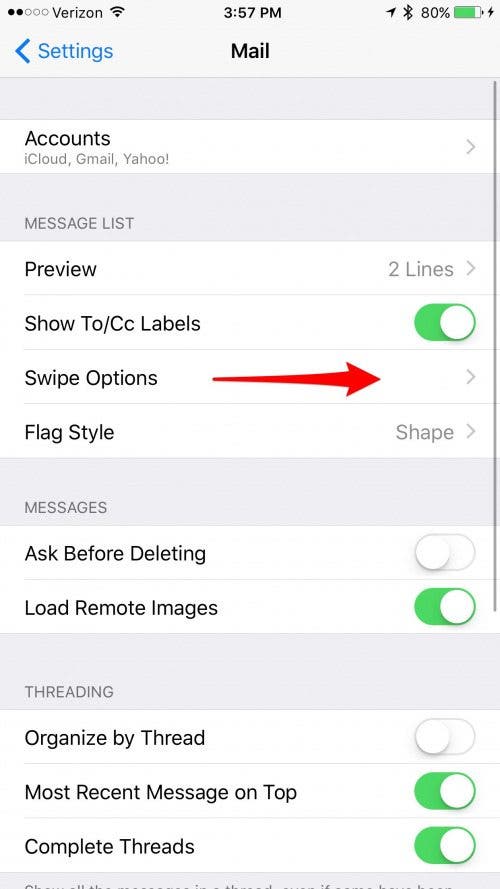
- Select Swipe Options.
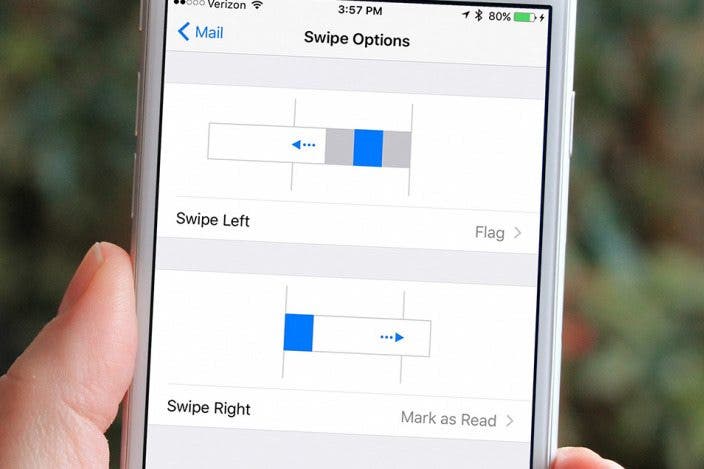
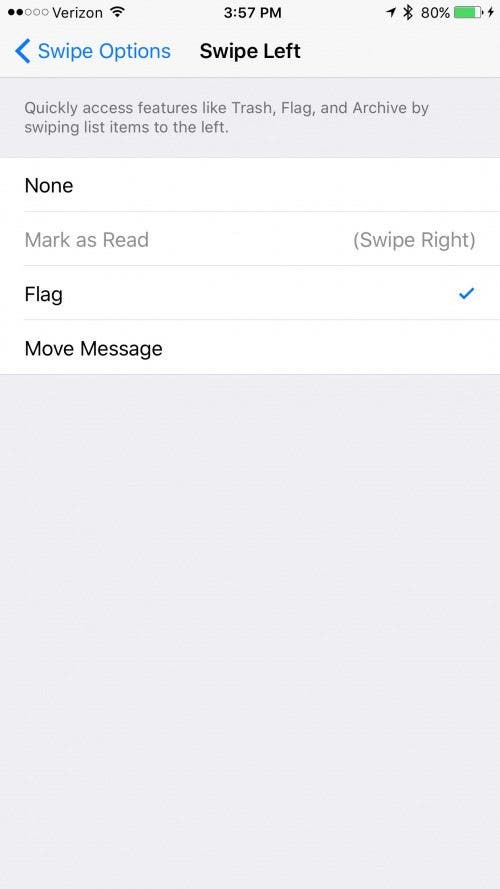
- The default is Flag for a left swipe and Mark as Read for a swipe right. To change the swipe left gesture, tap on > to see the other options.
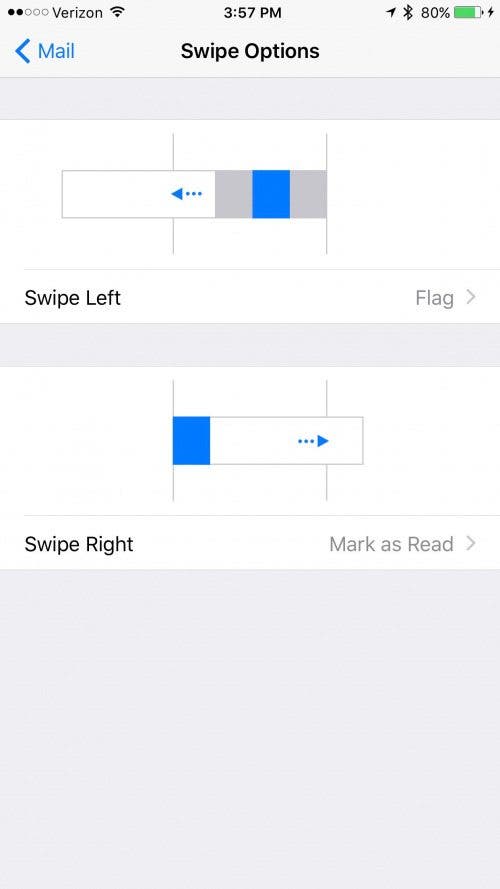
- Note that Mark as Read isn't available as an option because it's already implemented for a right swipe. Similarly, tap > to see the other options for a right swipe. These include the option of archiving an email.
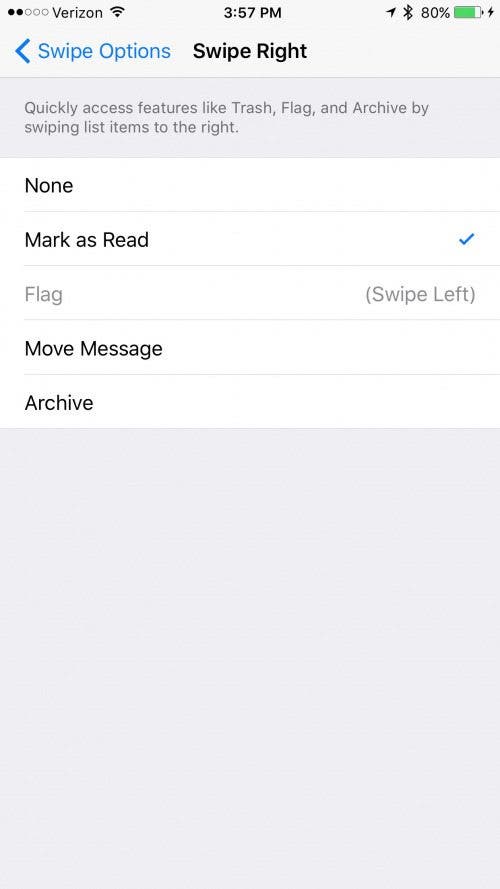
If you set both left and right swipe to None, you'll still have the option to view the More option with a partial left swipe and delete an email with a full swipe left.
Top image credit: Ellica / Shutterstock.com

Every day, we send useful tips with screenshots and step-by-step instructions to over 600,000 subscribers for free. You'll be surprised what your Apple devices can really do.


 Rachel Needell
 Rhett Intriago
 Olena Kagui
 Amy Spitzfaden Both




 Susan Misuraca