How to Clear All Notifications on Apple Watch at Once

With two decades of writing and editing experience, Sarah has written hundreds of how-to articles, founded the Daily Tip newsletter, and now oversees iPhone Life’s online content.
Learn More With two decades of writing and editing experience, Sarah has written hundreds of how-to articles, founded the Daily Tip newsletter, and now oversees iPhone Life’s online content.
Learn MoreOne of the Apple Watch's many benefits is the ability to manage incoming messages and notifications from your wrist. But if you've let the notifications pile up, don't worry about going through and dismissing them one by one; there's an easy way to dismiss all your notifications at once. When your Apple Watch notifications start to pile up, here’s how to clear all of them at once.
Why You'll Love This Tip
- Prevent your notifications from getting too cluttered by clearing them all at once.
- Avoid feeling overwhelmed by your notifications on your Apple Watch.
How to Clear All Notifications on Apple Watch
System Requirements
This tip was performed on an Apple Watch Series 9 running watchOS 26.1. Find out how to update to the latest version of iOS.
If you become overwhelmed with notifications on your Apple Watch, you can easily clear them all in seconds. For more Apple Watch and iPhone organization tips, be sure to sign up for our free Tip of the Day newsletter. Now, here's how to clear notifications on Apple Watch:
- Swipe down from the top of the watch face screen to open the notification center.
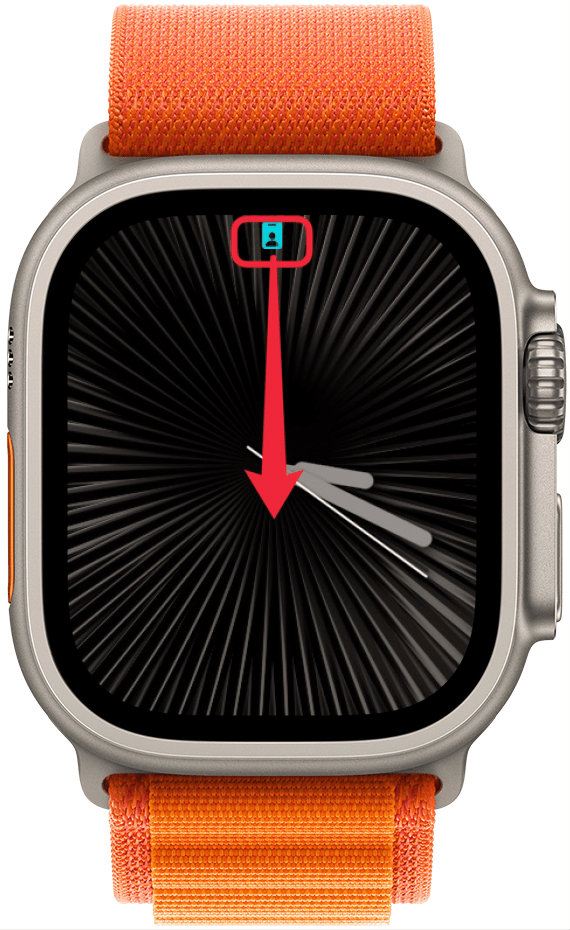
- Next, scroll down until you reach the top of the notifications list.
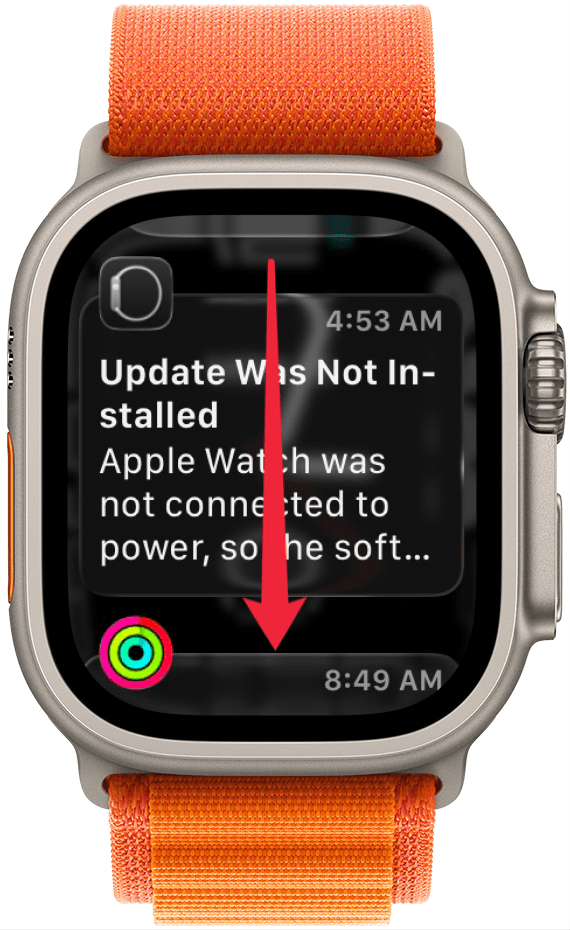
- Tap on the Clear All option.
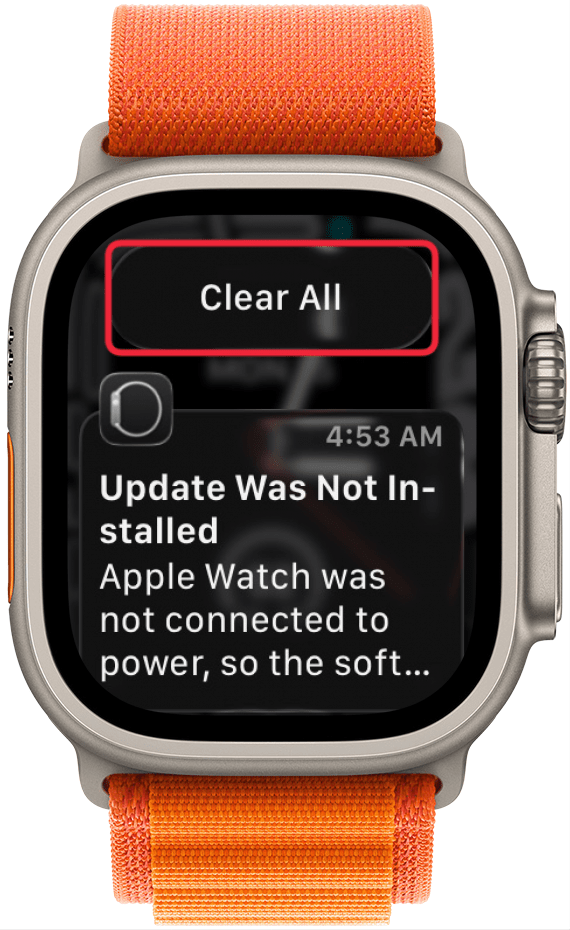
That’s all there is to it! It’s a really simple solution to clear notifications on Apple Watch.
More On: Apple Watch Notifications

Every day, we send useful tips with screenshots and step-by-step instructions to over 600,000 subscribers for free. You'll be surprised what your Apple devices can really do.

Sarah Kingsbury
As the Editorial Director at iPhone Life, Sarah Kingsbury manages the online editorial team and oversees all website content. She is a long-time Apple enthusiast who never goes anywhere without her Apple Watch and owns way too many HomePods. Since joining iPhone Life in 2013, Sarah has done everything from writing hundreds of how-to articles to founding the Daily Tip newsletter. She even co-hosted the early episodes of the iPhone Life Podcast. When not at work, Sarah can be found hiking in the mountains and canyons around Las Vegas, where she lives with her partner and dogs.

 Leanne Hays
 Rachel Needell
 Rhett Intriago
 Amy Spitzfaden Both
 Olena Kagui