How to Get AI-Generated Recipes on iPhone & iPad

Leanne puts her love of troubleshooting and repair to use managing our Ask an Expert Facebook group and has authored hundreds of how-to, Apple news, and gear review articles.
Learn More Leanne puts her love of troubleshooting and repair to use managing our Ask an Expert Facebook group and has authored hundreds of how-to, Apple news, and gear review articles.
Learn MoreEver get home late, exhausted and hungry, only to discover you don't have anything ready for dinner? You need to make a meal just using ingredients you have on hand, but you don't know what to do. Your iPhone or iPad can help with that! Here's how to use the AI recipe generator on your iPhone.
Why You'll Love This Tip
- Learn how to use AI as a recipe generator from ingredients. Just tell your AI assistant what you have on hand!
- Tell Siri if you want an appetizer, main dish, or dessert, and see what AI recipes pop out.
How to Get AI-Generated Recipes on Your iPhone & iPad
System Requirements
This tip only works on iPhones and iPads that can run Apple Intelligence, and was tested on an iPhone 17 Pro running iOS 26.4. Learn how to update to the latest operating system. If you have a different AI assistant you prefer to use, like Gemini, Perplexity, or the standalone ChatGPT app, you should be able to follow the same basic steps.
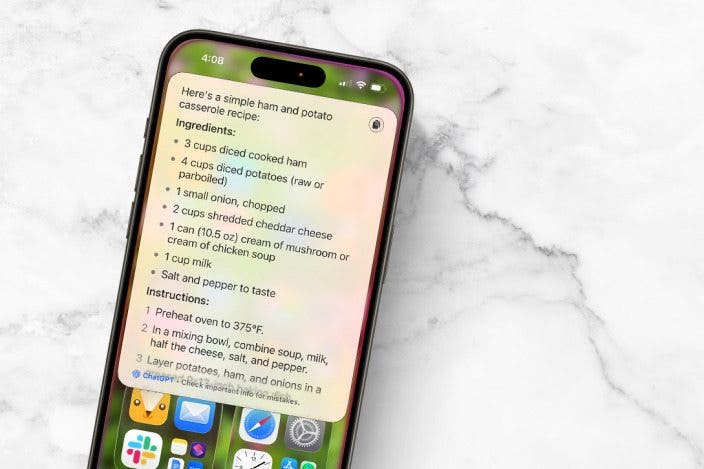
Not sure what to make for dinner tonight? Or, do you have ingredients but no recipe for what you have on hand? Try using the AI on your iPhone to generate a recipe using the materials you have available.
In this tip, we use ChatGPT via Siri to generate a recipe in seconds.
Note: The tip as written will only work if you have Apple Intelligence and ChatGPT turned on. Open the Settings app, tap Apple Intelligence & Siri, and make sure Apple Intelligence is toggled to green. Then, make sure ChatGPT is enabled. Finally, make sure Siri is turned on.
- Say "Siri", or "Hey Siri, can you make a recipe for me?"
- Tap Use ChatGPT.
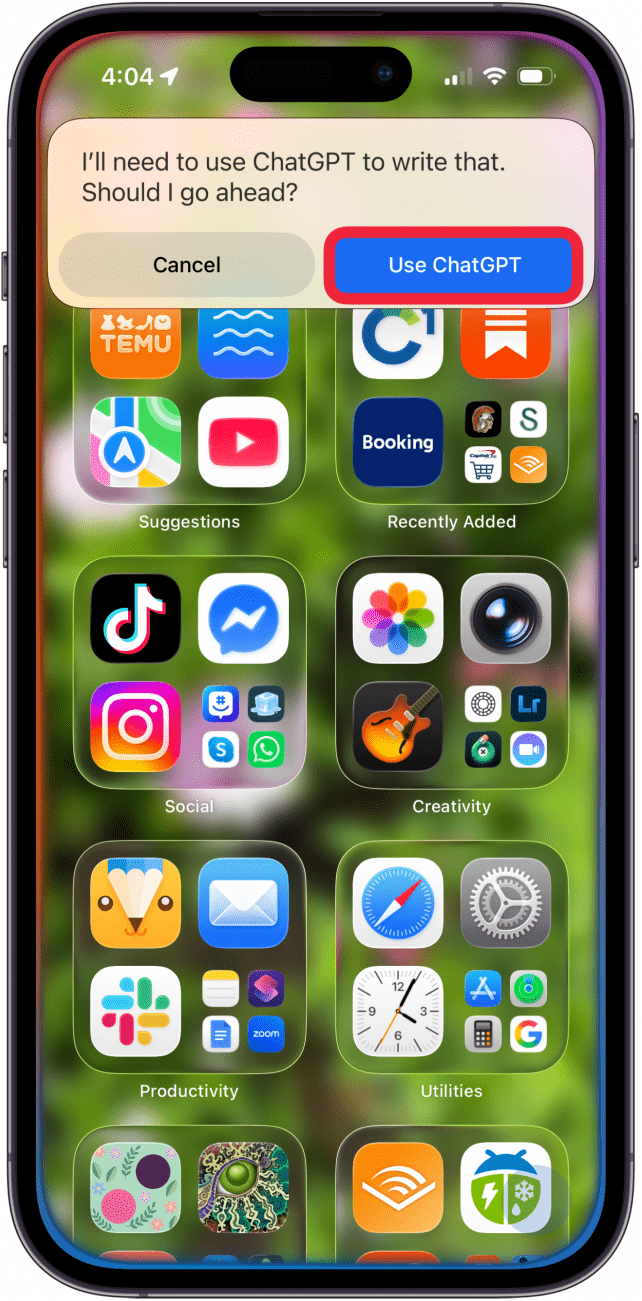
- You may be asked if you want a recipe for a dessert, main dish, or something else. Answer, and you'll see "Working with ChatGPT" on your screen.
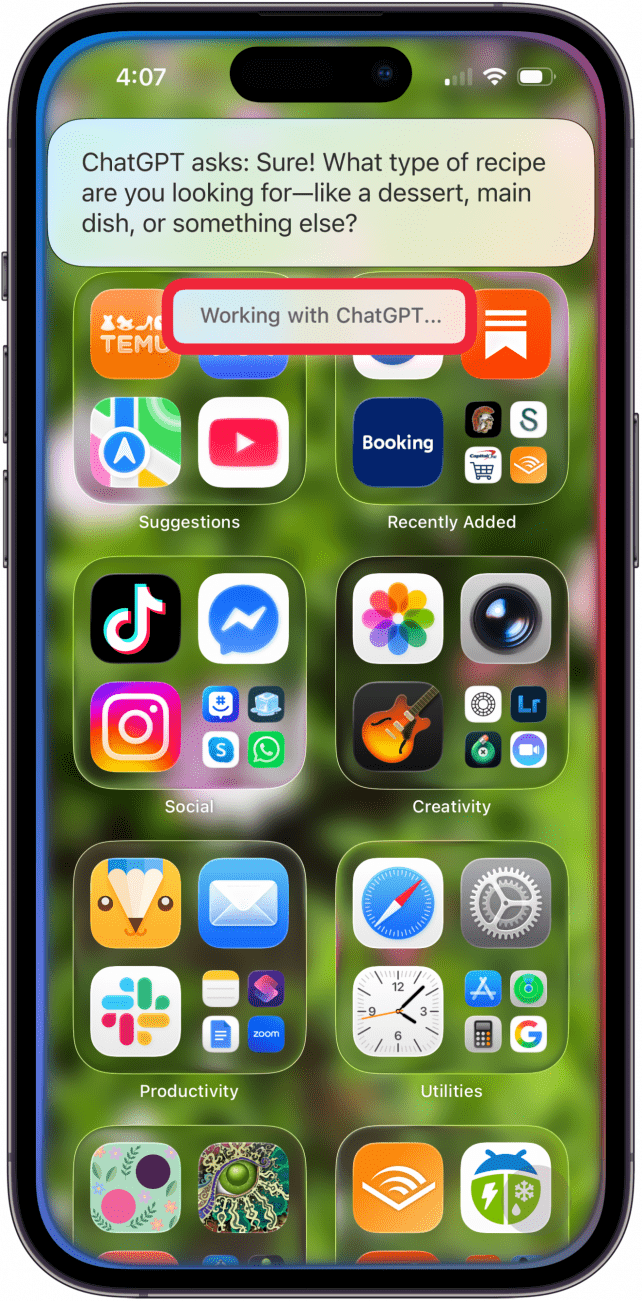
- A recipe will pop up on your screen. Scroll down to see the rest of it, or tap to open it in the Siri app.

- If you want the recipe generator to use specific ingredients instead of letting ChatGPT pick, say, "Hey, Siri, can you give me a recipe with [insert ingredients here]?" If Siri tries to send you to YouTube or another website for a recipe, you can specify that Siri should use ChatGPT to come up with the recipe.
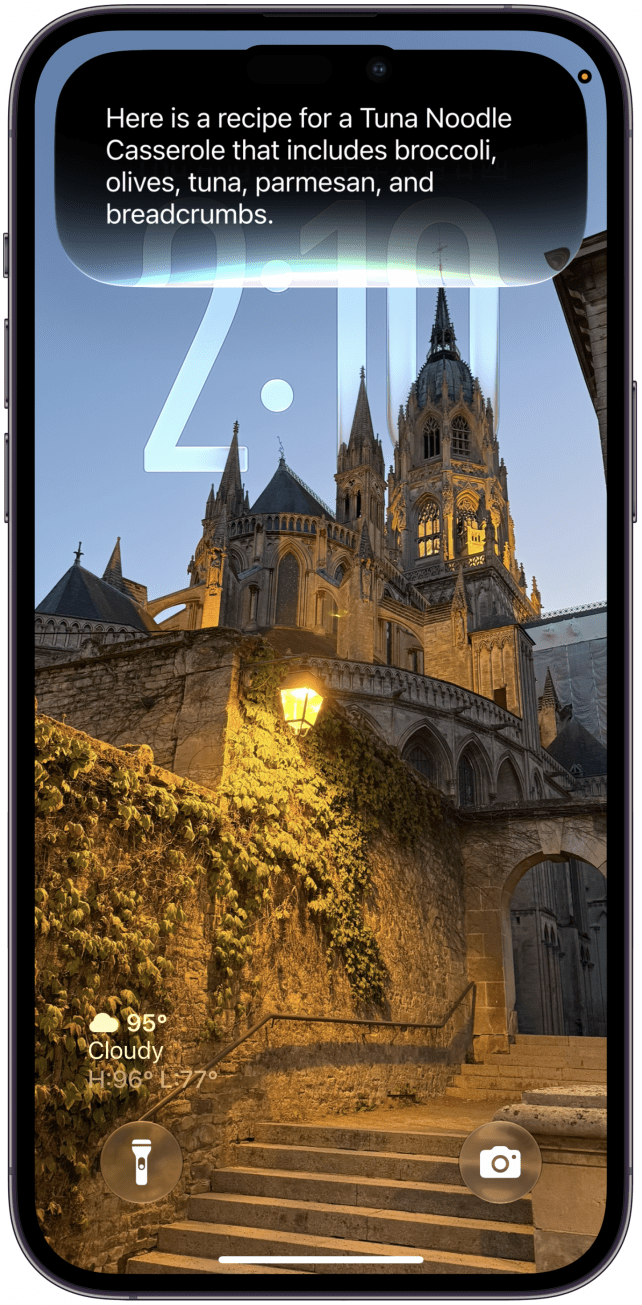
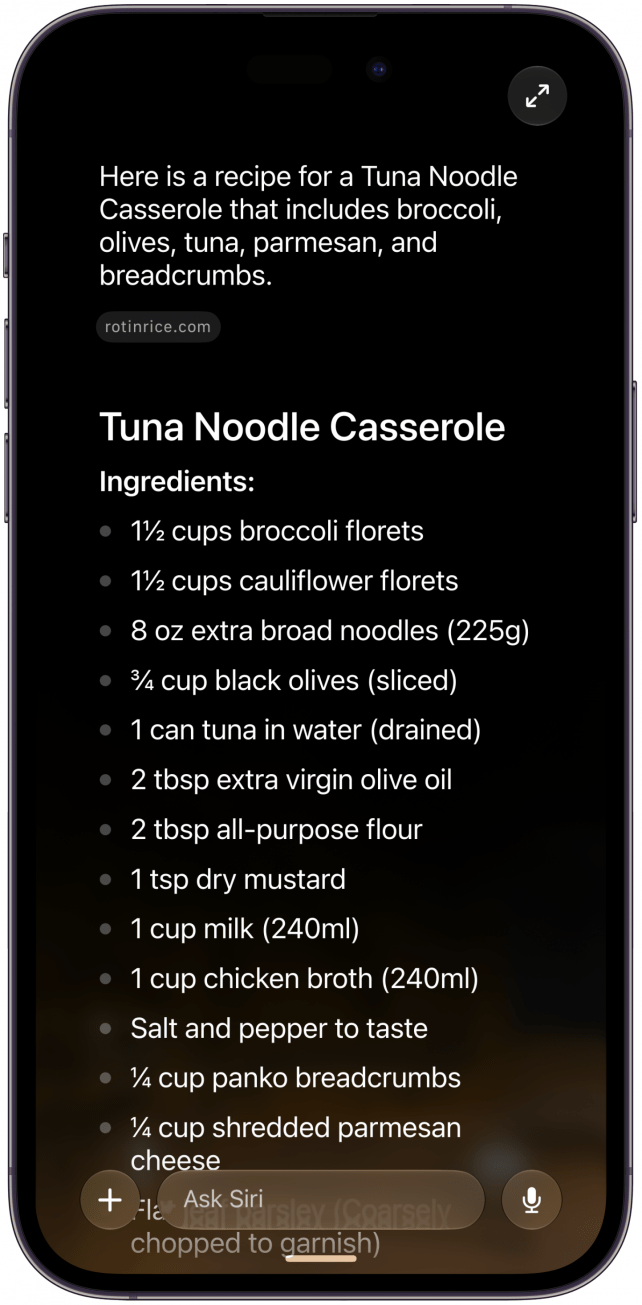
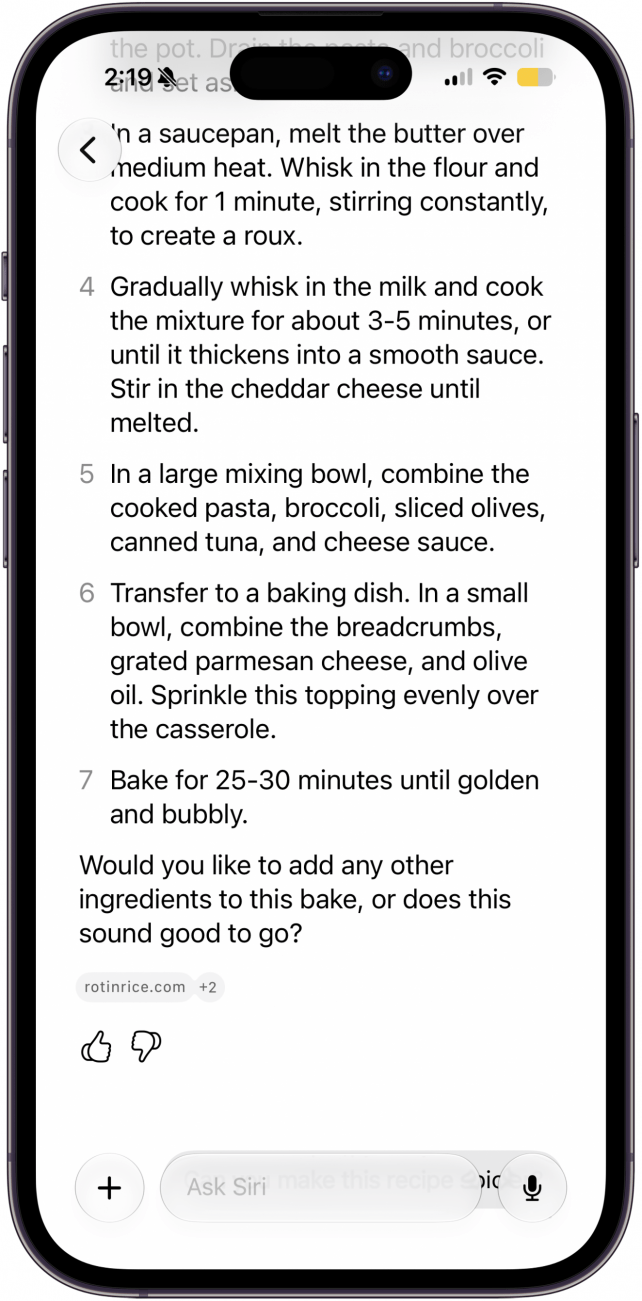
- For this experiment, I asked Siri to give me a recipe using olives, tuna, parmesan, and breadcrumbs, since those were things I had in my pantry. ChatGPT suggested a tuna noodle casserole recipe for me.
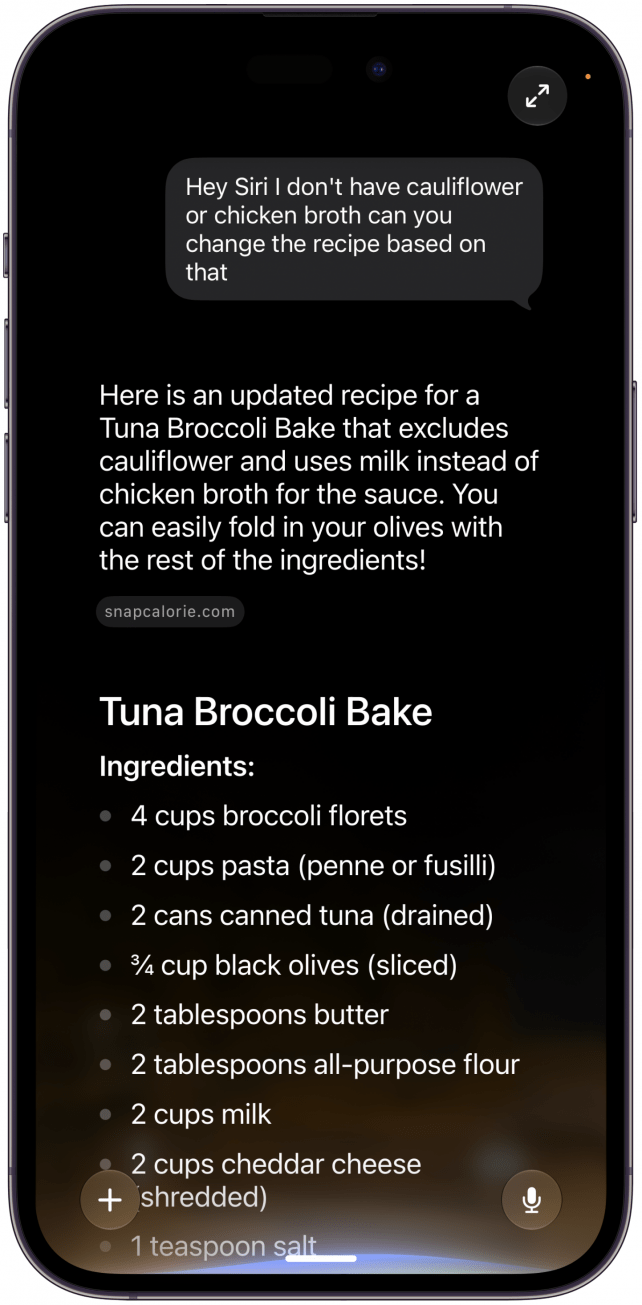
- But wait. I don't have cauliflower or chicken broth, and those were included in the recipe Siri gave me. I asked it to try again, excluding those ingredients. This time, it came back with a tuna broccoli bake with no cauliflower or chicken broth. This recipe doesn't include olives by default, but Siri suggested I could fold them in with the rest of my ingredients.
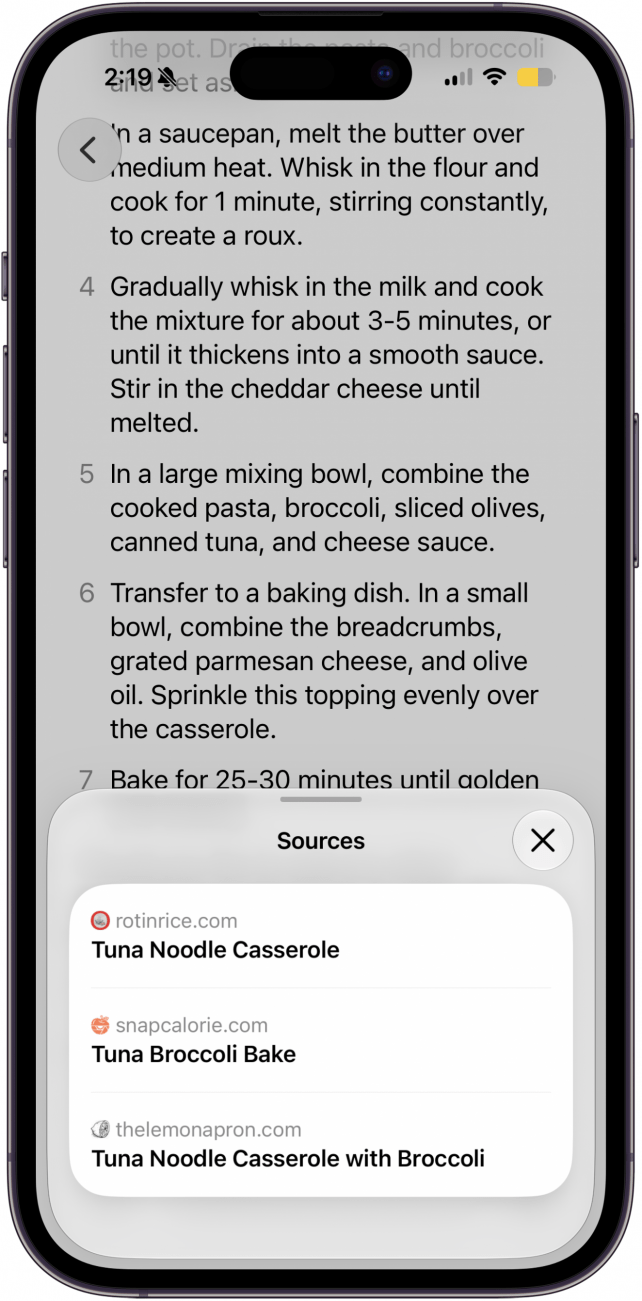
- If you want to see Siri's sources, scroll to the bottom of the recipe and tap the link.
- From here, you can view the original recipes.
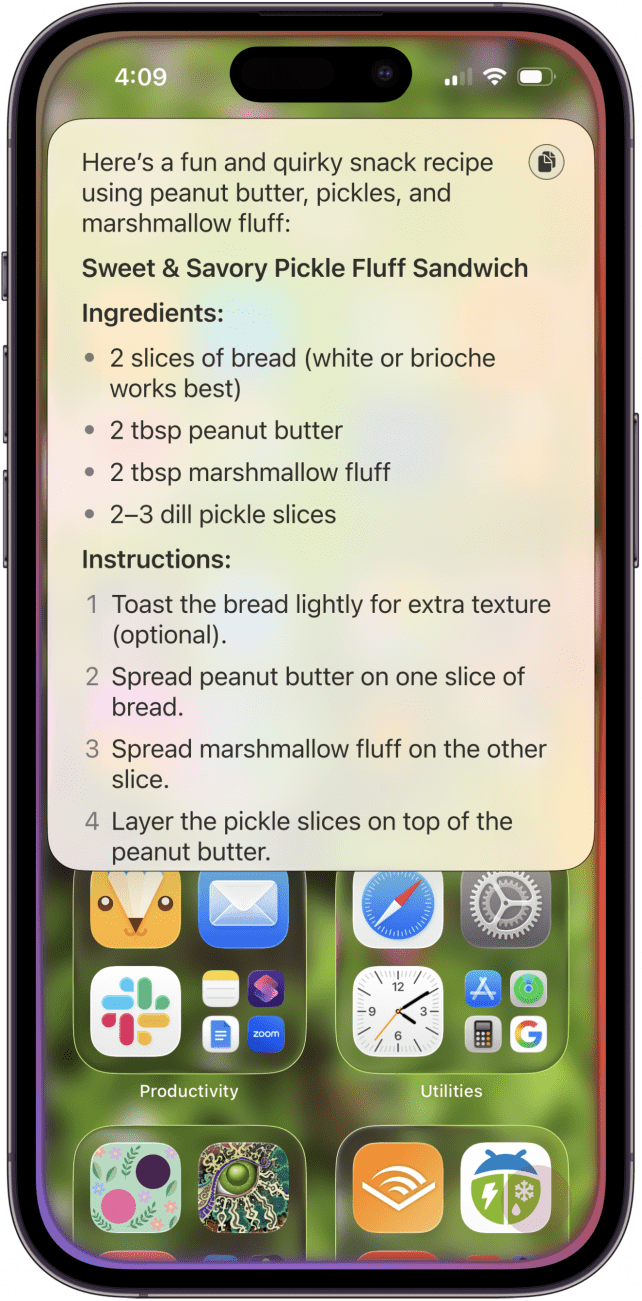
- Next, I went a little wild and asked Siri to give me a recipe for pickles, peanut butter, and marshmallows. The recipe ChatGPT produced was odd, but probably the best combination of those three ingredients anybody could come up with.
Now you know how to use artificial intelligence to generate a useful recipe. In my test trials, I didn't see as many seasonings, sauces, or more complicated cooking techniques that I'd typically choose from my cookbooks, but you can request modifications to your recipes. When I asked Siri to make my tuna broccoli bake spicier, it suggested adding chopped pepperoncinis, minced chiles, cayenne pepper, or pepperjack cheese in place of cheddar. As AI progresses, I'm sure the recipes will, too. If you liked this tutorial, sign up for our free Tip of the Day!
More On: Apple Intelligence
Top image credit: Amguy13 / Shutterstock.com

Every day, we send useful tips with screenshots and step-by-step instructions to over 600,000 subscribers for free. You'll be surprised what your Apple devices can really do.

Leanne Hays
Leanne Hays has more than sixteen years of experience writing for online publications. As a SEO Specialist and Feature Writer for iPhone Life, she has authored hundreds of how-to, Apple news, and gear review articles, as well as a comprehensive Photos App guide. Leanne holds degrees in education and science and loves troubleshooting and repair. This combination makes her a perfect fit as manager of our Ask an Expert service, which helps iPhone Life Insiders with Apple hardware and software issues.
In off-work hours, Leanne is a mother of two, homesteader, audiobook fanatic, musician, and learning enthusiast.

 Rhett Intriago
 Amy Spitzfaden Both
 Olena Kagui

 Leanne Hays