How to Make an E-book & Audiobook Wish List in the Books App on the iPhone

Leanne puts her love of troubleshooting and repair to use managing our Ask an Expert Facebook group and has authored hundreds of how-to, Apple news, and gear review articles.
Learn More Leanne puts her love of troubleshooting and repair to use managing our Ask an Expert Facebook group and has authored hundreds of how-to, Apple news, and gear review articles.
Learn MoreThe native Apple Books app, formerly iBooks, has the ability to save e-books and audiobooks to a wish list for later purchase. This feature, called Want to Buy, is perfect for keeping track of which e-book or audiobook you'd like to read or listen to next. Let's get started learning how to save audiobooks and e-books to purchase later in the Books app on your iPhone or iPad.
Related: Free Audiobooks Online: Stream Great Audiobooks with the OverDrive or Libby App on iPhone
We love reading and listening to books; that's why we've written articles about where to find free e-books, and free audiobooks. Now, we'll show you how to use the Want to Buy feature of your Books app to save the e-books and audiobooks you want to a wish list, so you can purchase them later.
- Open the Books App.
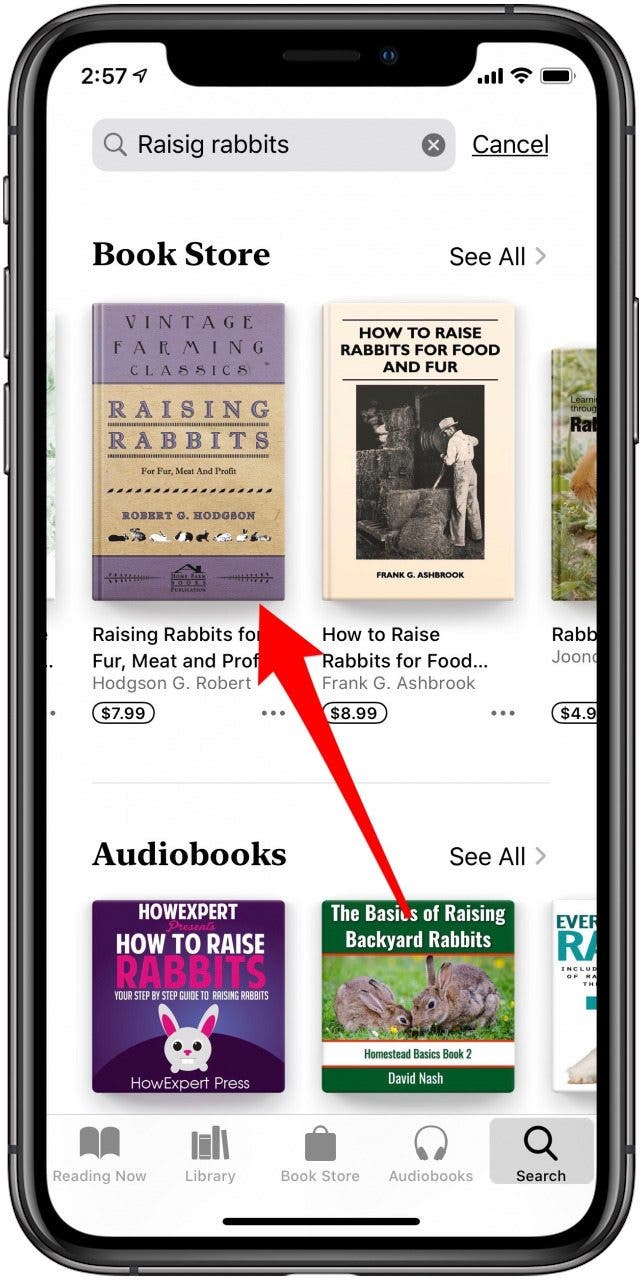
- Tap the Book Store tab to browse suggestions from Apple or genres, or Search if you have a specific e-book or audiobook in mind.
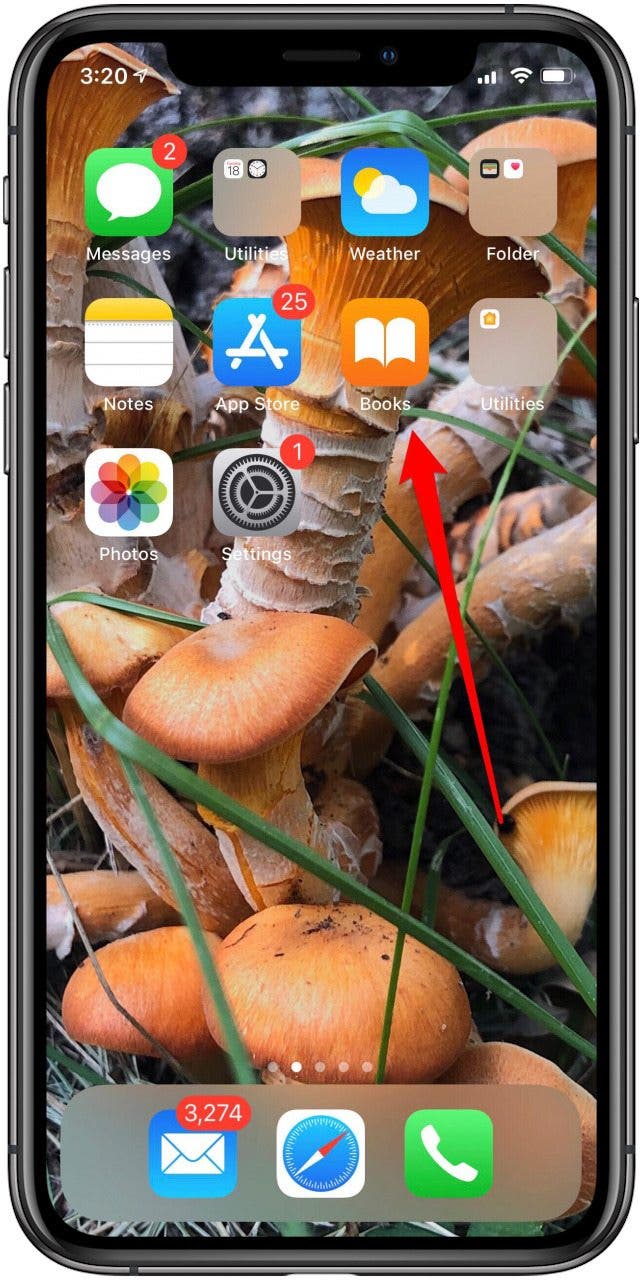
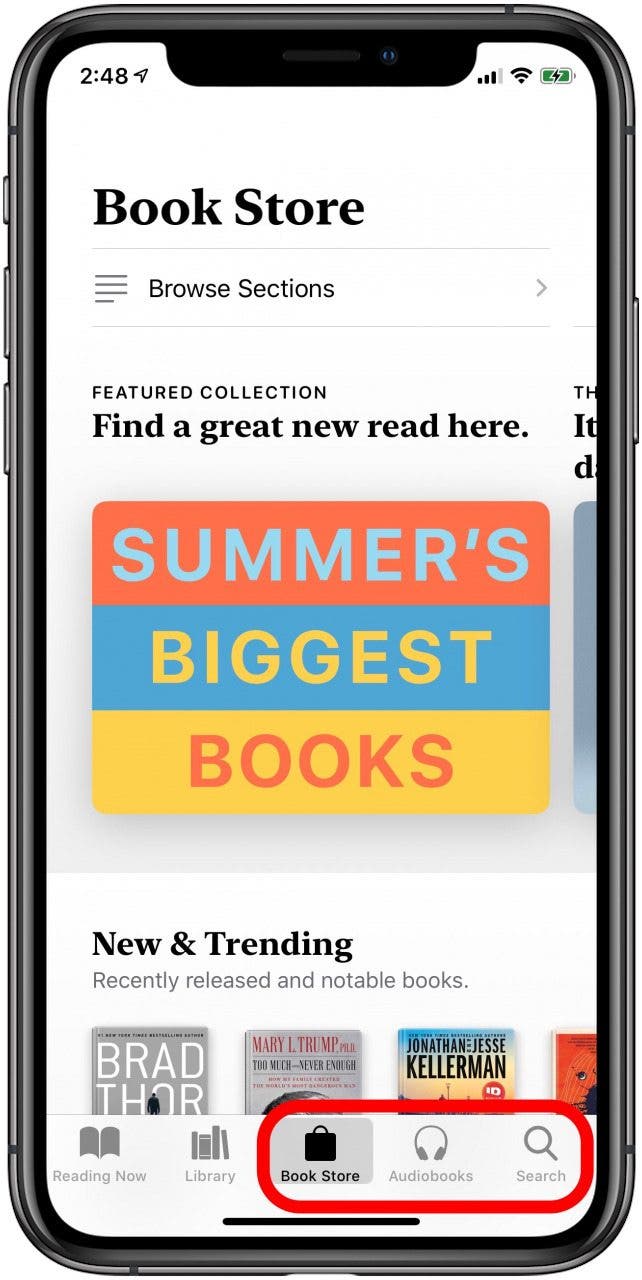
- Tap an e-book or audiobook you're interested in.
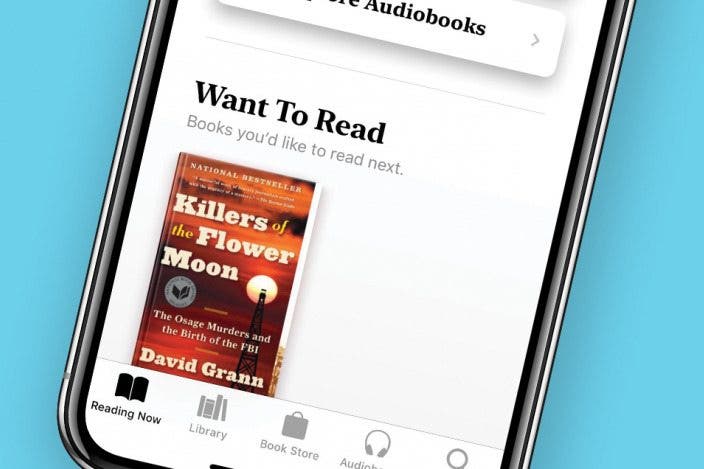
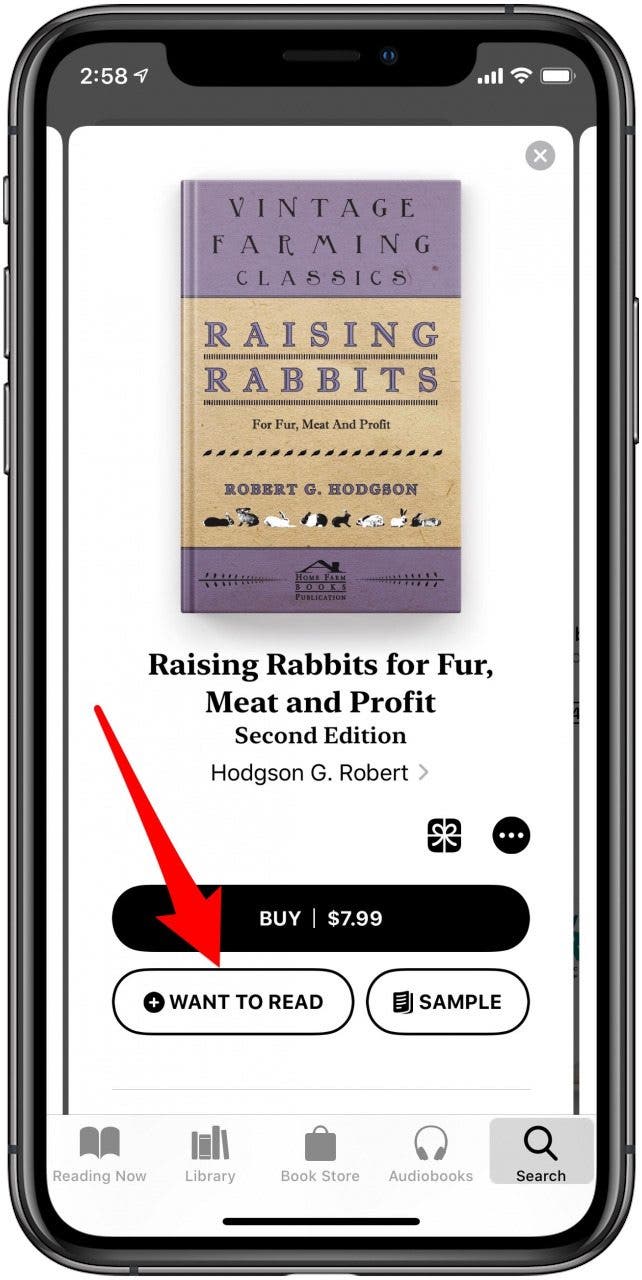
- Tap Want to Read to add it to you book wish list.
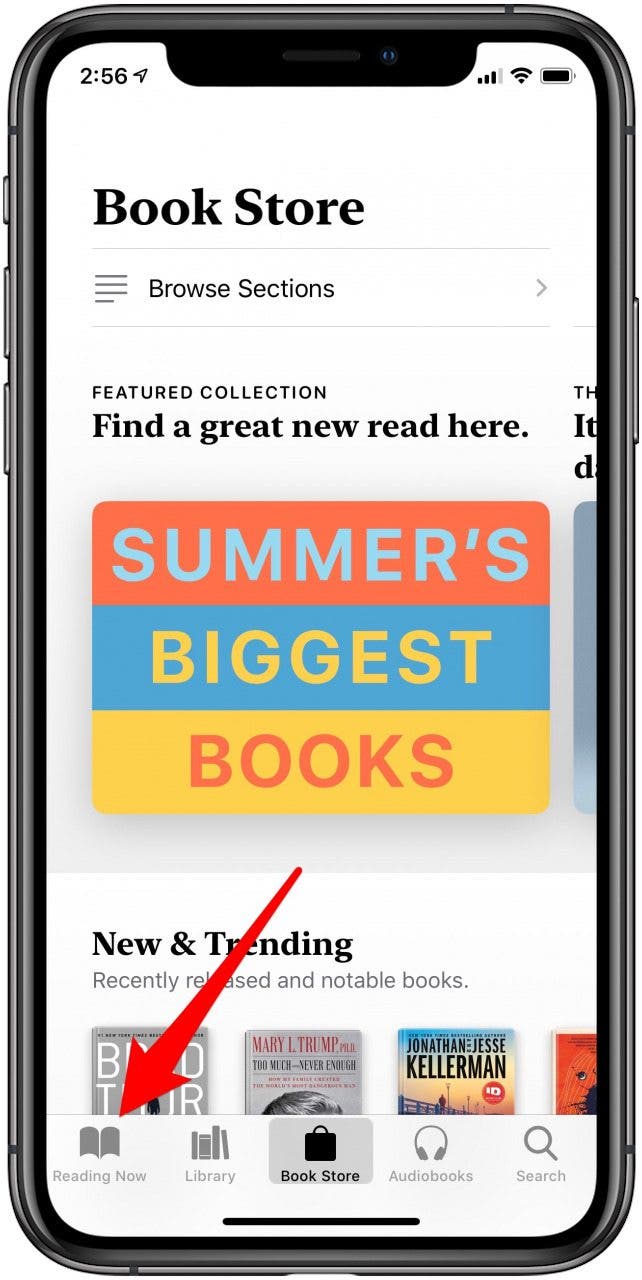
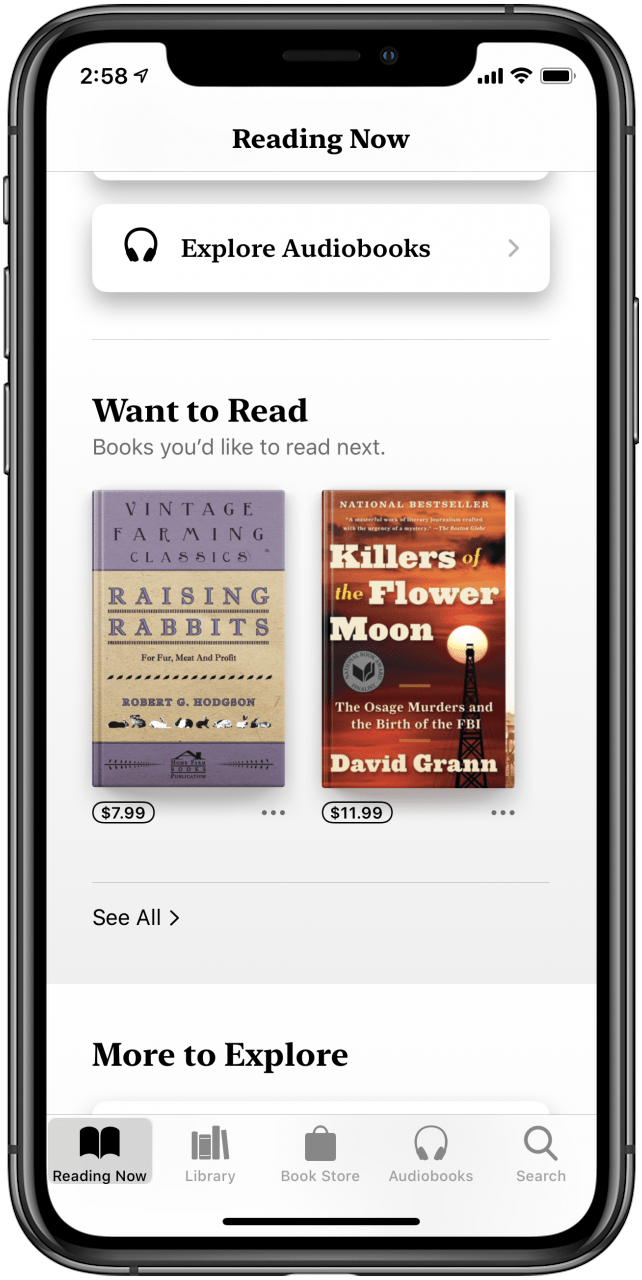
- To find this selection again when you're ready to purchase it, tap the Reading Now tab.
- You'll see your title in the Want to Read section.
Check out our free Tip of the Day for more great Apple device tutorials.

Every day, we send useful tips with screenshots and step-by-step instructions to over 600,000 subscribers for free. You'll be surprised what your Apple devices can really do.

Leanne Hays
Leanne Hays has more than sixteen years of experience writing for online publications. As a SEO Specialist and Feature Writer for iPhone Life, she has authored hundreds of how-to, Apple news, and gear review articles, as well as a comprehensive Photos App guide. Leanne holds degrees in education and science and loves troubleshooting and repair. This combination makes her a perfect fit as manager of our Ask an Expert service, which helps iPhone Life Insiders with Apple hardware and software issues.
In off-work hours, Leanne is a mother of two, homesteader, audiobook fanatic, musician, and learning enthusiast.
 Hal Goldstein
 Olena Kagui
 Rachel Needell
 Rhett Intriago

 Leanne Hays