What to Know
- You can transfer photos from iPhone to PC using the Windows Photos app or importing them from the Devices and Drives screen.
- iClouds Photos can sync photos to either a Windows PC or a Mac.
- Images can be imported from iPhone to Mac using the Photos app or AirDrop.
If you want to know how to transfer photos from iPhone to a PC or Mac, you have lots of options. Whether you're looking to move photos from iPhone to Mac or transfer iPhone photos to PC, the process is not as complex as you might think. Transfers between Apple devices are pretty simple, and for PC owners, we've found some easy methods (including the solutions that Microsoft doesn't advertise). Let's cover how to transfer photos from iPhone to computer easily!
Jump To:
- How to Transfer Photos from iPhone to PC
- Import iPhone Photos to PC (Alternative Method)
- How to Transfer Photos from iPhone to Computer (Mac or PC)
- How to Transfer Photos from iPhone to Computer (Mac)
- How to Move Pictures from iPhone to Computer with AirDrop
How to Transfer Photos from iPhone to PC
If you're looking for the easiest way to transfer photos from your iPhone to your PC—with the additional details Microsoft doesn't provide—we've got your covered. Using the Photos app on Windows is supposed to be the best way to download photos from your iPhone to your PC, but it's always been a hit or a miss for me, whether or not my PC will detect that I've connected my iPhone. Now, here's how to upload photos from your iPhone to your computer:
- Connect your iPhone to your PC with a USB or USB-C cable, depending on your model.
- Unlock your iPhone.
- On your PC, click the Start button.
![transfer photos from iphone to pc]()
- Click Photos to access the Photos app.
![how to import photos from iphone to pc]()
- Click Import.
![how to transfer pictures from iphone to computer]()
- Select Apple iPhone.
![how to transfer photos from iphone to iphone]()
- Select the items you want to import. If you want to import specific photos/videos, click the ones you want. You can also click Select all to import all the photos on your iPhone or click Select new to only import new photos.
![transfer from iphone to iphone]()
- Click Add X Item(s) to import your selected photos.
![transfer iphone photos to pc]()
- Choose where to save them, and click Import. It may take a few moments for the photos to save.
![download photos from iphone to pc]()

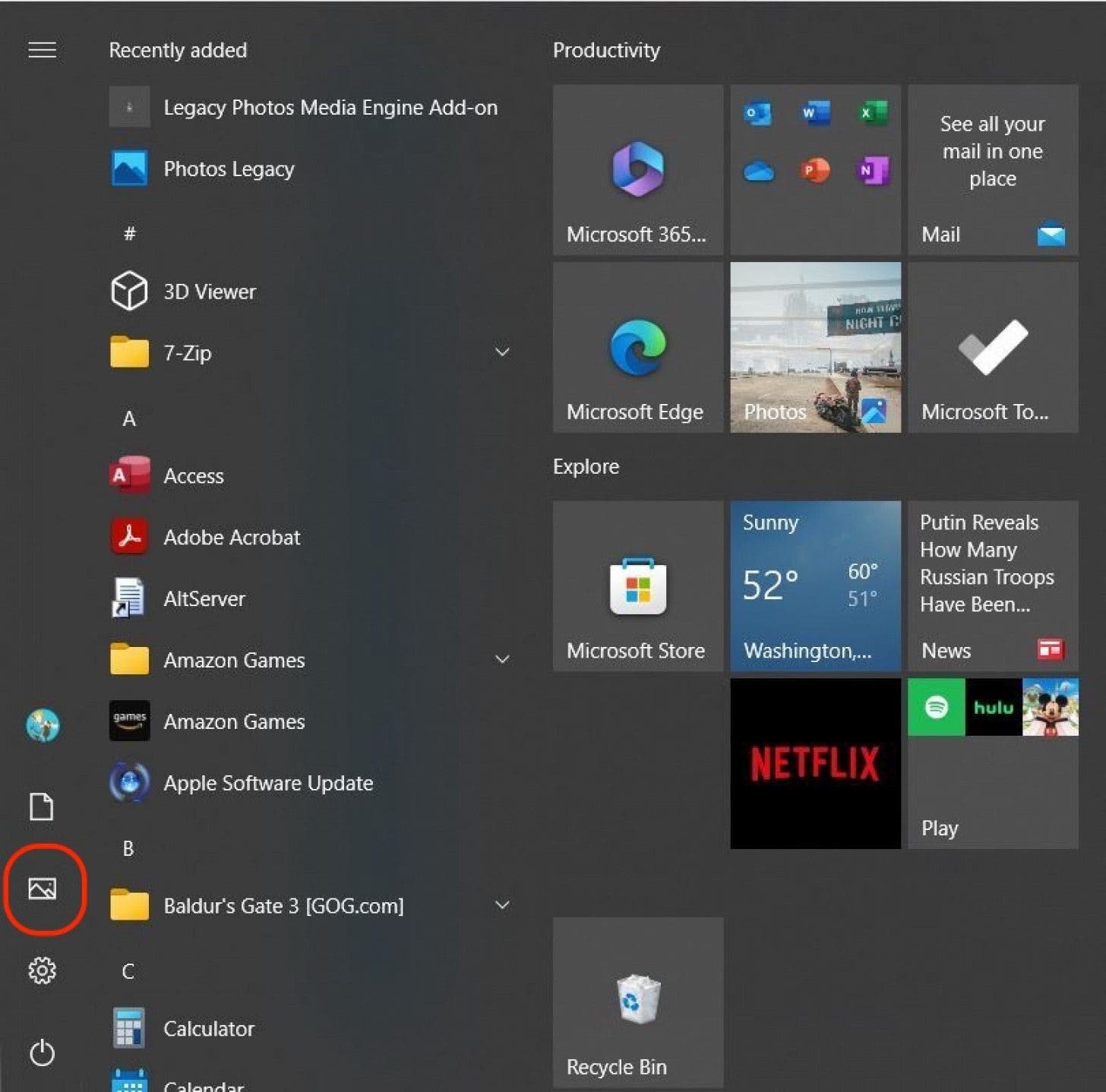





That's how to transfer photos from iPhone to PC using the Photos app on Windows. There is also an alternative method to import photos from your iPhone.

Import iPhone Photos to PC (Alternative Method)
Some users encounter bugs with the built-in Windows Photos application. If you can't get it to work and need another solution, there is another method to transfer photos from your iPhone to PC. Personally, I have never been able to get this method to work, but it's worth a try:
- To transfer iPhone photos to PC, plug your iPhone into your Windows computer with the cable, unlock the iPhone, and tap Allow, as in the previous section.
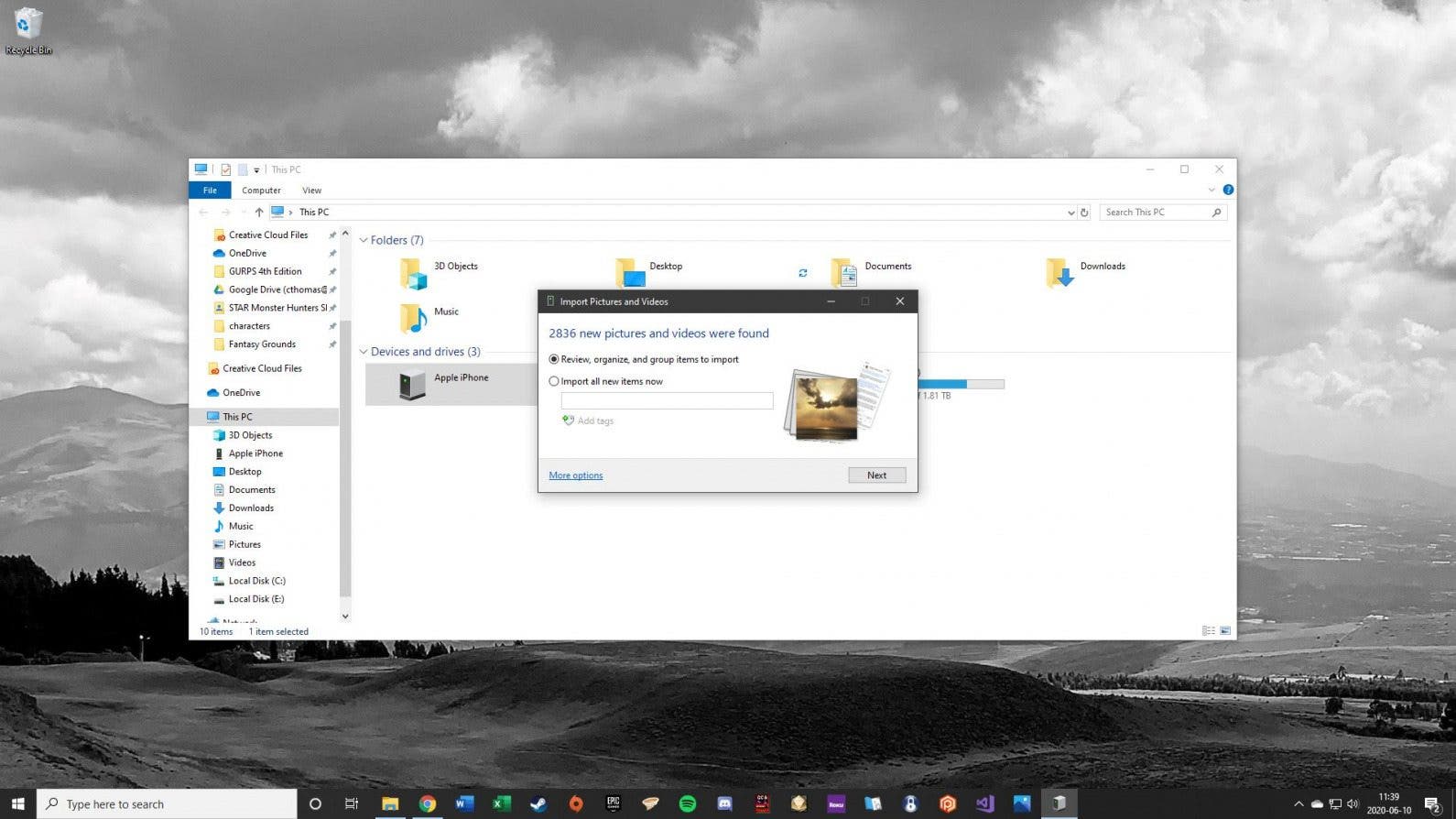
- On your Windows computer navigate to This PC. You should see your iPhone listed under Devices and Drives.
- Right-click on your iPhone, and in the context menu select Import pictures and videos.
![]()
- You can either import all new items, or click Review to organize and group items to import. I recommend selecting Review because the automatic organization may not be ideal.
- The More options link at the bottom offers options to change where the files are saved, but for most users the default Pictures folder is fine.
![]()
- Click Next and the computer will scan your iPhone for images and videos.
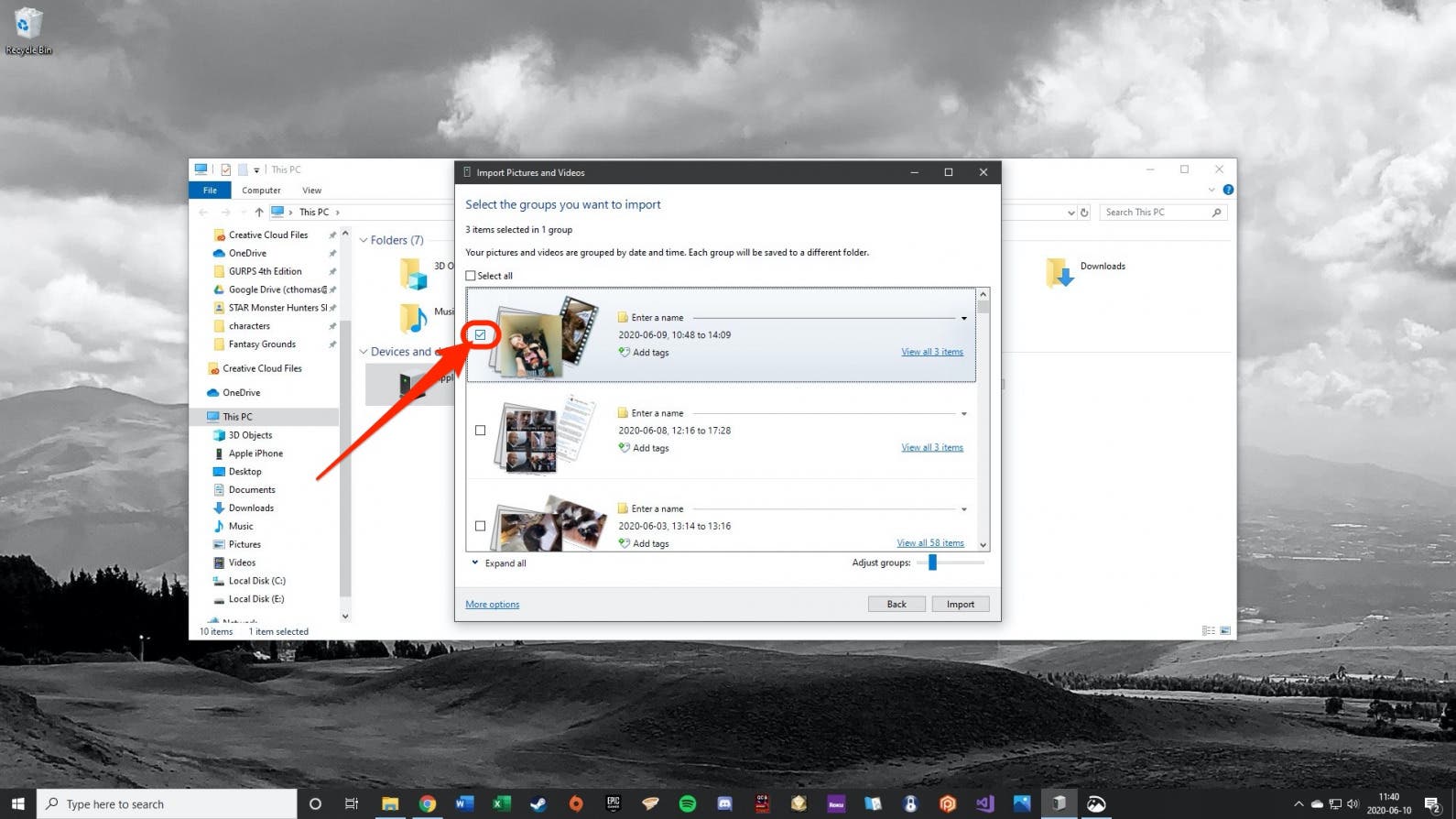
- In the following window, select the items you wish to import.
![]()
- A slider at the bottom of the menu changes how the images are grouped into folders, e.g. by hour, by hours, by day, by month, or by year taken. You can slide it all the way to the right to save them all in one folder.
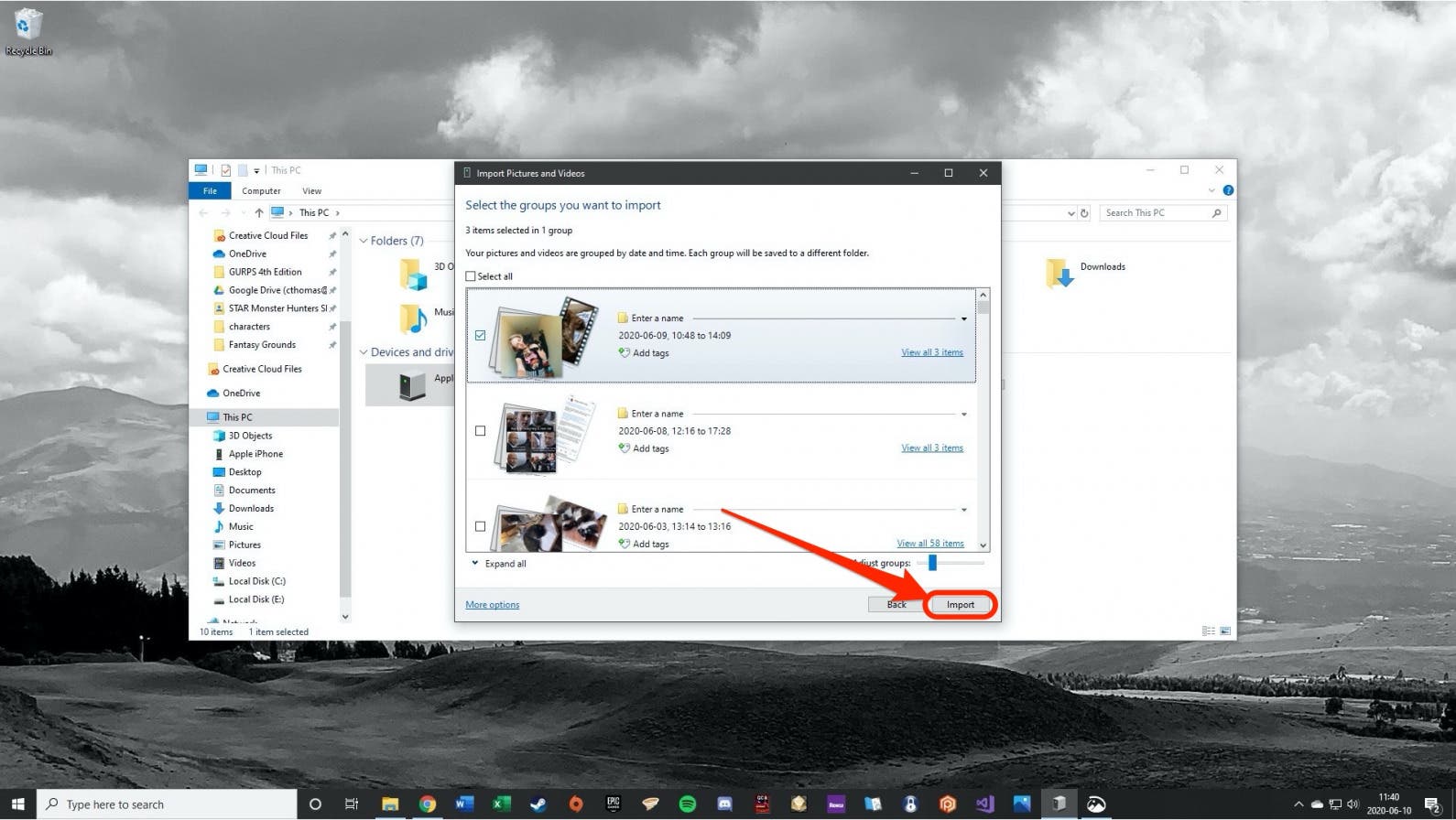
- Click Import when you're ready to transfer images.
![]()
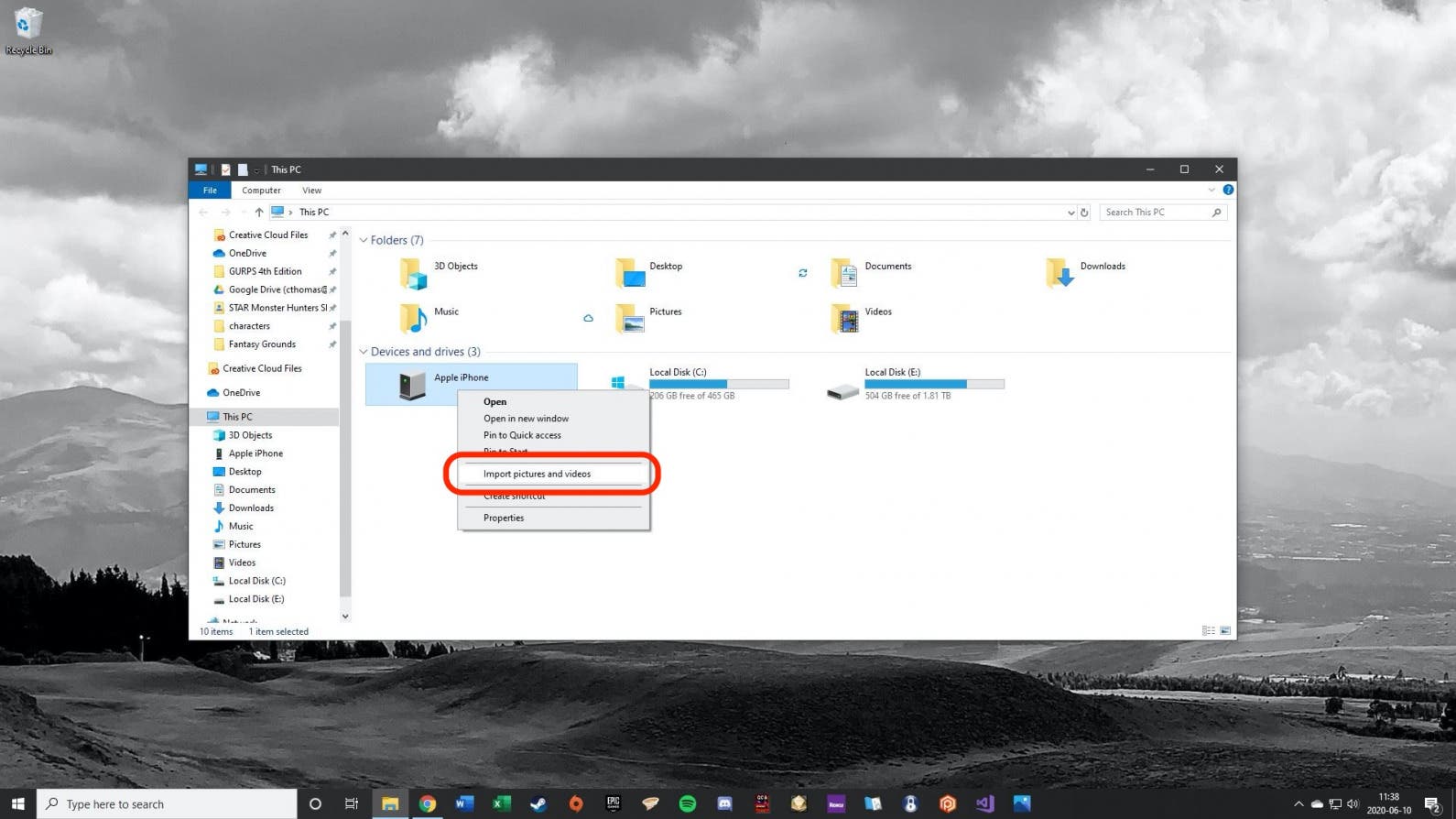
That's how to copy pictures from your iPhone to your PC. If you're having trouble getting either of the Windows options to work, I would recommend creating an iCloud Link or using iCloud Photos, which we'll learn more about below.
How to Transfer Photos from iPhone to Computer (Mac or PC)
Psst. Here's the secret you'll never hear from Microsoft: you can use iCloud.com to securely store and access your photos, even with a PC! Like any iCloud user, you'll need to pay a small monthly fee for storage ($0.99/month for 50 GB, $2.99/month for 200 GB, and $9.99/month for 2TB). However, I consider this is a small price to pay, as the process for how to transfer photos from iPhone to computer will be practically effortless, since iCloud will automatically keep the two libraries in perfect sync. If you want to avoid having to plug your iPhone into your computer to transfer your photos, this method is likely a great solution for you.
First, both Mac and PC users will need to follow the iPhone steps below to make sure your photos are safely backed up in the cloud:
- Open the Settings app and tap iCloud.
![iphone settings app with a red box around icloud]()
- Choose Photos.
![iphone icloud settings with a red box around photos]()
- Ensure the Sync this iPhone toggle is enabled.
![iphone icloud photos settings with a red box around sync with this iphone toggle]()

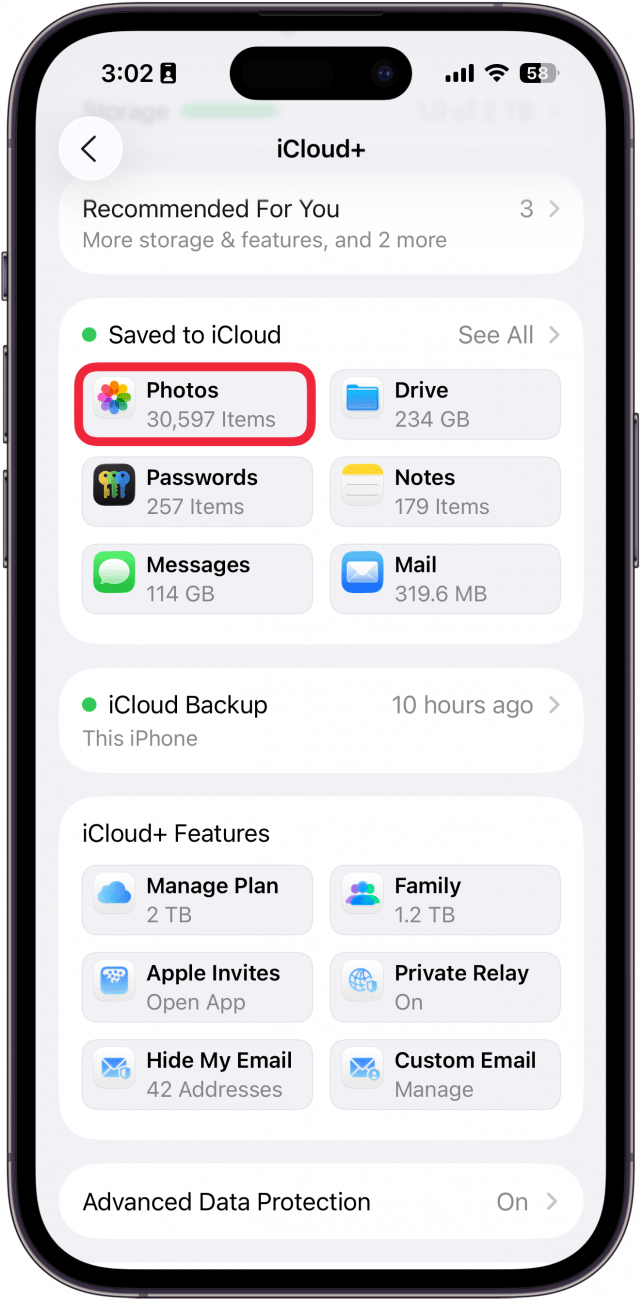
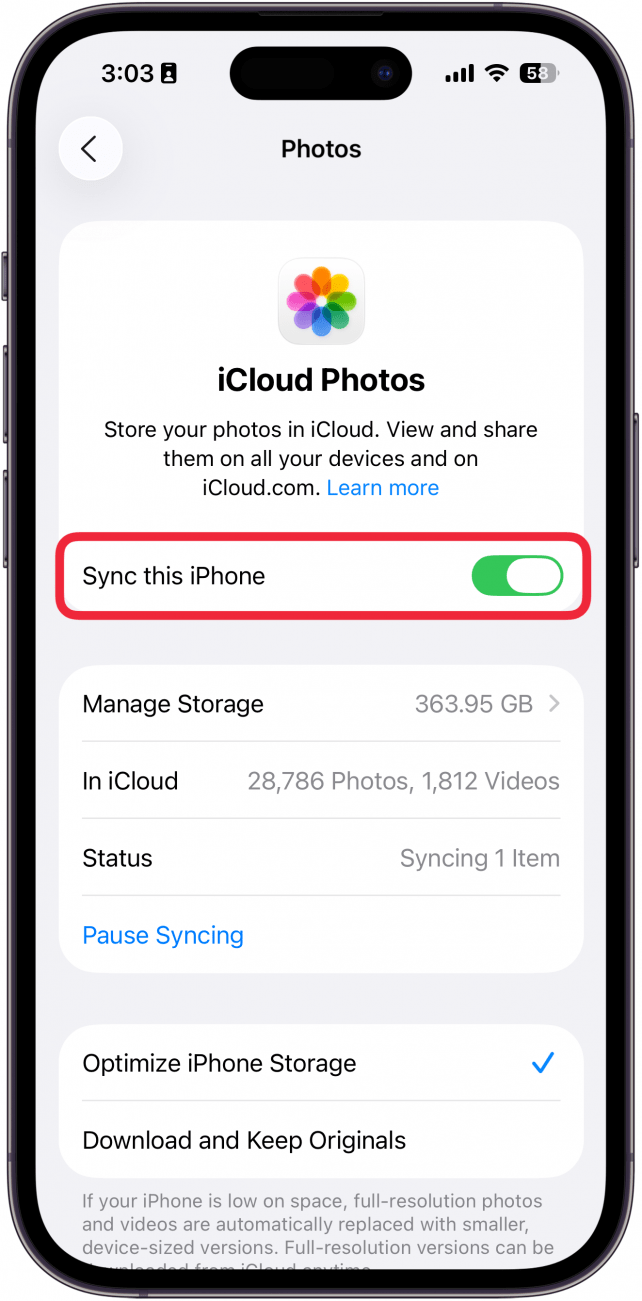
If you own a PC, you can simply download iCloud for Windows or log in to your iCloud.com account with your Apple Account to view and access your photos. The downside to this method is that you can only download up to 1,000 photos at a time from iCloud.com to your PC (so downloading your entire photos library at once is likely out of the question).
Connect Photos to Mac Via iCloud
If you own a Mac, follow the steps below to sync your Photos app to iCloud. This way, your iPhone pictures will appear in your Mac Photos app and vice versa. For Mac users, here's how to get photos from your iPhone to your computer:
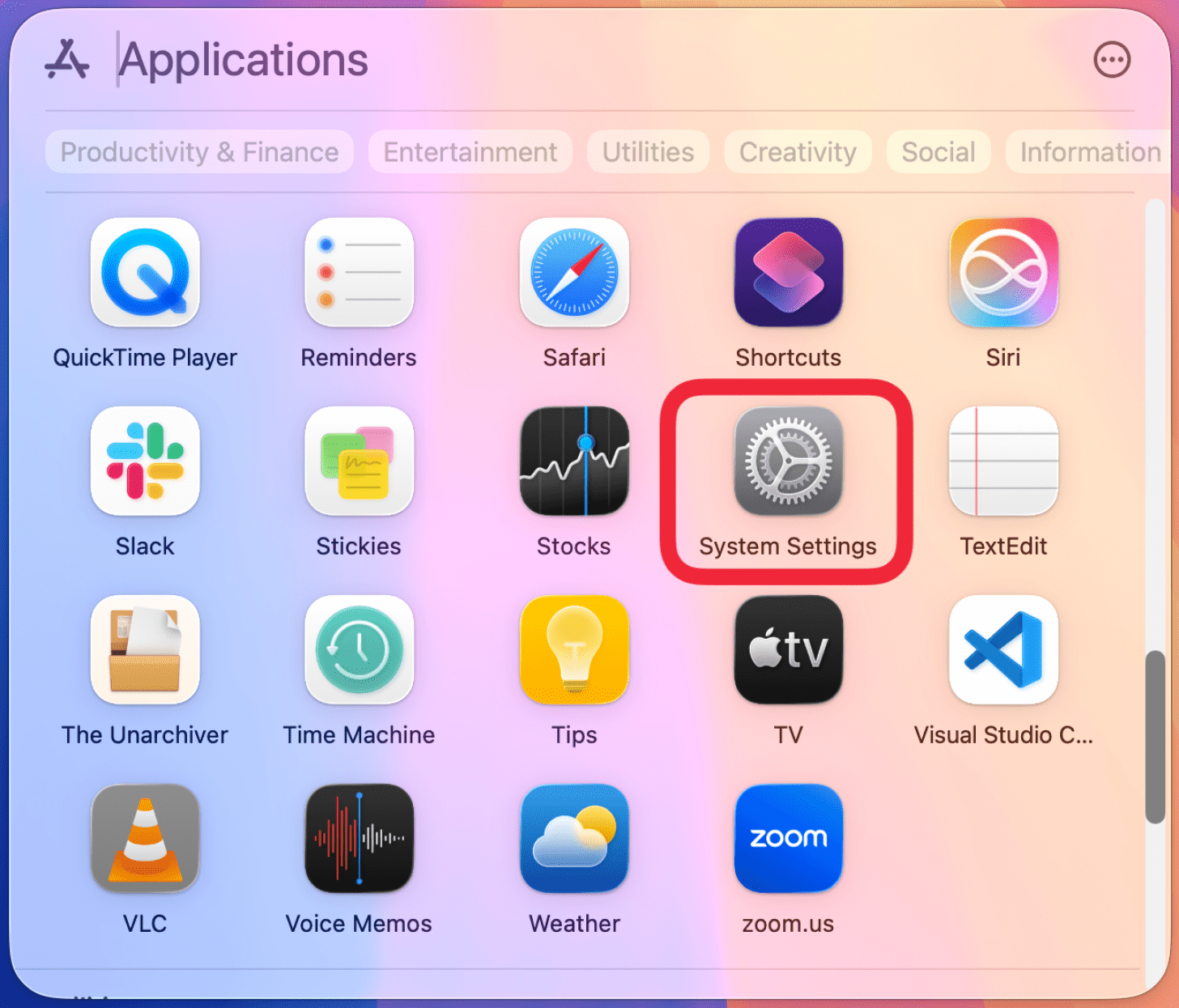
- Open System Settings.
![mac app drawer with a red box around system settings]()
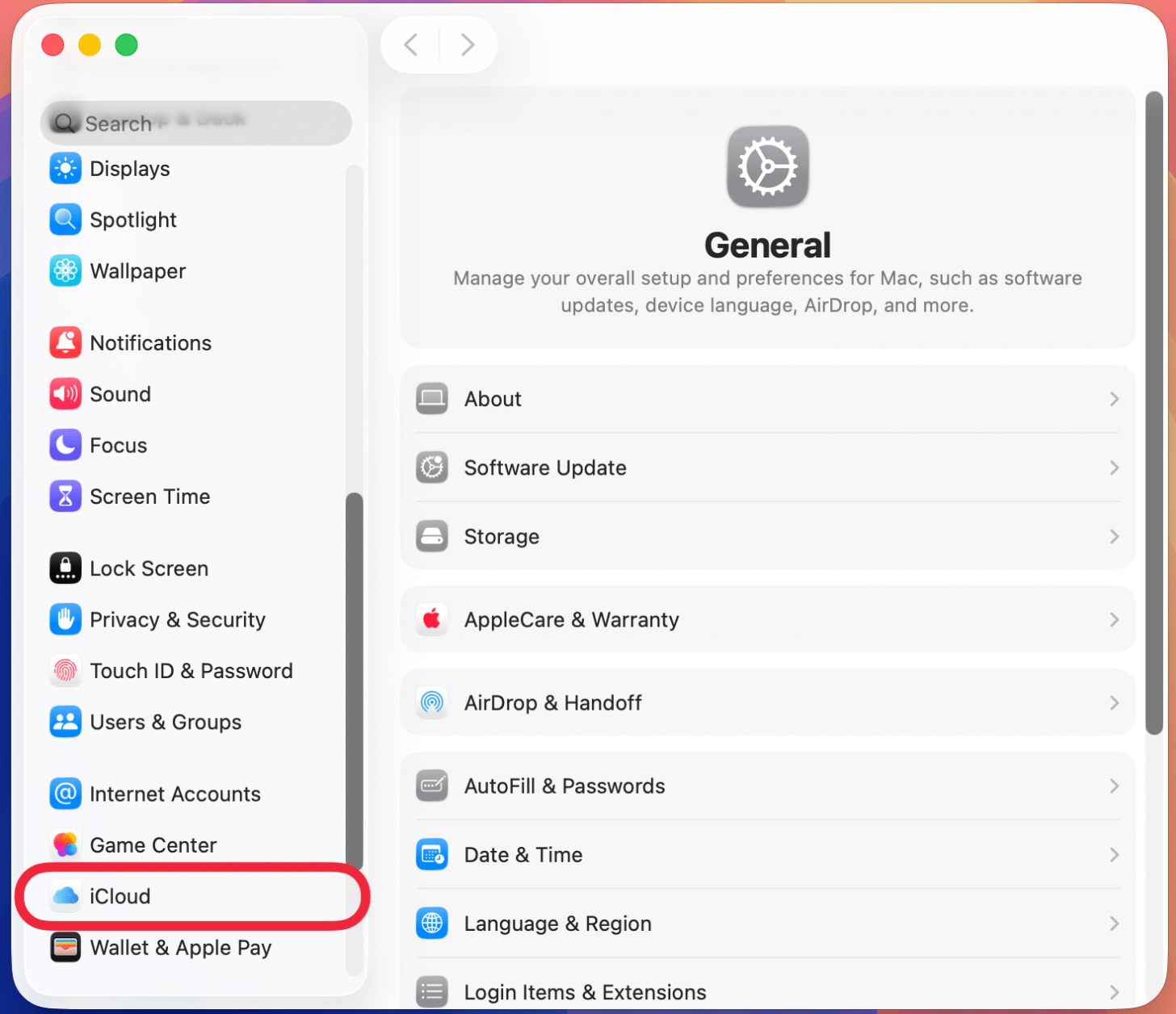
- Click iCloud.
![mac system settings with a red box around icloud]()
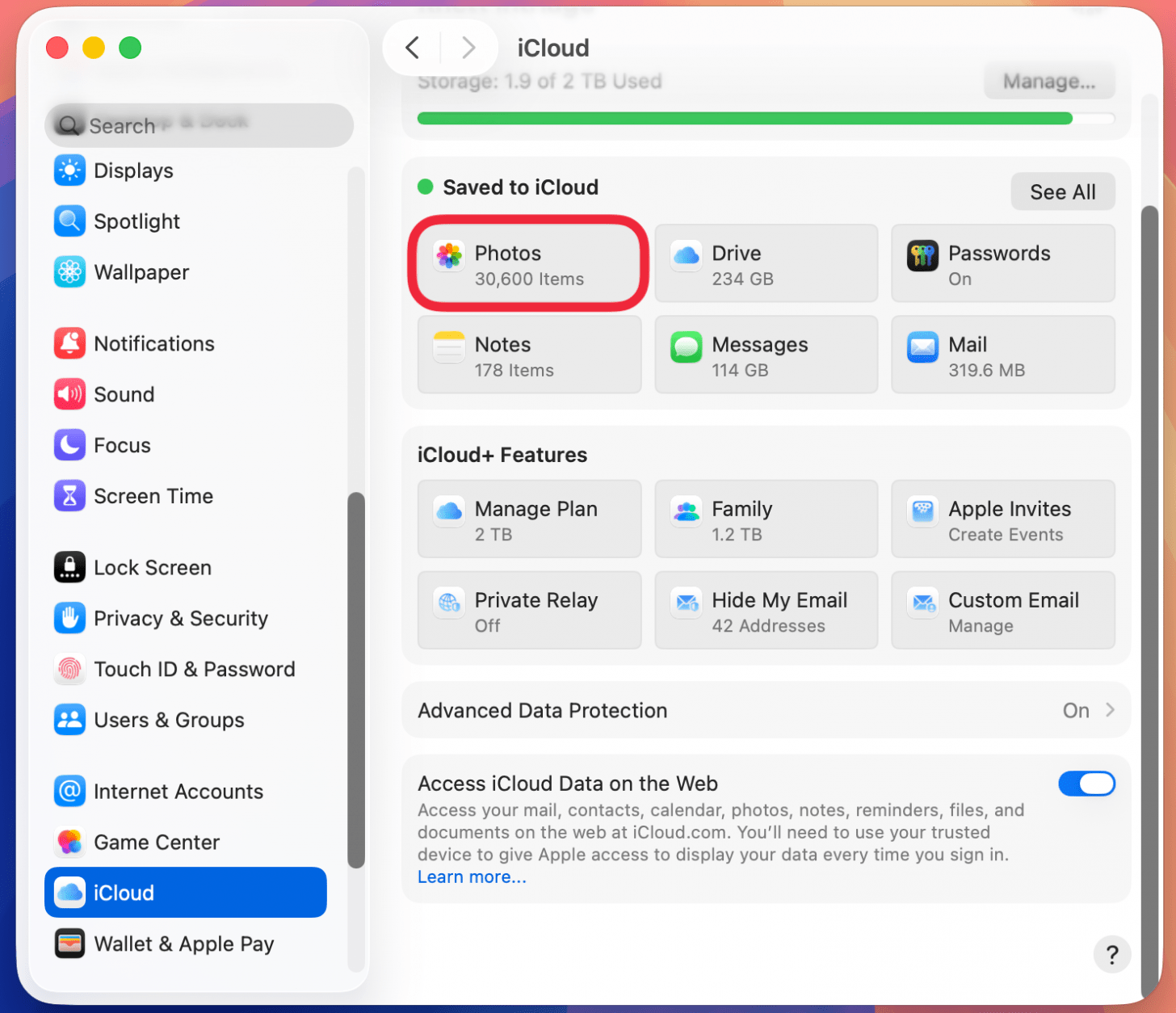
- Click Photos.
![mac icloud settings with a red box around photos]()
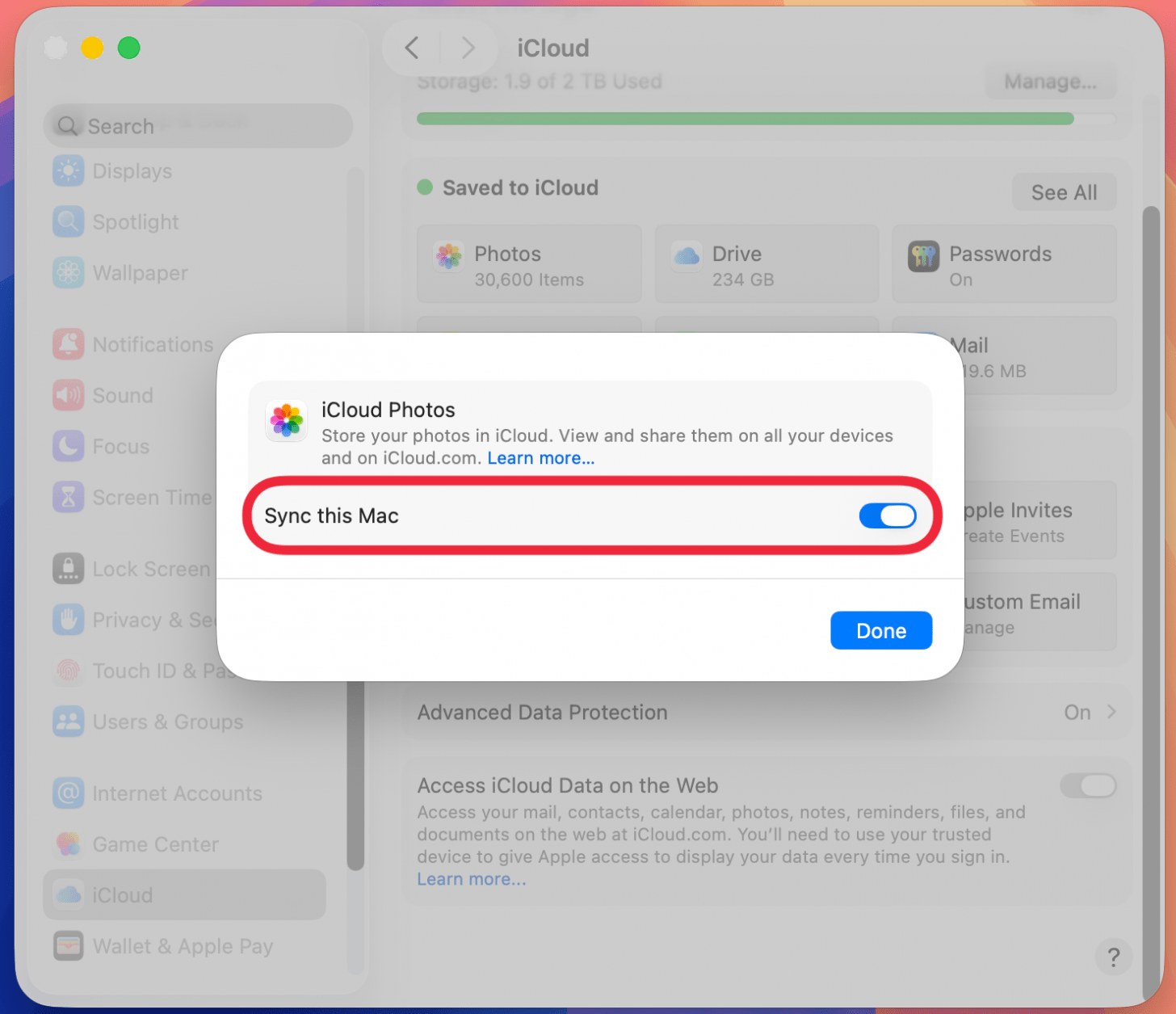
- Ensure the Sync This Mac toggle is enabled.
![mac icloud photos setting with a red box around sync with this mac toggle]()
How to Transfer Photos from iPhone to Computer (Mac)
The classic way to transfer photos from iPhone to Mac is to use the photo transfer feature in the Photos app. It's important to note that the import Photos from iPhone to Mac process has changed a little since macOS Catalina, macOS Big Sur, macOS Monterey, and macOS Ventura, so if you're using one of these newer operating system you'll want to use the method shown next.
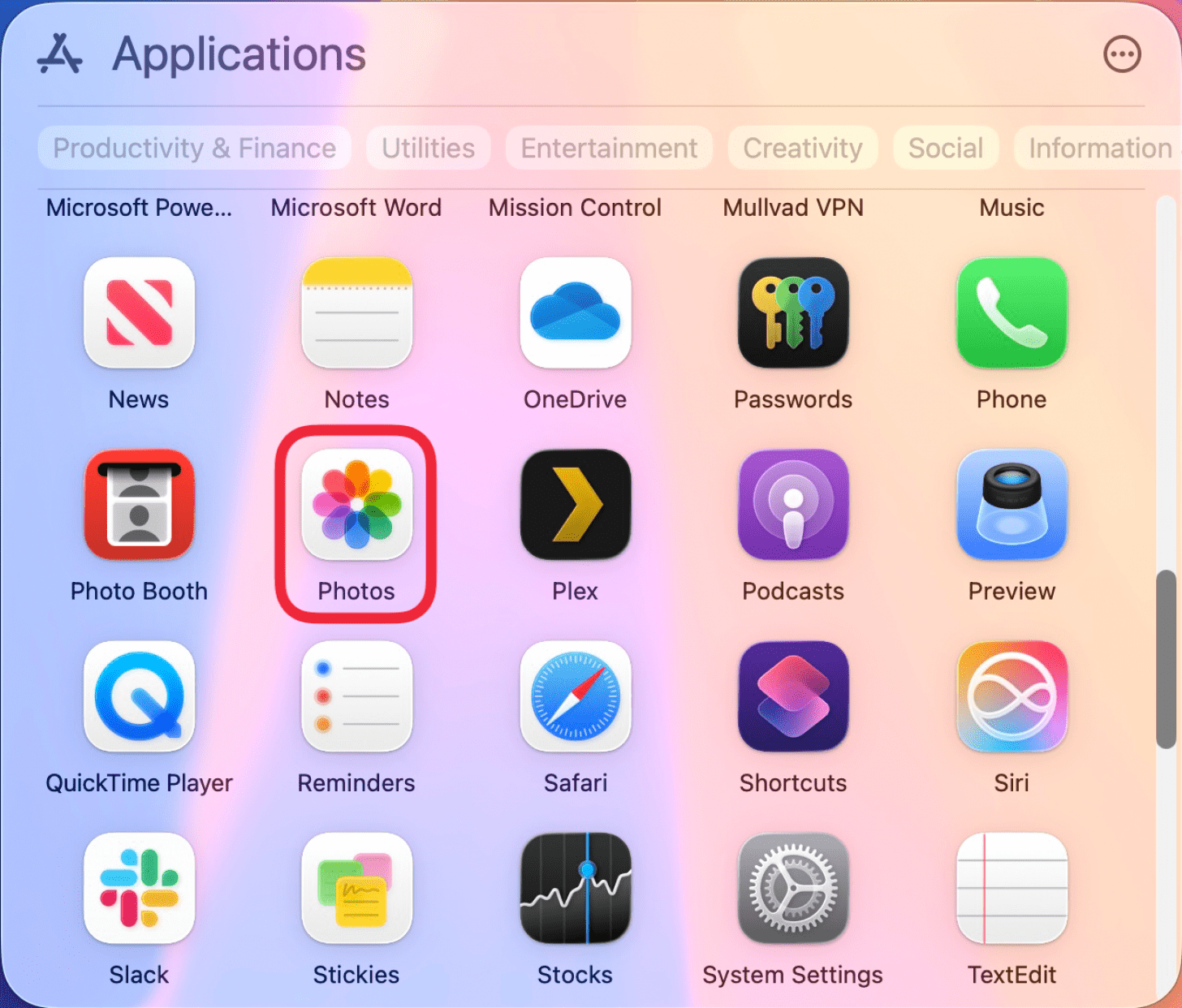
- Open the Photos app on your Mac. You can find it with Spotlight search, in your Dock, or by opening the Applications folder and selecting the Photos app.
![mac app drawer with a red box around the photos app]()
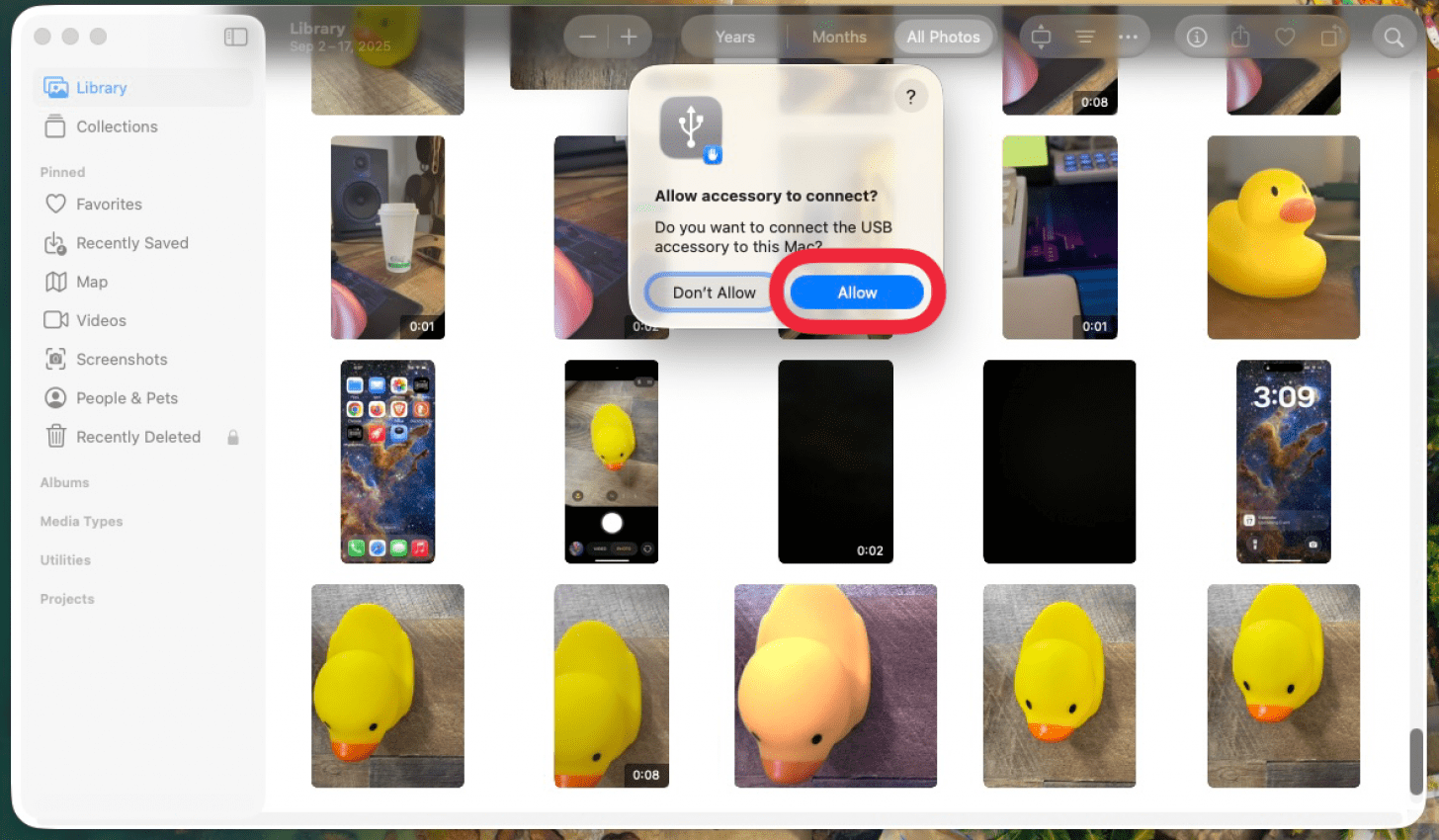
- Connect your iPhone to your Mac with the USB cable and unlock your iPhone. If you are prompted to allow your iPhone to connect to your Mac, click Allow.
![a screenshot of the photos app on mac displaying a pop up asking for the user to allow their iphone to connect with a red box around the allow button]()
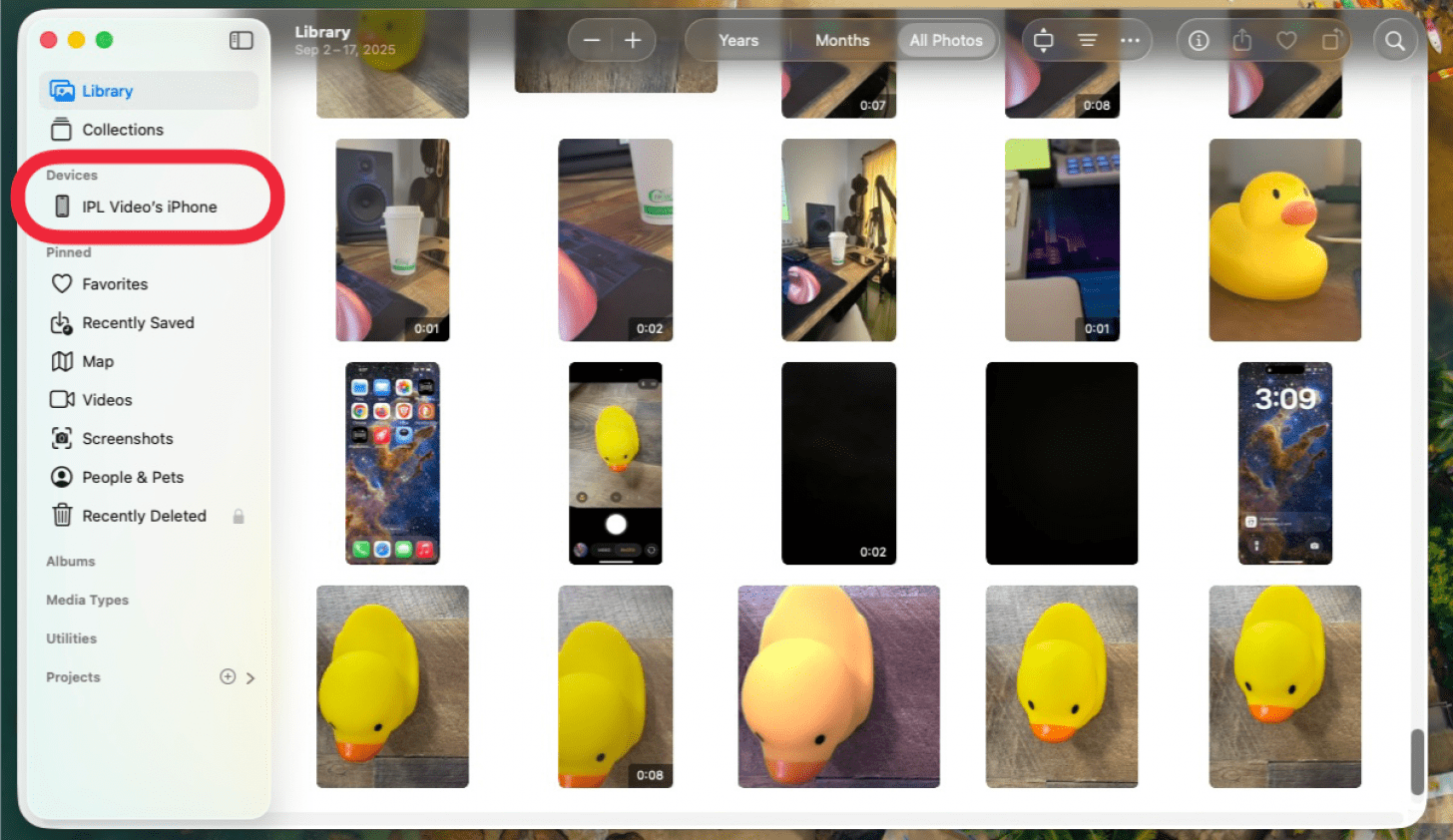
- Your iPhone should already be selected in the browser on the left of the Photos page. If it isn't, then select your iPhone.
![a screenshot of the photos app on mac with a red box around the user's iphone]()
- Select the photos you wish to import by clicking on them.
![a screenshot of the photos app on mac displaying photos that can be imported with a red box around a selection of photos]()
- Click the Import Selected button at the top, or choose Import All New Photos to automatically retrieve all of your new photos.
![a screenshot of the photos app on mac displaying photos that can be imported with a red box around the import selected button]()

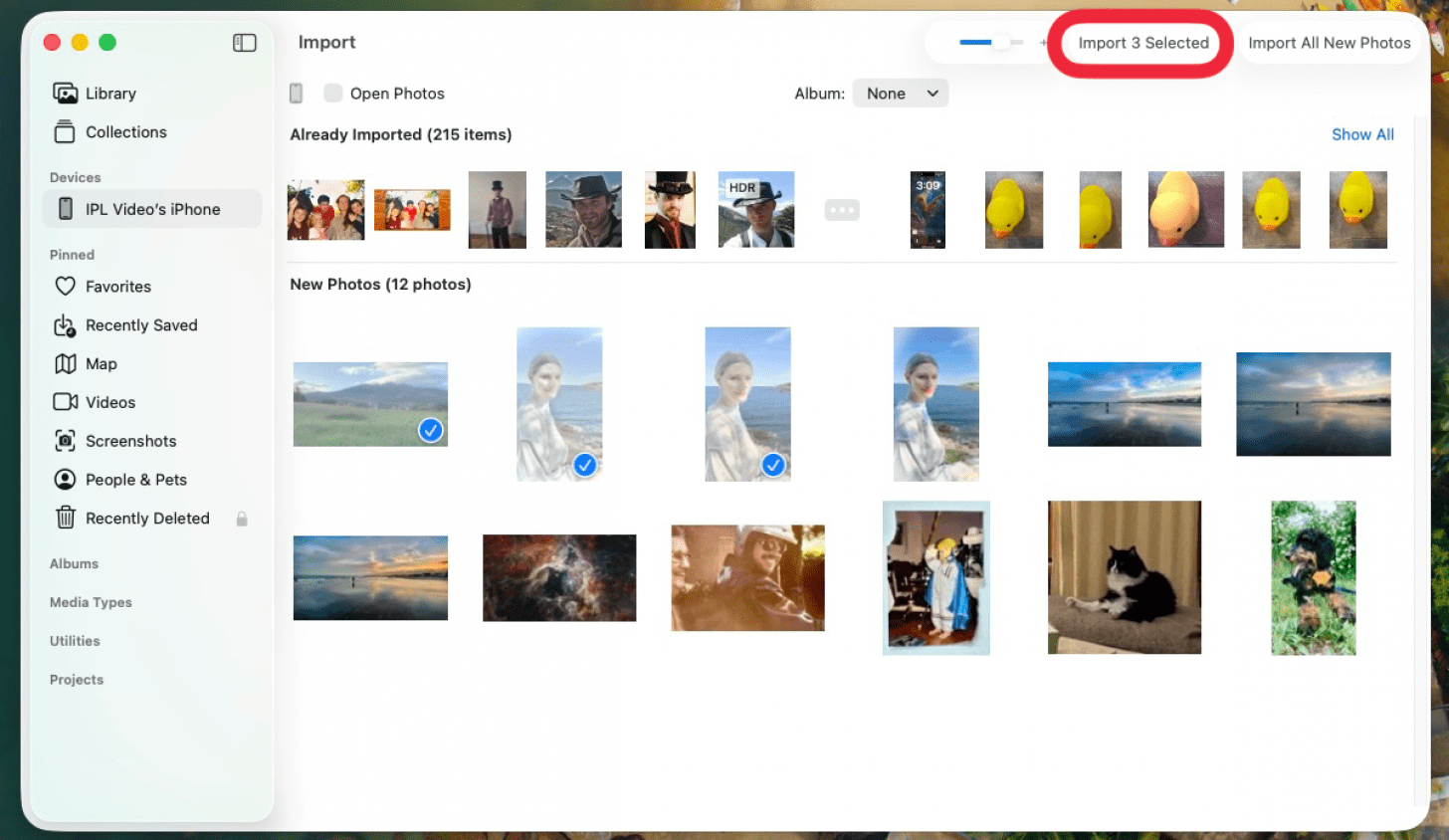
That's how to import photos from your iPhone to your computer. Finder has made this process easy! If you'd rather move photos from iPhone to Mac without a USB cable, you can also learn how to transfer photos from iPhone to Mac using AirDrop. These methods are especially helpful if you own a MacBook that doesn't have USB-A ports built in!
How to Move Pictures from iPhone to Computer with AirDrop
AirDrop uses Wi-Fi to transfer files from iPhone to Mac and vice versa (and can be used for other files as well), which means first you need to be sure both your iPhone or iPad and computer are connected to Wi-Fi. Remember that AirDrop also requires a 2012 or later Mac model running OS X Yosemite or later to transfer photos from iPhone to Mac. Here's how to upload photos from your iPhone to your computer using AirDrop:
- Open the Photos app on your iPhone. Select the photos you want to transfer to the computer, then tap the Share icon.
![a screenshot of a photo on iphone with a red box around the share icon]()
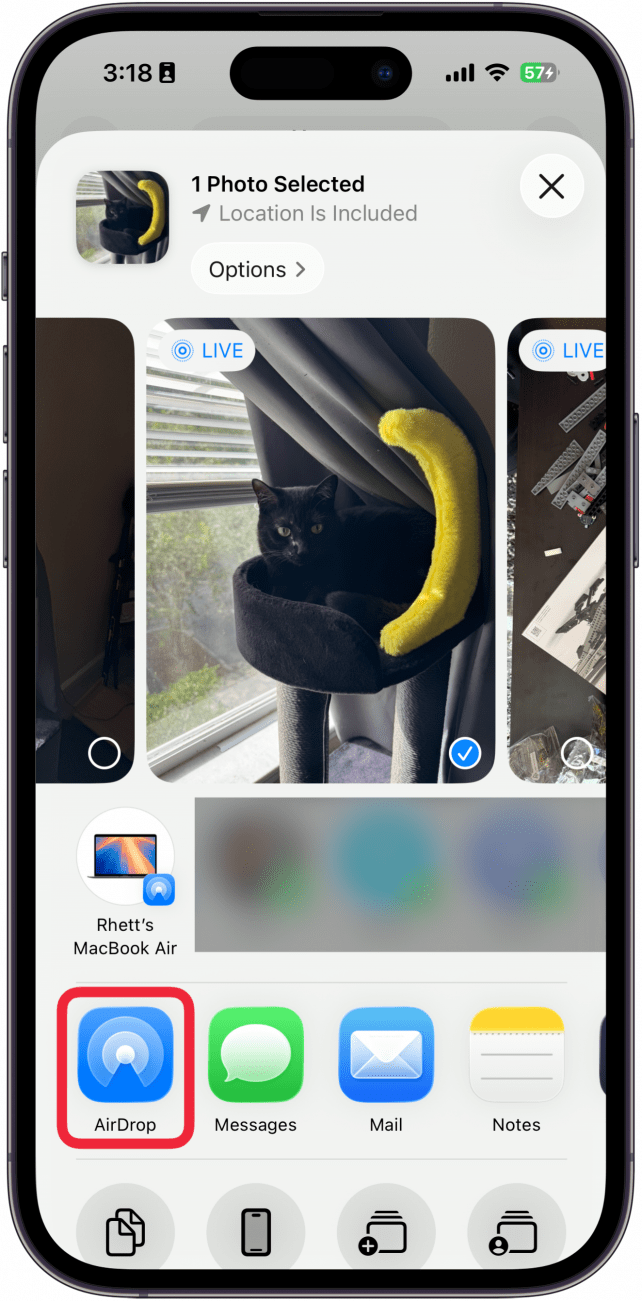
- Select AirDrop in the Share menu.
![a screenshot of a photo on iphone displaying the share sheet with a red box airdrop]()
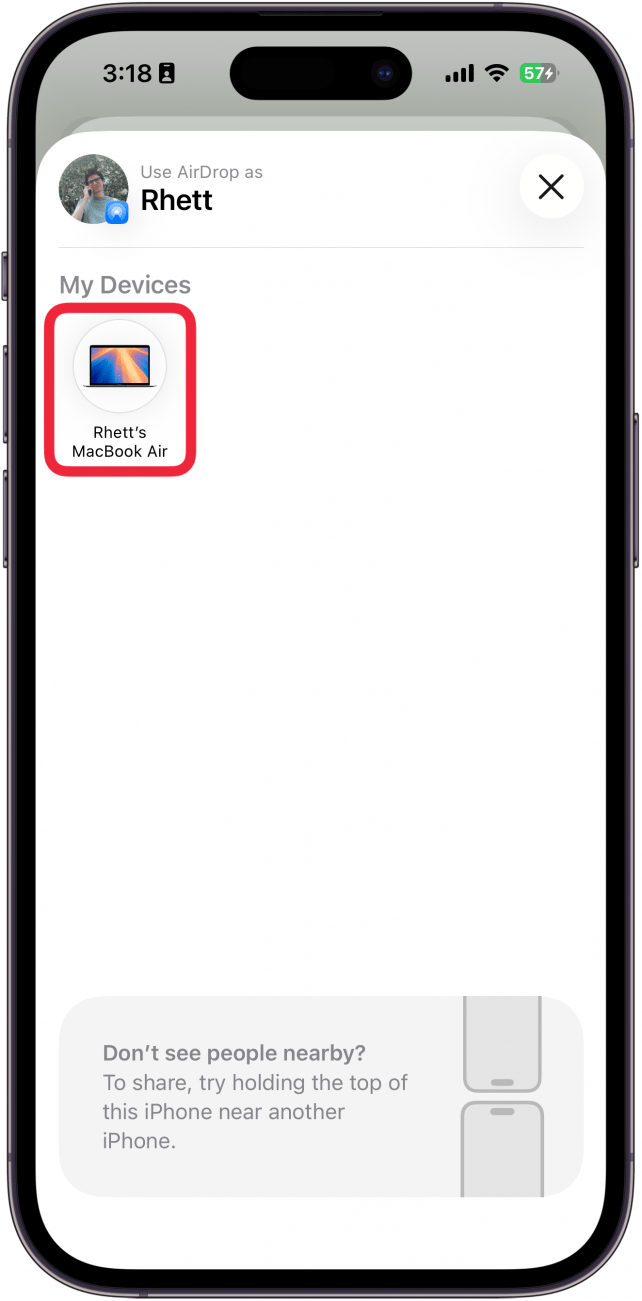
- Choose your computer from the list of devices.
![a screenshot of the airdrop screen on iphone with a red box around a macbook]()
- If successful, it will say Sent below your computer's icon.
![a screenshot of the airdrop screen on iphone with a red box around a macbook, indicating that the image has been sent]()
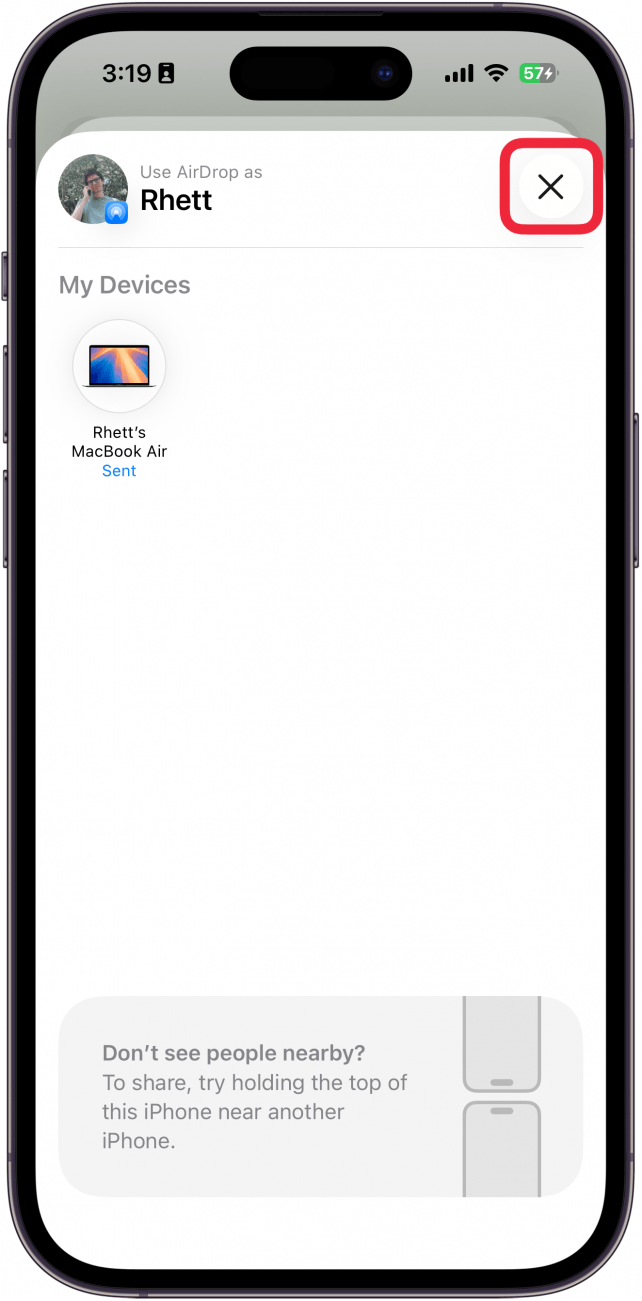
- Tap the X icon in the upper-right corner to leave the AirDrop screen.
![a screenshot of the airdrop screen on iphone with a red box around the x icon]()


Need more methods to download pictures to a computer? Here are three more you can use to transfer photos from iPhone to computer. Also, get organized with our article on how to edit the Launchpad on your Mac.
FAQ
- How do I download photos from my iPhone to my computer? If you need to transfer photos to your computer, you can use iCloud Photos to automatically transfer them. You can also import them with a cable through Finder or iTunes (for Macs with older software). If you have only a few photos to import, you can even AirDrop them to your device.
- What's the best way to transfer photos from my iPhone to PC? If you own a PC, you can still use iCloud Photos to securely store and access your photos online. This way, you don't have to worry about manually transferring your images. Another option is to use a cable to import your media into the Photos application on Windows.
- Where do photos go when imported from iPhone to Mac? If you manually transfer your photos and videos, they will be stored in the Photos app on your computer after you import them. However, you can also enable iCloud and make any photos or videos automatically available in the Photos app on any of your iCloud-enabled devices.
- Why can't I transfer photos from iPhone to PC? If you can't import photos from your iPhone to your PC, check to make sure the iCloud Photos toggle is enabled. To do this, open Settings and tap Photos. Then, you can go to iCloud.com and download the photos.