How to Sign Up for the Apple iOS 27 Public Beta Program

Conner is a feature writer and contributor to iPhone Life, as well as an author, poet, and content creator.
Learn More Conner is a feature writer and contributor to iPhone Life, as well as an author, poet, and content creator.
Learn MoreWhat to Know
- Anyone with an iOS 27-compatible iPhone can sign up for the iOS 27 beta program.
- Make sure to back up your device before installing the beta iOS.
- Go to the Apple Beta Program website, tap sign up, and follow all prompts.
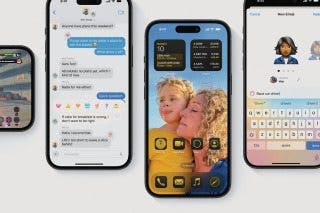
The iOS 27 public beta is here. The Apple beta program software isn't ready for prime time yet, so if you download the iOS 27 beta, you'll get the first look at all the new features, but you'll also experience bugs and glitches. If you'd rather not deal with a rough-around-the-edges operating system, I'd advise waiting for the finished operating system to be released. Now, let's go over how to download the beta profile and participate in iOS 27 beta testing.
Before You Get the Beta
iOS 27: Who Can Participate in the Apple Beta Program?
How do you become a beta tester for iOS? If you own one of the following iPhones, you can download and run iOS 27 beta; it's that easy! Keep in mind that you won't be able to use all the Apple Intelligence features of iOS 27 unless you have an iPhone 15 Pro or later. We're here to help if you're wondering what kind of iPhone you have.
- iPhone 17e, iPhone 17, iPhone Air, iPhone 17 Pro, iPhone 17 Pro Max
- iPhone 16, iPhone 16e, iPhone 16 Plus, iPhone 16 Pro, iPhone 16 Pro Max
- iPhone 15, iPhone 15 Plus, iPhone 15 Pro, iPhone 15 Pro Max
- iPhone 14, iPhone 14 Plus, iPhone 14 Pro, iPhone 14 Pro Max
- iPhone 13, iPhone 13 mini, iPhone 13 Pro, iPhone 13 Pro Max
- iPhone 12, iPhone 12 mini, iPhone 12 Pro, iPhone 12 Pro Max
- iPhone 11, iPhone 11 Pro, iPhone 11 Pro Max
- iPhone SE 2nd generation, iPhone SE 3rd generation
Is the iOS 27 Beta Download Safe? What Are the Risks?
Now that Apple has showcased all its new software during WWDC 2026, the anticipation may be too high to wait until fall. And these days, signing up for Apple's beta program is easy. But remember that iOS 27 at this stage is Apple's unfinished beta software. So there are some pros and cons to consider before you join the Apple beta software program.
Pros:
The best part? You don’t have to wait until iOS 27 is released to the public! That means you'll see the best new features first. You will also see a Feedback app on your Home Screen. This app allows you to report any issues or bugs in the software directly to Apple, so you can be a part of improving iOS 27 for everyone.
Cons:
Of course, the public beta is how Apple works out the many issues and bugs in the software before it's officially released, which means you're the one experiencing those bugs and bringing them to Apple's attention.
My Take:
I enjoy getting to try all the new features earlier, but I am prepared to have a glitchy phone with frequent apps crashing. So if you don't mind the inconvenience of a buggy phone, or even a few unusable apps, you'll love getting the beta. However, if you'd rather wait for the smoothest possible experience, you'll hate it.
Ready for Installation? Read This First
If you're going to sign up for Apple's public beta testing, I highly recommend using a secondary device. If you don't have a secondary device, then I implore you to make a new backup of your device before installing the public beta. Should anything happen while beta testing iOS 27 and you want to return to iOS 26, you'll need to restore that backup to your iPhone.
How to Sign Up for Apple Beta Testing (iOS 27)
To update your iPhone to Apple's latest operating system, make sure to back up your device to iCloud or back up to your computer. If you have an older Mac that can't be updated to macOS Catalina, macOS Monterey, macOS Ventura, macOS Tahoe, macOS Sequoia, or the latest version, macOS Golden Gate, you can back up to iTunes. After you've made your backup, the Apple Beta Program sign-up process is fairly straightforward:
- Plug your device into a power source and make sure you're connected to Wi-Fi.
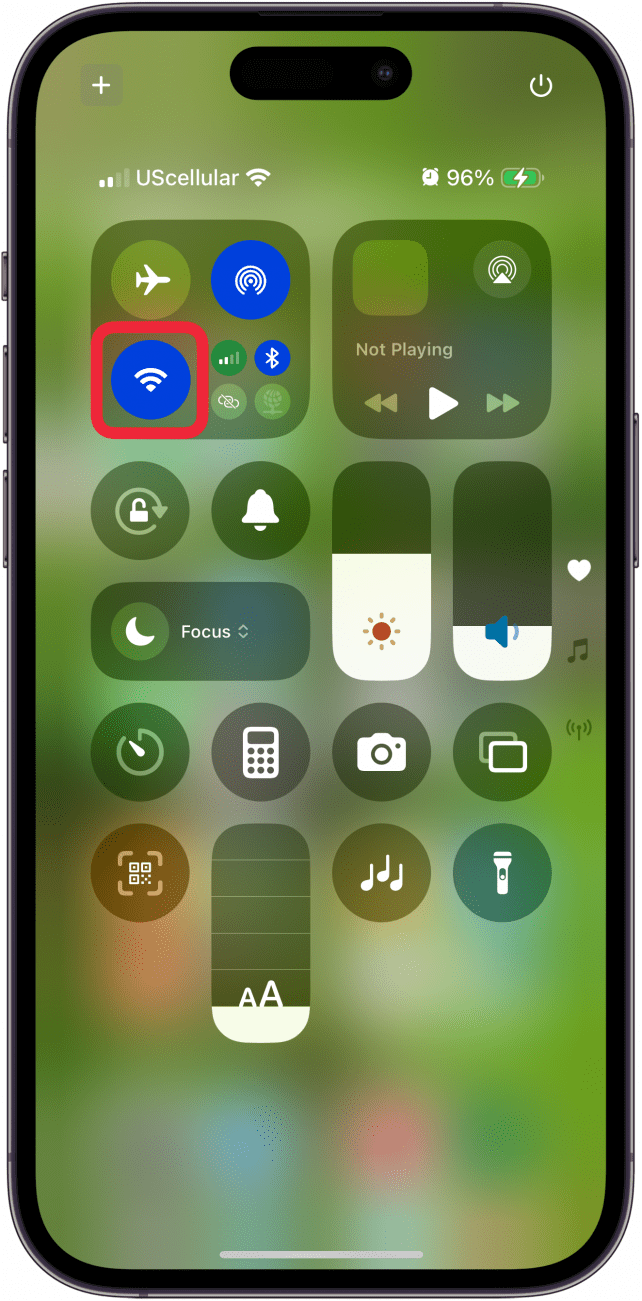
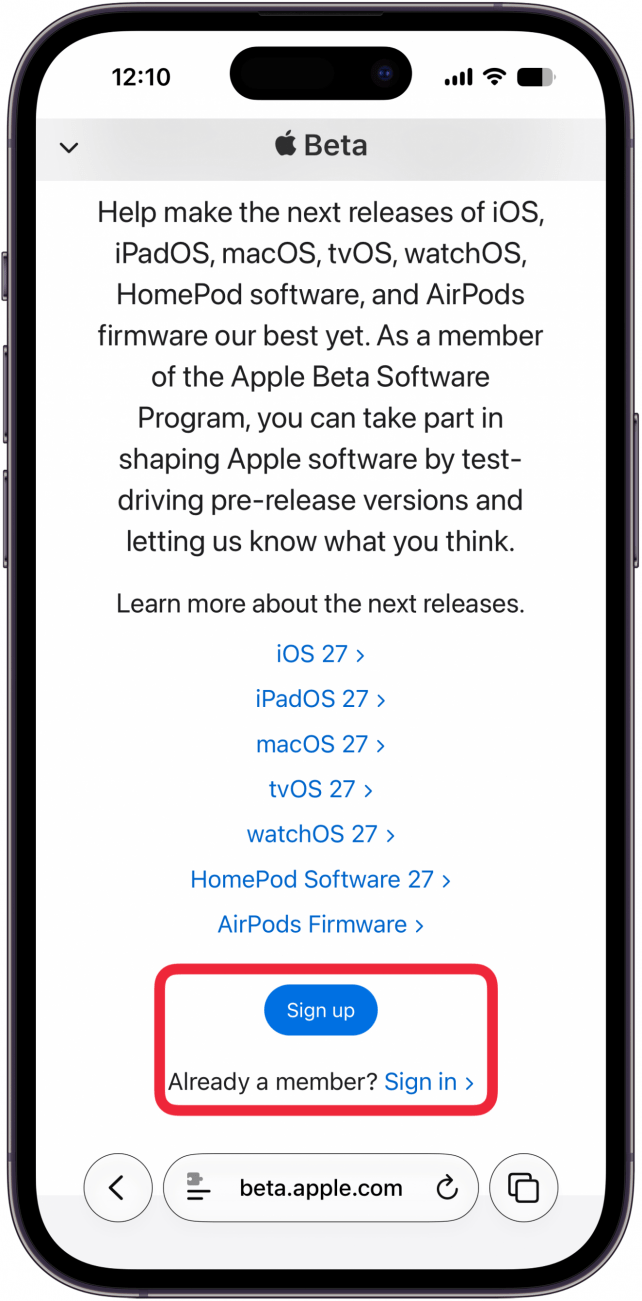
- Visit the Apple Beta Program page and tap Sign up, or Sign in if you've previously participated in an earlier beta version of iOS. You’ll be prompted to sign in with your Apple ID and password or Face ID.
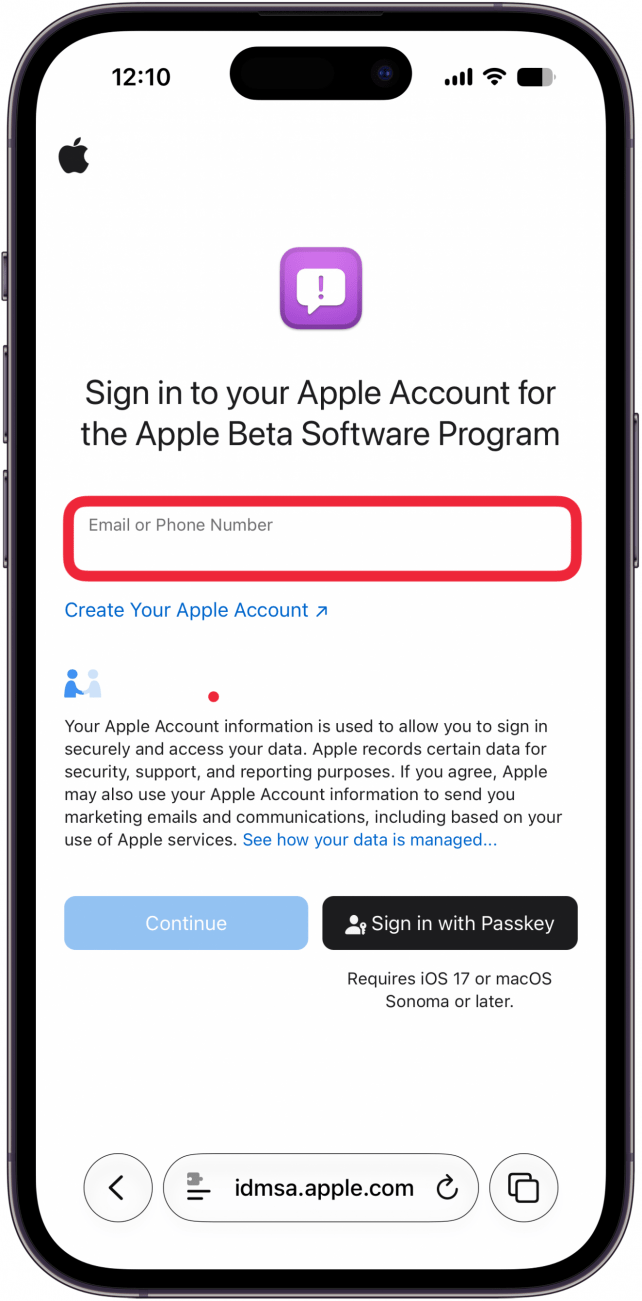
- You'll be asked to Sign In with your Apple ID.
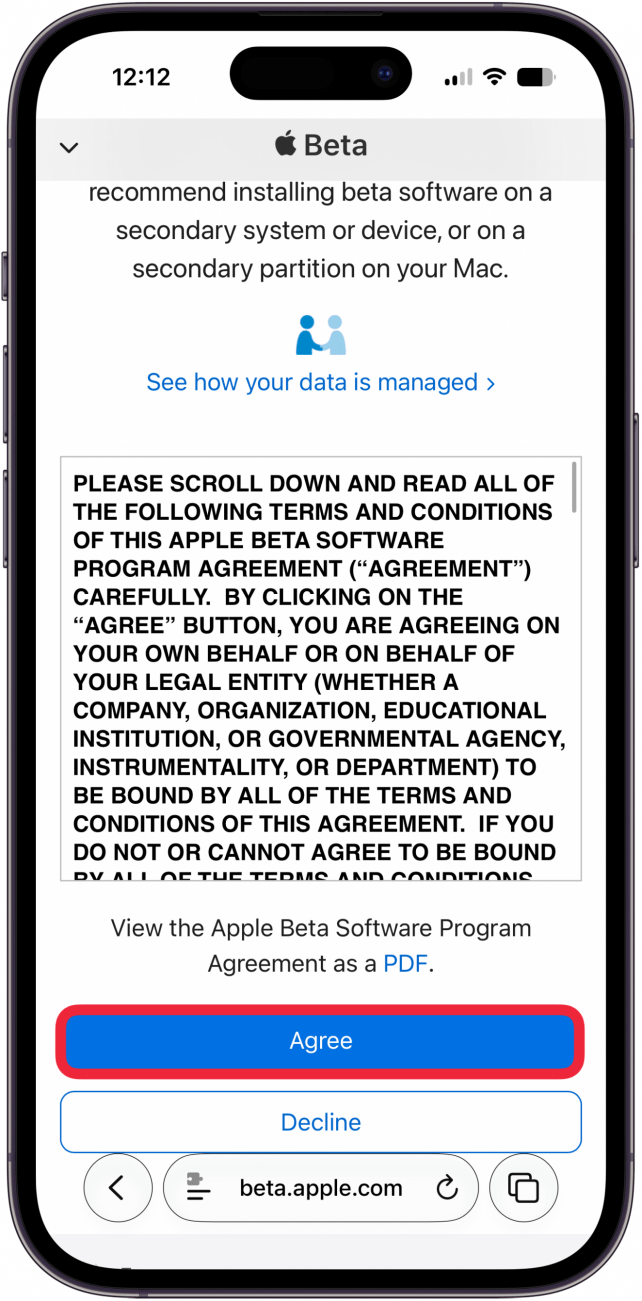
- Sign the Apple Beta Software Agreement.
- You'll be taken to a Guide for Public Betas. This guide will prompt you to enroll your iOS device in the Apple Beta Software Program if you haven't before. Back up your device before proceeding, but if you've followed our advice, you've already done that!
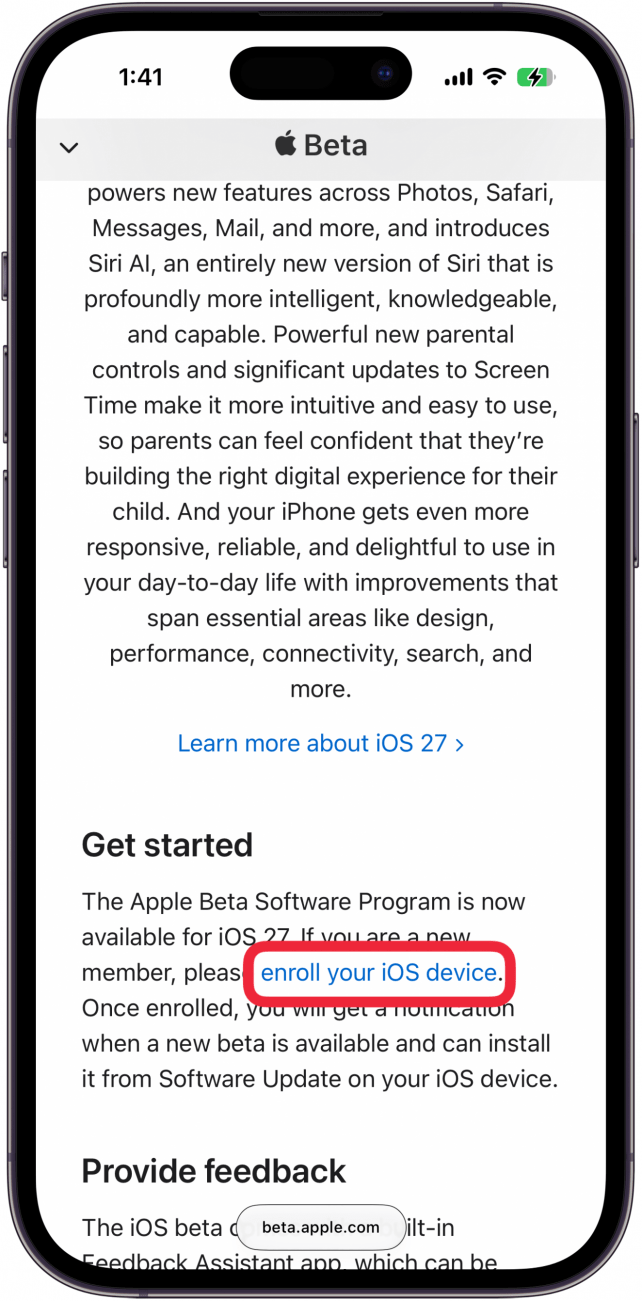
- You can then tap Open Beta Updates, then skip to step 11.

- From here, open the Settings app.
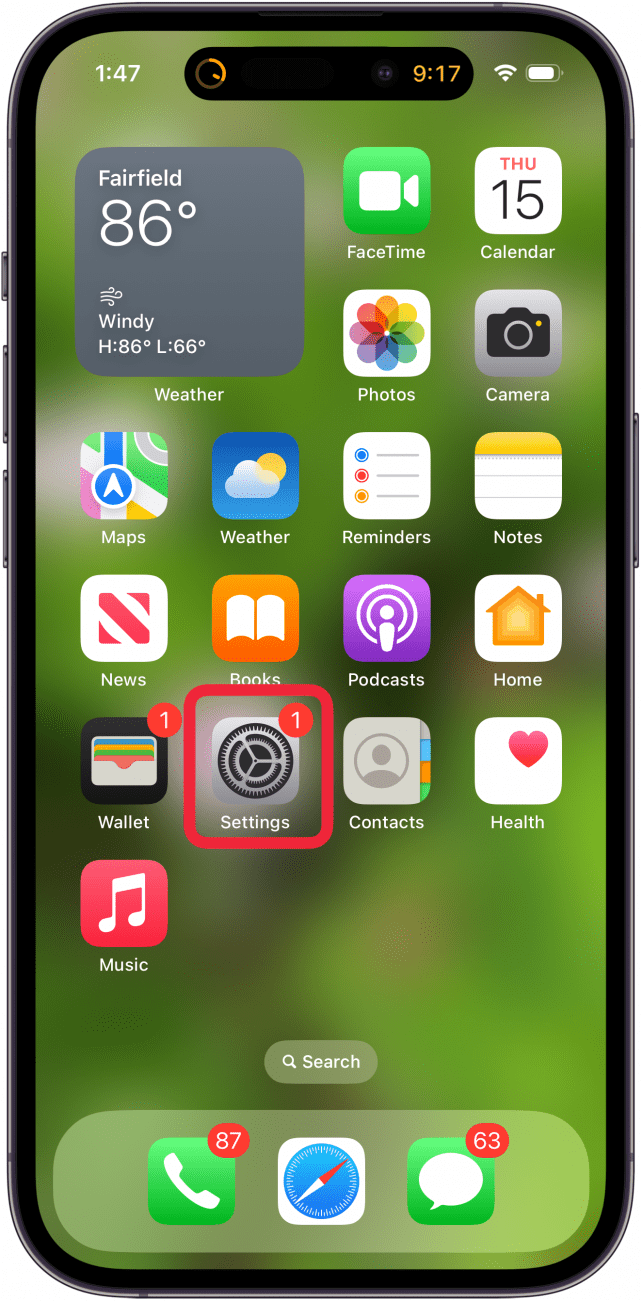
- Tap General.
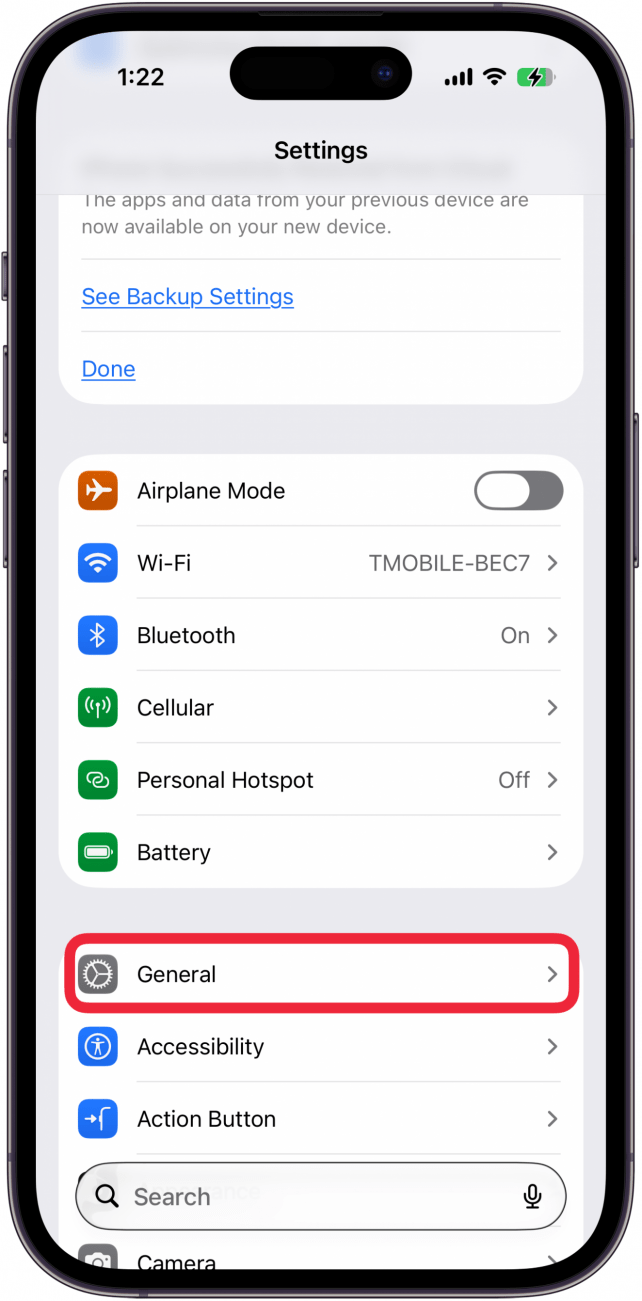
- Tap Software Update.
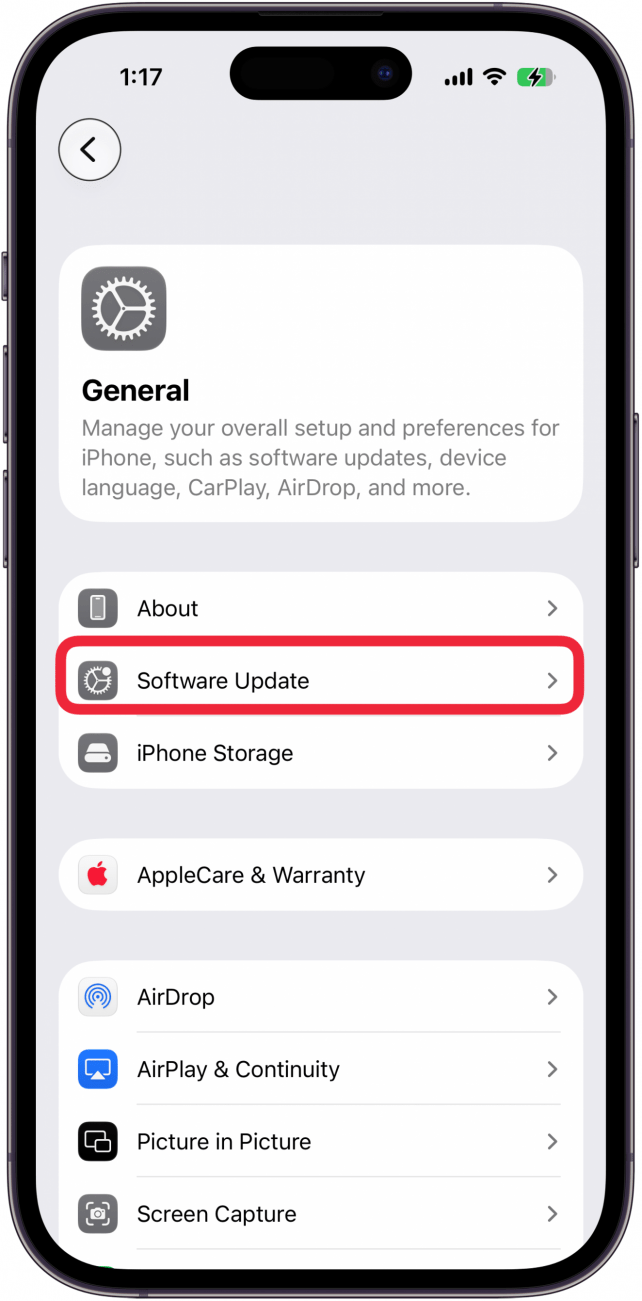
- Tap Beta Updates. Tap to enable beta updates.
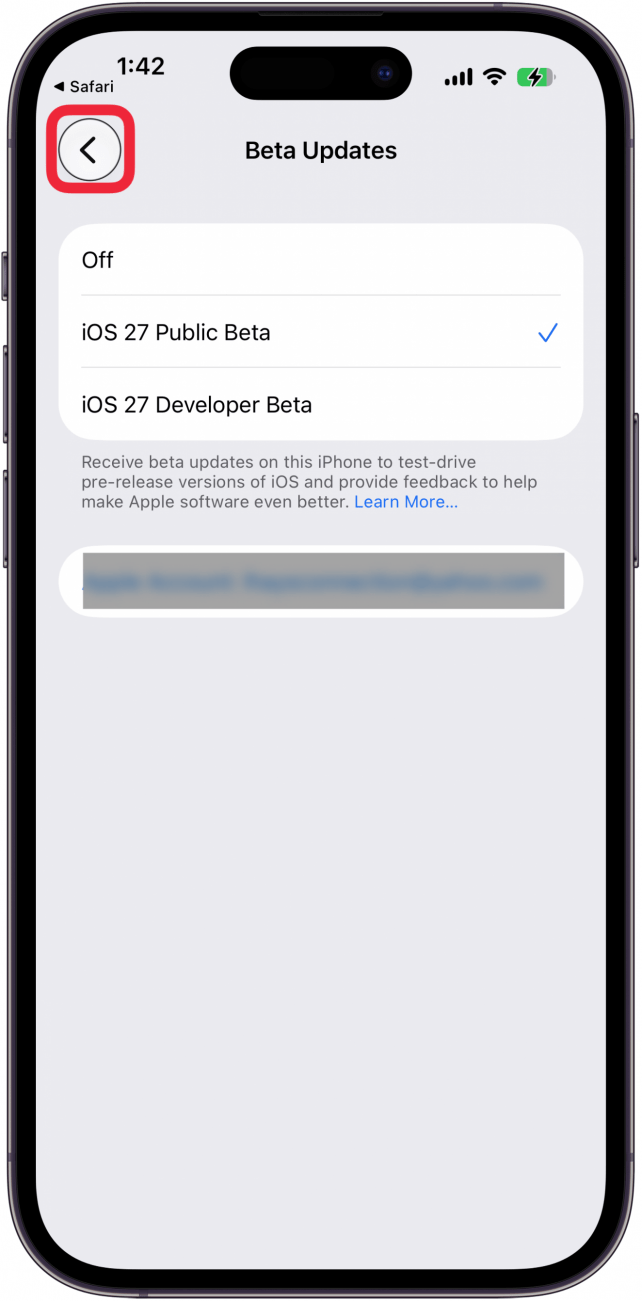
- Tap iOS 27 Public Beta.
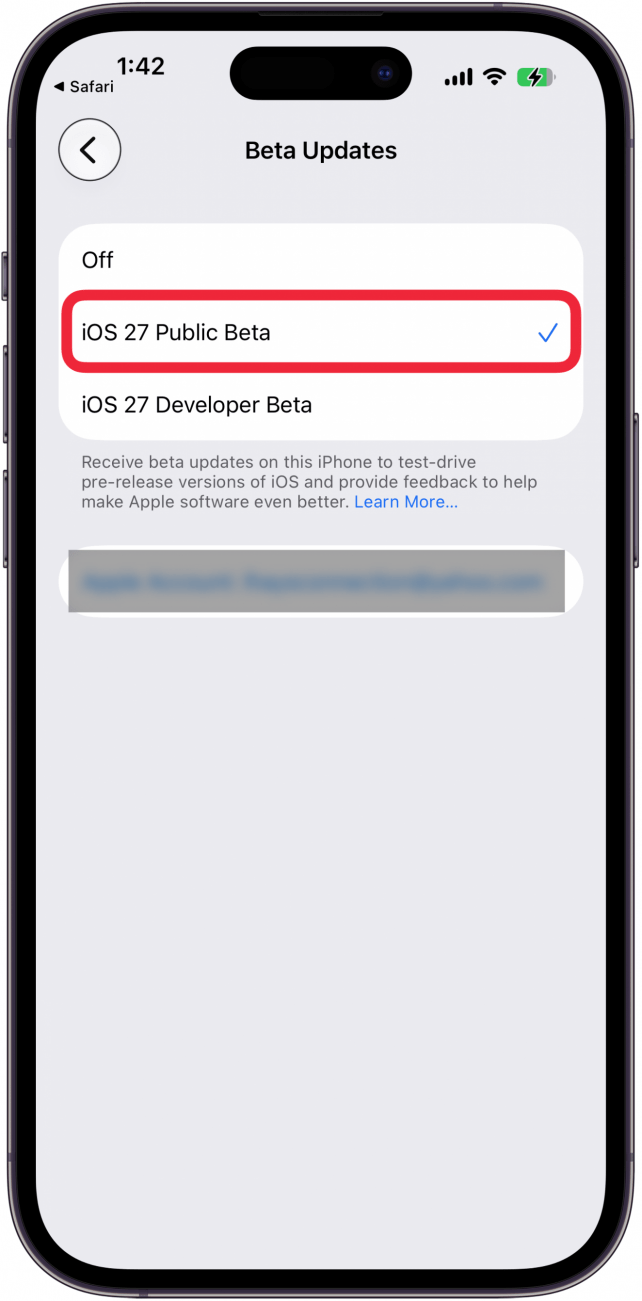
- Tap the Back arrow.
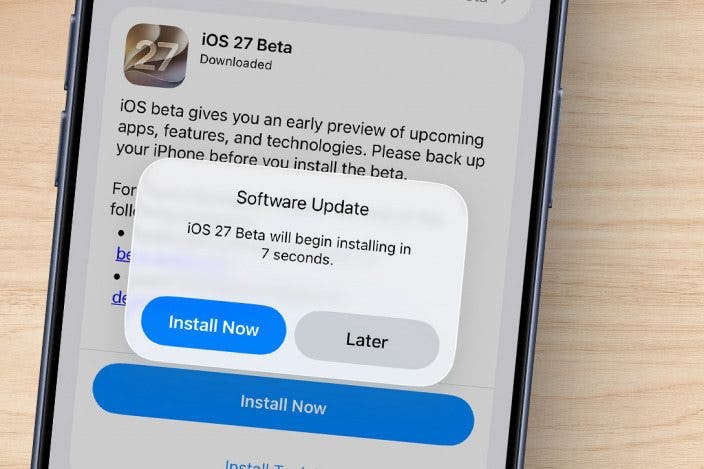
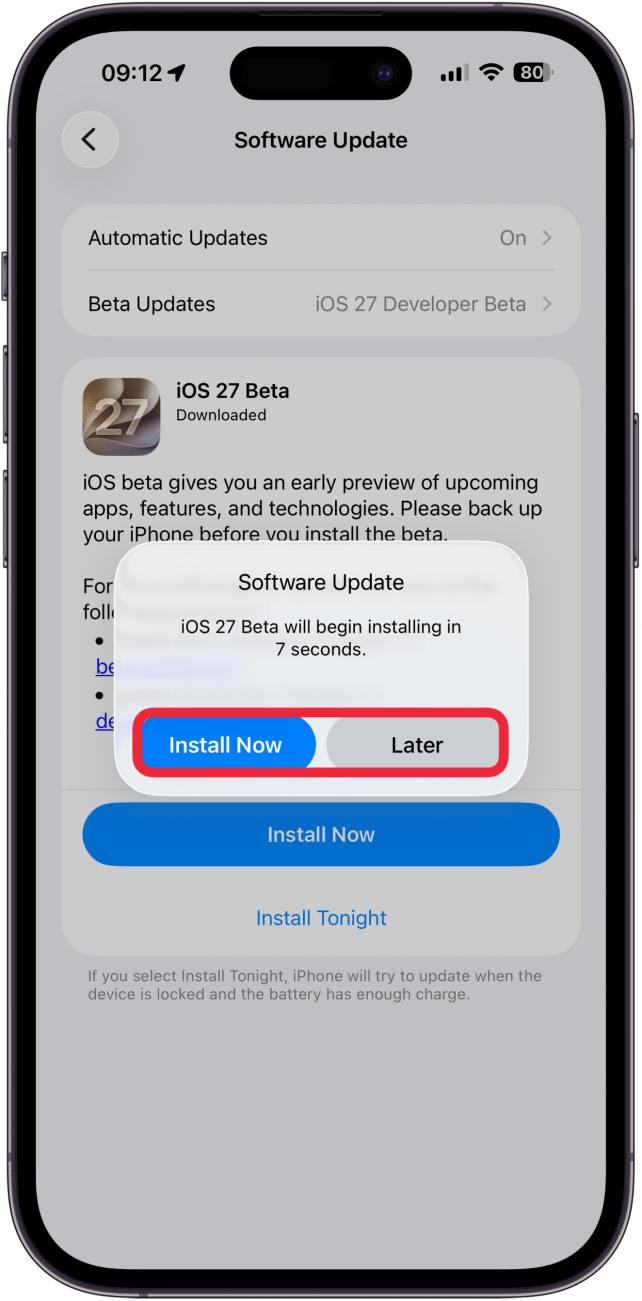
- Beta updates will appear in Software Updates when available; tap Install Now or Later.
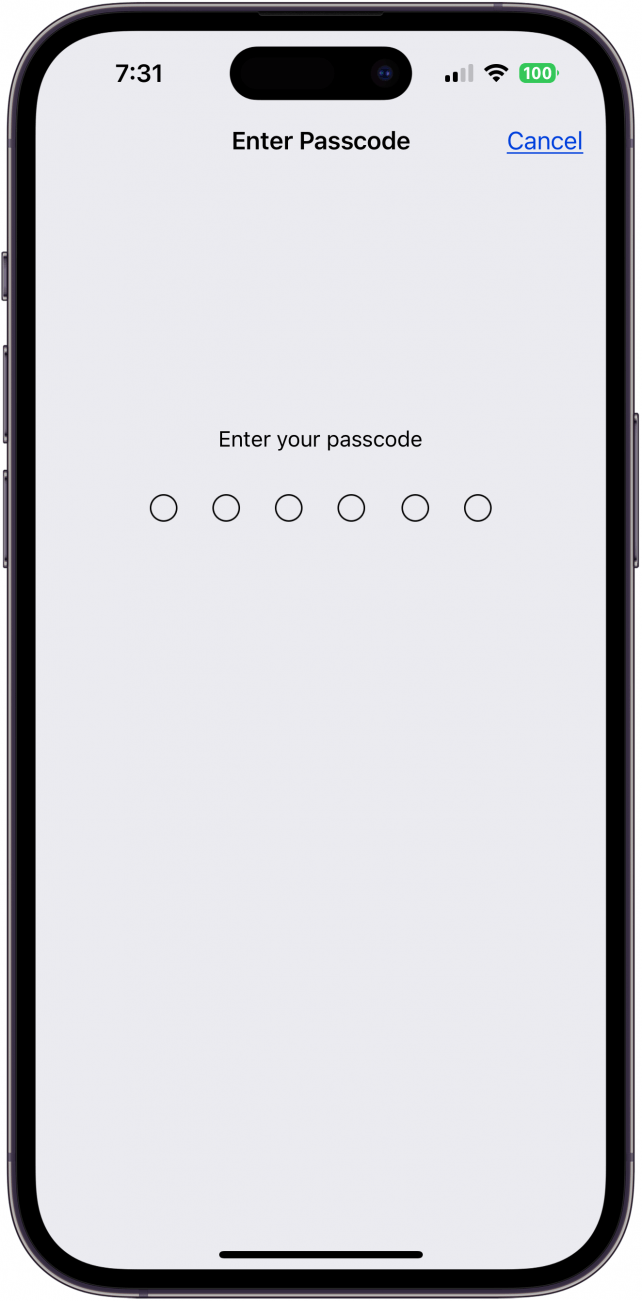
- Enter your passcode.
- You'll see a progress bar for the iOS 27 Beta download.
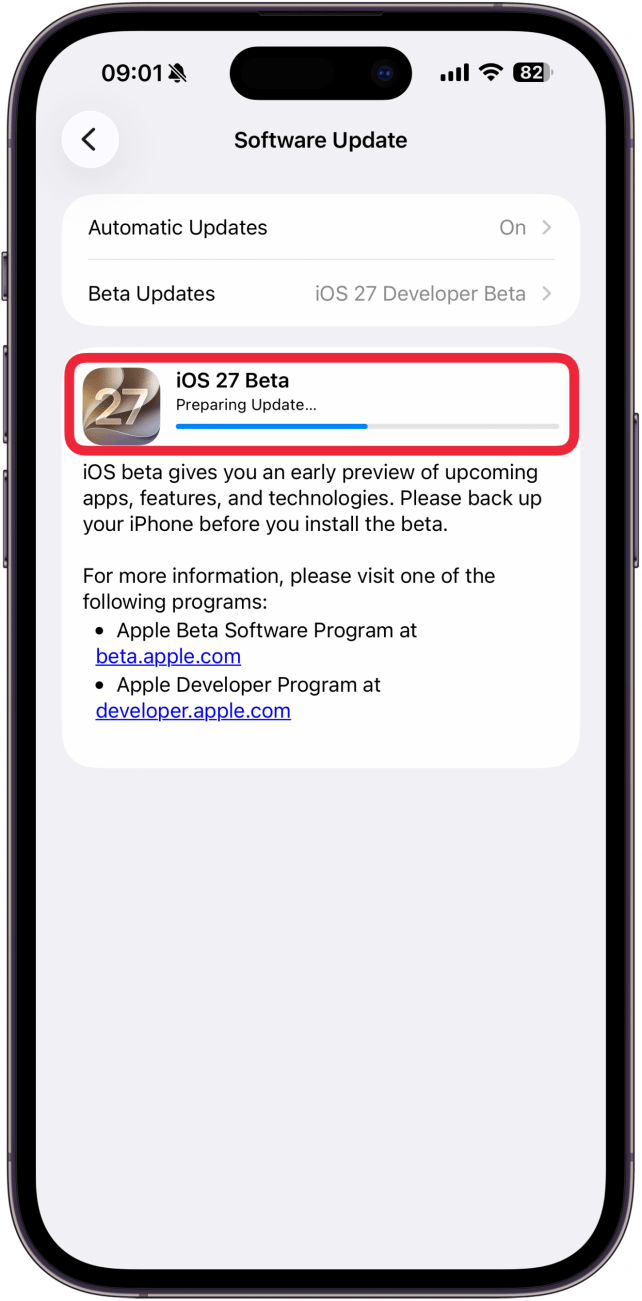
When the iOS 27 Beta download is complete, your iPhone will reboot. Welcome to iOS 27 Public Beta! You can now try out all the fun new features. For more great iOS tutorials, check out our free Tip of the Day.
FAQ
- How do I get rid of the Apple beta program? If you've been experiencing bugs and glitches since joining the Apple Beta Software Program, the good news is you can uninstall it. To uninstall iOS 27 beta software on your iPhone, you'll need to restore your device from the backup you made prior to your beta fling. Luckily, we have an article that can walk you through restoring your iPhone from a backup and removing beta software from your phone.
- How do you submit iOS beta feedback? Once you install the beta, you'll notice a new app called Feedback; this is where you can report bugs and glitches to Apple. Accept the terms, sign in with your Apple ID, and you're good to go!
Top image credit: wk1003mike / Shutterstock.com

Conner Carey
Conner Carey's writing can be found at conpoet.com. She is currently writing a book, creating lots of content, and writing poetry via @conpoet on Instagram. She lives in an RV full-time with her mom, Jan and dog, Jodi as they slow-travel around the country.
Related topics
Related Articles
 Rhett Intriago
 Olena Kagui
Compromised Passwords on iPhone: What Are They & What to Do

 Rachel Needell

The Top Hits and Biggest Misses from Apple’s iPhone 17 Event
 Amy Spitzfaden Both

 Leanne Hays