How to Sort Contacts by Business Name

With over 10 years of experience in publishing, Amy specializes in Apple news and rumors, health and fitness tech, and parenting in the digital age.
Learn More With over 10 years of experience in publishing, Amy specializes in Apple news and rumors, health and fitness tech, and parenting in the digital age.
Learn MoreWhen you want to call your contact at a company but can't remember their name, it can be a monumental task to sort through your decade's worth of contacts to see which person works at the place that installed your furnace. Luckily, there's an easy way to see everyone in your Contacts app who works at a specific company. Here's how to filter your contacts by company.
Why You'll Love This Tip
- Save time searching and see a list of every contact who works for a company.
- Find a contact's name just by remembering their place of employment.
- Easily send out group messages to everyone who works at the same company.
How to Filter Contacts by Company Name on iPhone
System Requirements
This tip was performed on an iPhone 16 Pro running iOS 18.5. Find out how to update to the latest version of iOS.
Whether you're looking for a list of your coworkers or trying to track down the number for that plumber you used three years ago, searching your contacts by company name is a valuable time saver. While it isn't currently possible to display your contact list by company name, you can search for a company name and see all the contacts you have listed as working at that company.
You, of course, have the option to enter a company as a first or last name, but this is a cleaner way to accomplish a similar result. For more quick ways to streamline your iPhone use, check out our free Tip of the Day newsletter.
- Open your contacts app.
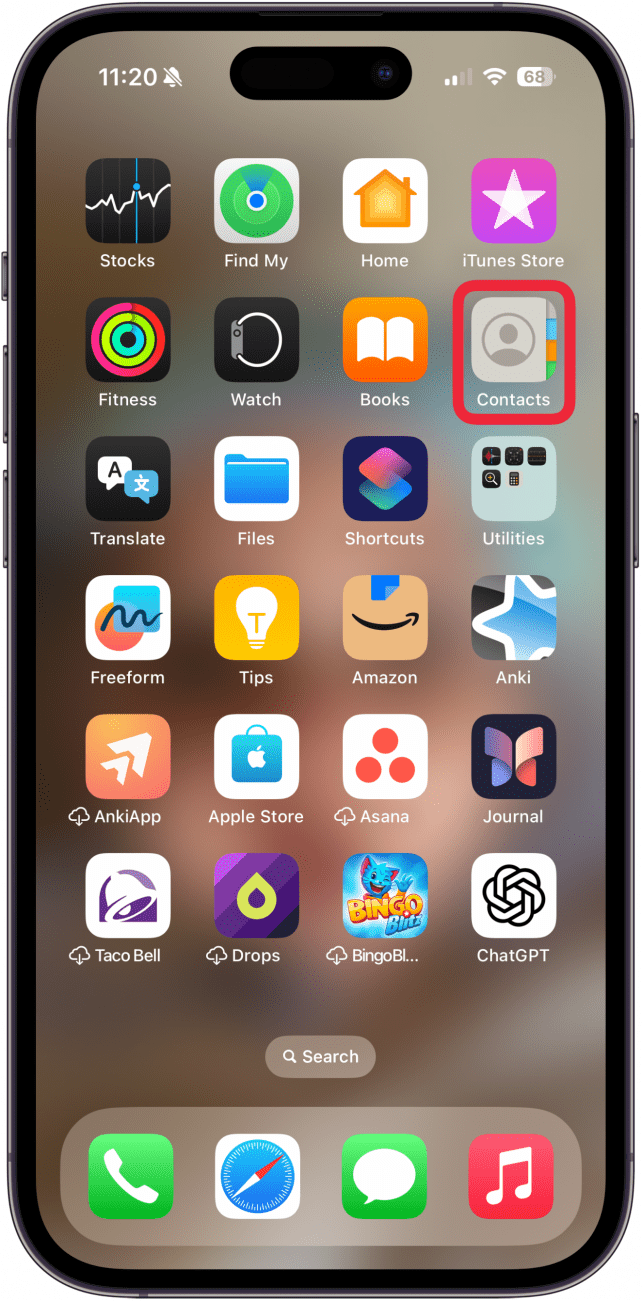
- To add a company name to a contact, tap the contact.
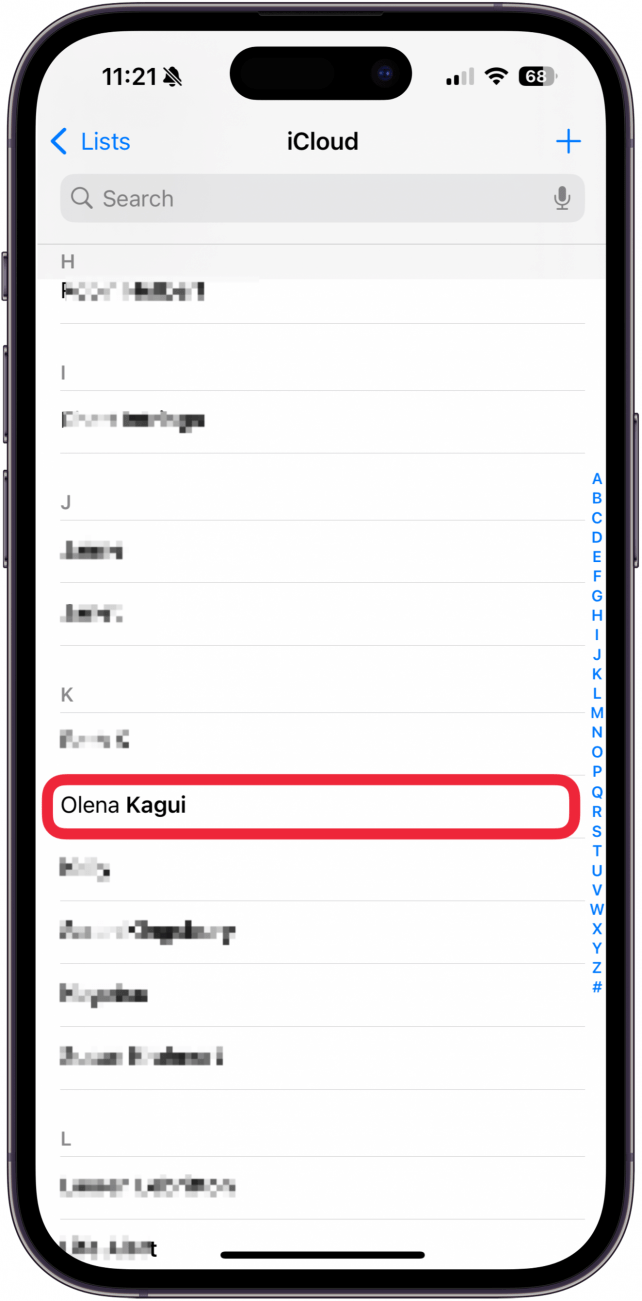
- Tap Edit.
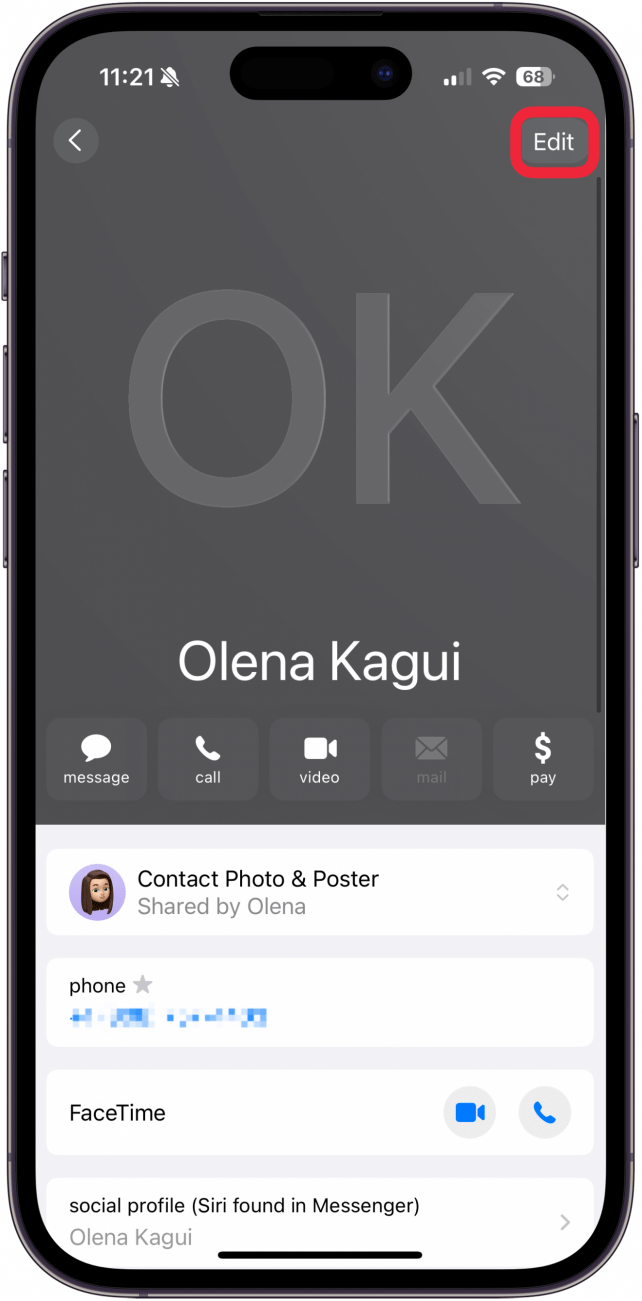
- In the Company field, enter the company name.
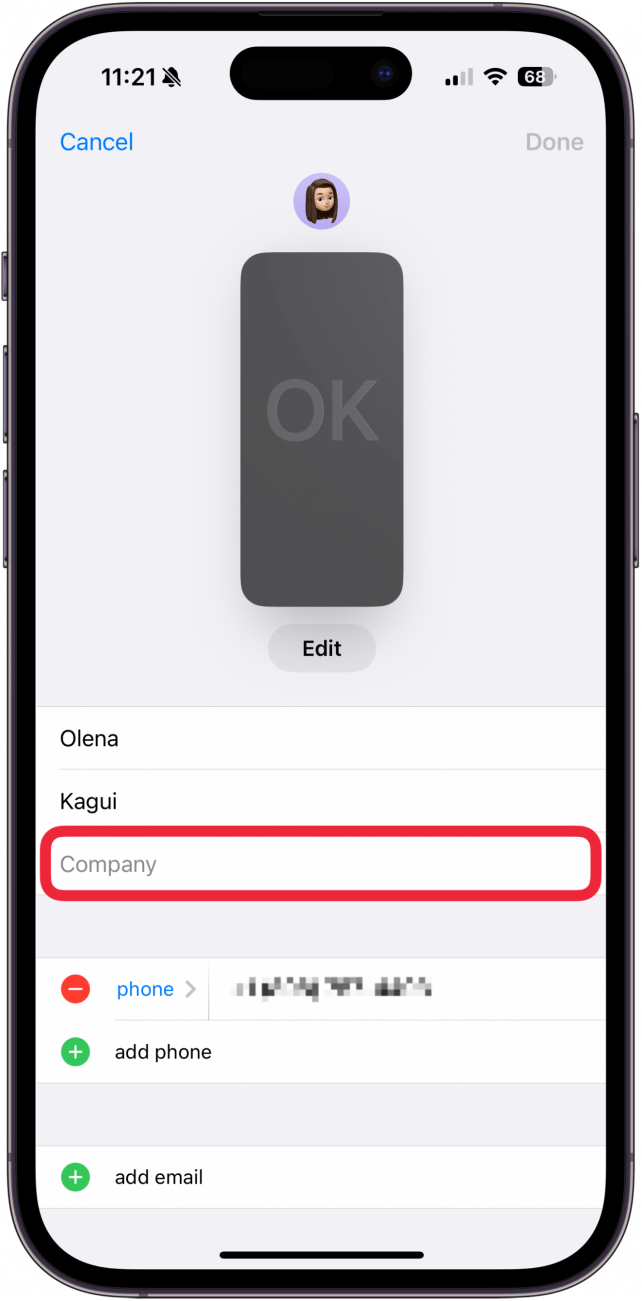
- Tap Done.
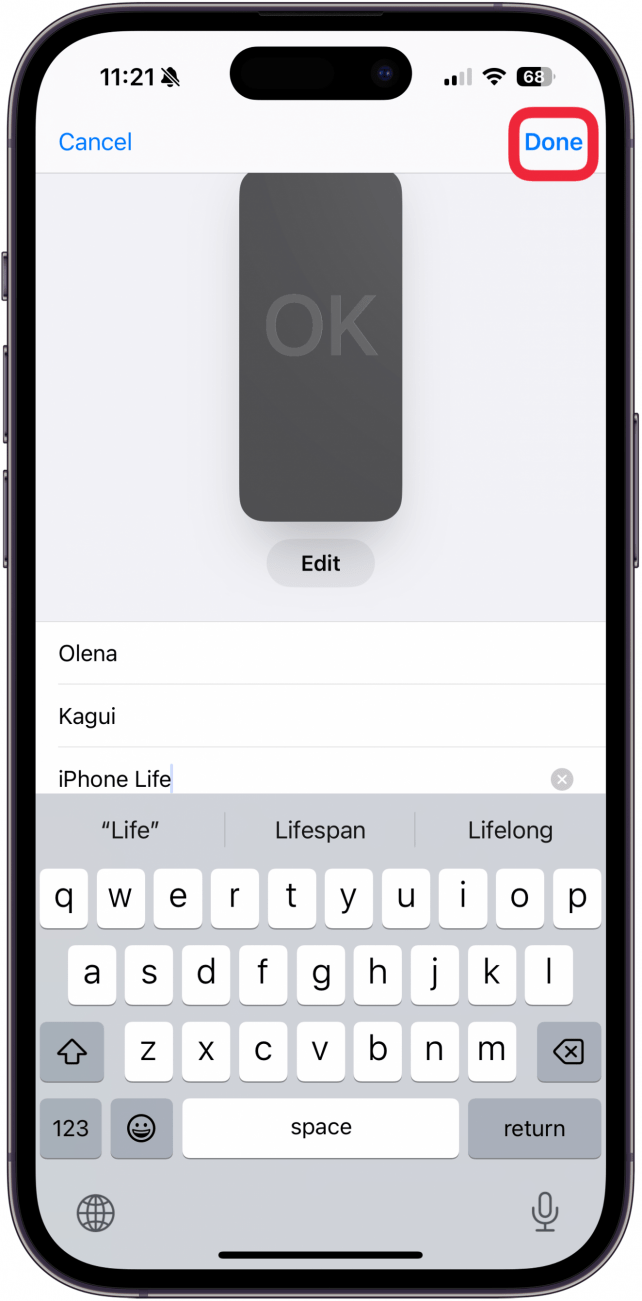
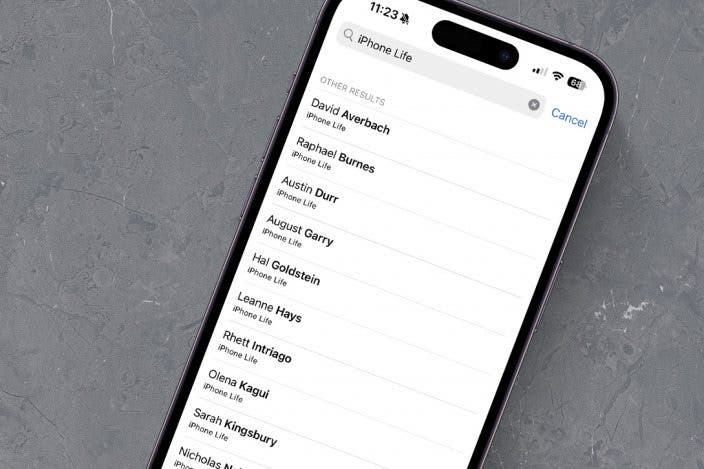
- Return to your contacts app, and tap the Search bar at the top.
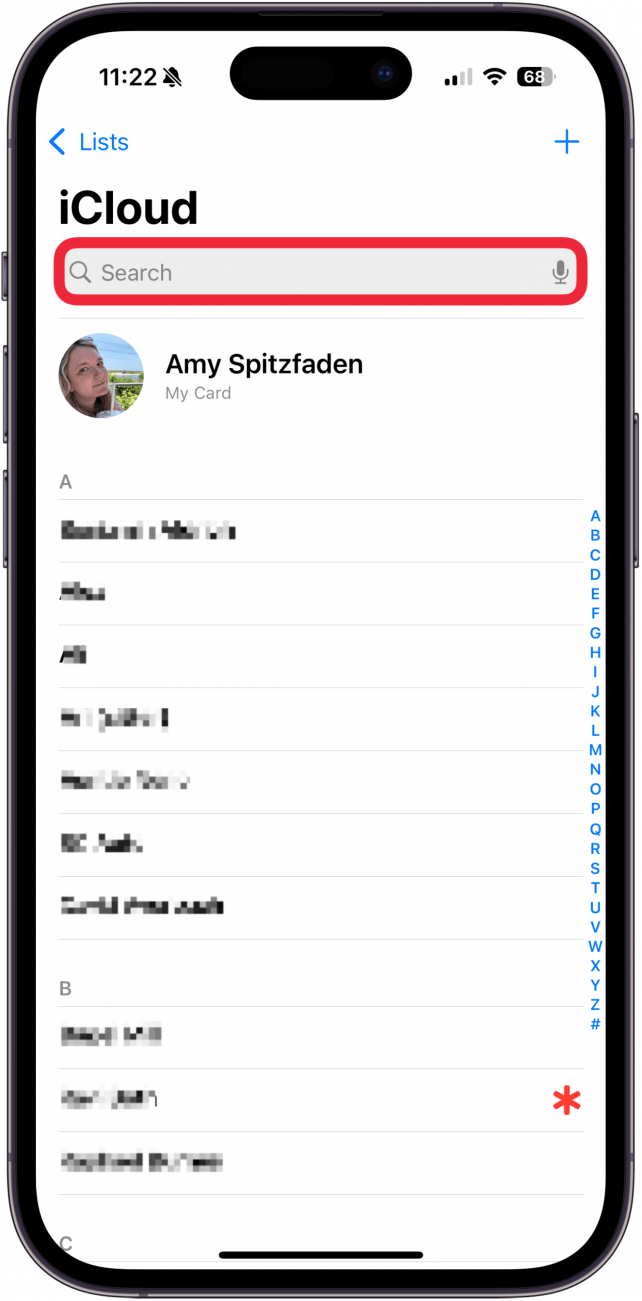
- Type in the company name you want to see the contacts for.
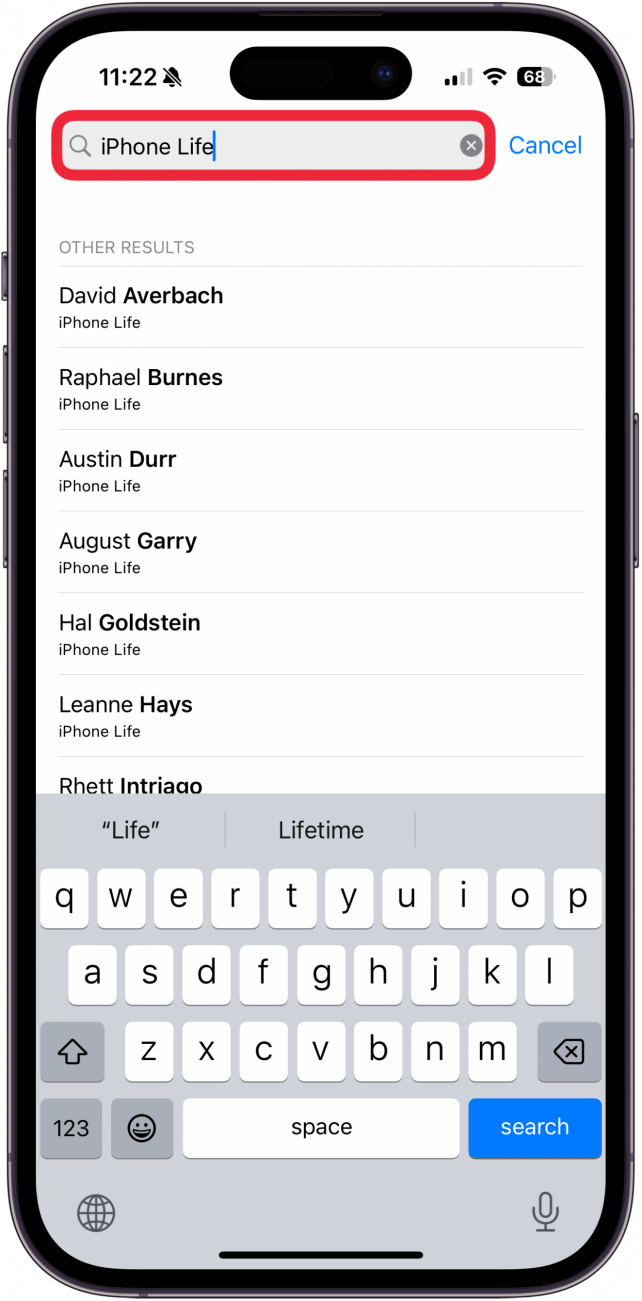
- You'll see every contact you have listed for this company in alphabetical order.
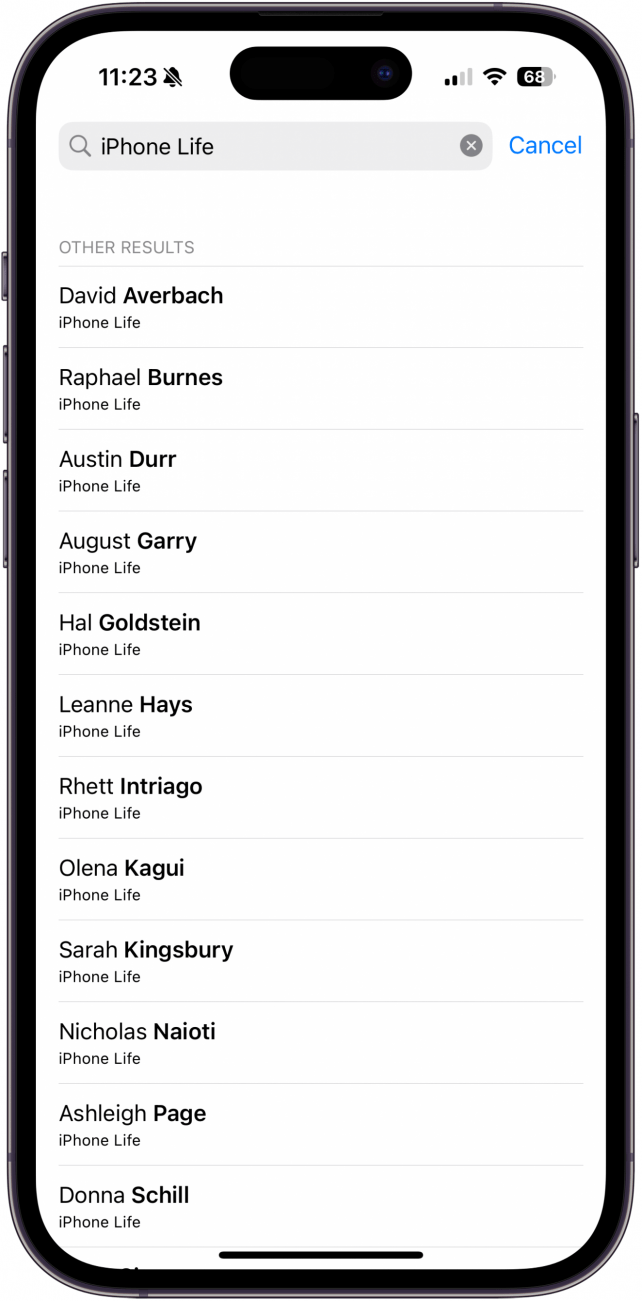
There you have it! Whether you just have one contact at that company and want to remember who it is or want to peruse a long list of coworkers, this will show you what you want to see.
More On: Contacts
Top image credit: The-DesignStudio / Shutterstock.com

Every day, we send useful tips with screenshots and step-by-step instructions to over 600,000 subscribers for free. You'll be surprised what your Apple devices can really do.

Amy Spitzfaden Both
Amy Spitzfaden-Both is the Managing Editor for iPhone Life magazine and an award-winning novelist, with over 10 years of experience in the publishing industry. She specializes in Apple news and rumors, health and fitness tech, and parenting in the digital age. She graduated from MIU with a BA in Literature and Writing.
Amy lives in New Hampshire with her husband and daughter. When she’s not writing or glued to her iPhone, she enjoys hiking, traveling, and creating her own tea blends.
Related topics
Related Articles

 Rachel Needell
Faster iPhone Cellular Data: Why Is My Internet So Slow?
 Olena Kagui
 Rhett Intriago
How to Use StandBy Mode in iPhone Sleep Mode & Other Focus Modes

 August Garry


 Cullen Thomas

 Amy Spitzfaden Both

 Leanne Hays