Scroll Through Your Books on iPhone & iPad

With two decades of writing and editing experience, Sarah has written hundreds of how-to articles, founded the Daily Tip newsletter, and now oversees iPhone Life’s online content.
Learn More With two decades of writing and editing experience, Sarah has written hundreds of how-to articles, founded the Daily Tip newsletter, and now oversees iPhone Life’s online content.
Learn MoreApple's Books app allows iPhone and iPad users to purchase, save, and read books and PDFs. The Books app offers a page-turning animation to mimic the experience of reading a hardcopy book, but you can also switch to Apple Books to a scroll mode so you don't have to worry about constantly turning pages. It might even help you read more, since you might lose track of how many pages you've read. Here's how to enable Apple Books continuous scroll.
Why You'll Love This Tip
- Trick yourself into reading more by endlessly scrolling through your books.
- No need to swipe between pages, allowing for one-handed reading.
Turn On Apple Books Scroll Mode on iPhone & iPad
System Requirements
This tip was performed on an iPhone 15 Pro running iOS 26.5. Find out how to update to the latest version of iOS.
Some people enjoy turning pages in their e-reader like a real book, while others might prefer to scroll through their books like scrolling through social media. Personally, I find that scrolling through my books makes it easier for me to read. We've already gone over how to buy e-books and audiobooks in the Books app, as well as how to save e-books and audiobooks to purchase later, so be sure to sign up for our free Tip of the Day newsletter to discover more iPhone tips and tricks. Now, let's cover how to make Apple Books scroll, rather than turning virtual pages:
- Open the Books app.
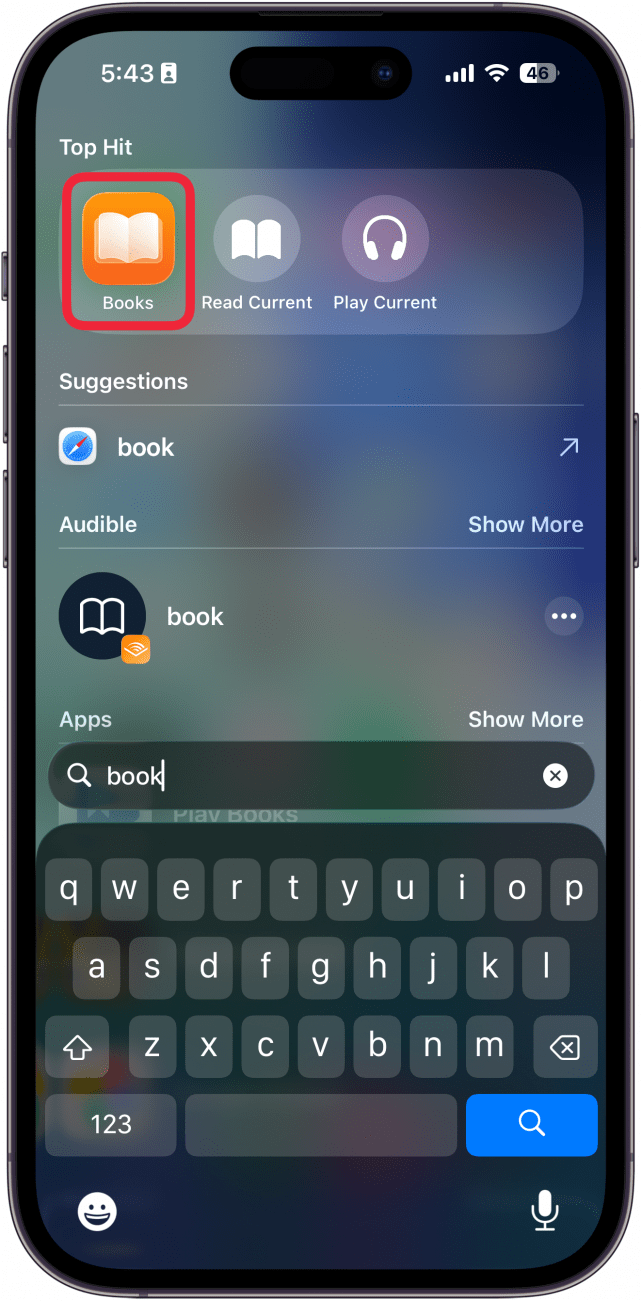
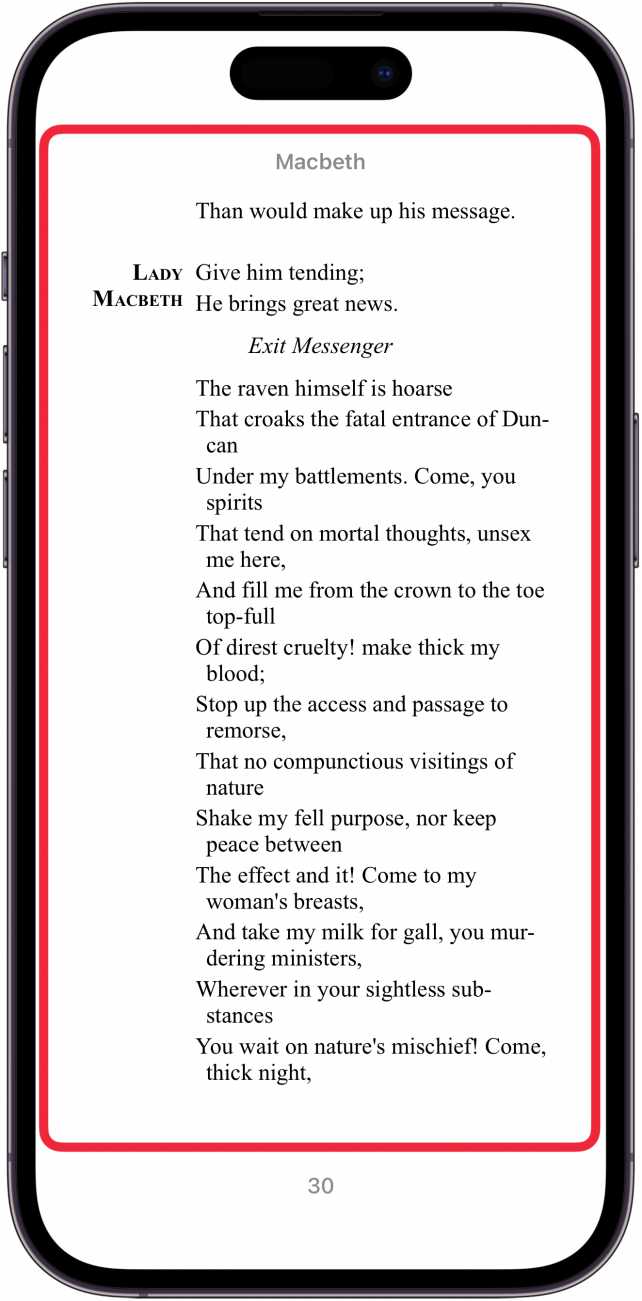
- Open the book that you'd like to scroll through and tap the page.
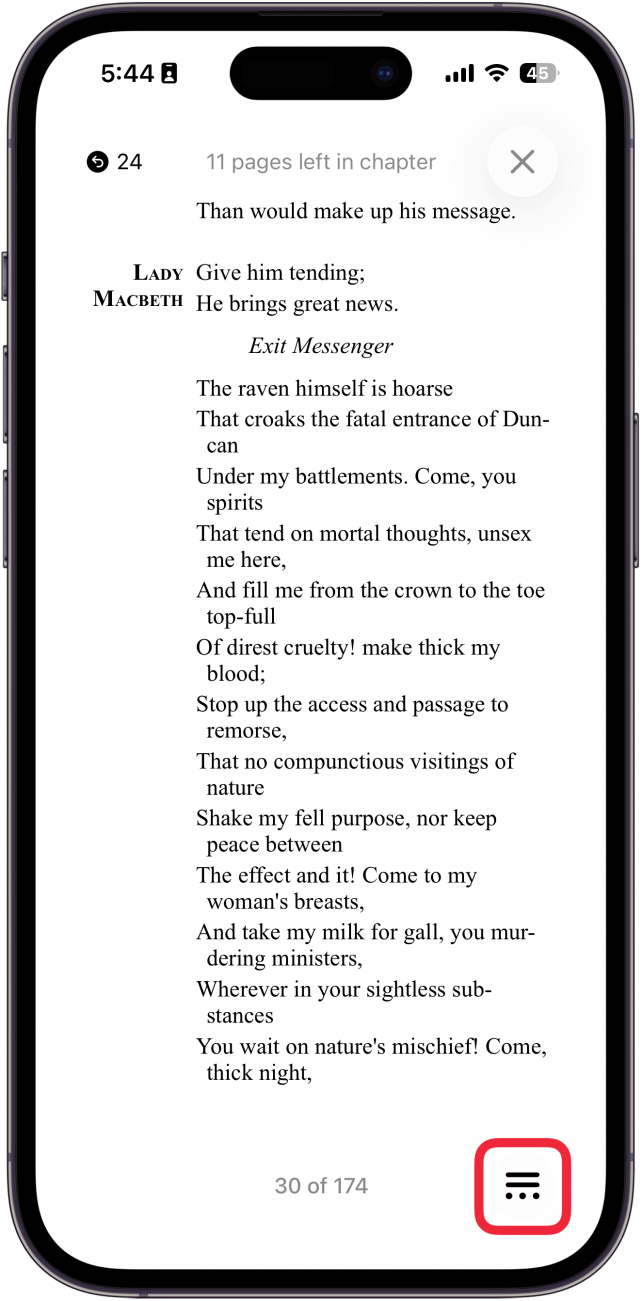
- Tap the menu icon in the lower right.
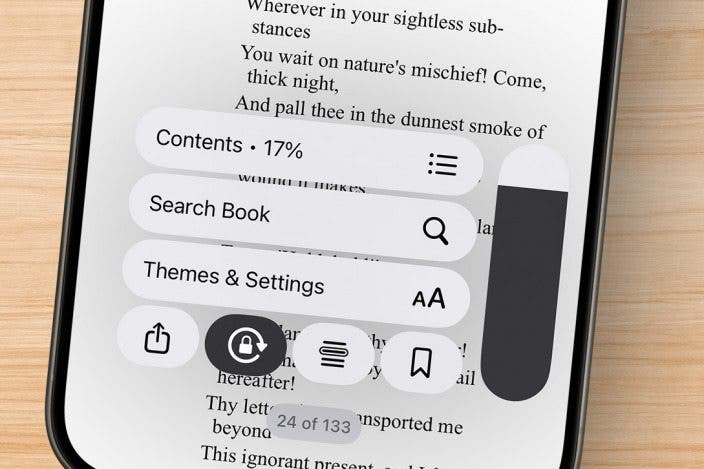
- Tap Themes & Settings.
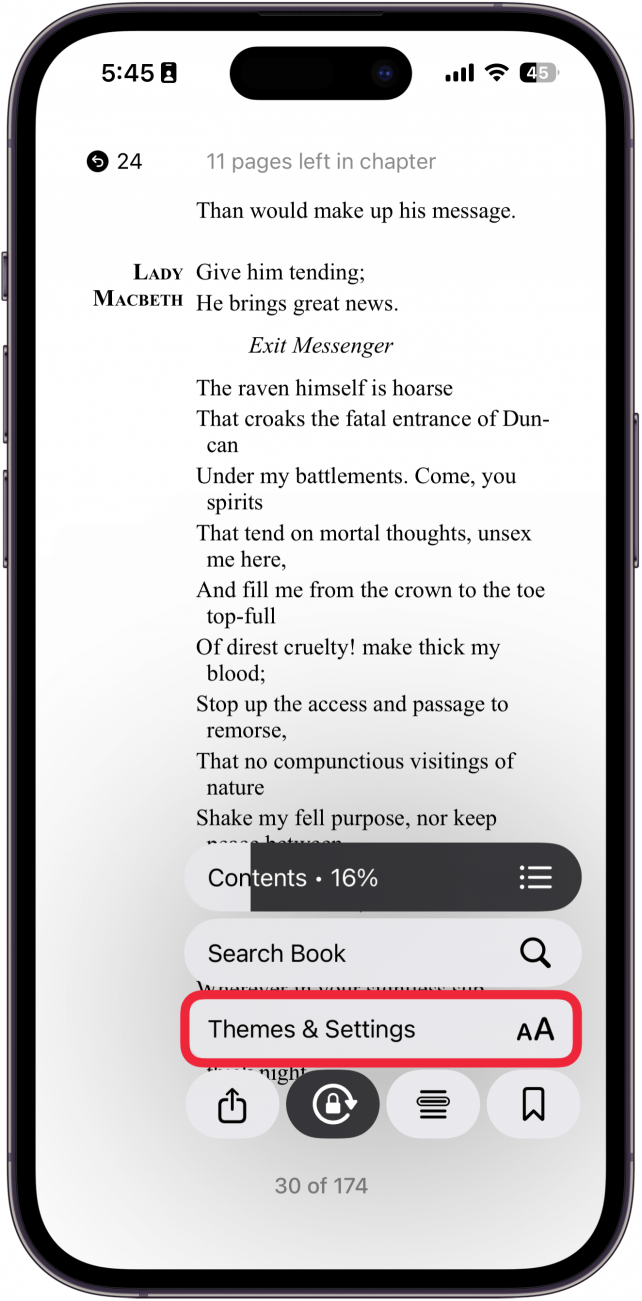
- Tap the page icon (yours may look slightly different, depending on your Books app settings).
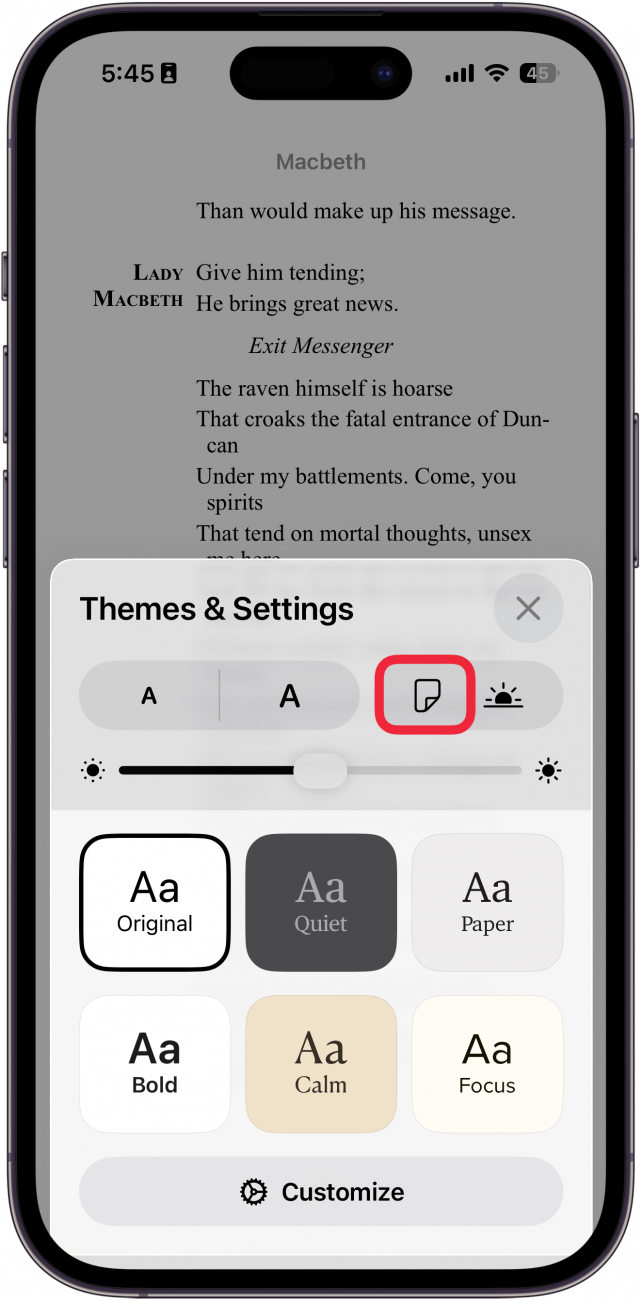
- Tap Scroll.
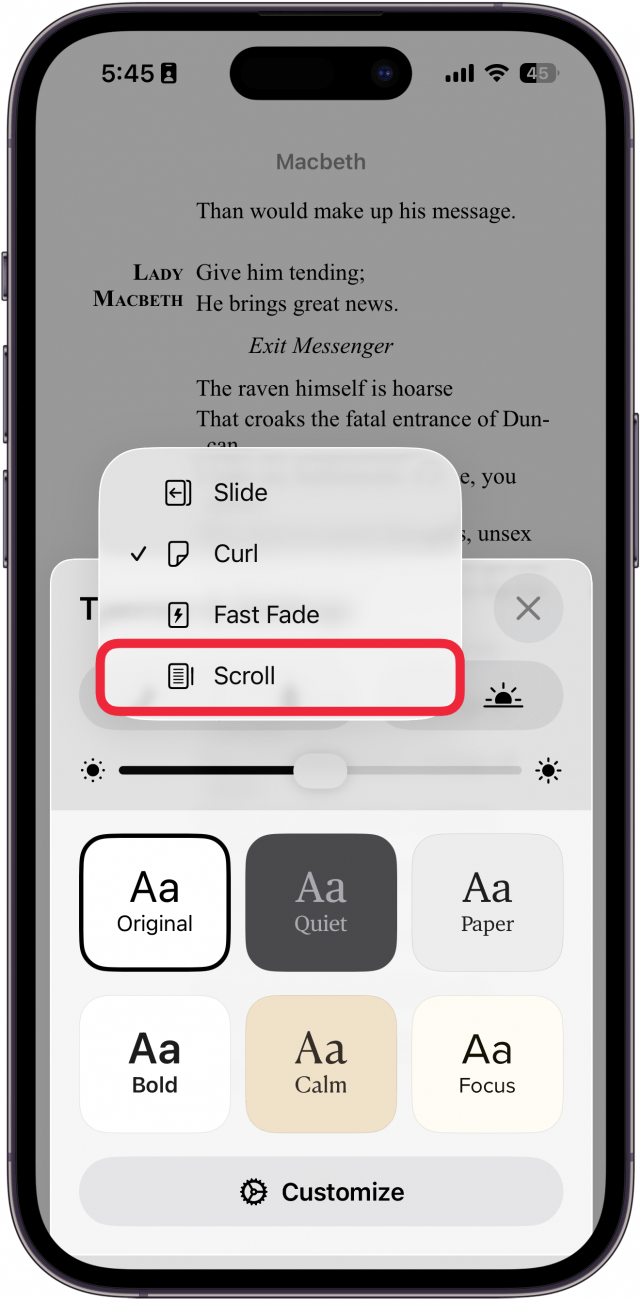
- You can scroll through your book just like a webpage, but if you want to see your progress, you'll need to tap the menu icon again.
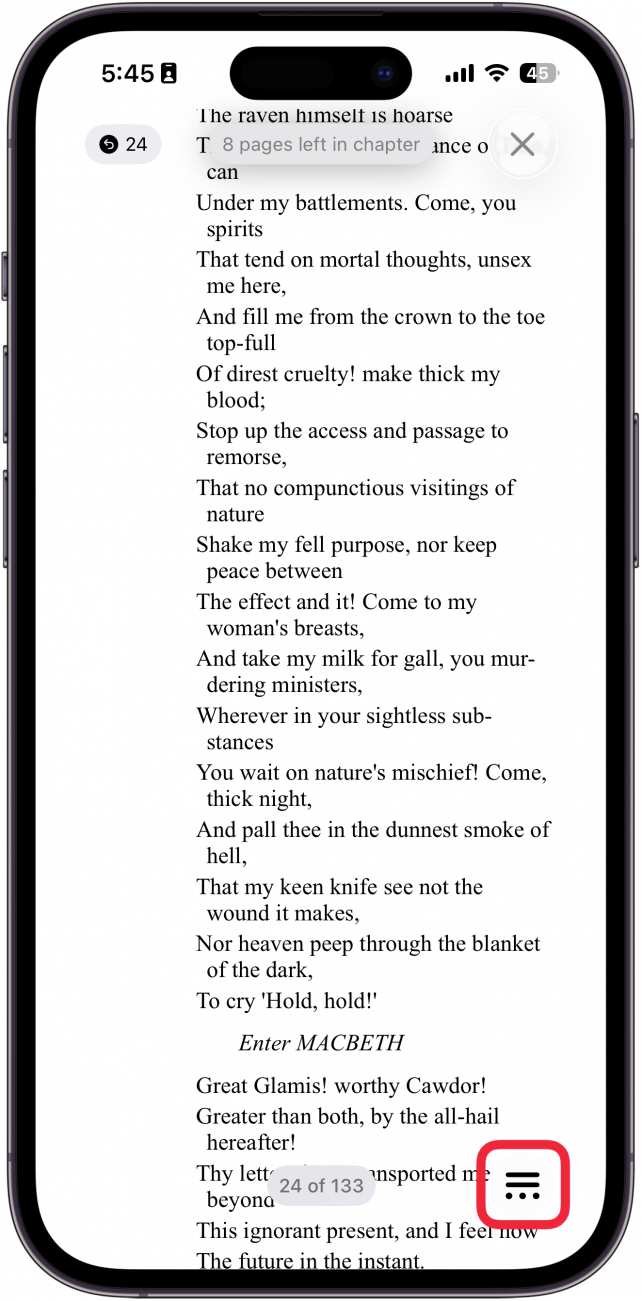
- You'll see a scroll slider that looks similar to the volume slider. You can tap and hold this icon and scroll through your book.
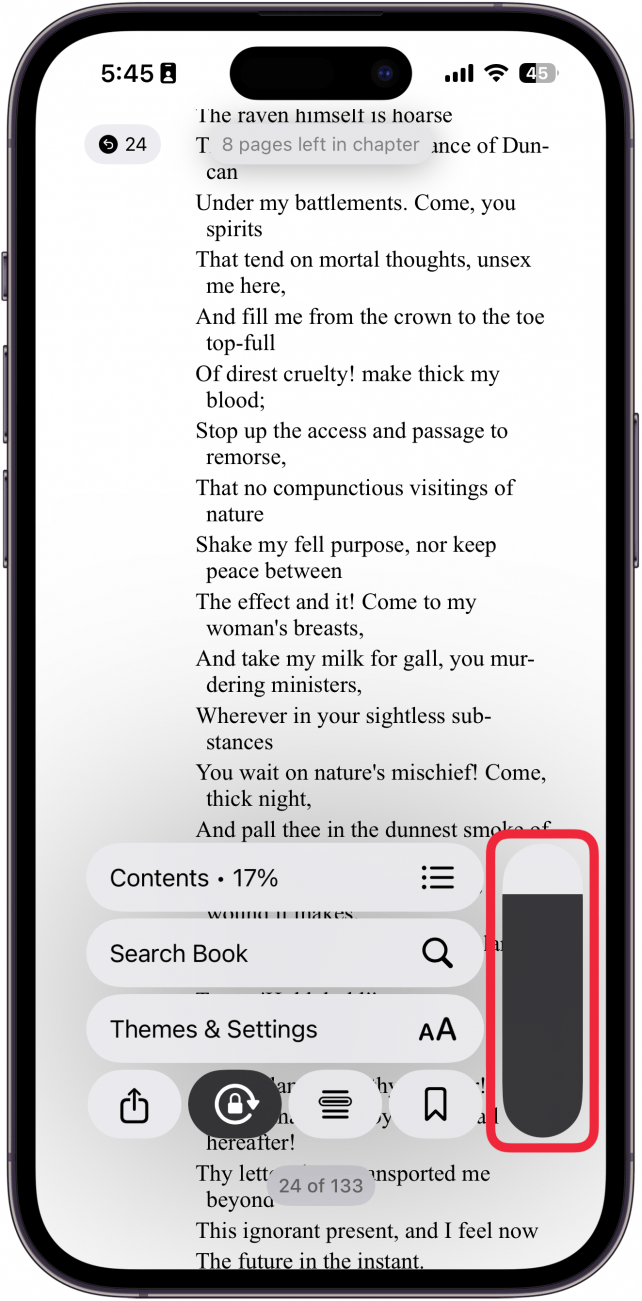
That's how to change Apple Books to scroll. Scrolling through books can be a good way to trick yourself into reading more, since you can scroll endlessly, just like when scrolling through social media. However, if you ever want to switch back to page-by-page turning, just repeat steps 1-4.

Every day, we send useful tips with screenshots and step-by-step instructions to over 600,000 subscribers for free. You'll be surprised what your Apple devices can really do.

Sarah Kingsbury
As the Editorial Director at iPhone Life, Sarah Kingsbury manages the online editorial team and oversees all website content. She is a long-time Apple enthusiast who never goes anywhere without her Apple Watch and owns way too many HomePods. Since joining iPhone Life in 2013, Sarah has done everything from writing hundreds of how-to articles to founding the Daily Tip newsletter. She even co-hosted the early episodes of the iPhone Life Podcast. When not at work, Sarah can be found hiking in the mountains and canyons around Las Vegas, where she lives with her partner and dogs.
 Olena Kagui

 Leanne Hays
 Rhett Intriago

 Amy Spitzfaden Both

 Ashleigh Page
 Ravi Both


 Rachel Needell