Home
chevron-right icon
iOS 15
chevron-right icon
All Articles
iOS 15
Become an Apple device expert
Daily one-minute tips sent straight to your inbox.
Subscribe For Free
All Articles
Apps
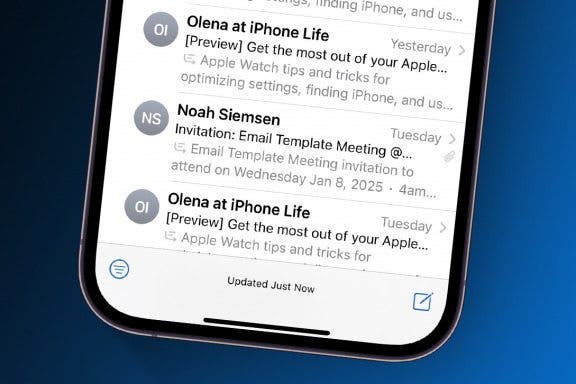
Push or Fetch: Save iPhone Battery by Changing This Setting
Conner Carey
•
May 19, 2026
Apps
How to Use the iPhone Level in the Measure App
Leanne Hays
•
May 14, 2026
Apps
How to Stop Sharing Location on iPhone
Rhett Intriago
•
May 13, 2026
Apps
How to Pin a Contact on Your iPhone & iPad
Leanne Hays
•
May 12, 2026
Apps
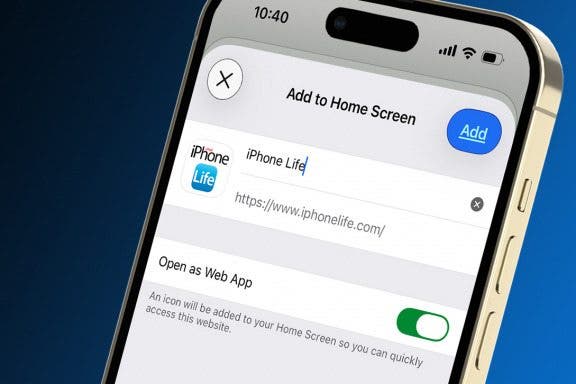
How to Add a Website to Your Home Screen on iPhone & iPad
Sarah Kingsbury
•
May 07, 2026
Apps
How to Add a Mailbox to iPhone & iPad
Tamlin Day
•
May 06, 2026
Apps
How to Create a FaceTime Link & Send a FaceTime Calendar Invite
August Garry
•
May 06, 2026
Magnifier
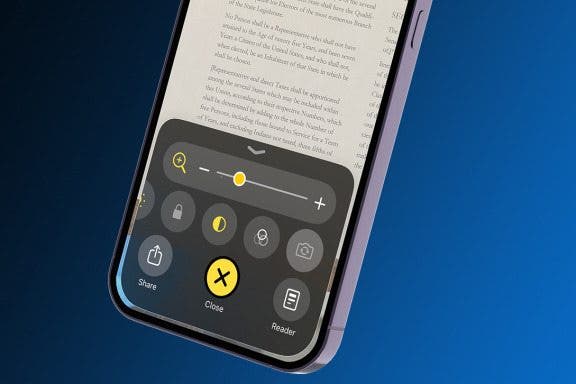
How to Customize Controls in the Magnifier App on iPhone
Leanne Hays
•
May 04, 2026
Cellular Service & Data
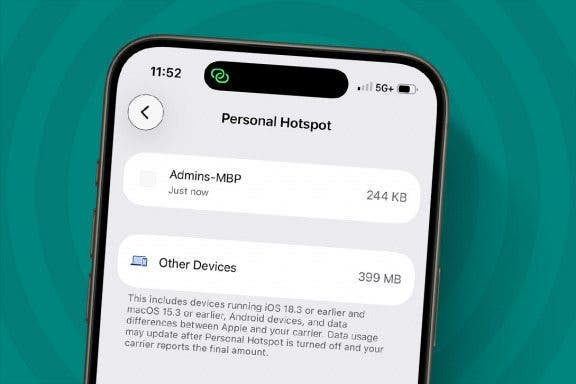
See Who Is Connected to Your Hotspot & Remove Them
Rhett Intriago
•
May 04, 2026
Apps
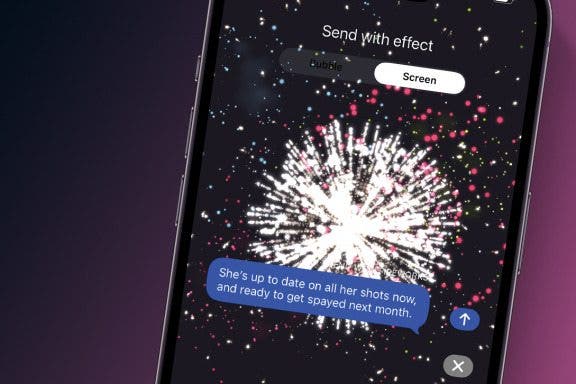
How to Send Fireworks on iPhone & iPad: Text Message Effects
Jivan Hall
•
Apr 27, 2026
Advertisement
Apple Apps
How to Cancel an Apple Pay Payment on Your iPhone & iPad
Leanne Hays
•
Apr 22, 2026
Siri
How to Use "Hey Siri, Turn on My Flashlight" Voice Command
Leanne Hays
•
Apr 20, 2026
Apple Apps
How to Use Reader Mode in the Magnifier App on an iPhone
Leanne Hays
•
Apr 15, 2026
Focus
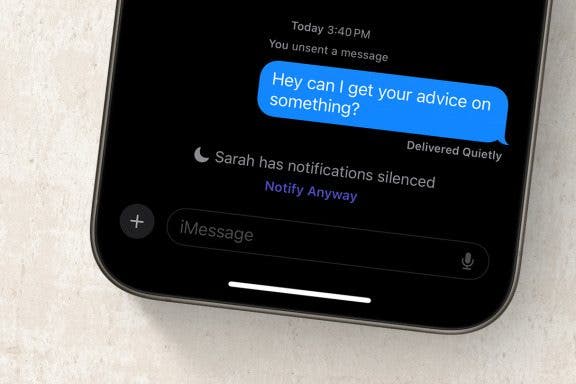
How to Turn Off Notify Anyway on iPhone & iPad
Rhett Intriago
•
Apr 09, 2026
Apps
How to Copy Text from Images on iPhone & iPad
Devala Rees
•
Apr 07, 2026
Apps
How to Share Location on iPhone with the Find My App
Erin MacPherson
•
Apr 02, 2026
Apps
How to Create a Group Text on iPhone & iPad
Ashleigh Page
•
Apr 01, 2026
Apps
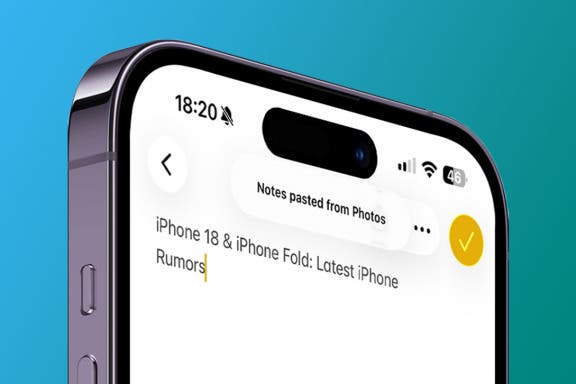
How to Lock Notes on iPhone Using Password or Face ID
Conner Carey
•
Mar 26, 2026
Apps
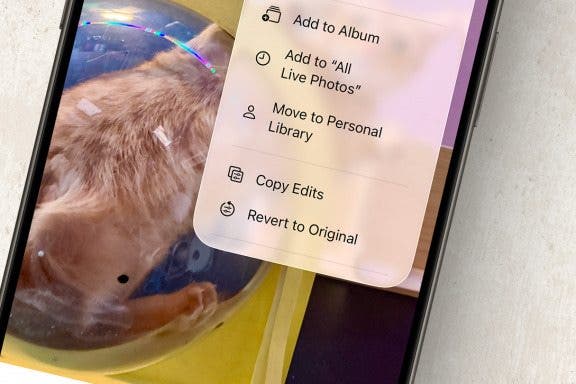
How to Revert Photos on iPhone that You’ve Edited
Rheanne Taylor
•
Mar 24, 2026
Messages
How to Enable MMS Messaging on iPhone (Any iPhone)
Belinda Sanmiguel
•
Mar 24, 2026
arrow-left icon
1
2
3
4
5
...
35
arrow-right icon


 Conner Carey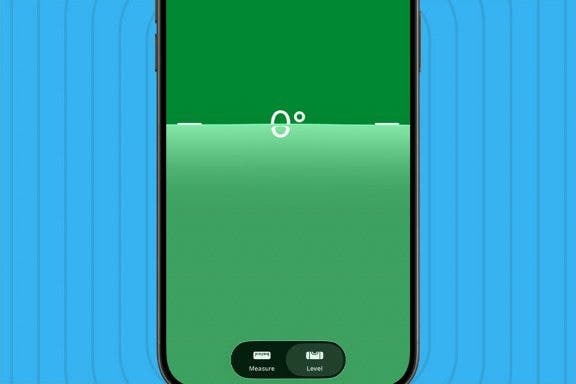
 Leanne Hays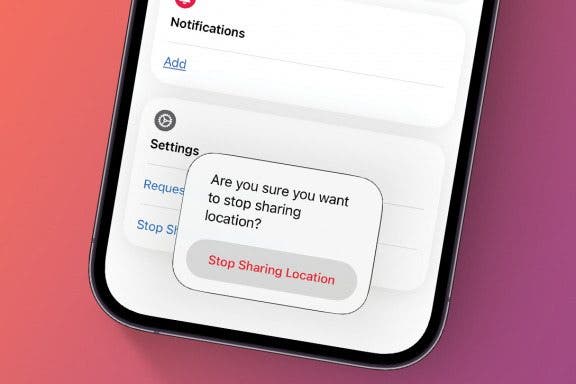
 Rhett Intriago
 Sarah Kingsbury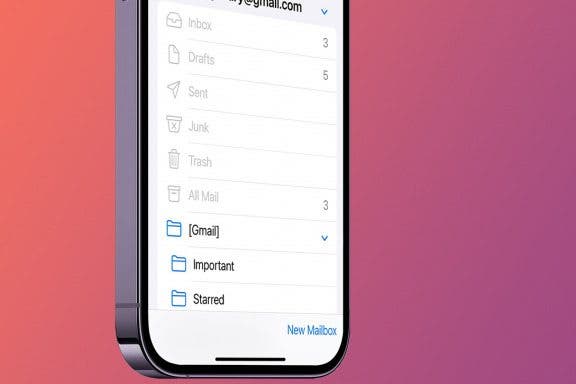
 Tamlin Day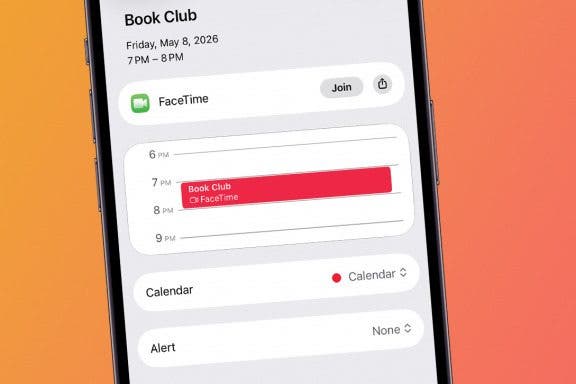
 August Garry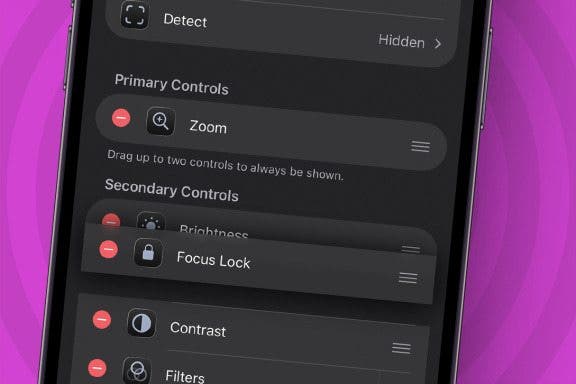
 Jivan Hall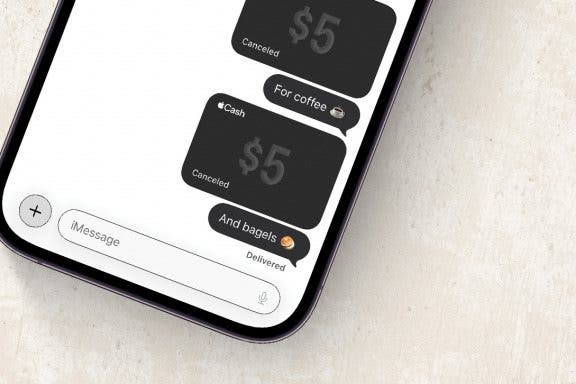
 Devala Rees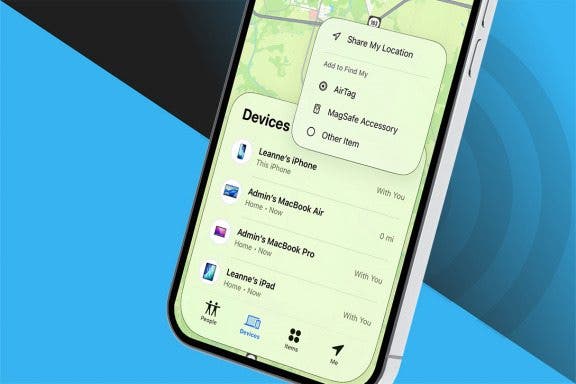
 Erin MacPherson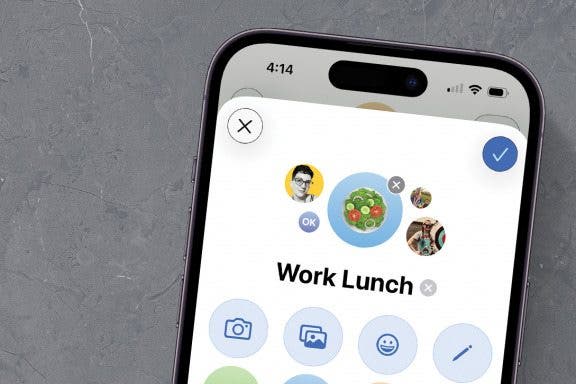
 Ashleigh Page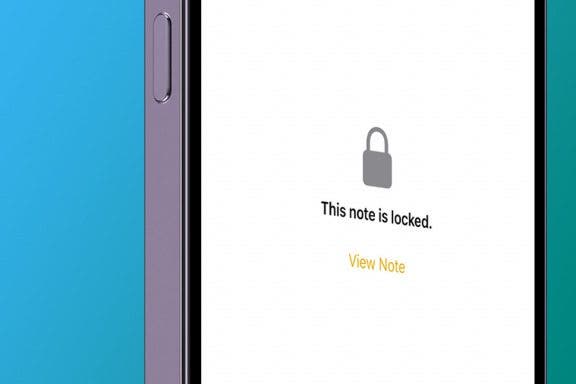
 Rheanne Taylor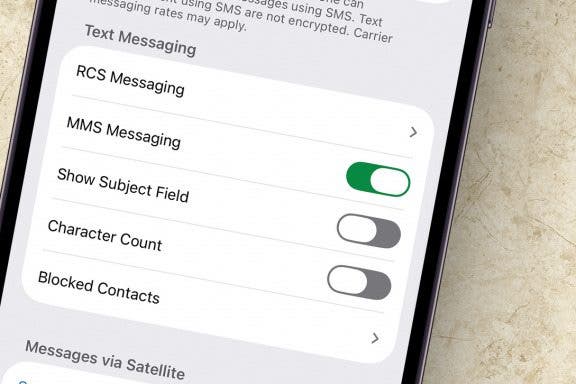
 Belinda Sanmiguel