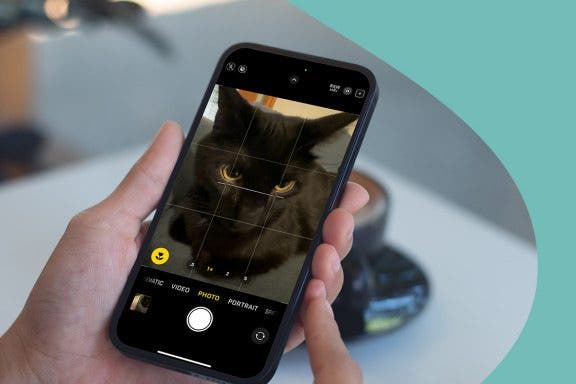
Whether you just got an iPhone or are looking to brush up on what you know, this in-depth iOS Camera app guide will teach you the fundamentals of your iPhone camera. Read on to have the iPhone camera icons explained, how to access your camera from the lock screen, and all the tips and tricks you need to get the most out of your iPhone’s camera.
How-To
How to Turn iPhone's Front Camera Flash On & Off
By Conner Carey
Your phone has a built-in iPhone selfie flash for illuminated pictures of your face. If you find yourself in a low-light area, but you absolutely must take a selfie photo, you can turn the flash on to snap a photo that isn’t too dark. Here’s how to turn the front camera flash on and off on your iPhone.
How to Set Up Emergency Contacts on iPhone
By Conner Carey
How to Make Font Bigger on iPhone for Better Legibility
By Belinda Sanmiguel
Are you tired of squinting while looking at content on your iPhone? Good news! You can change the display and text size on your iPhone and iPad for easier readability. We'll discuss how to change the text size on your iPhone and iPad, make text bold, and add button shapes and toggle labels for easier navigation.
How to Send an Email on iPhone with Attachments
By Conner Carey
Fixed: Why Am I Not Receiving Gmail Emails on My iPhone?
By Kenya Smith
Is Gmail not working on your iPhone? Whether Gmail is not updating on your iPhone, Gmail is not loading on your iPhone, or some other issue, here's how to get Gmail working on your iPhone again!
How to Save a Webpage as a PDF in Safari on iPhone & iPad
By Conner Carey
Want to save a webpage as a PDF so you can keep it for future reference? You can save a webpage as a PDF from Safari on your iPhone or iPad with the Files app. Here's how to save a webpage as a PDF on iPhone or iPad in a few easy steps.
How to Silence Unknown Callers Without Blocking Them
By Tamlin Day
How to Set an iPhone Camera Timer—the Easy Way!
By Rheanne Taylor
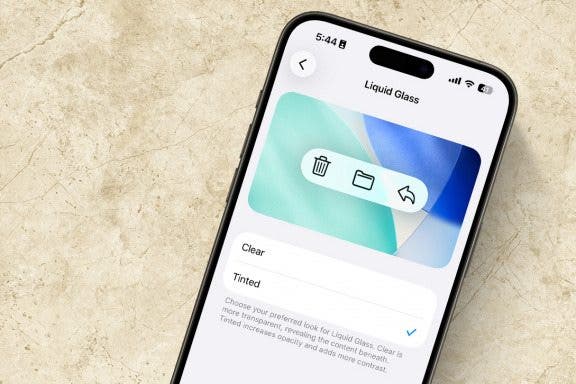
Make Liquid Glass More Opaque on iPhone
By Rhett Intriago
How to Delete Attachments but Not Conversations in Messages
By Sarah Kingsbury
This article will tell you how to erase your iPhone to sell it. Whether you want to sell your iPhone or trade it in for a newer model, you will need to learn how to do a factory reset on your iPhone. It is crucial to erase your iPhone so that no one can access your private information. It will also make your life easier if you can restore your iPhone’s data on your new phone. Learn what to do before selling your iPhone.
How to Change Picture Print Size on Your iPhone
By Erin MacPherson
It's easy to print photos from iPhone, but it's not always obvious how to change iPhone printer settings when printing via AirPrint. We'll help you learn how to change photo size when printing from an iPhone, and other iPhone printer settings. We'll also discuss third-party printing apps that may make your life easier. Here's how to change iPhone printer settings and print from iPhone.
How to Review and Delete Message Attachments on iPhone
By Conner Carey
Message attachments are the photos, GIFs, and videos your friends and family send you. They’re stored as a part of each text message, and they can take up a lot of space without you ever thinking about it. Luckily, there’s an easier way to delete message attachments and free up iPhone storage with iOS 15. Here’s how to delete all large attachments on iPhone.
5 Ways to Tell if AirPods Pro or AirPods Are Fake
By Olena Kagui
We've all seen deals on AirPods and AirPods Pro that seem too good to be true. I'll teach you how to check if AirPods are real so that you can avoid falling for knock-off AirPods. I'll start with the quickest fake AirPods identification method and end with a science experiment.
Why Is My Battery Draining So Fast: iPhone Battery Health Fix
By Conner Carey
How to Turn Off Security Delay on iPhone in Seconds
By Rhett Intriago
Here's What to Do If an iPhone Group Text Isn't Working
By Leanne Hays
How to Create a Family Calendar on Your iPhone & iPad
By Belinda Sanmiguel
10 Best Dynamic Island Apps for iPhone
By Olena Kagui
Starting with the iPhone 14 Pro (but not the base model iPhone 14), Apple ditched the notch and introduced the Dynamic Island, which has become a staple of all current iPhones, including the iPhone 16. What makes the Dynamic Island so unique is that it merges hardware with software. While this rounded area of your iPhone screen primarily houses the front camera, the software behind it allows for the shape to “change” when you get a notification or when using compatible apps. Let me show you how the iPhone Dynamic Island works.