iView: iPhone in Italy
By Hal Goldstein
By Hal Goldstein
By Rachel Needell
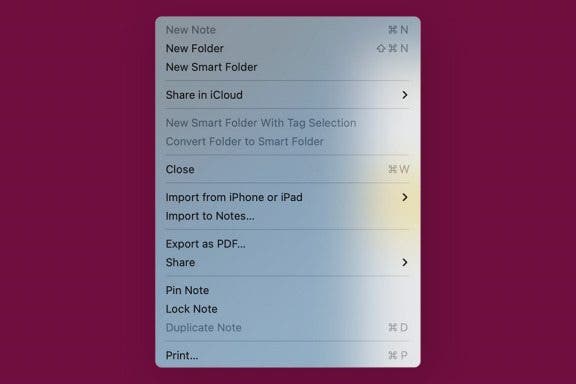
Have you found yourself Googling, "Why can't I make a new note on Mac?" You're not alone! Sometimes when I'm trying to create a new note on my MacBook, the option is greyed out and I can't fix it. Additionally, this bug only seems to happen on the Notes app for Mac. Thankfully, we've found a few solutions!
By Brian Peters
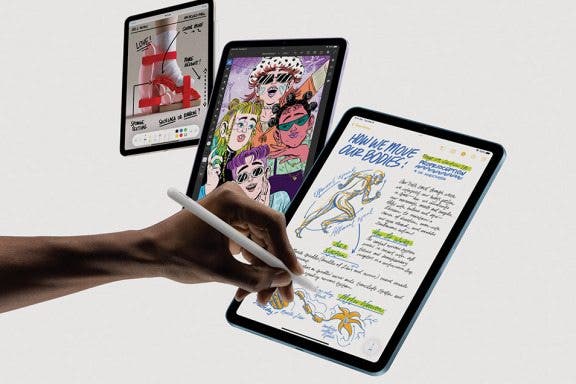
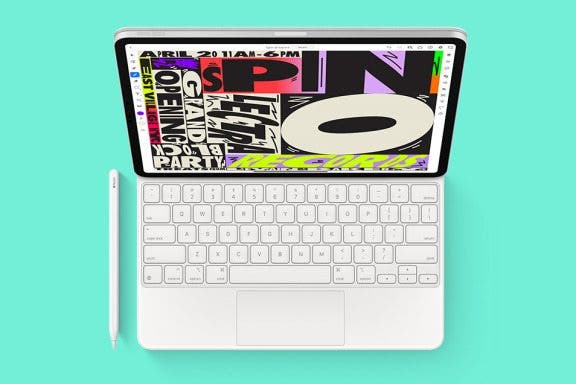
One of the great things about iPads is their combination of portability and a large screen. This makes them perfect for reading e-books, digital comics, and magazines. It also makes them a potential replacement for a paper notebook, especially when paired with a good stylus like the Apple Pencil. Of course, to replace someone’s sketchbook, journal, or notepad, the iPad needs a good notetaking app. As someone who used to love brainstorming ideas and writing short stories by hand, I’ve long been curious if the iPad could help me recapture that feeling. So, I decided to look at some of the most popular notetaking apps available for the iPad, all of which offer their core functionality for free (and most of which have premium versions with more features if you decide you love them).
By August Garry
If you have an iPad that gets a lot of use, you may be wondering if it's worth it to invest in an Apple Pencil to go along with it. Maybe you're an artist wondering if the Apple Pencil can help you get into digital art on your iPad, or maybe you're more a note-taker who wants the freedom of longhand writing without having to lug around a bunch of notebooks. In this article, we'll go over who the Apple Pencil will be good for and who might want to take a pass.
By August Garry
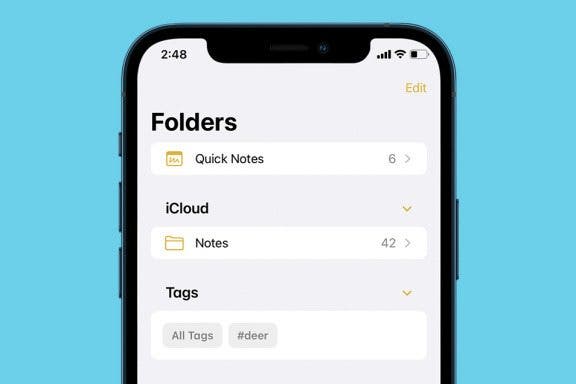
Do you struggle to find the note you're looking for in the Notes app? Now you can tag notes to make them easier to find and search for. We'll show you how to use tags in Notes on iPhone and iPad.
By August Garry
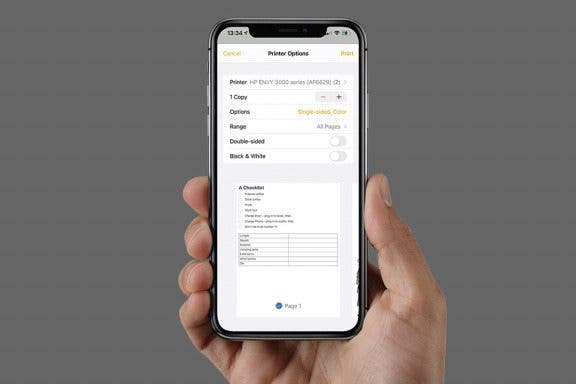
Did you know you can print items from the Notes app on your iPhone? It's a super useful tool, but it's tricky to figure out how to print from Notes on iPhone unless you know where to look. In this tip, we'll show you how to print notes from iPhone so you can save paper copies of your notes or scanned documents.
The iPhone Notes app offers checklists as an extremely easy way to keep your to-do lists and jotted-down ideas close at hand. If you use Notes checklists often, you may want to consider changing your settings so that Notes automatically sorts checked items to the bottom!
By Ashleigh Page
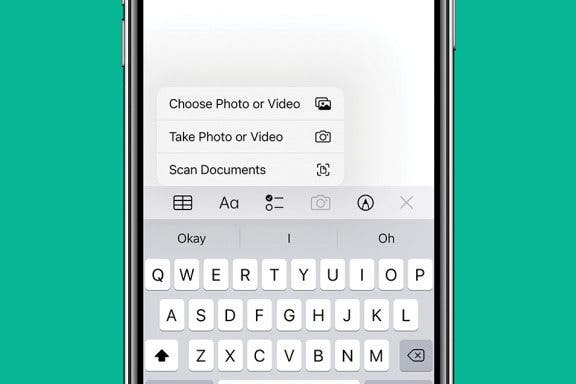
If you want to protect your paper vaccination card (which should not be laminated) and create an easily accessible copy as a backup, it's best to scan the COVID vaccine card to iPhone via the Notes app. Below, we'll cover how to scan a document with an iPhone.
By August Garry
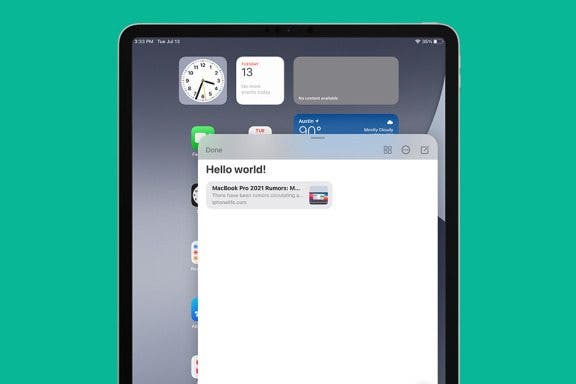
I love the Notes app for the ability to, well, take notes on my iPad wherever I am. But up until now, to use the Notes app with another app, you've needed to enter Split View. Now, with iPadOS 15, available to the general public in fall 2021, you can pull up a Quick Note anywhere, from any app. Let's learn what you can do with the new Quick Note tool.
By Erin MacPherson
Apple Pencils and iPads are designed work together seamlessly to bring you a more streamlined workflow. Knowing how to use your Apple Pencil will allow you to get the most out of it. If you’re looking for Apple Pencil tips, you’ve come to the right place.
By Leanne Hays
This artitle will tell you how to view your Notes in Gallery View. Apple's Notes app is a handy, native application that's one of the best note-taking apps available for the iPhone and iPad. iOS 13 and iPadOS came with new features for the Notes app, including the ability to view notes in Gallery View. Gallery View allows Notes users to see all their entries with or without visual thumbnails, making it easier to find particular notes.
With an ever-increasing number of note-taking apps appearing in the App Store, Apple has responded with solid updates to its iOS Notes App in iOS 11. The most popular third-party note-taking apps are apps that can convert writing to text, scan documents with the iPhone, and search handwritten text. In iOS 11 Notes app, Apple has integrated these popular features seamlessly. These updates to the iOS Notes App will be included in the September iOS 11 update, so we have drawn up a guide on how to use the Notes app for iPad and iPhone in iOS 11.
Want to know how to transfer photos from your camera to a Mac or scan documents? Here's how to use the Continuity Camera feature on the Mac, which enables you to scan documents or take photos on your iPhone and instantly have them uploaded on your Mac. Your Mac needs to be updated to macOS 10.14 or later and your iPhone to iOS 12 or later. You won't have to use AirDrop or have your device physically connected to the Mac with a cable for this tip. However, both your iPhone and Mac do need to be connected to the same Wi-Fi network with Bluetooth enabled and be near each other (like in the same room). Both Mac and the iPhone will also need to be signed in to iCloud with the same Apple ID using two-factor authentication.
By Amy Spitzfaden Both
This article will tell you how to draw perfect shapes on your iPhone and iPad. Whether you just like to doodle or are looking to mark up your photos, you might be interested in how to draw shapes on your iPhone perfectly. Maybe you want to add a heart to a photo of you and your family but don't like the way yours look, or you're trying to create a geometric pattern in your notes app, or want to teach a child about shapes and how they're made. Whatever your reason, learning the trick to draw shapes on your iPhone or iPad perfectly can save you from downloading third-party sticker or design apps. Perfect shapes make for easy drawing on your iPad and iPhone, so let's get started!
The Apple Notes app is a convenient way to keep track of lists, ideas, and more. You can choose to start a new note from your Lock screen every time you need to jot something down, or to continue with the last note you were working on. We've already shown you how to write a note directly from your iPhone's Lock screen, and how to organize your notes by transferring them to a folder. Now, let's learn how to set whether to continue a previous note or start a new note when opening Notes from your Lock screen.
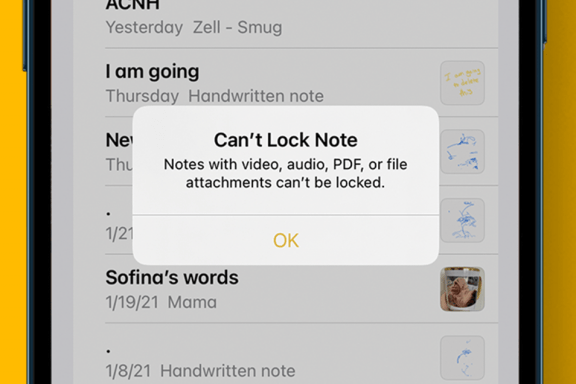
If you forgot your Notes password, then you’ll need to reset your password in order to lock and unlock your notes. To reset your Notes password, you’ll need to navigate to the Notes section of the Settings app and log in with your Apple ID. This is also how to reset your password if you already know it. Read on to learn how to reset a password for the Notes app.
Apple introduced the ability to take full page, or scrolling, screenshots in Safari with iOS 13. In addition to web pages, users can take a full page screenshot in the iPhone Notes app and iPad Notes app. This means that, rather than capturing only the section of the note that's visible on your display, you'll now be able to do a full page screen capture on your iPhone or iPad. Let's get started learning how to screenshot a whole note on your iPhone or iPad. You can use this tip to learn how to take a full page screenshot on the iPhone SE (first generation) and later models, including the iPhone 6s, iPhone 7, iPhone 8, iPhone X, iPhone 11, and the iPhone 12 series. You can also take a full page screengrab in the Notes app with the Pad Air 2 and later, all iPad Pro models, the iPad 5th generation and later, and the iPad mini 4 and later.
By Amy Spitzfaden Both
Being able to add pictures to your Notes app is a fun and useful way to increase its value. Whether you want to snap a picture of a shopping list, grab an image for a project, or help yourself remember what image goes with which words, taking pictures with the iPhone Notes app is a great option. It can be frustrating, though, when we expect a picture we took to be in our camera roll only to find it's only in the Note where we originally took the pictures. Here how to save Notes app pictures to your Camera Roll in iOS 14.
By Leanne Hays
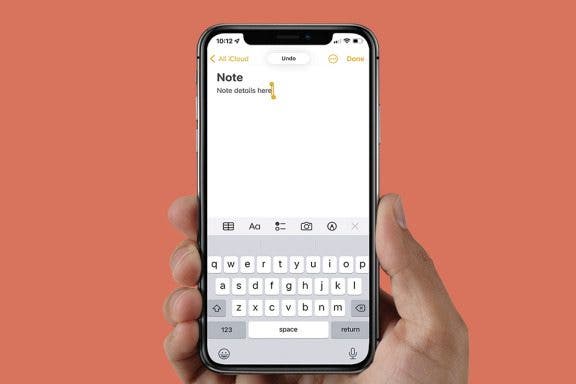
In this tip, we'll show you how to create a new folder on your iPhone or iPad, right in the Notes app. Once you've written multiple notes, you may have a hard time finding the note you need. Use this tip to make folders for every type of note, then move your notes into the appropriate folders, so you always know where to find them.
Forget package tracking apps! Did you know you can track shipments on your iPhone without ever leaving the app in which you received the tracking number? If you’re worried about porch pirates, one of the best security measures is knowing when a package is supposed to arrive. Your iPhone will automatically detect tracking any tracking number that you receive in Mail or Messages. You can also use the same method to track packages from websites like Amazon by copying and pasting the tracking number into Notes. For an extra layer of security, you can add a unique passcode to Notes. With this tip, you’ll be able to set up tracking from any carrier. Let’s dive in to how to use iPhone package tracking.
NULL