Home
chevron-right icon
Apps
chevron-right icon
All Articles
Apps
Become an Apple device expert
Daily one-minute tips sent straight to your inbox.
Subscribe For Free
All Articles
Apps
How to Select a Frame from a Live Photo
Conner Carey
•
Oct 02, 2025
Apps
How to Boost Privacy & Turn Off Location on iPhone Photos
Tamlin Day
•
Oct 02, 2025
Apps
How to Pause Your Activity Rings Streak on Apple Watch
Olena Kagui
•
Oct 02, 2025
Apps
How to Set a Timer on Apple Watch
Hallei Halter
•
Oct 02, 2025
Apps
How to Make Apple Watch Alarm Vibrate Only
August Garry
•
Oct 02, 2025
Apps
How to Add a Caption to a Photo on iPhone & iPad
Erin MacPherson
•
Sep 30, 2025
Apps
Create a Photo Album on iPhone in Seconds
Rheanne Taylor
•
Sep 24, 2025
Apps
How to Turn Off Apple Music Song Transitions
Rhett Intriago
•
Sep 15, 2025
Apps
Help a Friend Find Their iPhone in Seconds
Olena Kagui
•
Sep 15, 2025
Apps
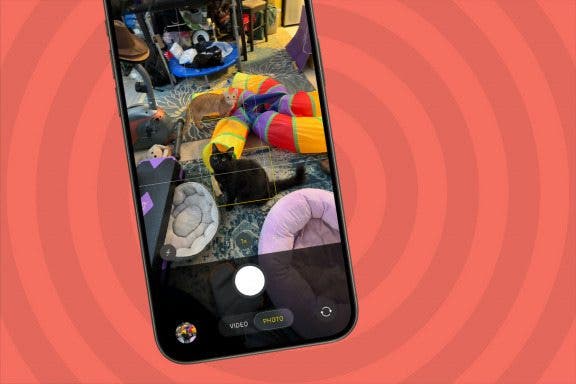
How to Take Photos with Your iPhone Camera
Hallei Halter
•
Sep 08, 2025
Advertisement
Apps
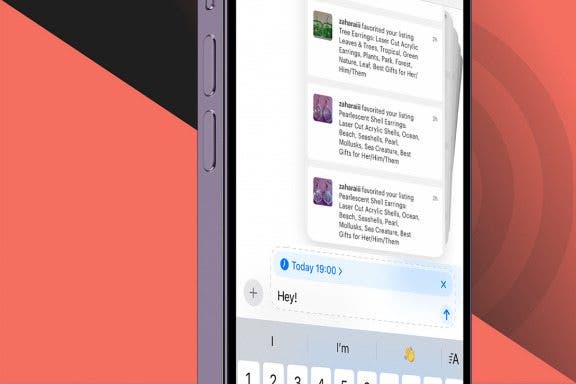
Can You Schedule a Text on iPhone? Yes, Even to an Android!
Amy Spitzfaden Both
•
Sep 02, 2025
Apps
iPhone Mail Icon Missing? How to Restore Mail App on iPhone
Sarah Kingsbury
•
Sep 02, 2025
Apps
Solved: Why Is the Time on My Lock Screen Dim?
Rhett Intriago
•
Sep 02, 2025
Apps
How to Check Voicemails from Blocked Numbers on an iPhone
Leanne Hays
•
Aug 27, 2025
Apps
How to Call with No Caller ID on iPhone & Make Private Calls
Leanne Hays
•
Aug 26, 2025
Apps
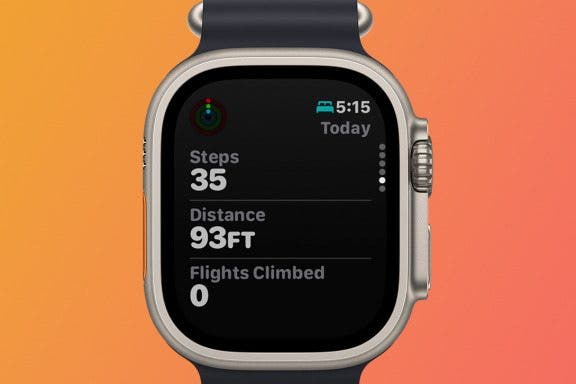
Fitness App Not Tracking Steps? Change This One Setting
Amy Spitzfaden Both
•
Aug 26, 2025
Apps
How to Recover Permanently Deleted Photos on iPhone
Rachel Needell
•
Aug 21, 2025
Apps
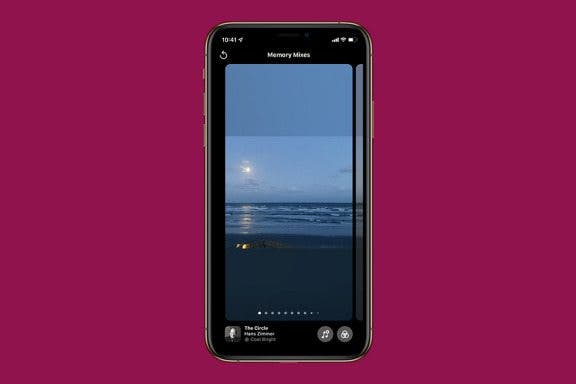
How to Change Your Photo Memory Mix Filter
August Garry
•
Aug 12, 2025
Apps
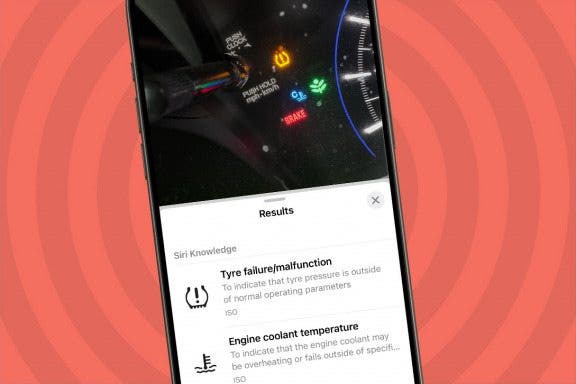
Easily Identify Car Maintenance Symbols with iPhone Camera
Rhett Intriago
•
Aug 12, 2025
Apps
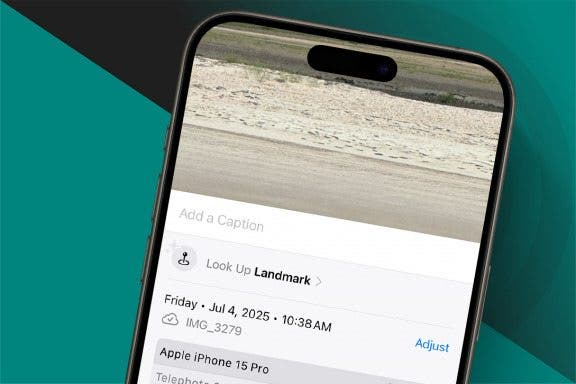
Identify Landmarks & Locations in the Photos App
Rachel Needell
•
Jul 30, 2025
arrow-left icon
1
...
5
6
7
8
9
10
11
...
92
arrow-right icon



 Conner Carey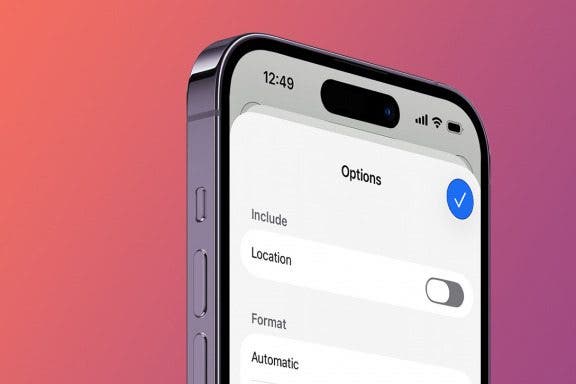
 Tamlin Day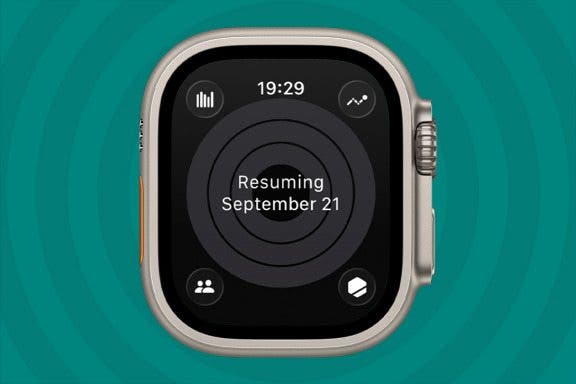
 Olena Kagui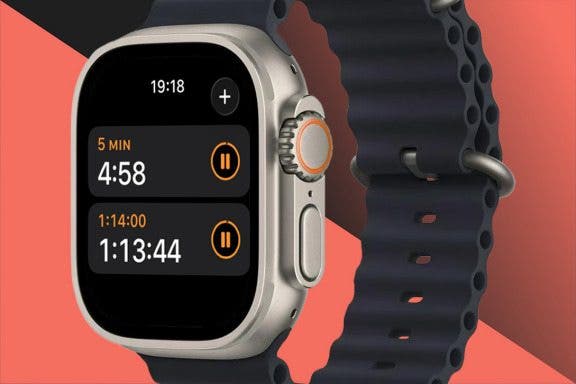
 Hallei Halter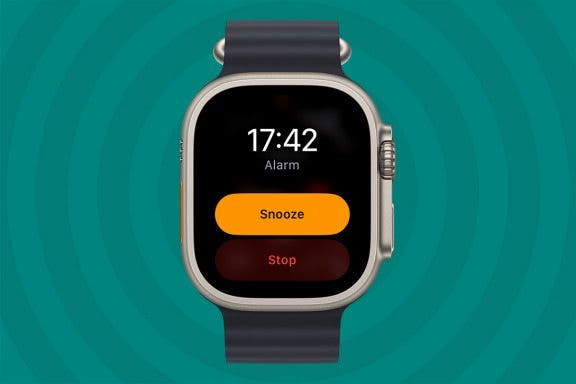
 August Garry
 Erin MacPherson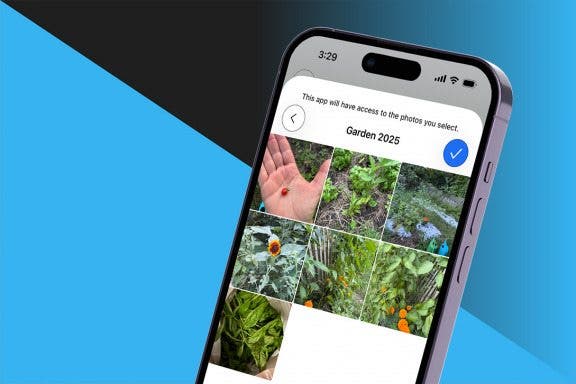
 Rheanne Taylor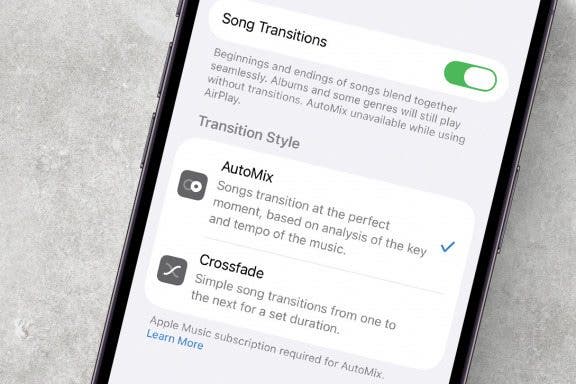
 Rhett Intriago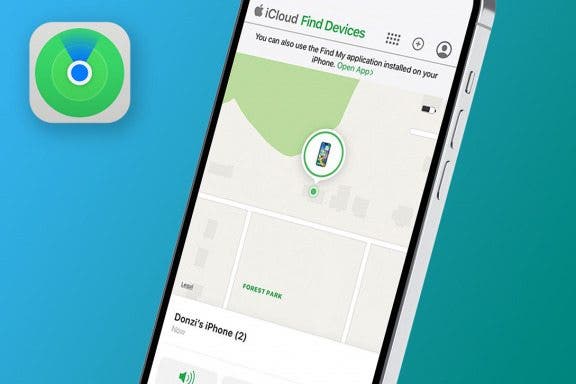
 Amy Spitzfaden Both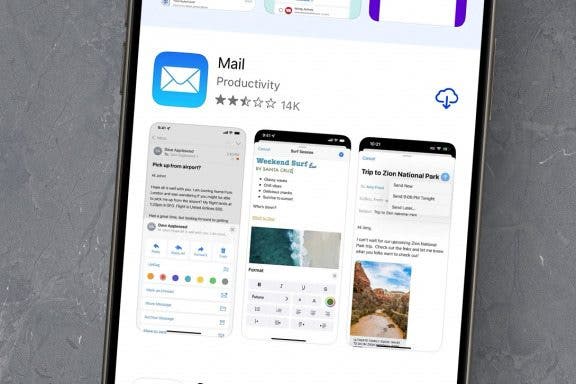
 Sarah Kingsbury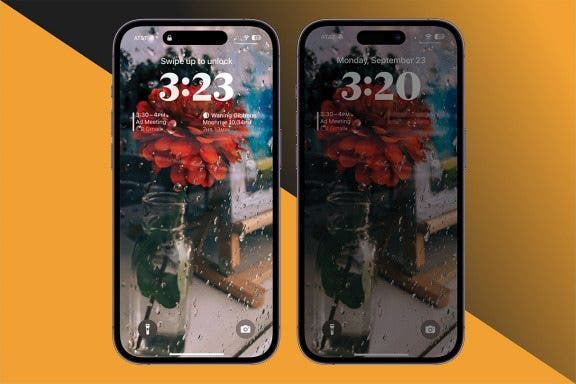

 Leanne Hays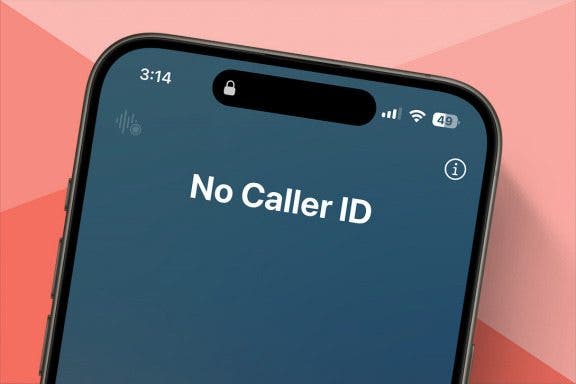

 Rachel Needell