Learn with iPhone Life Courses
Insiders get access to 10 live courses per year plus our extensive library of on-demand courses. iPhone Life courses are taught by expert instructors with a focus on Apple devices, operating system updates, and other tech topics such as AI, privacy and security, photo management, and more. You can join the classes live or watch the on-demand replay at a time that works for you. You must join the live course if you want to participate in the class chat.
How to View Current & Live Upcoming Courses
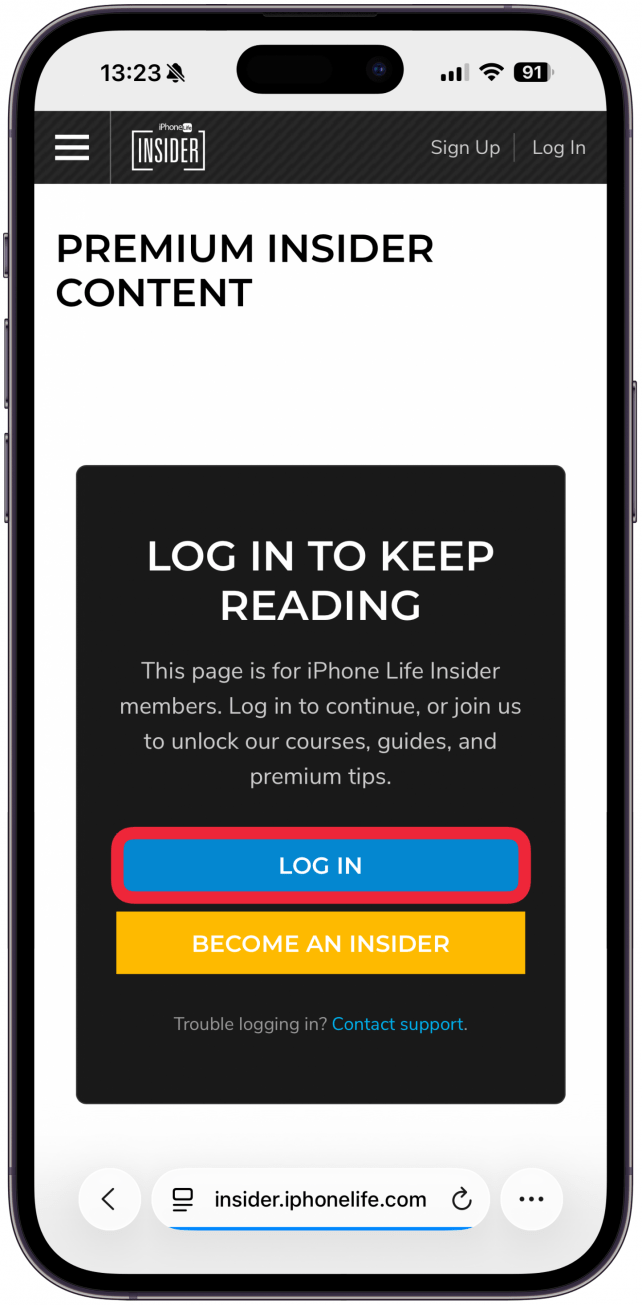
- Log in to your Insider account at insider.iphonelife.com.
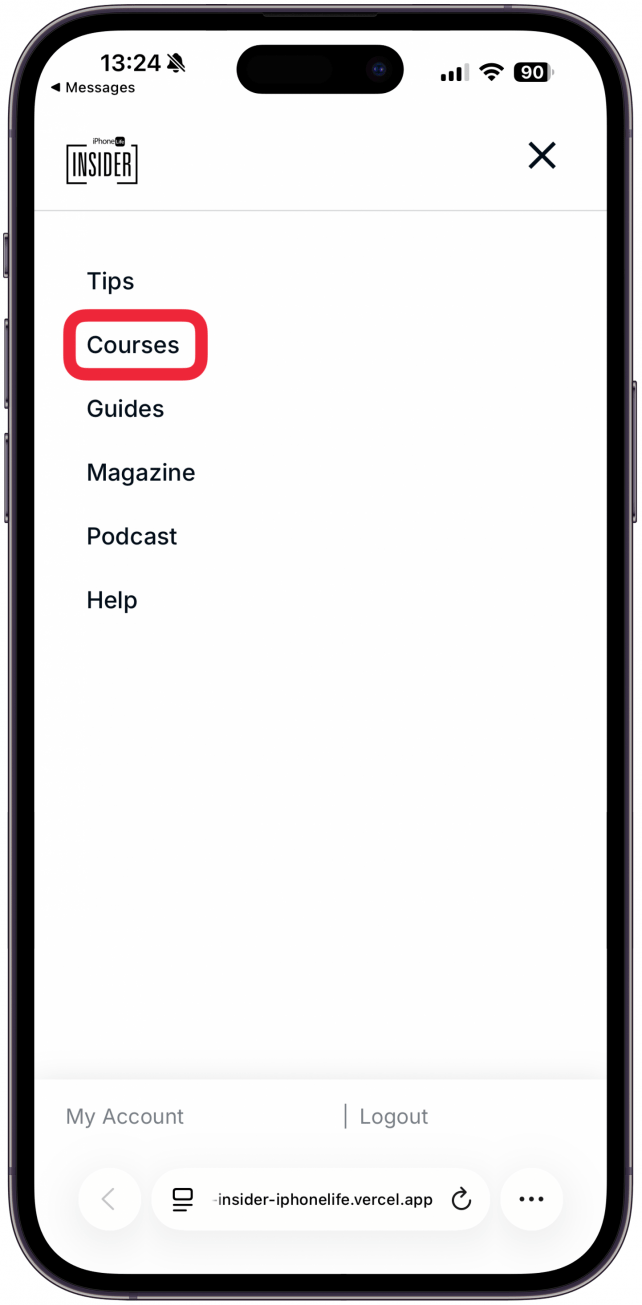
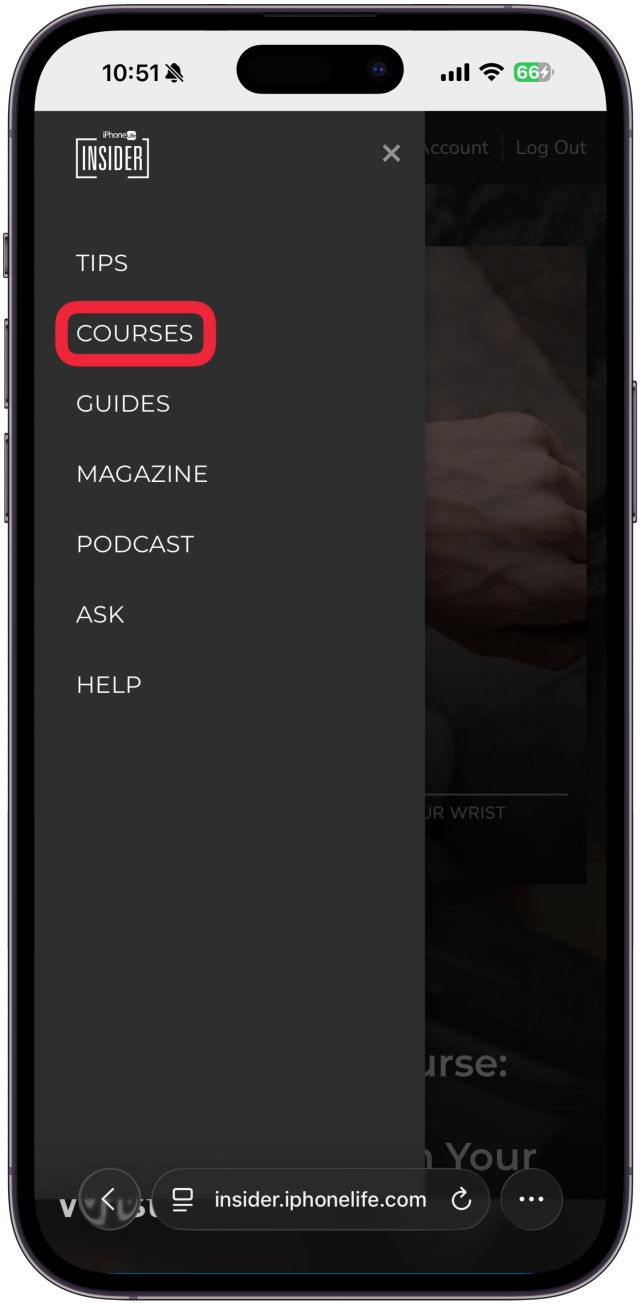
- Using the navigation menu at the top, open the Courses tab.
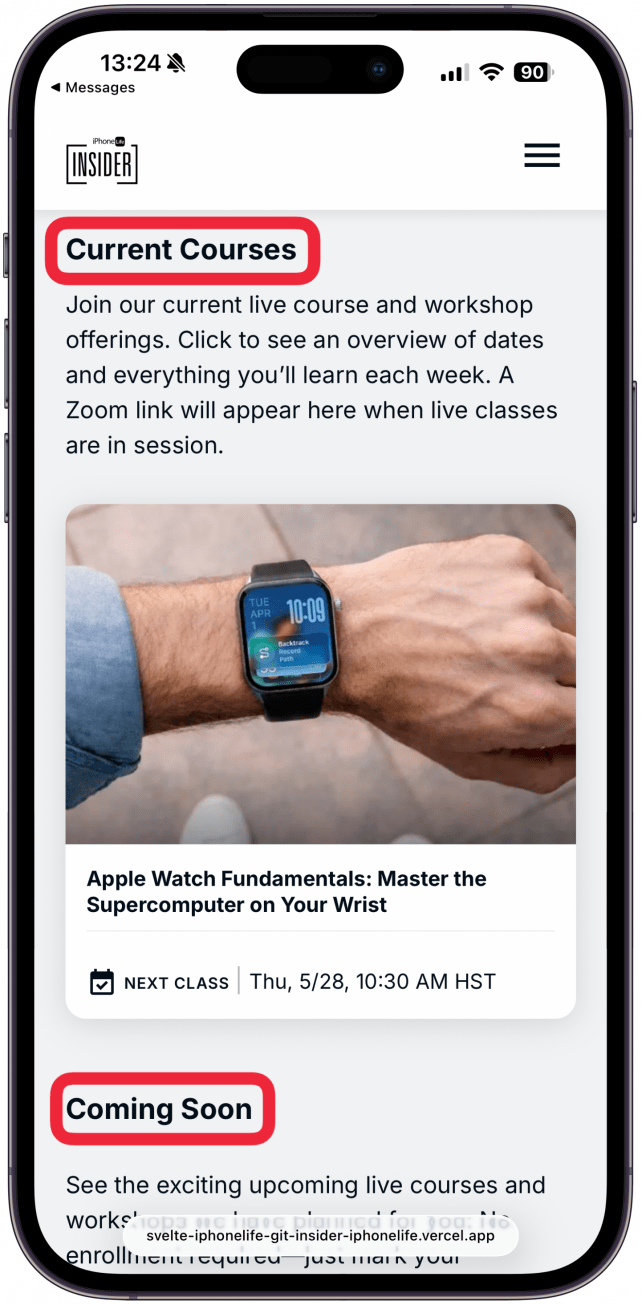
- At the top of this page, you’ll see courses that are underway or coming soon.
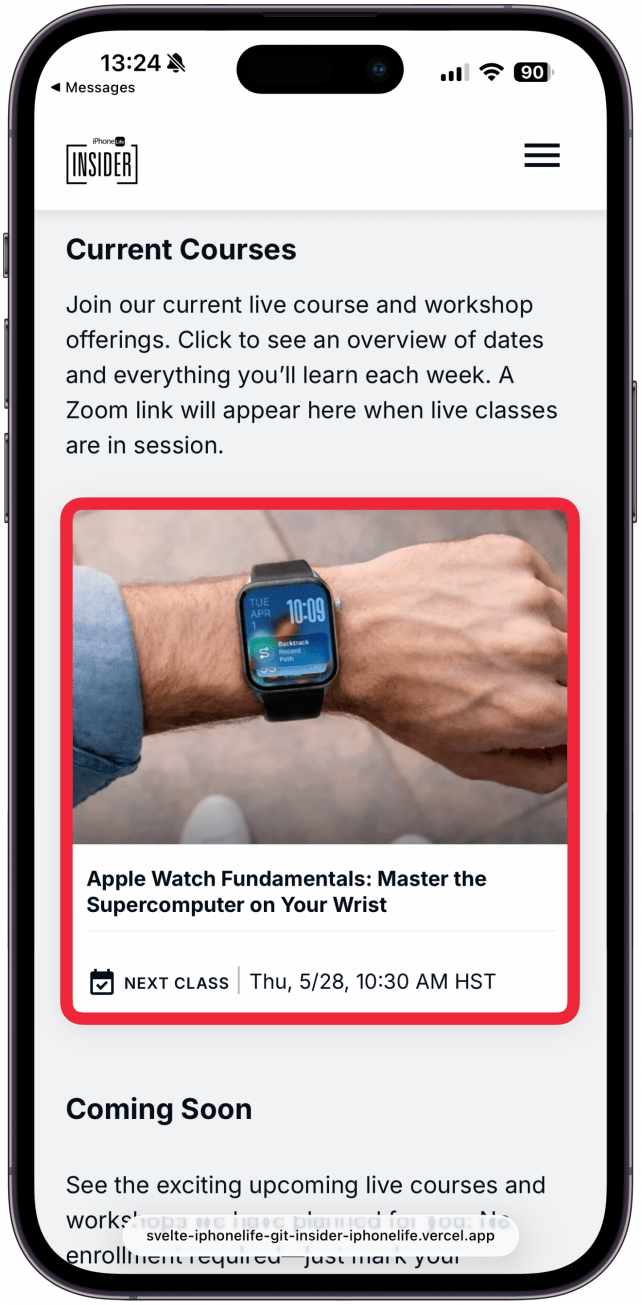
- Click or tap on a current or upcoming course to see the course outline and the dates and times of the live sessions.
Important Note!
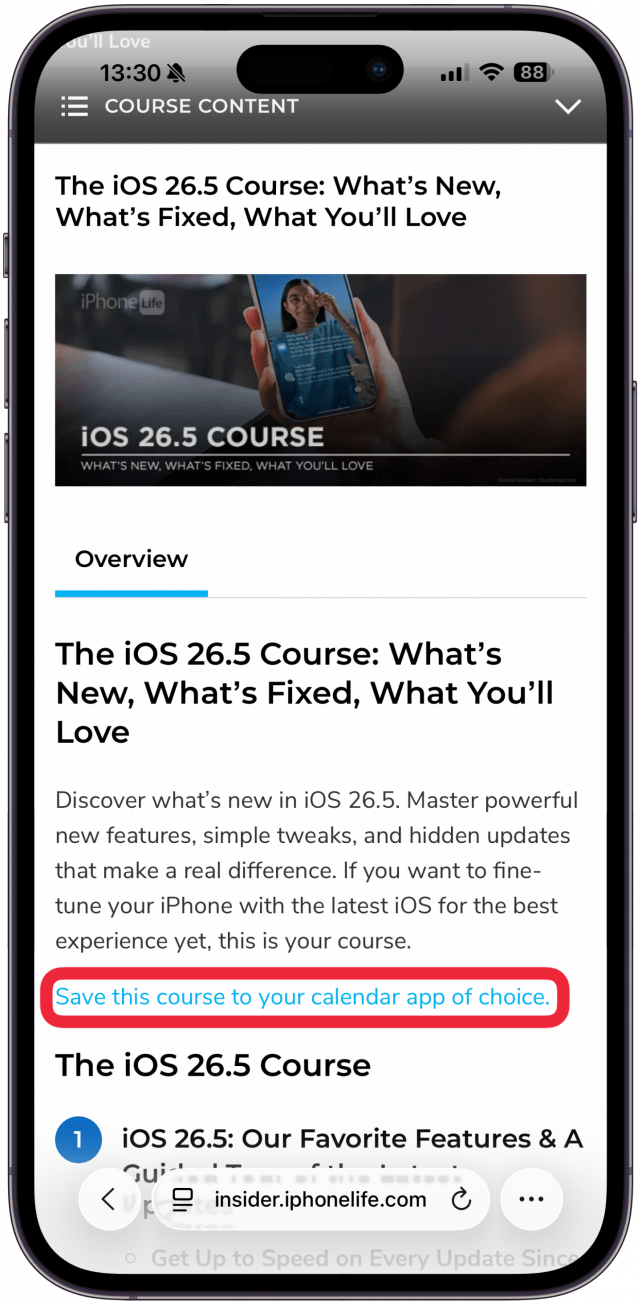
There’s no enrolling or registering, simply click Save this course to your calendar app of choice and then join the course at the scheduled time.
How to Join a Live Course
- Shortly before a class, we'll email you a link to watch the upcoming session.
- On the day of the course, you can join by clicking the link in your email, or you can log in to your Insider account and navigate to the Courses page to join the live session.
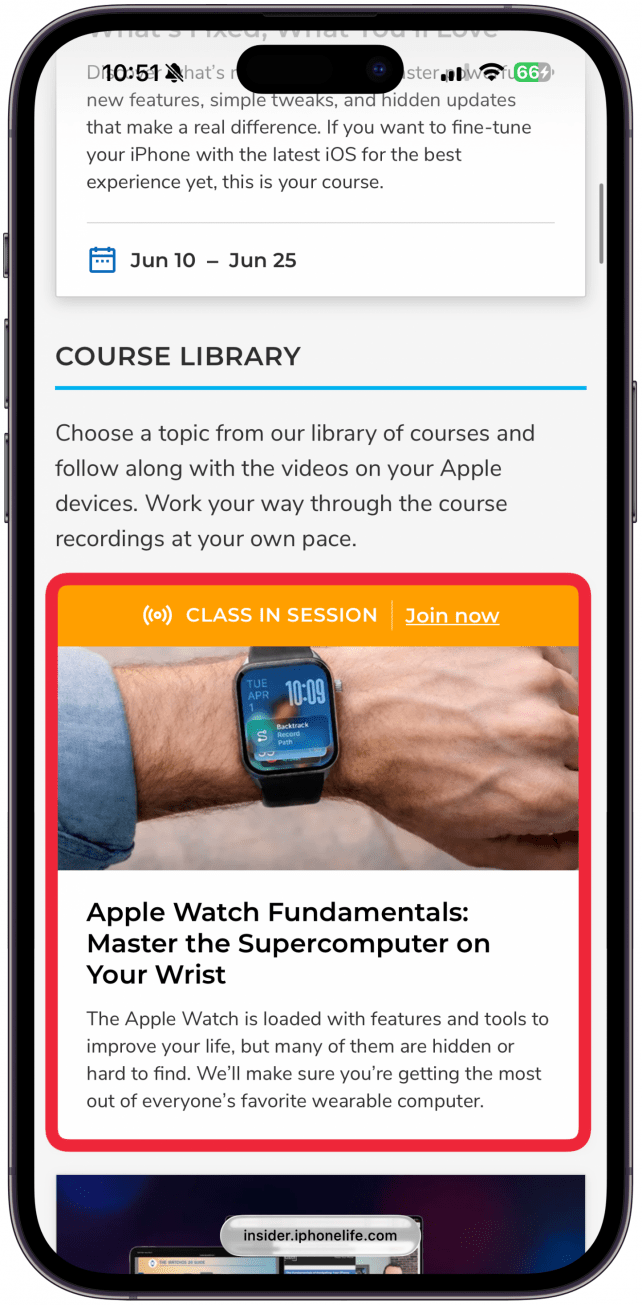
- To join from the Courses page, click or tap the course session title, and you'll be taken to the page where you can watch that session and participate in the class chat.
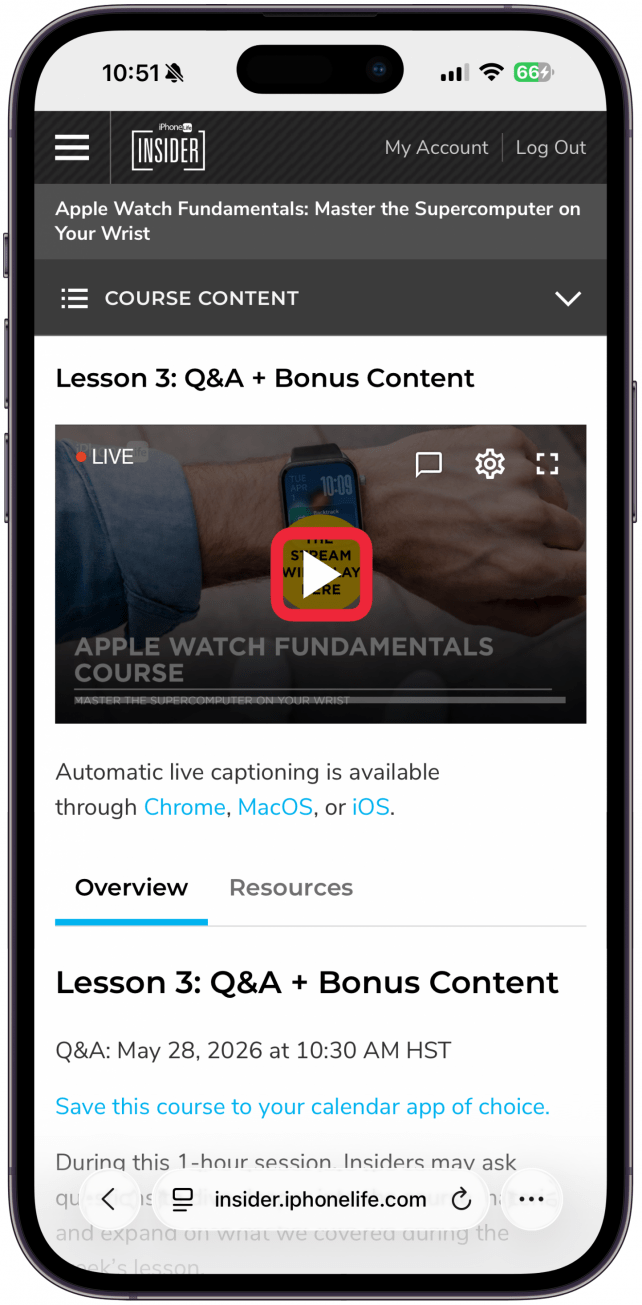
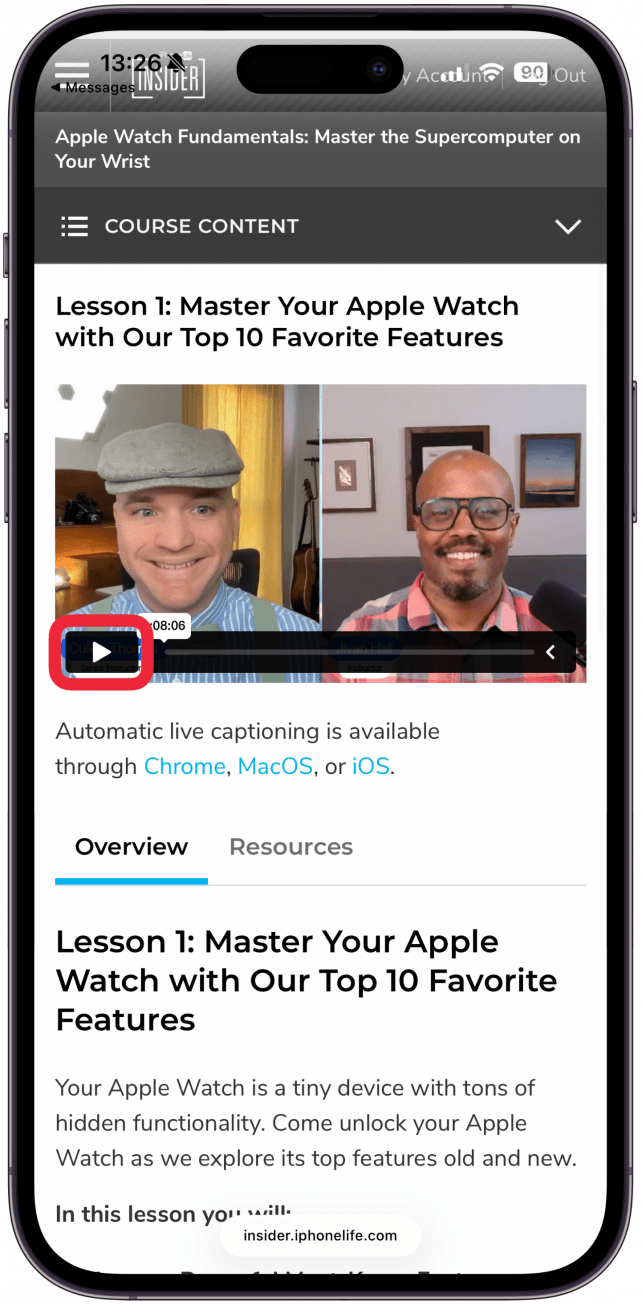
- When the course is live, you'll see a play button appear in the video frame; click or tap it to start watching.
- The video player is sometimes muted by default. To unmute, look for a crossed-out speaker icon near the video player's bottom-left corner and tap or click it.
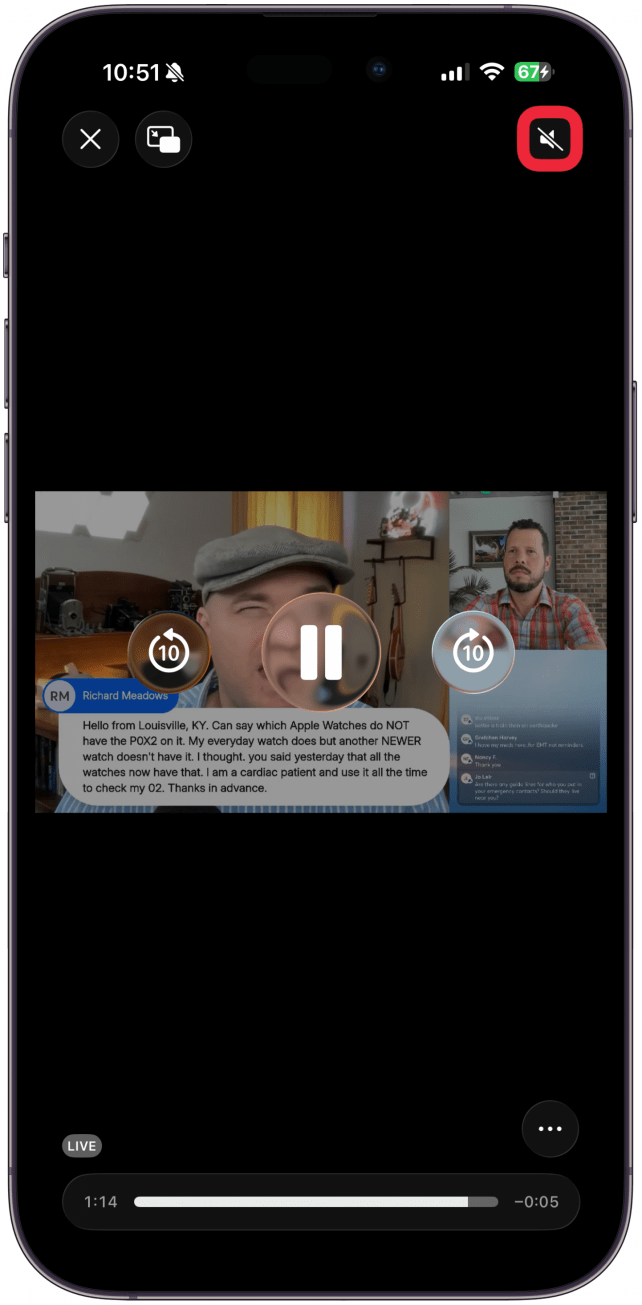
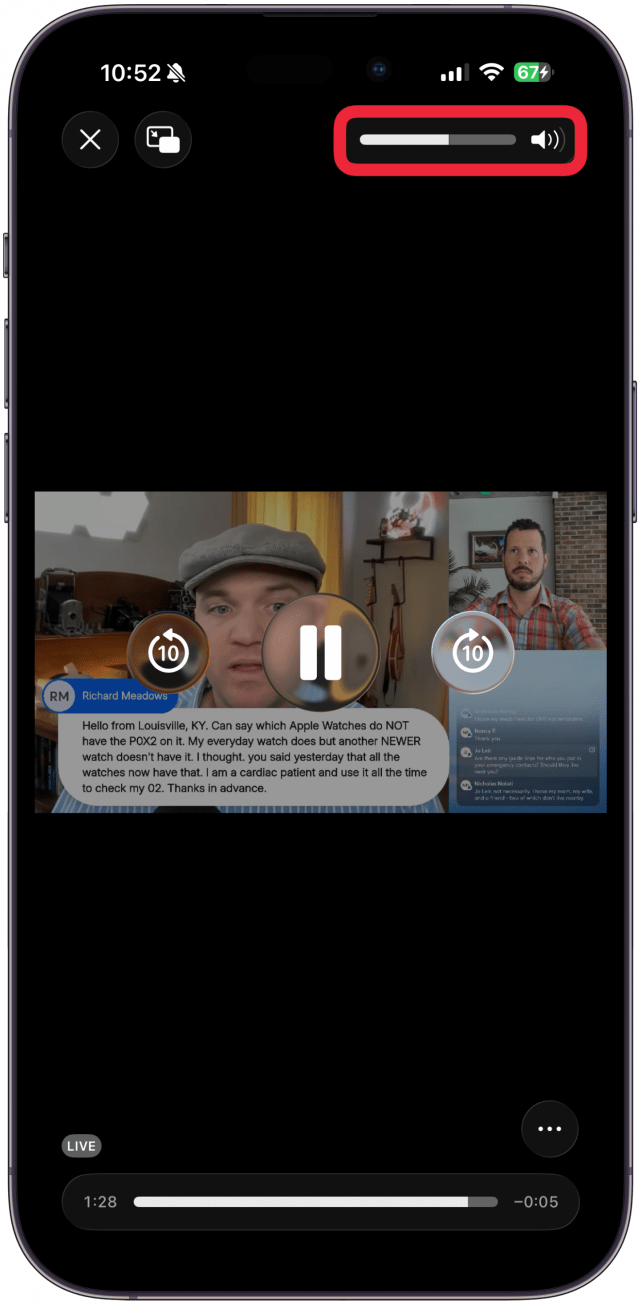
- Hovering over this icon should reveal a volume control slider. If you still can't hear anything, check that your speakers are on and your system volume is turned up.
- If you missed a course or want to review what was covered, you can always watch the replay of any of our live sessions later on that same page.
Pro Tip:
We recommend watching on a Mac or Windows computer to take advantage of their larger screens. The small screens on mobile devices can make it difficult to see what the instructor is doing and will also not allow you to view the chat and the live stream at the same time.
How to View On-Demand Replays of Past Courses
Watch recordings of past courses and finished class sessions of current courses in order to learn at your own pace or review things you learned in the live class. You can easily find the on-demand replays of current courses in the exact same place you watch live classes of current courses. Replays are available starting about an hour after the live session ends.
- Start by logging into your Insider account at insider.iphonelife.com and navigating to the Courses tab.
- To watch a recording of a completed session of a current course, go to Current Courses at the top of the page.
- Click or tap on the course.
- Navigate to the completed lesson and click or tap play.
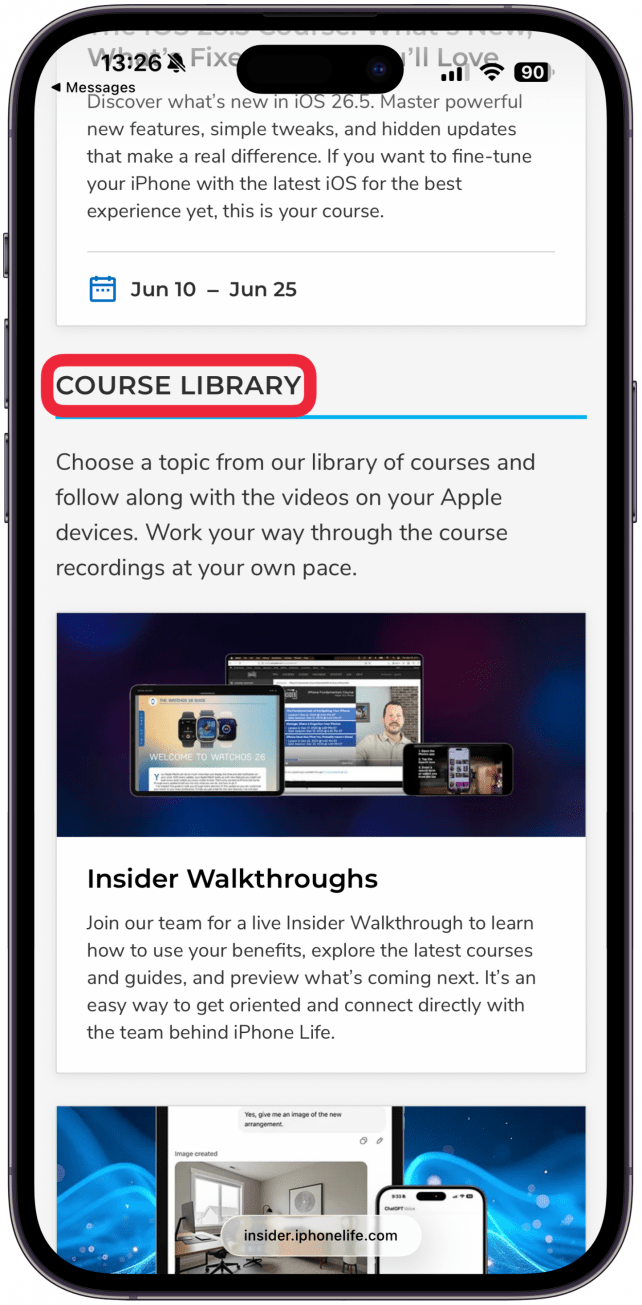
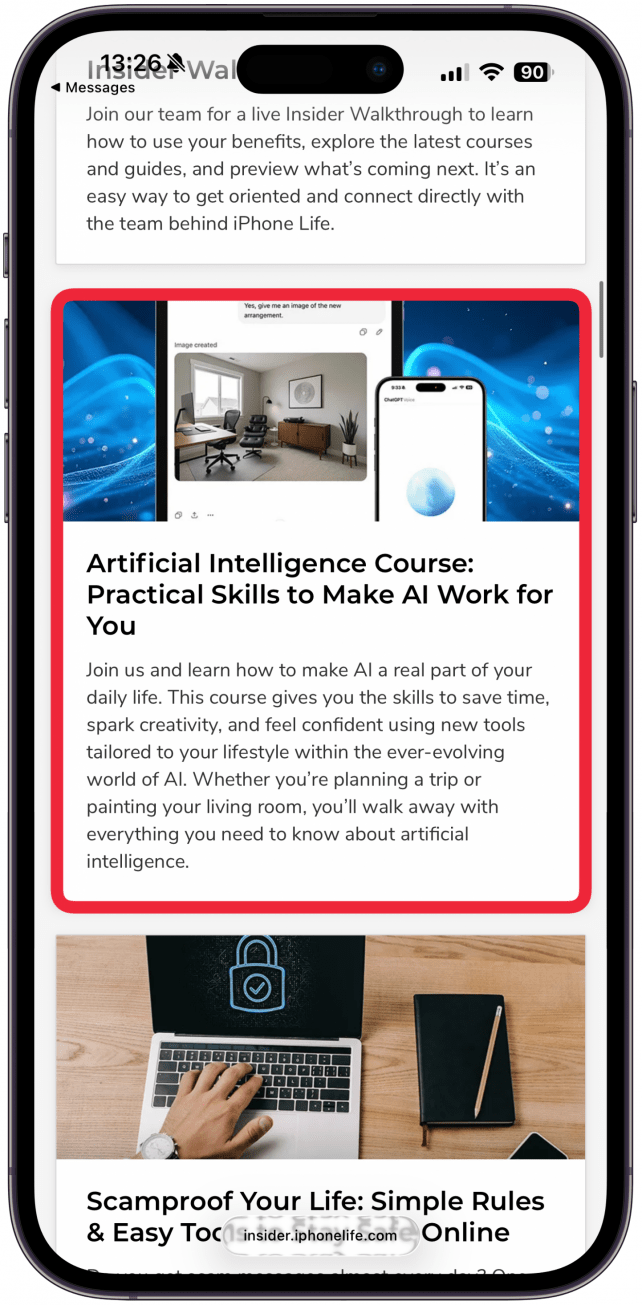
- To watch replays of past course, scroll down to Course Library.
- Click or tap the on a course to view more details.
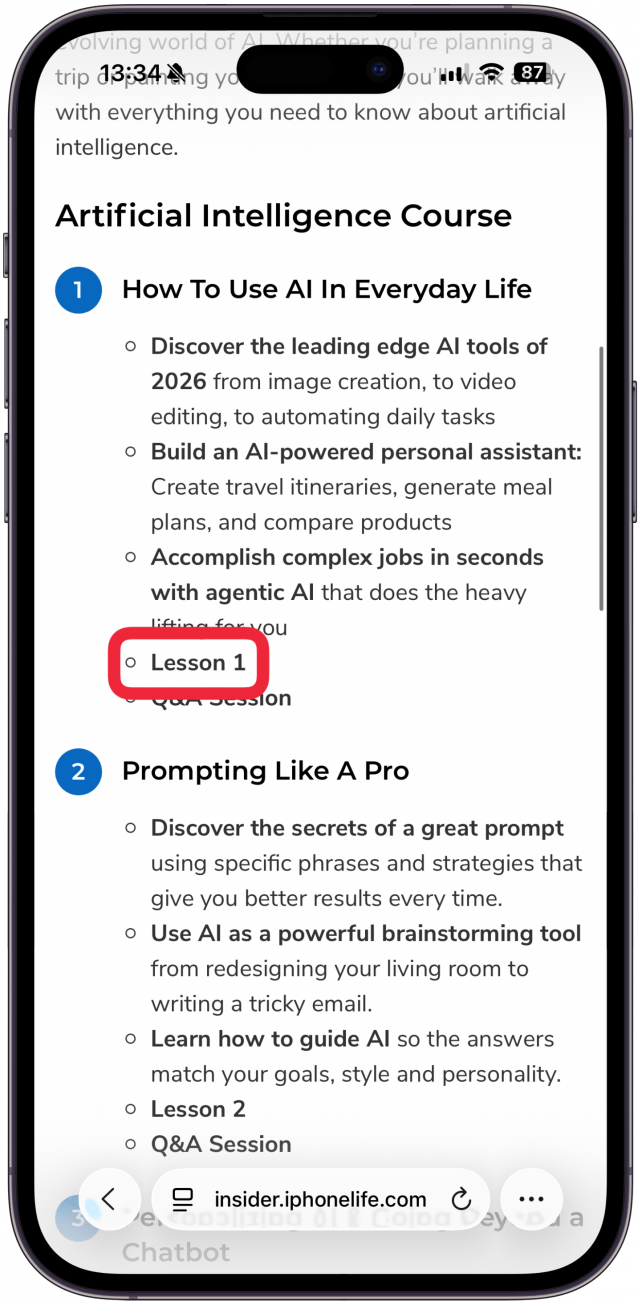
- Click or tap the lesson title to view the session recording.
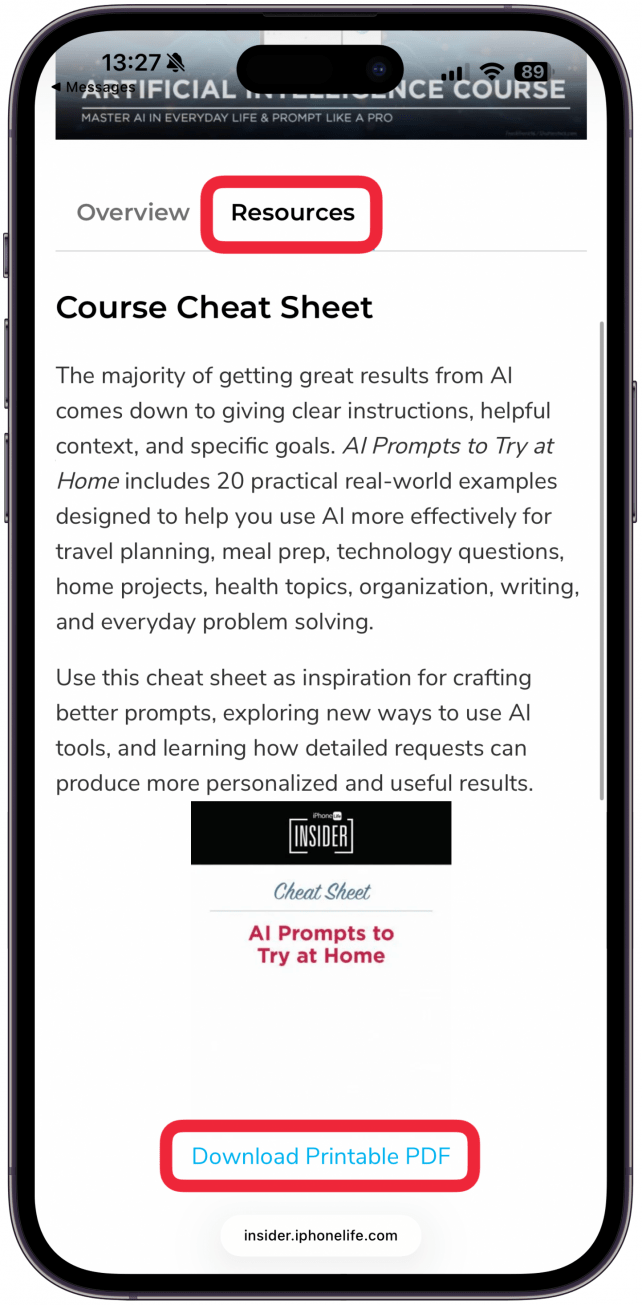
- Click or tap on the Resources tab to view and download the accompanying Cheat Sheet.
Be sure to check out all of our courses; they are an incredible resource!
Have more questions or new help accessing iPhone Life courses? Email help@iphonelife.com.