How to Manage Which iPhone Life Insider Emails You’re Subscribed To
Your Insider subscription gives you access to all our ad-free and insider-only newsletters. We will also send you updates about class start times and replays and news about the latest courses and guides. Here’s how to opt out of any emails you’re not interested in, make sure you’re signed up for the emails you enjoy and find useful, and prevent iPhone Life emails from getting caught in your spam filter.
How to Sign Up or Opt Out of a Newsletter or Email List
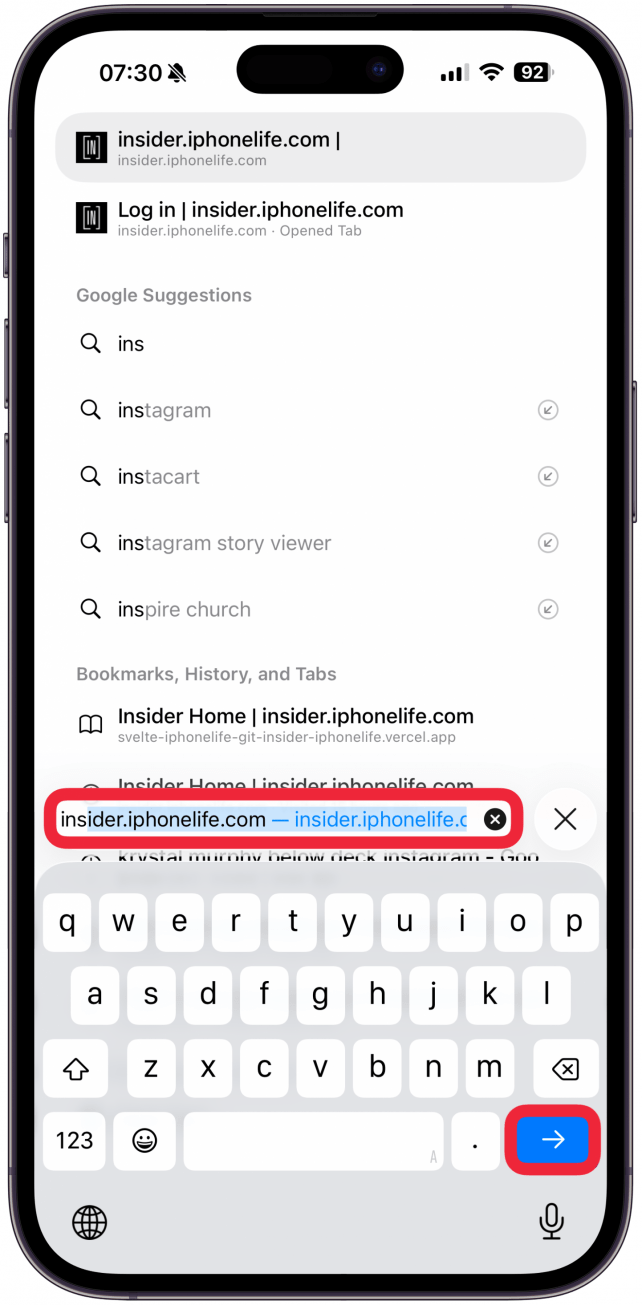
- Log in to your Insider account.
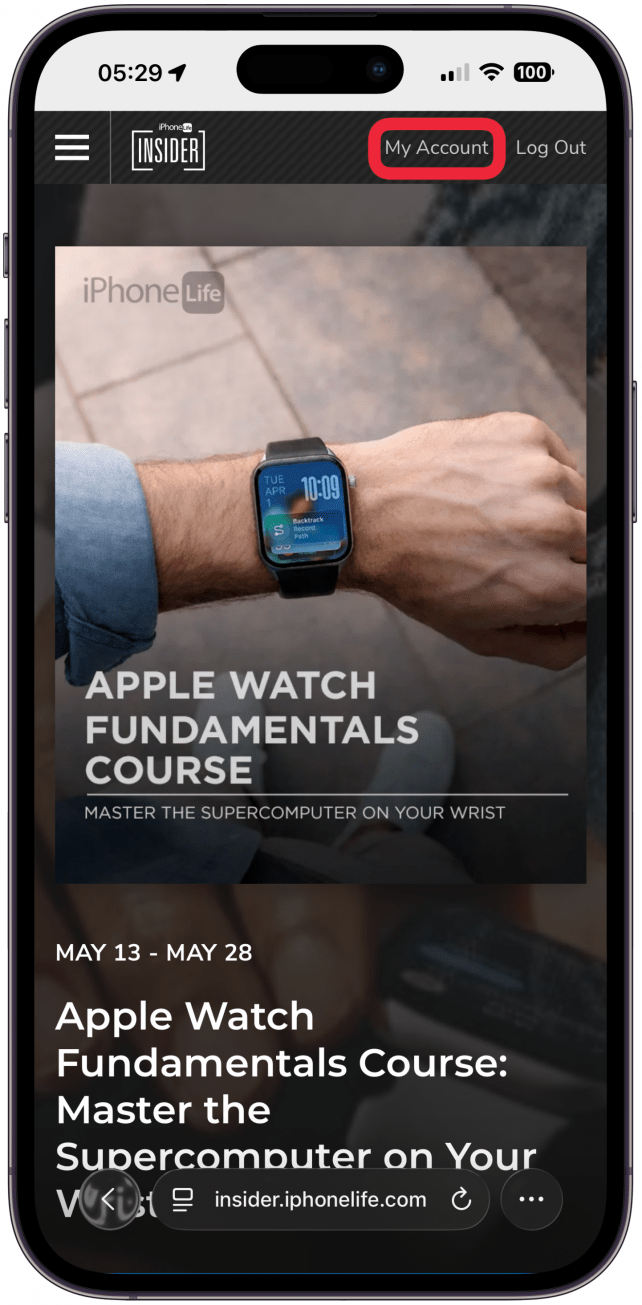
- Go to My Account in the upper-right corner.
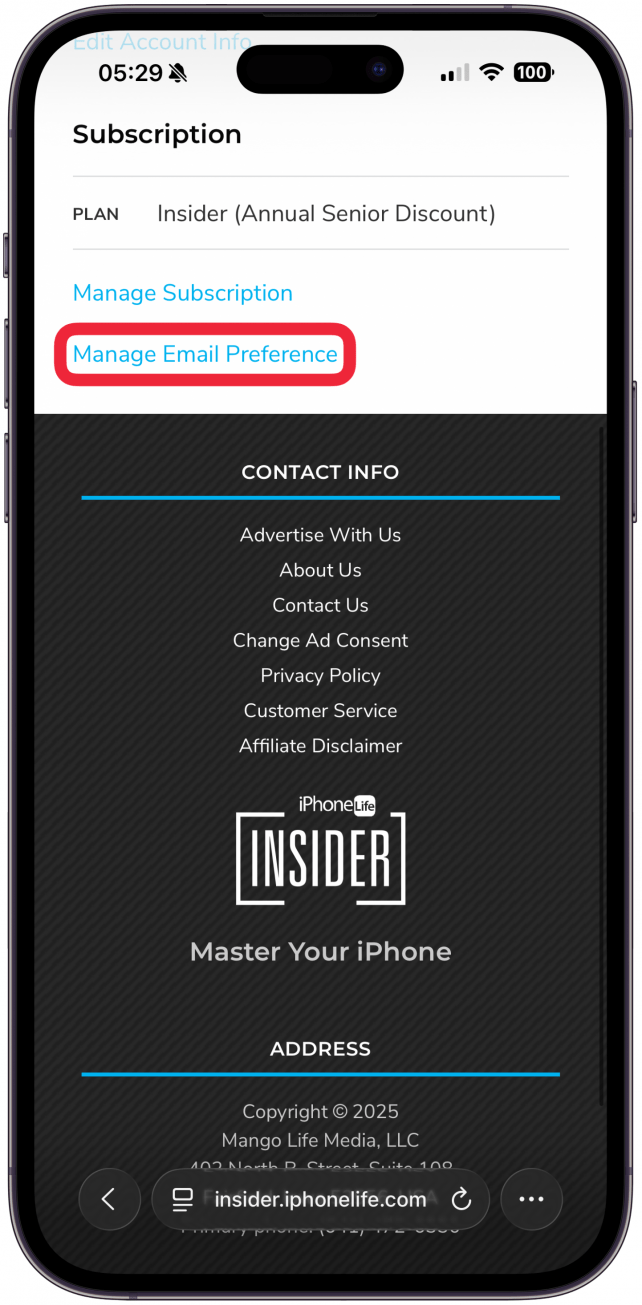
- Scroll down and select Manage Email Preference.
- You will see a list of all the newsletters available to Insiders.
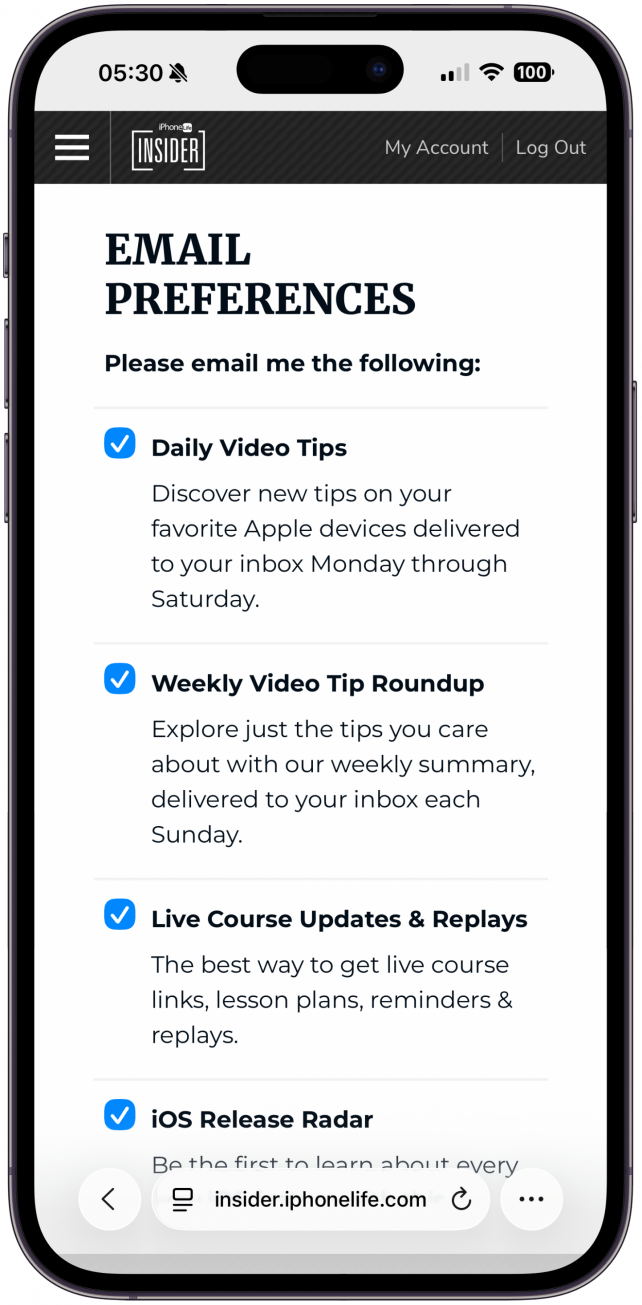
- Click or tap the box to the left of any newsletter to sign up or opt out.
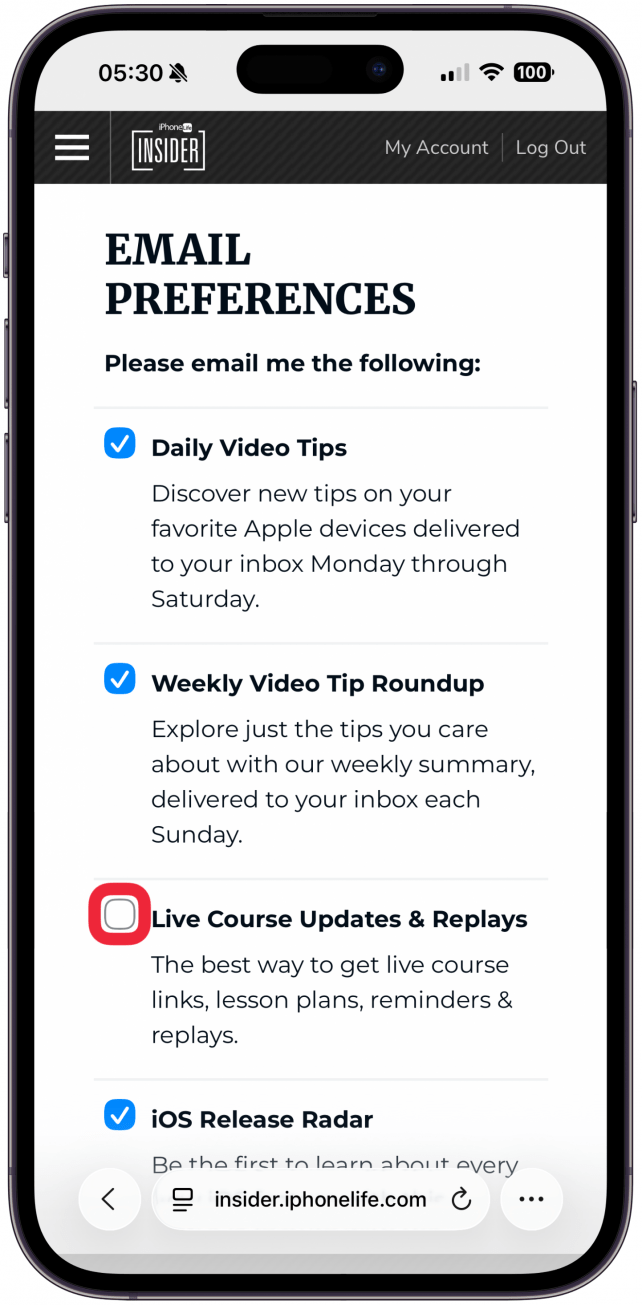
- If a box is blue, you are signed up for that newsletter or mailing list.
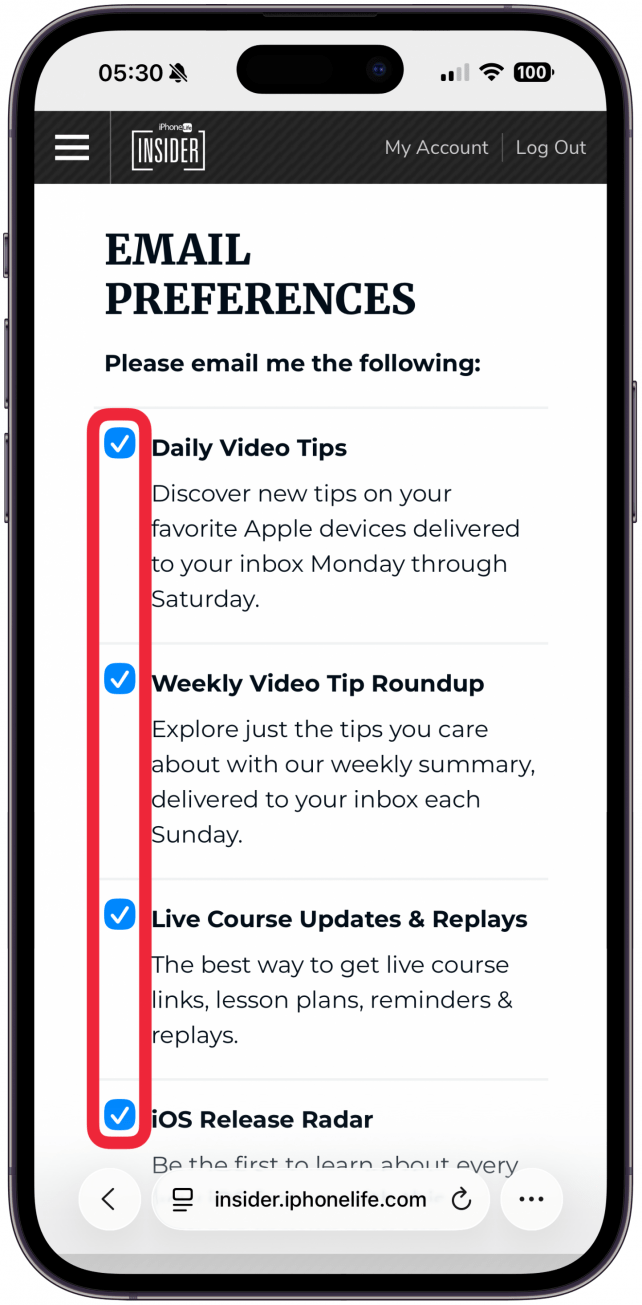
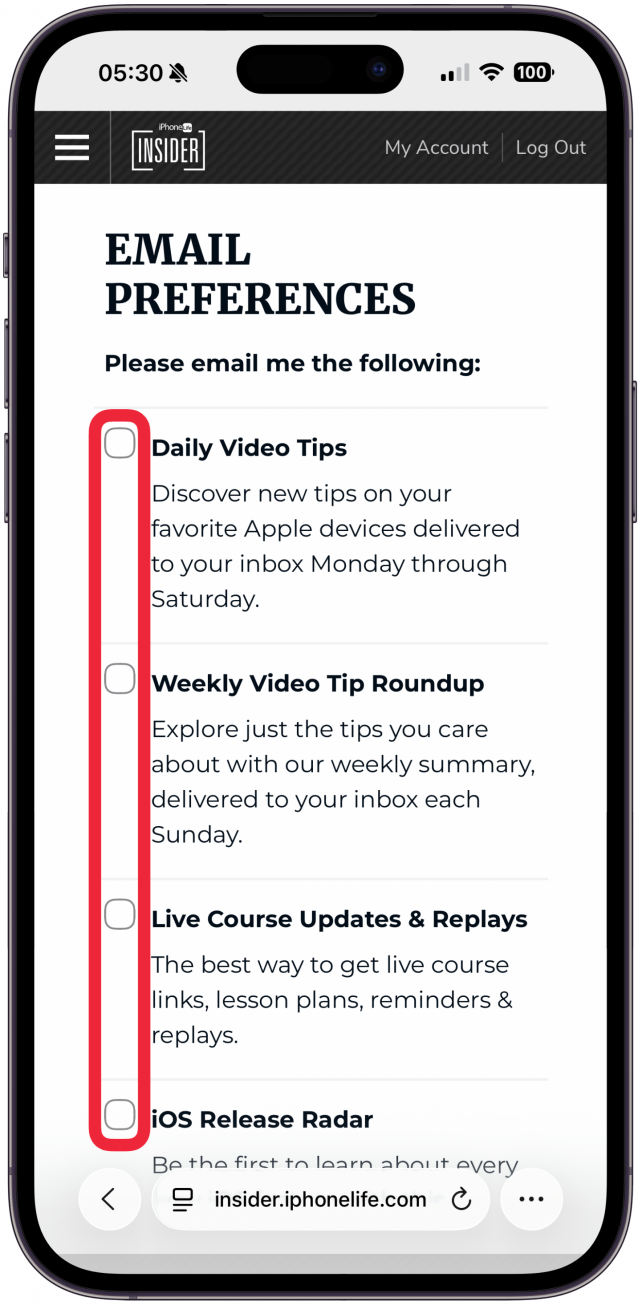
- If a box is blank, you are not signed up for that newsletter or mailing list.
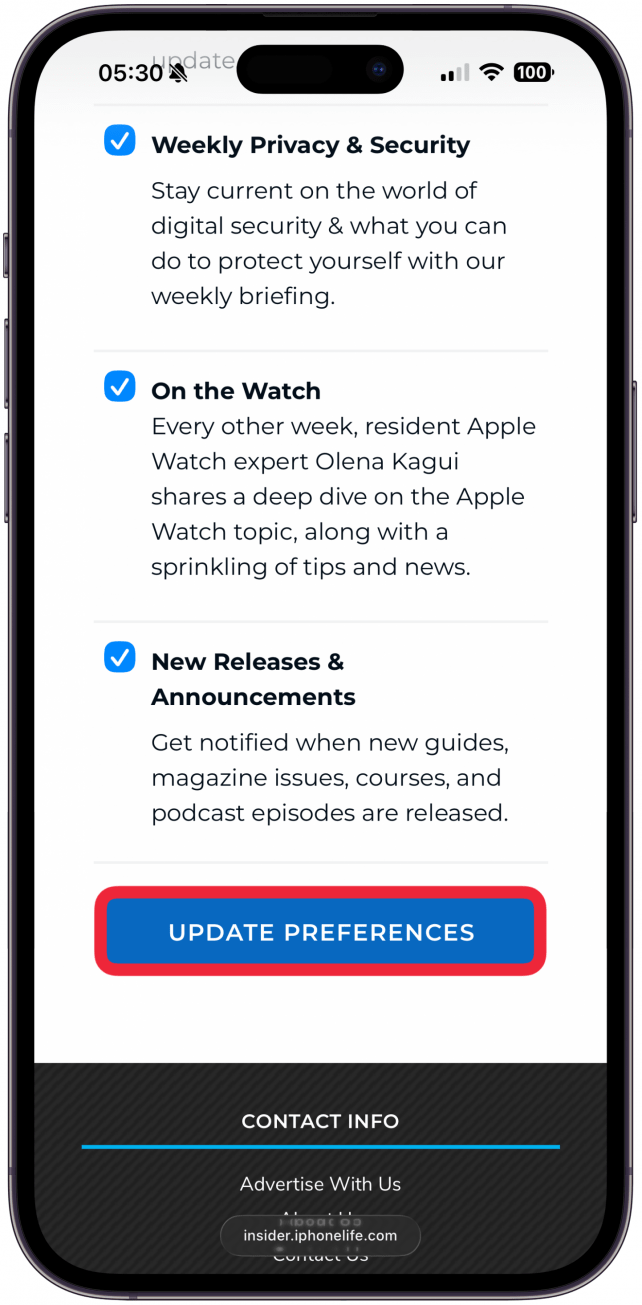
- Once you are finished, scroll to the bottom and tap or click Update Preferences to save your changes.
How to Keep iPhone Life Emails from Getting Caught in Your Spam Filter
- Add iPhone Life to your contacts list. Add the email address to your Apple Contacts app or the contacts list of your preferred email service.
- Daily Video Tips, the Weekly Video Tip Roundup, and New Releases & Announcements are sent from insider@iphonelife.com.
- Live Course Updates & Replays are sent from classes@iphonelife.com.
- iOS Release Radar is sent from radar@iphonelife.com.
- Weekly Privacy & Security is sent from security@iphonelife.com.
- On the Watch is sent from onthewatch@iphonelife.com.
- Mark iPhone Life Insider emails as safe. Find the email in your junk folder and move it to your Inbox in Apple Mail. In Gmail, find the email in your Spam folder, right click on it and select Not Spam.
- Designate an inbox or folder for your iPhone Life Insider emails to go to. How to set up email filters in Apple Mail How to set up email filters in Gmail How to set up email filters in Outlook How to set up email filters in Yahoo Mail
If you need help managing your newsletter preferences or you are not receiving the newsletters you signed up for, email us at Help@iPhoneLife.com.